Skip to content

TechDirectArchive

Hands-on IT, Cloud, Security & DevOps Insights

  • Home
  • About
  • Advertise With US
  • Reviews
  • Contact
  • Toggle search form
Home » Windows » Disable Bing Search in Windows: Quick Guide for Windows
  • Disk Cleanup
    Create Disk Cleanup Shortcut: Perform disk cleanup in Windows Windows
  • Add additional Windows drives
    How to Add Another Hard Drive to a Virtual Machine in HyperV  Virtualization
  • image 24
    How to Resolve Microsoft RDP Connection Black Screen Windows
  • cv
    Add languages to Windows images using DISM and PowerShell Windows Server
  • BitLocker34
    BitLocker Back Door: Stolen laptop to inside the company network Security | Vulnerability Scans and Assessment
  • Slide2 2
    Oracle VirtualBox: Installing Windows 11 without TPM Support Virtualization
  • ssh
    How to disable RC4 Cipher Algorithms support in SSH Server Linux
  • ClamAV
    How to install and manage ClamAV and ClamTK on Ubuntu Linux Anti-Virus Solution

Disable Bing Search in Windows: Quick Guide for Windows

Posted on 08/05/202224/01/2024 Matthew By Matthew No Comments on Disable Bing Search in Windows: Quick Guide for Windows
Feature-post-1

In this guide, we will look at using the Windows Registry and Group Policy editor to disable Bing search, so if the Registry method does not work, you can fall back on the Group Policy Editor method. Microsoft opted to combine Bing Search with the File Explorer search bar in Windows 10, which resulted in a poor experience with an extremely sluggish response. Similarly, the Start Menu search in Windows 11 displays Bing search results alongside local ones. To have a better understanding of what windows registries are, see what is Registry Editor and how to access the registry hives.

When you search for a program or a file, you are presented with “Search the Web” results, which take too long to load and needlessly interfere with the local search. So, if you want to disable Bing Search results from Windows 11 or Windows 10, simply follow the instructions below.

Note: Before editing the Windows registry and making changes, make a backup of the registry. This will allow you to undo any modifications you made in case something goes wrong.

Other related articles you can read about: How to display Windows system information via the Windows registry, What is Cortona: How to disable Cortana via the registry or GPO, if you are looking to upgrade to Windows 11, see the Windows 11 System Requirements and How to upgrade Windows 10 with an unsupported CPU and TPM 1.0 to Windows 11​.

How to Disable Bing Search by Editing the Registry in Windows 11

First, press the Windows key and type in ‘regedit’and click run as administrator to open the registry. Alternatively, you can use the ‘Windows key + R’ to open the run dialog box, type in ‘regedit’ then hold down ‘ctrl + shift’ key and click the OK button to run as administrator.

Turn off Bing Search Windows

Next, copy the below path and paste it into Regedit’s address bar. See the following article on how to search through the Windows registry.

Computer\HKEY_CURRENT_USER\Software\Policies\Microsoft\Windows
Deactivate Bing Search Windows

Now, right-click on “Windows” in the life sidebar and create a new ‘Key’, then rename the key to Explorer.

Disable Bing Web Search

Next, right-click the Explorer key and select New > DWORD (32-Bit) Value. This DWORD value will help you remove Bing search from the Windows 11 Start Menu.

Stop Bing Search Function

Rename the new entry to ‘DisableSearchBoxSuggestions’. Now, right-click the DisableSearchBoxSuggestions and click ‘Modify’, then change the “Value data” to 1.
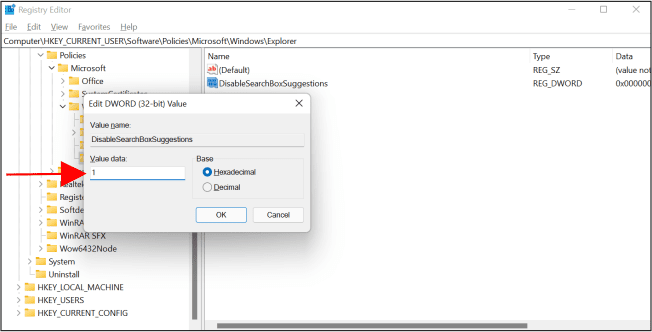
Turn off Bing Search Windows

Finally, restart your computer, and you will see that Bing search results no longer display in the Windows 11 Start menu.

Deactivate Bing Search Windows

How to Disable Bing Search from Windows 11 with Group Policy Editor

This group policy editing guide is applicable to both Windows 11 and Windows 10. Start by launching the group policy editor by clicking Start or press the windows key then enter ‘group policy’. Click the ‘Edit group policy’ shortcut that appears (or press Enter).
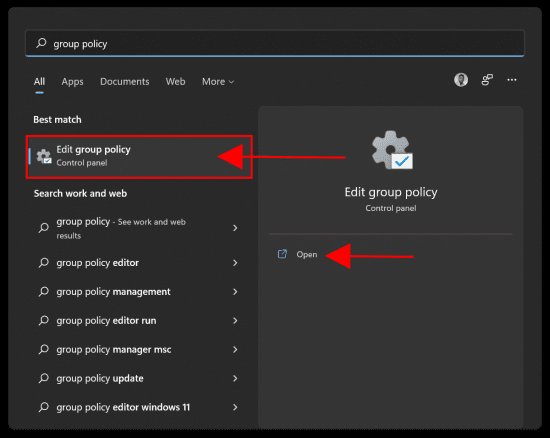
Local-Group-Policy-Editor_0

Next, open “Administrative templates” under “Computer Configuration” and move to Windows Components -> Search on the left pane.

Local-Group-Policy-Editor_1

Click Search and double-click ‘Allow Cortana’ and set to Disable. Press Ok when done.

Local-Group-Policy-Editor_2

Double-click ‘Do not allow web search’ and set to Enable. Press Ok when done.

Local-Group-Policy-Editor_3

Lastly, double-click ‘Don’t search the web or display web results in Search’ and set to Enable. Press Ok when done.

Local-Group-Policy-Editor_4

You will have to restart your computer for your changes to take effect.

Start-menu_GP-1

How to Deactivate in the Start Menu in Windows 10

Begin by launching the Registry Editor by clicking Start and entering “regedit.” Click the “Registry Editor” shortcut that appears and double-click it (or press Enter).

win10_Image1

Using the left pane, navigate to the following key. You may also put the following address into the address bar of the Registry Editor and hit Enter:

Computer\HKEY_CURRENT_USER\SOFTWARE\Policies\Microsoft\Windows\Explorer
win10_Image2

Create a new DWORD value by right-clicking in the right pane and selecting New > DWORD (32-bit) Value.

win10_Image3

Name the value “DisableSearchBoxSuggestions”. Double-click it and set its value data to “1”.

win10_Image4

You can now exit the Registry Editor. Searching your start menu should now return only local results. If the changes do not take effect right away, restart your computer.

I hope you found this blog post helpful. If you have any questions, please let me know in the comment session.

Rate this post

Thank you for reading this post. Kindly share it with others.

  • Click to share on X (Opens in new window) X
  • Click to share on Reddit (Opens in new window) Reddit
  • Click to share on LinkedIn (Opens in new window) LinkedIn
  • Click to share on Facebook (Opens in new window) Facebook
  • Click to share on Pinterest (Opens in new window) Pinterest
  • Click to share on Tumblr (Opens in new window) Tumblr
  • Click to share on Telegram (Opens in new window) Telegram
  • Click to share on WhatsApp (Opens in new window) WhatsApp
  • Click to share on Pocket (Opens in new window) Pocket
  • Click to share on Mastodon (Opens in new window) Mastodon
  • Click to share on Bluesky (Opens in new window) Bluesky
  • Click to share on Threads (Opens in new window) Threads
  • Click to share on Nextdoor (Opens in new window) Nextdoor
Windows Tags:Group Policy Management Console, Grouppolicy, Microsoft Windows, Registry Keys, RegistryEditor, Windows 10, Windows 11, Windows Registry

Post navigation

Previous Post: Various methods to Install .NET Framework in Windows
Next Post: How to Add and Format a New Virtual Disk to an EC2 Instance

Related Posts

  • image 64
    Windows Local Account Authorization and Access Control Windows
  • image 130
    How to fix the Security Database on the Server does not have a Computer Account for this Workstation Trust Relationship on Windows Server [Part 2] Scripts
  • How To Fix “Startup Repair Couldn’t Repair Your PC
    How To Fix “Startup Repair Couldn’t Repair Your PC Windows
  • Featured image 4
    How to remove a Device from your Microsoft Account Microsoft Exchange/Office/365
  • Old Right click Context Menu
    How to Restore Old Right-click Context Menu in Windows 11 Windows
  • Featured image Unblock Microsoft Store
    How to Unblock Microsoft Store on Windows 11 Windows

More Related Articles

image 64 Windows Local Account Authorization and Access Control Windows
image 130 How to fix the Security Database on the Server does not have a Computer Account for this Workstation Trust Relationship on Windows Server [Part 2] Scripts
How To Fix “Startup Repair Couldn’t Repair Your PC How To Fix “Startup Repair Couldn’t Repair Your PC Windows
Featured image 4 How to remove a Device from your Microsoft Account Microsoft Exchange/Office/365
Old Right click Context Menu How to Restore Old Right-click Context Menu in Windows 11 Windows
Featured image Unblock Microsoft Store How to Unblock Microsoft Store on Windows 11 Windows

Leave a Reply Cancel reply

You must be logged in to post a comment.

Microsoft MVP

VEEAMLEGEND

vexpert-badge-stars-5

Virtual Background

GoogleNews

Categories

veeaam100

sysadmin top30a
 
  • Disk Cleanup
    Create Disk Cleanup Shortcut: Perform disk cleanup in Windows Windows
  • Add additional Windows drives
    How to Add Another Hard Drive to a Virtual Machine in HyperV  Virtualization
  • image 24
    How to Resolve Microsoft RDP Connection Black Screen Windows
  • cv
    Add languages to Windows images using DISM and PowerShell Windows Server
  • BitLocker34
    BitLocker Back Door: Stolen laptop to inside the company network Security | Vulnerability Scans and Assessment
  • Slide2 2
    Oracle VirtualBox: Installing Windows 11 without TPM Support Virtualization
  • ssh
    How to disable RC4 Cipher Algorithms support in SSH Server Linux
  • ClamAV
    How to install and manage ClamAV and ClamTK on Ubuntu Linux Anti-Virus Solution

Subscribe to Blog via Email

Enter your email address to subscribe to this blog and receive notifications of new posts by email.

Join 1,841 other subscribers
  • RSS - Posts
  • RSS - Comments
  • About
  • Authors
  • Write for us
  • Advertise with us
  • General Terms and Conditions
  • Privacy policy
  • Feedly
  • Telegram
  • Youtube
  • Facebook
  • Instagram
  • LinkedIn
  • Tumblr
  • Pinterest
  • Twitter
  • mastodon

Tags

AWS Azure Bitlocker Microsoft Windows PowerShell WDS Windows 10 Windows 11 Windows Deployment Services Windows Server 2016

Copyright © 2025 TechDirectArchive


Loading Comments...
 

You must be logged in to post a comment.