Skip to content

TechDirectArchive

Hands-on IT, Cloud, Security, Veeam & DevOps

  • Home
  • About
  • Advertise With US
  • Reviews
  • Contact
  • Toggle search form

How to Disable Internet Explorer with Group Policy & Registry

Posted on 25/06/202216/08/2026 Matthew By Matthew No Comments on How to Disable Internet Explorer with Group Policy & Registry
  1. Home
  2. Windows
  3. How to Disable Internet Explorer with Group Policy & Registry
Featured-image-1

Discover how to disable Internet Explorer on Windows 11. With the release of Windows 11, users have observed the retirement and end of support for Internet Explorer 11, especially on specific Windows 10 versions. Microsoft advises users relying on IE11 for specific applications to transition to the Microsoft Edge browser. Microsoft Edge’s Internet Explorer mode (IE mode) offers a smooth, single-browser experience for businesses that use Internet Explorer 11 (IE11) for legacy compatibility. Instead of switching back to IE11, users can access old programs directly from Microsoft Edge.

Using group policy or registry settings, you can disable IE11 as a stand-alone browser after configuring IE mode without compromising IE mode functionality in your organization.

This article explains how to disable Internet Explorer 11 from your system’s list of available browsers. Here are other related guides: How to forcefully remove Microsoft Edge Browser the hard way from your device, how to Block downloads on Microsoft Edge using GPO on Windows Server 2019 and 2022, and Set Google Chrome as default: How to set a browser as default in Windows.

What user experience following traffic redirection to Microsoft Edge

All Internet Explorer 11 (IE11) activity is routed over to Microsoft Edge when the disabled Internet Explorer 11 as a standalone browser policy is enabled, and users encounter the following:

  • The task bar and Start Menu will no longer contain any IE11 icons.
  • Users will be routed to access the same file or URL in Microsoft Edge when they attempt to start shortcuts or file associations that require IE11.
  • Microsoft Edge will launch in its place when users attempt to start IE11 by using the iexplore.exe binary directly.

You can choose to display a redirect notice for each user who attempts to start IE11 as part of configuring the policy for this experience. The display options for this message are “Always” or “Once per user.”

Please see Uninstall Internet Explorer: Windows PC & Server Guide, how to Enable Internet Explorer Mode in Edge in Windows 11, and Process Explorer: Replace built-in Task Manager.

How to Disable Internet Explorer: Group Policy Method

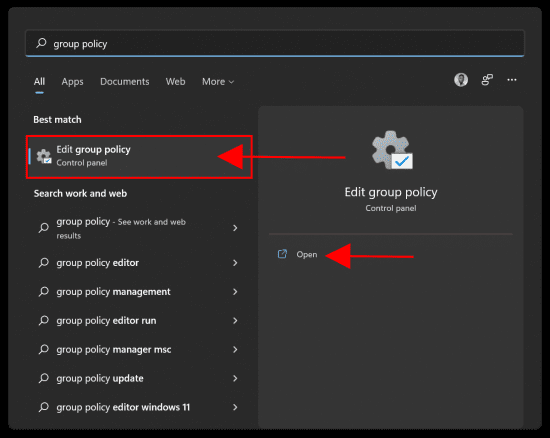
To open the Group Policy Editor, click the Windows Start Menu, then search for Group Policy Editor, then run it as administrator as shown below.
Windows OS

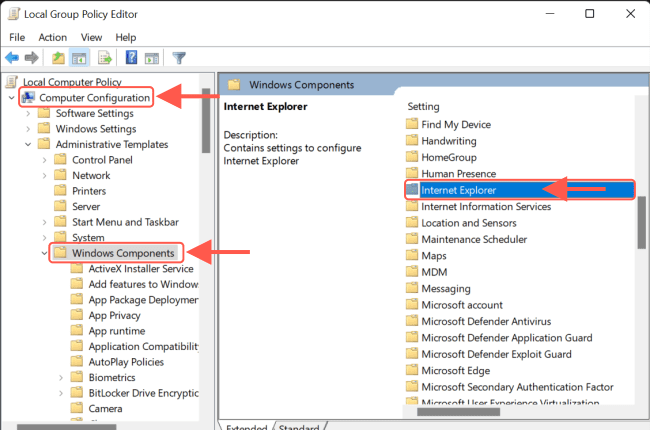
Navigate to the following path:

Computer Configuration>>Administrative Templates>>Windows Components>>Internet Explorer
Browser Management

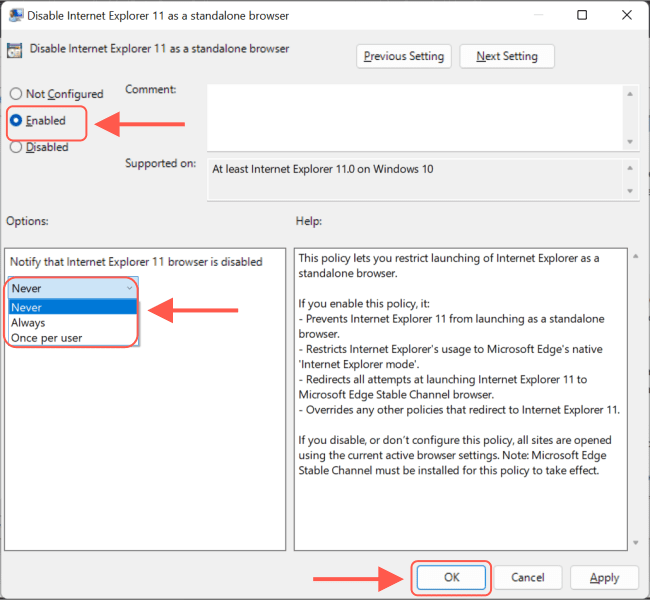
In the Internet Explorer settings, double-click Disable Internet Explorer 11 as a standalone browser.

Disabling Web Browsing

Next select Enabled.

System Optimization

Select one of the following under Notify that Internet Explorer 11 browser is disabled:

  • Never: if you don’t want users to be notified that IE11 is deactivated.
  • Always: if you want to warn users whenever they are redirected from IE11.
  • Once per user: If you just want to tell users the first time they are redirected.

To save this policy option, select OK or Apply.

Also, see How to use the Process Explorer from SysInternals Tools, and how To Add Google Drive To File Explorer in Windows.

How to disable IE via Registry settings

You can disable Internet Explorer in Windows by creating and editing a new registry value named “NotifyDisableIEOptions.” Here’s how:

First, search for “Registry Editor” in the Start menu and run as administrator.
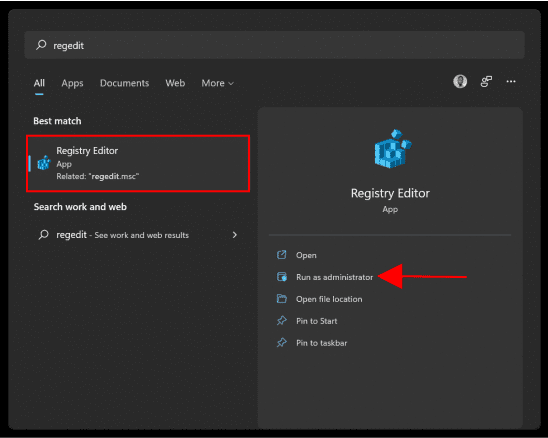
Windows OS

Navigate to “HKEY_LOCAL_MACHINE\SOFTWARE\Policies\Microsoft” folder. Then Right-click on the “Microsoft” folder and select “New >> Key.”

Image6-1

Name the Key “Internet Explorer”. Then right-click on the “Internet Explorer” folder and select “New >> Key.”

Image7-2

Type “Main” as the new folder name. Then right-click on the “Main” folder and select the “New >> DWORD (32-bit) Value” option.
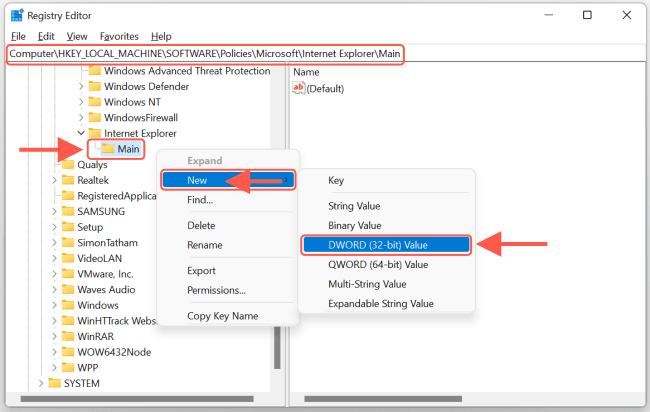
Image8-1

To disable Internet Explorer, create a new value named ‘NotifyDisableIEOptions’. Next, double-click on this value and set the Value Data to ‘0, 1, or 2.’ This is how to disable Internet Explorer effectively.

Image9-1

The Value data 0, 1, and 2 represent the following:

  • Never (0): if you don’t want users to be notified that IE11 is deactivated.
  • Always (1): if you want to warn users whenever they are redirected from IE11.
  • Once per user (2): If you just want to tell users the first time they are redirected.

Click “Ok” close the registry editor and restart Windows.

I hope you found this blog post helpful. If you have any questions, please let me know in the comment session.

Thank you for reading this post. Kindly share it with others.

  • Share on X (Opens in new window) X
  • Share on Reddit (Opens in new window) Reddit
  • Share on LinkedIn (Opens in new window) LinkedIn
  • Share on Facebook (Opens in new window) Facebook
  • Share on Pinterest (Opens in new window) Pinterest
  • Share on Tumblr (Opens in new window) Tumblr
  • Share on Telegram (Opens in new window) Telegram
  • Share on WhatsApp (Opens in new window) WhatsApp
  • Share on Mastodon (Opens in new window) Mastodon
  • Share on Bluesky (Opens in new window) Bluesky
Windows Tags:Edge Browser, Google Chrome, Internet, microsoft, Microsoft Edge, Microsoft Windows, Web-browser, Website, Windows 10, Windows 11

Post navigation

Previous Post: Azure CLI: How To Upload Batch Files to Azure Storage Account
Next Post: How to delete Windows old folder in Windows 11

Related Posts

  • How to Hide or Fix HP Printer Updates Windows Error 0x800f020b
    Hide Windows Updates: How to Hide or Fix HP Printer Windows Updates Error 0x800f020b Windows
  • DEvolusion RDP Manager
    How to set up Devolution Remote Desktop Manager on Windows Windows
  • PIN9 1
    How to increase Windows PIN complexity Windows
  • Windows10 11
    Block Upgrade to Windows 11 via Group Policy or Registry Windows
  • How to create blue screen using the Not my Fault tool from Sysinternals
    How to create blue screen using the Not my Fault tool from Sysinternals Windows
  • BitLocker renamedevicefghjkl
    What are the effect of renaming an MBAM-Protected Computer Windows

More Related Articles

How to Hide or Fix HP Printer Updates Windows Error 0x800f020b Hide Windows Updates: How to Hide or Fix HP Printer Windows Updates Error 0x800f020b Windows
DEvolusion RDP Manager How to set up Devolution Remote Desktop Manager on Windows Windows
PIN9 1 How to increase Windows PIN complexity Windows
Windows10 11 Block Upgrade to Windows 11 via Group Policy or Registry Windows
How to create blue screen using the Not my Fault tool from Sysinternals How to create blue screen using the Not my Fault tool from Sysinternals Windows
BitLocker renamedevicefghjkl What are the effect of renaming an MBAM-Protected Computer Windows

Leave a Reply Cancel reply

You must be logged in to post a comment.

Microsoft MVP

vexpert-badge-stars-5

Virtual Background

VEEAMLEGEND

Categories

veeaam100

Veeam Vanguard

  • Featured image RAM requirement for PC
    How much RAM does your Windows PC really need? Windows
  • zabbix
    Monitoring services using Zabbix Linux
  • template 1
    Install Group Policy Templates for Microsoft Edge and Google Chrome browsers on Windows Windows
  • taskbar1
    Hide or Remove Search Button from Windows 11 Taskbar Windows
  • banner
    How to Import Data from a GitHub Repository to Postman Backup
  • banner
    How to Integrate Jira Software with GitHub Cloud JIRA|Confluence|Apps
  • settings app not working featured 800x400 1
    How to search through the Windows registry Windows Server
  • create a new Azure SQL Database
    How to create a new Azure SQL Database [PaaS] AWS/Azure/OpenShift

Subscribe to Blog via Email

Enter your email address to subscribe to this blog and receive notifications of new posts by email.

Join 1,752 other subscribers
  • RSS - Posts
  • RSS - Comments
  • About
  • Authors
  • Write for us
  • Contact
  • Advertise with us
  • General Terms and Conditions
  • Privacy policy
  • Feedly
  • Telegram
  • Youtube
  • Facebook
  • Instagram
  • LinkedIn
  • Tumblr
  • Pinterest
  • Twitter
  • mastodon
  • Bsky

Tags

Active Directory Azure Bitlocker Microsoft Windows PowerShell WDS Windows 10 Windows 11 Windows Deployment Services Windows Server 2016

Copyright © 2026 TechDirectArchive

Loading Comments...

You must be logged in to post a comment.