We may connect to a computer remotely using AnyDesk, a remote desktop program. It is a cross-platform software that offers host device and device-type-agnostic remote access to many devices, including PCs. In addition, it offers VPN services, file transfers, and remote access. In this guide, we shall discuss how to install AnyDesk on a Linux Machine. Please, see How to setup Veeam Software Appliance v13, how to install NFS Server on Windows Server, and How to delete a VM and Storage in Proxmox.
What’s more, IT experts may access it safely and reliably. The user can access the desktop and any associated files or documents remotely from any location in the world. The address book feature in AnyDesk keeps track of connections or contacts and lets the user know whether they are online. Are you looking to install AnyDesk on your Linux machine? Look no further!
Note: Even in places with limited Internet connectivity and capacity, AnyDesk is still usable. In this guide, we will walk you through the process of installing AnyDesk on a Linux computer. The steps will work on any Ubuntu, be it 20.04, 16, 18, or even 22.04.
Also, see how toActivate and Press Ctrl+Alt+Del in Anydesk for Remote Access Connection to Windows system, and how to install AnyDesk on Windows for remote Connections.
Properties of AnyDesk
The following list of features is provided by AnyDesk, an all-in-one remote desktop program:
- Remote access: AnyDesk offers an admin tool that enables users to carry out a number of functions, including remote rebooting, reporting on sessions, analyzing reports, etc. Furthermore, the admin tools makes it possible for the user to troubleshoot and repair any remote desktop issue.
- Remote Hardware Access: The remote systems’ hardware, such as the power button, CD/DVD reader, and cursor, are also easily accessible by users.
- Teamwork: AnyDesk makes collaboration and communication effective. Furthermore, it is helpful for working on the same project remotely or for online meetings and presentations.
- File Transfer Ability: With AnyDesk, you can transfer files from one PC to another PC. The files may be copied and pasted to many PCs.
Please, see “Is RDP enabled? Enable and disable Remote Desktop in Windows 10 for all users or selected users“, how to install and update PowerShell version 7 on Windows and Linux, and “Guide to Remote Desktop Connection Properties for Secure Access“.
Why Install AnyDesk on a Linux Machine?
Below are the benefits of using AnyDesk software.
Good efficiency with limited bandwidth: Any Desk has a codec that transports and compresses files between two computers. Even in places with poor internet, AnyDesk is easily accessible.
Security that meets Bank criteria: AnyDesk utilizes dependable TLS technology, which is used to safeguard data and prevent unwanted access. Additionally, AnyDesk has RSA 2048 key encryption, allowing the user to verify and encrypt every session.
Works with Android: The Software is available on cellphones in addition to AnyDesk for Desktop. On Android smartphones, the user may utilize it whenever and wherever. Because of its mobility, the user is able to stay connected to the remote system and obtain crucial information whenever needed.
One license for several users: AnyDesk comes with a lifetime free license for all of its versions. Also, AnyDesk allows multiple users to access it in a single license.
Requirements for Installing AnyDesk on Linux
Below are the requirements for the installation of the AnyDesk software.
- Ubuntu Linux Computer
- Make sure that the computer has sudo privileges
lso, see Troubleshooting WinRM and Kerberos Delegation for WAC, and how to Setup Windows Admin Center Modern Gateway for Single Sign-On.
Step1: Update your Ubuntu Computer
Ensure that the Linux computer is updated with these commands:
sudo apt updatesudo apt -y upgrade
Step 2: Add AnyDesk repository
For APT package signing, import the AnyDesk GPG key. This can be done with the command below:
curl -fsSL https://keys.anydesk.com/repos/DEB-GPG-KEY|sudo gpg --dearmor -o /etc/apt/trusted.gpg.d/anydesk.gpg
add resources from the AnyDesk repository to your Ubuntu installation, this can be done with the command below:
echo "deb http://deb.anydesk.com/ all main" | sudo tee /etc/apt/sources.list.d/anydesk-stable.list
Step 3: Install AnyDesk on Linux Ubuntu 22.04
update apt cache and install the latest release of AnyDesk on Ubuntu
sudo apt updatesudo apt install anydesk
Please, see Create Multiboot OS ISO files on a single bootable USB Disk, how to Create Multiboot OS ISO files on a single bootable USB Disk. Here are the steps to create a Windows 10 or 11 bootable USB with UEFI support, and how to create a Windows 11 Bootable USB drive.
Step 4: Launch AnyDesk on Ubuntu 22.04
Now that it has been installed, search through your apps, and you will find it anydesk sitting there. You can then launch it.

Afterwards, click on the application launcher and look through the list of apps for anydesk

You can also choose to search for it but if you scroll through you will see it just as shown above.
anydesk
However, to allow a remote user to connect to your computer, enter the remote server’s AnyDesk address or share your own.
GUI Method of Installation
Don’t worry if you are not familiar with the command line. Moreover, without using the terminal, AnyDesk may easily be installed.
The official AnyDesk website offers AnyDesk for Ubuntu for download. This will be opened in your default browser:

Hence, navigate to your downloads folder

Then, open with software install


The process looks as shown below:
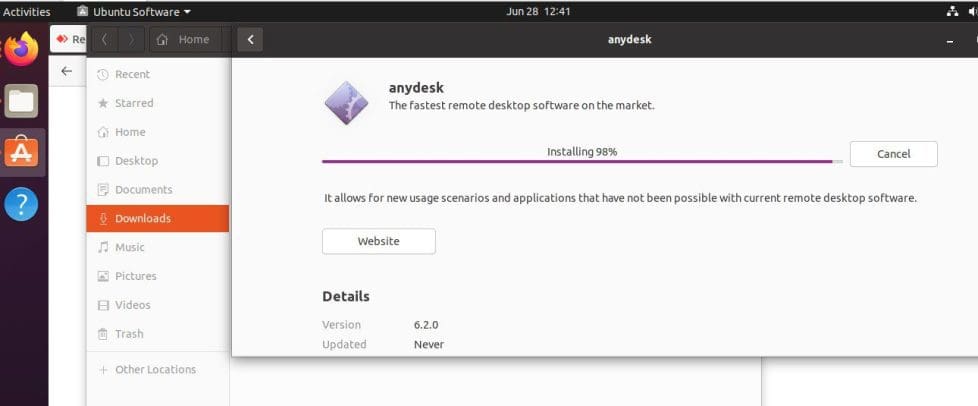
Next, you need to go search it out to verify it in the list of installed software
So, look for Ubuntu software icon on the left-hand side menu, if it’s your first time interacting with it, it will have to get the software catalogue as shown below:


Congratulations, you can now go to your application launcher and launch it from there and start enjoying your newly installed software

Summary
By now, you should know how to install AnyDesk on a Linux Machine using the CLI method and also the GUI method by following a series of steps as shown above.