Skip to content

TechDirectArchive

Hands-on IT, Cloud, Security & DevOps Insights

  • Home
  • About
  • Advertise With US
  • Reviews
  • Contact
  • Toggle search form
Home » Windows » Install AnyDesk on Windows for remote Connections
  • Enable or disable SA acocunt
    How to enable an SA account that has been disabled Oracle/MSSQL/MySQL
  • Windows Defender exclusion
    Mitigate Veeam Threat Hunter Service Scanning Interference Windows Server
  • Screenshot 2020 12 29 at 04.08.43
    Enable or disable BitLocker Drive Encryption on Windows Security | Vulnerability Scans and Assessment
  • vmware
    Windows Startup Error: VMware Status 0xc000014c – Missing Boot Data Windows
  • Distributed File System DFS
    How to find Dfs Referral Path and clear Dfs referral Cache Storage
  • screenshot 2020 04 26 at 19.14.07
    Windows 2016 Servers do not show up on the WSUS console Windows Server
  • cannot connect to the virtual machine try to connect again HyperV
    Could not connect to virtual machine try to connect again Hyper-V Virtualization
  • How does key rotation work in MBAM
    How does Key Rotation work in MBAM? Oracle/MSSQL/MySQL

Install AnyDesk on Windows for remote Connections

Posted on 05/07/202218/09/2024 Temitope Odemo By Temitope Odemo No Comments on Install AnyDesk on Windows for remote Connections
any

In this article, I will show you how to install AnyDesk on Windows for remote Connections. AnyDesk is one of the best and if not the best application you can use for connecting remotely to another computer. With this application, you can control devices from anywhere in the world whether for personal purposes or for technical support. AnyDesk is a Remote Desktop Application that you can use for teleworking and can be used by the IT Teams to resolve issues on staff or customer systems. Please see how to install AnyDesk on a Linux Machine.

AnyDesk is compatible with platforms and operating systems like Windows, Linux, Mac OS, and others. This application has both desktop and mobile versions and is good for collaboration between teams and you can record your session.

Here is a YouTube video on how to Install AnyDesk on Windows for remote Connections.

Another good thing about this tool is that you can choose to use it free for personal use or go for the paid versions if it will be used by an organization.

Stable internet is required to use AnyDesk and if you will not be on your desk when someone will remote to your system using AnyDesk the session can be recorded so you can monitor and check what was done on your system.

Kindly refer to these related guides: How to set up and configure Remote Desktop Services via Standard Deployment on Windows Server, and Publish Remote Desktop Web Client: How to install HTML 5 Web Client for Microsoft RDS Server.

Download AnyDesk on Windows

Follow these steps on how to download and install Anydesk for a remote connection.

Open this link Anydesk Downloads to download different versions of Anydesk to your Computer system but in this guide, we will download the version for Windows.
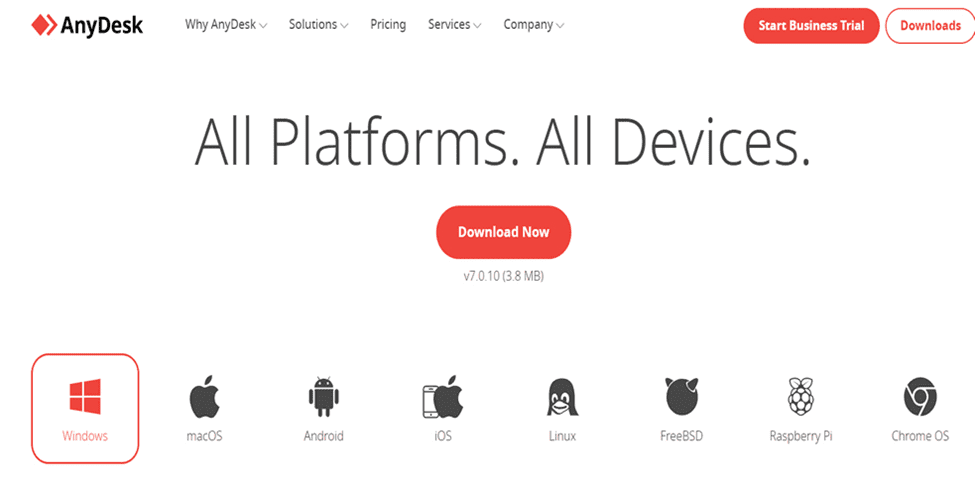
image
For all Platforms

Please see How to remove saved RDP connections in Windows, How to fix Remote Desktop can’t connect to the remote computer for one of these reasons, how to fix Remote Desktop cannot find the computer in the specified network: Verify the computer name and domain that you are trying to connect, and How to add an OpenVZ template on Proxmox Server.

Install AnyDesk on Windows

2. Now locate the file you just downloaded in the download folder. AnyDesk can run without being installed but always install it.

image-1
Closing to Install

3. You need to Accept & Install. Immediately the installation will begin and you can start using AnyDesk for your remote connection operation.
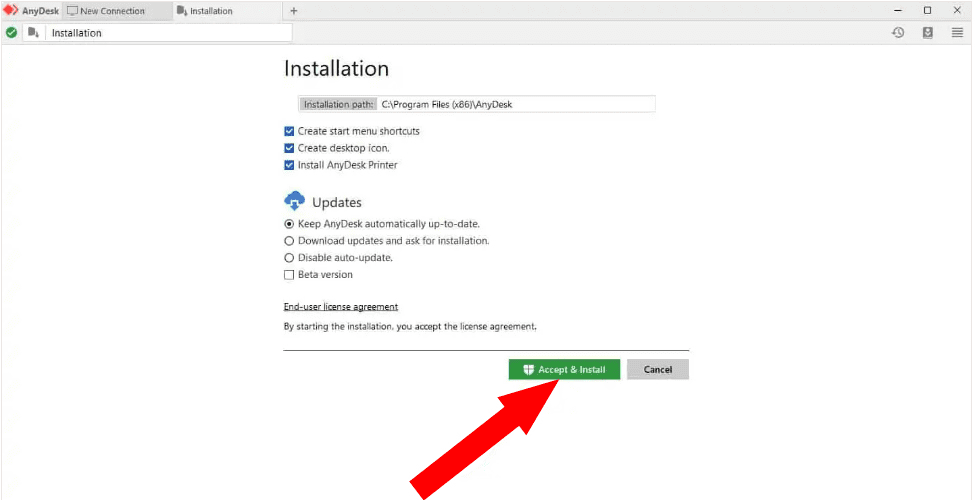
image-2
AnyDesk Installation

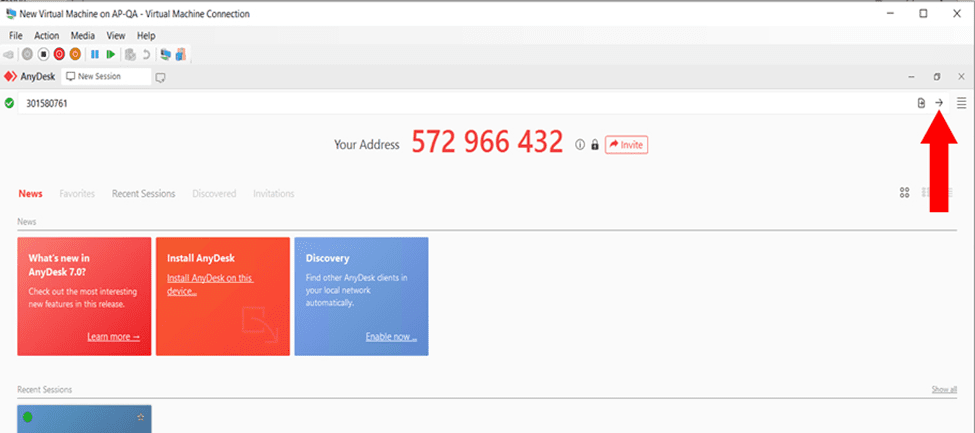
4. You will see this image immediately you complete the installation and make sure your system have internet access, if not you will never get an Address that people can use to connect to you remotely.
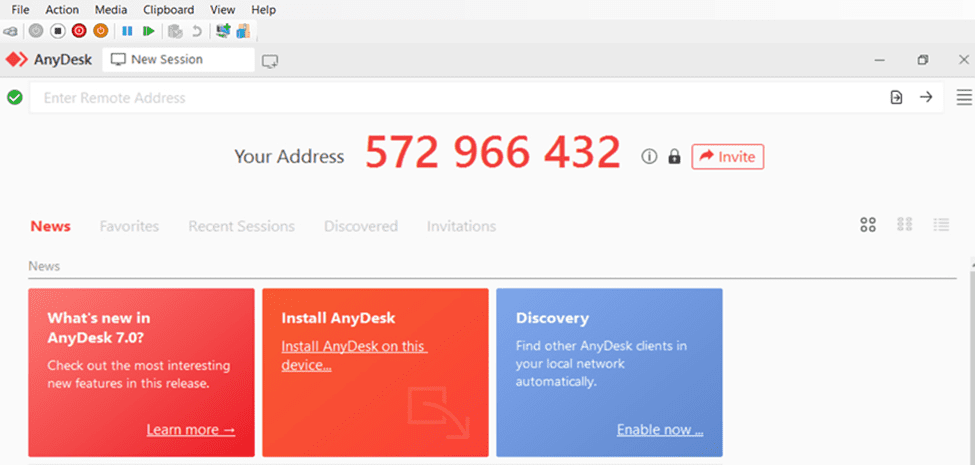
image-3
Your Address

Connect to a remote system

5. If you want to connect to a remote system confirm that the remote system has AnyDesk installed and online. On the New Session enter the remote system Address and click on the connect icon.

image-4
New Connection

Click the Connect button

image-5
Connect Button

6. You can send an Invite to an Address

image-6
Sending Invite

7. When you try to connect to the remote system you will get the below status

image-7
Remote Connection

8. The remote end can either Accept or Dismiss the connection

image-8
Accept or Dismiss Connection

9. Once the connection is Accepted. You will be able to work on the remote system and you can equally chat with the person on the remote system.
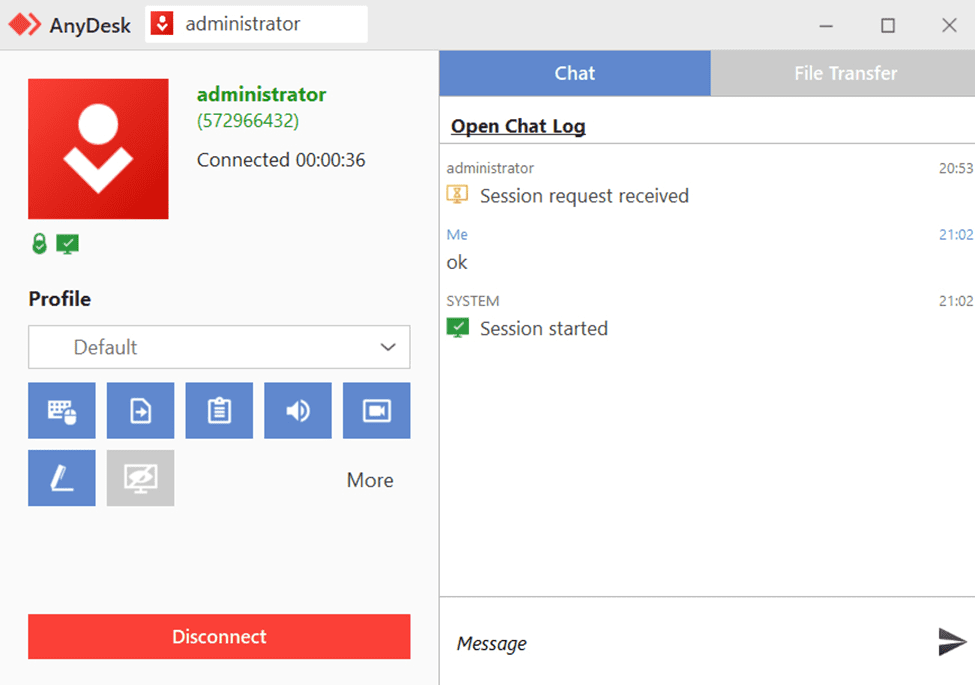
image-9
Connection Accepted

This remote application is robust, effective and very efficient for support tasks. So if you have not used it before go ahead and download and install it.

You can read these other guides on AnyDesk and Remote Desktop Connection: How to Activate and Press Ctrl+Alt+Del in Anydesk for Remote Access Connection to Windows system, and What to do when your Remote Desktop Licensing Manager Server Crashed.

I hope you found this blog post on how to Download and Install AnyDesk for Windows for remote Connections Interesting and helpful. In case you have any questions do not hesitate to ask in the comment section.

5/5 - (1 vote)

Thank you for reading this post. Kindly share it with others.

  • Share on X (Opens in new window) X
  • Share on Reddit (Opens in new window) Reddit
  • Share on LinkedIn (Opens in new window) LinkedIn
  • Share on Facebook (Opens in new window) Facebook
  • Share on Pinterest (Opens in new window) Pinterest
  • Share on Tumblr (Opens in new window) Tumblr
  • Share on Telegram (Opens in new window) Telegram
  • Share on WhatsApp (Opens in new window) WhatsApp
  • Share on Pocket (Opens in new window) Pocket
  • Share on Mastodon (Opens in new window) Mastodon
  • Share on Bluesky (Opens in new window) Bluesky
  • Share on Threads (Opens in new window) Threads
  • Share on Nextdoor (Opens in new window) Nextdoor
Windows Tags:Microsoft Windows, Remote Access, Remote Desktop, RemoteConnection, Windows 10, Windows 11, Windows Server 2016

Post navigation

Previous Post: Tamper Protection for Microsoft Defender on Windows 10 [Part 1]
Next Post: Add and Remove Folders in Favorites in Microsoft Outlook

Related Posts

  • Turn On Or Off Auto Unlock For BitLocker Drive
    How To Turn On Or Off Auto-Unlock For BitLocker Drive In Windows 10/11 Security | Vulnerability Scans and Assessment
  • Screenshot 2021 09 02 at 20.08.14
    Service Principal Name: How to add or reset and delete SPNs Windows
  • winSEARCH
    Hide or Remove Search Button from Windows 10 Taskbar Windows
  • Featured image bootable USB
    Create a Windows 10 or 11 bootable USB with UEFI support Windows
  • Featured post
    Installing Windows Subsystem for Android (WSA) Windows
  • How to fix CPU at 100 when nothing is running problem on Windows
    How to fix CPU at 100% when nothing is running problem on Windows Windows

More Related Articles

Turn On Or Off Auto Unlock For BitLocker Drive How To Turn On Or Off Auto-Unlock For BitLocker Drive In Windows 10/11 Security | Vulnerability Scans and Assessment
Screenshot 2021 09 02 at 20.08.14 Service Principal Name: How to add or reset and delete SPNs Windows
winSEARCH Hide or Remove Search Button from Windows 10 Taskbar Windows
Featured image bootable USB Create a Windows 10 or 11 bootable USB with UEFI support Windows
Featured post Installing Windows Subsystem for Android (WSA) Windows
How to fix CPU at 100 when nothing is running problem on Windows How to fix CPU at 100% when nothing is running problem on Windows Windows

Leave a Reply Cancel reply

You must be logged in to post a comment.

Microsoft MVP

VEEAMLEGEND

vexpert-badge-stars-5

Virtual Background

GoogleNews

Categories

veeaam100

sysadmin top30a

  • Enable or disable SA acocunt
    How to enable an SA account that has been disabled Oracle/MSSQL/MySQL
  • Windows Defender exclusion
    Mitigate Veeam Threat Hunter Service Scanning Interference Windows Server
  • Screenshot 2020 12 29 at 04.08.43
    Enable or disable BitLocker Drive Encryption on Windows Security | Vulnerability Scans and Assessment
  • vmware
    Windows Startup Error: VMware Status 0xc000014c – Missing Boot Data Windows
  • Distributed File System DFS
    How to find Dfs Referral Path and clear Dfs referral Cache Storage
  • screenshot 2020 04 26 at 19.14.07
    Windows 2016 Servers do not show up on the WSUS console Windows Server
  • cannot connect to the virtual machine try to connect again HyperV
    Could not connect to virtual machine try to connect again Hyper-V Virtualization
  • How does key rotation work in MBAM
    How does Key Rotation work in MBAM? Oracle/MSSQL/MySQL

Subscribe to Blog via Email

Enter your email address to subscribe to this blog and receive notifications of new posts by email.

Join 1,834 other subscribers
  • RSS - Posts
  • RSS - Comments
  • About
  • Authors
  • Write for us
  • Advertise with us
  • General Terms and Conditions
  • Privacy policy
  • Feedly
  • Telegram
  • Youtube
  • Facebook
  • Instagram
  • LinkedIn
  • Tumblr
  • Pinterest
  • Twitter
  • mastodon

Tags

Active Directory AWS Azure Bitlocker Microsoft Windows PowerShell WDS Windows 10 Windows 11 Windows Server 2016

Copyright © 2025 TechDirectArchive


Loading Comments...
 

You must be logged in to post a comment.