How to fix Task Scheduler Service Greyed Out in Service MMC


Opening the Services management console (services.msc) may disable the Windows Task Scheduler service. The Task Scheduler properties page may eliminate all options, preventing changes to the service Startup type. The Windows Task Scheduler service allows you to automate computer tasks. You can use this service to run any program at any time or when a specific event occurs. In this article, we shall discuss how to fix Task Scheduler Service Greyed Out in Service MMC. Please see How to run, edit, and delete a task using Task Scheduler GUI (taskschd.msc), how to export and import scheduled tasks on Windows Server with the Task scheduler and PowerShell,
The Task Scheduler keeps track of the time or event criteria you specify and then executes the task when those criteria are met. The service also allows you to perform automated tasks on a chosen computer. With this service, you can schedule any program to run at a convenient time for you or when a specific event occurs.
In this guide, I will take you through what Task Scheduler Service is all about, the various ways of modifying its registry settings, and steps to resolve the Task Scheduler Service greyed-out error.
Here are some related errors: How to automate Windows Update with PowerShell and Task Scheduler and task scheduler errors and success code |What does code 0x41301 mean? , and if your PC’s File Explorer suddenly start misbehaving by reporting. An Attempt Was Made to Reference a Token That Does Not Exist, please refer to this guide for steps on how to fix it. Let’s get started.
What is the Schedule service?
The Schedule service implements part of the Windows Task Scheduler — an important operating system component. The service’s display name is Task Scheduler and it runs inside the service host process known as svchost.exe:

What Can Task Scheduler Helps you Do?
The Schedule service in Windows or other OS can very useful in automatically launching executables, batch files, and scripts (i.e. tasks) on your PC, without human intervention. It can start each task:
- At a fixed day and time (e.g. “every night at 12 AM or Mon-Fri”)
- When someone logs on to the computer
- When the system is booted
- When the machine becomes idle
- When a specific system event occurs
The Task Scheduler application manages the pool of tasks that will be run by the service. Locate it in the Control Panel (it may be called "Scheduled Tasks"), or run it directly by typing taskschd.msc.Please see how to create an advanced scheduled task on Windows Server with Windows Task Scheduler, and task scheduler errors and success code: What does code 0x41301 mean?
Various Ways of Making Changes to Windows Task Scheduler Services
In this section, I will walk through the various ways of modifying and accessing the Task Scheduler Service:
Step 1 : Modifying service settings using the Registry Editor
To do this, we press Win + R to open the Run app, and then type any of the below commands to open the Registry Editor Window. This modifies the registry key that stores the Task Scheduler service settings.
regedit.exe or regedit /v
When the Registry Window is open, locate the path similar to the one shown below:
HKEY_LOCAL_MACHINE\SYSTEM\CurrentControlSet\Services\Schedule
The DWORD value Start starts the service.The valid values are:
2 is Automatic
3 is Manual
4 is disabled
So, on your PC, reset above REG file to 2 if it’s not 2 that it is set to. By default 2 DWORD value is the Windows-default setting.
Step 2: Using the reg.exe console tool
As an alternative to step one above, you can run the below following command one after another from an administrator Command Prompt window to set Task Scheduler startup type to Automatic:
REG EXPORT HKEY_LOCAL_MACHINE\SYSTEM\CurrentControlSet\Services\Schedule %TEMP%\Schedule.reg
REG ADD HKEY_LOCAL_MACHINE\SYSTEM\CurrentControlSet\Services\Schedule /F /V Start /T REG_DWORD /D 2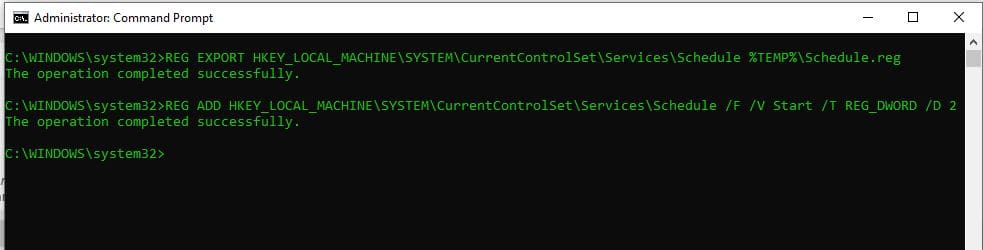

Step 3: Using the LocalSystem account to configure the service
You may need to use the LocalSystem account to configure, stop or restart the Task Scheduler service via the Services console or command line.
Run the following command from the Command Prompt window as an admin :
mmc.exe services.mscThis will start the MMC under the SYSTEM account.

When accessing the Services MMC using the LocalSystem account, the screenshot above shows that the Start button and the Startup type list boxes are enabled.
Fixing the Windows Task Scheduler Service Greyed Out Error in MMC
Take the following steps the fix the Task Scheduler greyed-out Error:
Step 1: Modify the REG File of the Scheduler Service
Microsoft designed the Windows Task Scheduler Service to run continuously without stopping by default. But if it’s eventually disabled due to a corrupt system Registry, it will pose some problems that may impact your PC performance.
The service’s disabling hasn’t been fully evaluated for its impact. However, Microsoft recommends that the Schedule service remains enabled.

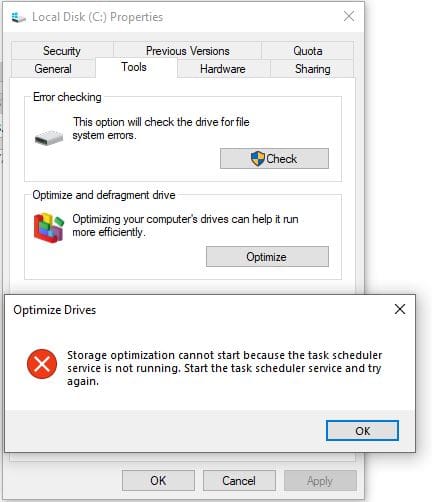
One such issue could be if you want to optimize your disk as shown in the screenshot below to boost system performance and other task scheduling activities.
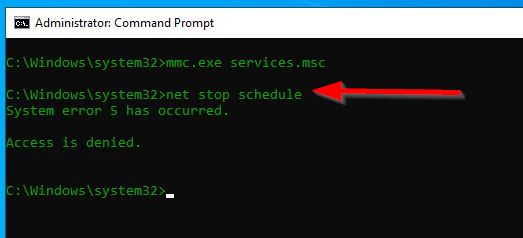
It is true that we can’t disable nor stop the Windows Task Scheduler, and even the popular net stop command run as an administrator will fail, stating insufficient rights (“Access is denied”):
Also, the Task Scheduler Service cannot be configured via the GUI because it is greyed out. To rectify this, we need to modify the Scheduler REG file in our PC.
To do so, copy and paste the below scheduler Service Registry file into your Notepad text editor.
Windows Registry Editor Version 5.00

[HKEY_LOCAL_MACHINE\SYSTEM\CurrentControlSet\Services\Schedule]
"Group"="SchedulerGroup"
"ObjectName"="LocalSystem"
"Start"=dword:00000002
"Type"=dword:00000020
"ServiceSidType"=dword:00000001

;Works in Windows Vista, 7, 8 and Windows 10
After copying and pasting the REG file, name and save the file as scheduler.reg where .reg means registry extension to your Desktop location. Then, right-click the file and select Merge.

Please note that, this REG file is compatible with Windows 7, 8, and 10. Avoid running it on Windows 11. Click on Merge, and the prompt will ask you to choose Yes or No. Click Yes to proceed.

You will receive a prompt that the Reg has successfully added as shown below:

Now reboot your system to apply the changes. After your system has rebooted, run mmc.exe services.msc as an admin in your command prompt to assess the services MMC console, and check it if the Windows Task Scheduler service startup type is now selected as “Automatic”.
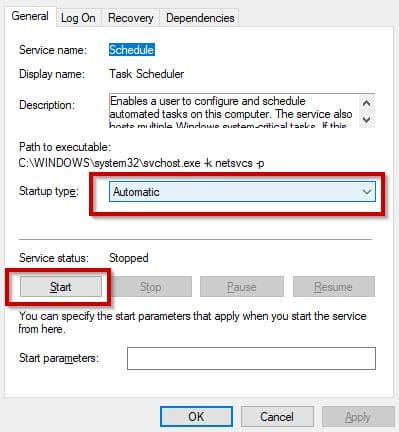
From the screenshot above, you can see that the Task Scheduler Service startup type is put to Automatic and Start button is not greyed out.
Note: Modifying your PC Registry File can make your system to malfunction. Please apply caution! Step 2: Enabling Task Scheduler Service Using Service Security Editor
You can use our free Service Security Editor tool to reconfigure permissions and grant yourself the ability to stop and start the Windows Task Scheduler service. To do so:
1: Download the free Service Security Editor utility. After downloading the software, Start Service Security Editor.
Note: no installation is required Select Task Scheduler from the drop-down menu:
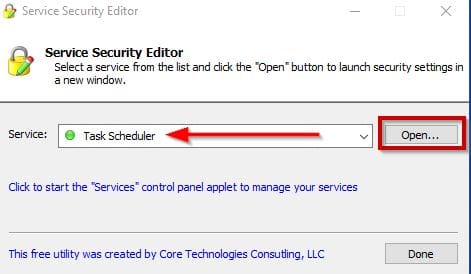
Click to Open button to bring up the service’s security settings panel.

While on this screen, check the start and stop checkboxes after selecting the user you want to grant permission to stop and start the Task Scheduler Service.
Now, the stop option for the Task Scheduler Service should be enabled not greyed out and you should have the option to also start the service if you stop it.

Finally, in this guide, you have learned what a Windows Task Scheduler Service is all about, various ways of modifying its registry settings, and steps to resolve the Task Scheduler Service greyed-out error.
I hope you found this article useful on How to fix Task Scheduler Service Greyed Out in Service MMC. Please feel free to leave a comment below.


