Skip to content

TechDirectArchive

Hands-on IT, Cloud, Security & DevOps Insights

  • Home
  • About
  • Advertise With US
  • Reviews
  • Contact
  • Toggle search form
Home » Windows » How to remove OneDrive from Windows
  • banner2
    How to Integrate Postman With GitHub Automation
  • insufficientaccessright 1
    Azure AD Connect Permission issue: Error 8344 insufficient access rights to perform the operation AWS/Azure/OpenShift
  • dfeef
    How to automatically resolve errors associated with failed dependencies Linux
  • Amazon
    Import Virtual Machines to AWS as AMI AWS/Azure/OpenShift
  • hh
    Graphical Network Simulator: How to install GNS3 on a Windows device Windows
  • jmeterimage
    Apache JMeter Load Testing: Test Mobile Apps on Windows Configuration Management Tool
  • Container insights
    How to use Container Insights for Azure Kubernetes Workload Network | Monitoring
  • Drop or delete a MySQL user from phpmyAdmin
    How to delete a MySQL User Account Oracle/MSSQL/MySQL

How to remove OneDrive from Windows

Posted on 24/07/202212/12/2023 Matthew By Matthew No Comments on How to remove OneDrive from Windows
Featured-image-7
Microsoft OneDrive

Learn how to efficiently remove OneDrive from Windows using DISM, applying the same process to Windows 11 and Windows 10 ISO image files. Suppose you want to customize your Windows installation and Remove OneDrive from Windows, especially when deploying on multiple PCs using a Windows ISO file. In that case, making the necessary modifications before proceeding is essential. Please see how to Add Registry Keys via DISM in Windows, and how to Move OneDrive Folder: Relocate in Windows 10.

Microsoft OneDrive offers valuable cloud backup capabilities, allowing data storage, protection, and seamless access across devices. This article discusses “Remove OneDrive from Windows: A DISM Guide”.

However, optimizing the Windows ISO file becomes crucial if you prefer not to have OneDrive preinstalled in your Windows 10 or 11 setup. This proactive approach ensures a tailored Windows experience according to your preferences.

You can modify an ISO file using a tool in Windows called DISM (Deployment Image Servicing and Management), a native Windows program. DISM is a command-line program that can be used to add registry entries and modify the default Windows install image.

To streamline your Windows setup, utilize the DISM command option. This enables you to access the Windows install image and efficiently remove OneDrive from Windows, preventing its auto-installation during setup.

Please see: Cannot uninstall the OneDrive App: The item “OneDrive” can’t be moved to the Bin because it’s open on Mac and How to Disable or Uninstall OneDrive on Windows 10 and 11.

Method 1: Mount ISO to Disable Cloud Storage

To Remove OneDrive from Windows, mount a Windows ISO image, and double-click the ISO file to open it as a virtual DVD in File Explorer automatically. Open the mounted ISO in Explorer, select all files and directories, and then copy and paste the ISO content into a folder.

Uninstall OneDrive
Window 11 disk image

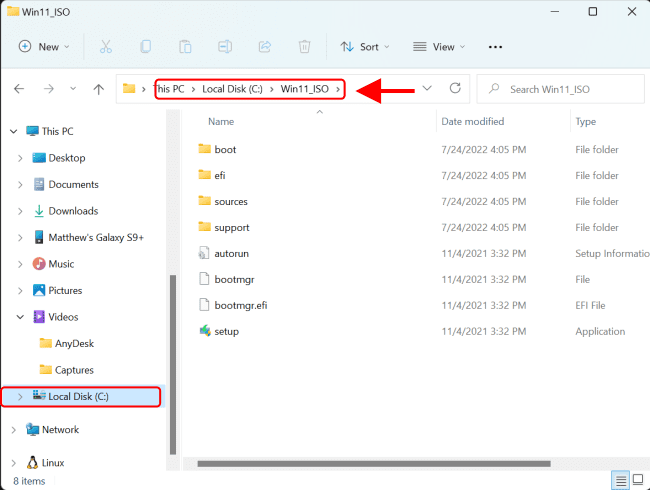
In this guide, I created a folder in the root directory on disk C: and name the folder Win11_ISO.
Windows OneDrive removal
Win11_ISO in root directory

To efficiently Remove OneDrive from Windows, establish a designated folder for the offline image. In this instance, I’ve created a “Mount” folder at the root directory, specifically located at C:\Mount.

Disable OneDrive on Windows
Folder to Mount disk image for DISM operation

Open the Windows Start Menu and search for PowerShell, then run as administrator.

OneDrive deactivation
Running PowerShell in Start menu

Here are other related guides: Cannot uninstall the OneDrive App: The item “OneDrive” can’t be moved to the Bin because it’s open on Mac, and How to Disable or Uninstall OneDrive on Windows 10 and 11.

Check what editions are included in the disk image

To check what editions are included in the disk image and effectively remove OneDrive from Windows, use the following command:

Dism /Get-WimInfo /WimFile:C:\Win11_ISO\Sources\install.wim
Uninstall OneDrive
PowerShell: checking windows editions
Note the index number of your selected edition. In this example I want to use Windows 11 PRO edition to edit its registry, noting its index number 6.

To effectively remove OneDrive from Windows, start by mounting the image of your preferred Windows edition. In this example, we’ll use index number 6.

Dism /Mount-Wim /WimFile:C:\Win11_ISO\Sources\install.wim /index:6 /MountDir:C:\Mount
Windows OneDrive removal
PowerShell: Mounting disk image

The mounting image process will take some time to complete. You can check the Mount folder in C: Mount to see the Windows image files.

Disable OneDrive on Windows
Mounted Windows image files

Please remember that the disk where the Mount folder is situated requires some free space. Utilizing a machine with a disk with more than 15 GB of free space is recommended.

Now go to Windows\SysWOW64, search for OneDriveSetup, and delete it.

image7_1-1
Deleting OneDrive installation file

Unmount the offline image and commit (save) changes using the following command:

Dism /Unmount-Image /MountDir:C:\mount /Commit
image12
PowerShell: Unmount and save changes to disk image

You may want to see “Install Wim: How to Add Packages to Windows image the DISM Tool“, how to Remove Windows 10 Apps with DISM: How to remove pre-provisioned apps from Windows Image, and how to fix DISM errors: Error 183: The specified image is currently being serviced by another DISM operation.

Method 2: Edit ISO Registry in Windows Component Removal Using DISM

To remove OneDrive, we need to edit the offline registry hive by importing it to a temporary hive in the host registry. In this example, I will import the HKLM\Software hive from the offline registry to a temporary hive called Offline in the host registry:

image8-3
Powershell: add registry hive to host registry

To effectively remove OneDrive from Windows, take a look at the newly created Offline registry hive by opening the Registry Editor and clicking on HKEY_LOCAL_MACHINE to access the hive.
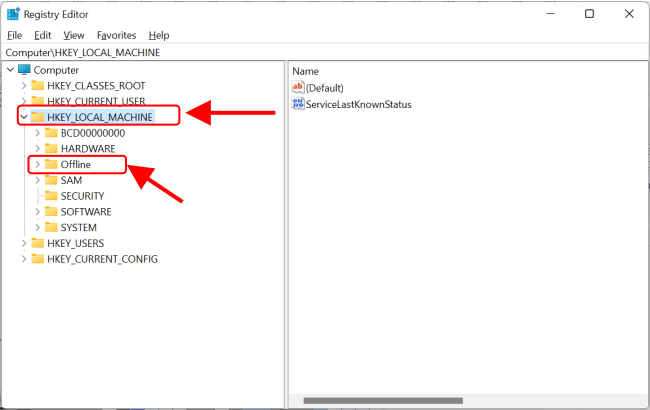
image9
Registry Editor: registry hive (Offline) added to host registry

Navigate to the following path:

HKLM\Offline\Software\Microsoft\Windows\CurrentVersion\Run

Then delete the Run OneDriveSetup key.

image9_1
Registry Editor: Deleting OneDrive Setup

When you’re through with registry changes, use the following command to unload the temporary hive:

reg unload HKLM\Offline
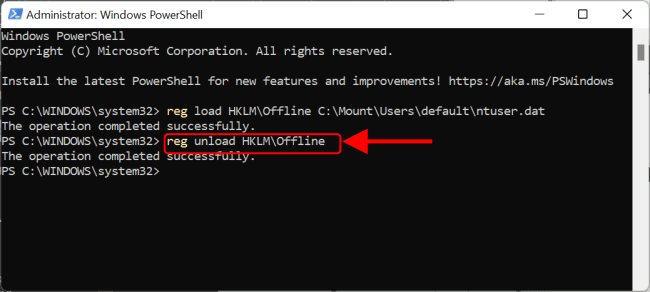
image10
PowerShell: Removing registry hive (Offline)

To effectively remove OneDrive from Windows, utilize the “reg unload” command, which cleans up the temporary hive from the host registry.
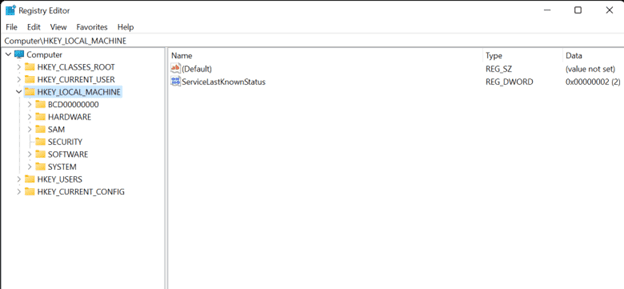
image11
Registry Editor: Registry hive (Offline) removed from host registry

Unmount the offline image and commit (save) changes using the following command:

Dism /Unmount-Image /MountDir:C:\mount /Commit
image12
PowerShell: Unmount and save changes to disk image

You can now install Windows, which includes your modification by default.

If you’re looking to remove OneDrive from Windows, I trust you found this blog post beneficial. Should you have any inquiries, please feel free to share them in the comments section below.

Rate this post

Thank you for reading this post. Kindly share it with others.

  • Click to share on X (Opens in new window) X
  • Click to share on Reddit (Opens in new window) Reddit
  • Click to share on LinkedIn (Opens in new window) LinkedIn
  • Click to share on Facebook (Opens in new window) Facebook
  • Click to share on Pinterest (Opens in new window) Pinterest
  • Click to share on Tumblr (Opens in new window) Tumblr
  • Click to share on Telegram (Opens in new window) Telegram
  • Click to share on WhatsApp (Opens in new window) WhatsApp
  • Click to share on Pocket (Opens in new window) Pocket
  • Click to share on Mastodon (Opens in new window) Mastodon
  • Click to share on Bluesky (Opens in new window) Bluesky
  • Click to share on Threads (Opens in new window) Threads
  • Click to share on Nextdoor (Opens in new window) Nextdoor
Microsoft Exchange/Office/365, Windows Tags:Microsoft OneDrive, Microsoft Windows, OneDrive, Windows 10, Windows 11

Post navigation

Previous Post: How to Install Docker Portainer on Linux
Next Post: How to Run a Program in Windows as the Local System Account

Related Posts

  • image 35
    How to Activate and Press Ctrl+Alt+Del in Anydesk for Remote Access Connection to Windows system Windows
  • ETWindows
    An Overview of Event Tracing for Windows Windows
  • OOBEZDP
    OOBEZDP: Something went wrong during the Windows deployment Windows
  • EnableDisableTPMAutoProv
    Waiting for TPM Auto Provisioning: How to Enable or Disable TPM Auto-provisioning Windows
  • Featured image widgets
    How to use the Widgets feature on Windows 11 Windows
  • control panel
    Enable or Disable Control Panel and Windows Settings App Windows

More Related Articles

image 35 How to Activate and Press Ctrl+Alt+Del in Anydesk for Remote Access Connection to Windows system Windows
ETWindows An Overview of Event Tracing for Windows Windows
OOBEZDP OOBEZDP: Something went wrong during the Windows deployment Windows
EnableDisableTPMAutoProv Waiting for TPM Auto Provisioning: How to Enable or Disable TPM Auto-provisioning Windows
Featured image widgets How to use the Widgets feature on Windows 11 Windows
control panel Enable or Disable Control Panel and Windows Settings App Windows

Leave a Reply Cancel reply

You must be logged in to post a comment.

Microsoft MVP

VEEAMLEGEND

vexpert-badge-stars-5

Virtual Background

GoogleNews

Categories

veeaam100

sysadmin top30a

  • banner2
    How to Integrate Postman With GitHub Automation
  • insufficientaccessright 1
    Azure AD Connect Permission issue: Error 8344 insufficient access rights to perform the operation AWS/Azure/OpenShift
  • dfeef
    How to automatically resolve errors associated with failed dependencies Linux
  • Amazon
    Import Virtual Machines to AWS as AMI AWS/Azure/OpenShift
  • hh
    Graphical Network Simulator: How to install GNS3 on a Windows device Windows
  • jmeterimage
    Apache JMeter Load Testing: Test Mobile Apps on Windows Configuration Management Tool
  • Container insights
    How to use Container Insights for Azure Kubernetes Workload Network | Monitoring
  • Drop or delete a MySQL user from phpmyAdmin
    How to delete a MySQL User Account Oracle/MSSQL/MySQL

Subscribe to Blog via Email

Enter your email address to subscribe to this blog and receive notifications of new posts by email.

Join 1,836 other subscribers
  • RSS - Posts
  • RSS - Comments
  • About
  • Authors
  • Write for us
  • Advertise with us
  • General Terms and Conditions
  • Privacy policy
  • Feedly
  • Telegram
  • Youtube
  • Facebook
  • Instagram
  • LinkedIn
  • Tumblr
  • Pinterest
  • Twitter
  • mastodon

Tags

Active Directory AWS Azure Bitlocker Microsoft Windows PowerShell WDS Windows 10 Windows 11 Windows Server 2016

Copyright © 2025 TechDirectArchive


Loading Comments...
 

You must be logged in to post a comment.