Fix 404 Not Found Repository Errors in Ubuntu/Debian distribution


If you use the desktop edition of Ubuntu, you may ultimately run into the issue where apt-get update frequently returns “Failed to obtain 404 Not Found” warnings. The identical issue could also arise when using apt-get install. Not to worry; it will be resolved shortly. In this article, you will learn how to Fix 404 Not Found Repository Errors in Ubuntu/Debian distribution. Other guides are here: Change User Account Type in Windows 10 and How to modify Windows 11 Taskbar via Intune and GPO
Also, see How to Change User Account Type in Windows 10 again upgrade from Ubuntu 20.04 LTS to 22.04 LTS and install Rust in a Linux System and Change User Account Type in Windows 10.
The Issue “404 Not Found Repository Errors”
When using the apt-get update or apt-get install command, you can encounter messages similar to the ones below. This is due to the short 9-month support period for Ubuntu versions. Releases with LTS (Long Term Support) have support for 5 years.
You’ll start receiving those error messages as soon as the version you’re using loses support.
The default location below is no longer available due to Ubuntu moving the repositories to a different server.
http://archive.ubuntu.com/ubuntu/dist/rdgmh@raphael:~$ sudo su
[sudo] password for rdgmh:
root@raphael:/home/rdgmh# apt update
Get:1 http://security.ubuntu.com/ubuntu jammy-security InRelease [110 kB]
Ign:2 http://old-releases.ubuntu.com/ubuntu jammy InRelease
Ign:3 http://old-releases.ubuntu.com/ubuntu jammy-updates InRelease
Ign:4 http://old-releases.ubuntu.com/ubuntu jammy-backports InRelease
Hit:5 https://packages.microsoft.com/repos/azure-cli jammy InRelease
Err:6 http://old-releases.ubuntu.com/ubuntu jammy Release
404 Not Found [IP: 91.189.91.124 80]
Ign:7 http://security.ubuntu.com/ubuntu impish-security InRelease
Err:8 http://old-releases.ubuntu.com/ubuntu jammy-updates Release
404 Not Found [IP: 91.189.91.124 80]
Err:9 http://security.ubuntu.com/ubuntu impish-security Release
404 Not Found [IP: 91.189.91.38 80]
Err:10 http://old-releases.ubuntu.com/ubuntu jammy-backports Release
404 Not Found [IP: 91.189.91.124 80]
Hit:11 http://apt.postgresql.org/pub/repos/apt jammy-pgdg InRelease
Reading package lists... Done
E: The repository 'http://old-releases.ubuntu.com/ubuntu jammy Release' does not have a Release file.
N: Updating from such a repository can't be done securely, and is therefore disabled by default.
N: See apt-secure(8) manpage for repository creation and user configuration details.
E: The repository 'http://old-releases.ubuntu.com/ubuntu jammy-updates Release' does not have a Release file.
N: Updating from such a repository can't be done securely, and is therefore disabled by default.
N: See apt-secure(8) manpage for repository creation and user configuration details.
E: The repository 'http://security.ubuntu.com/ubuntu impish-security Release' does not have a Release file.
N: Updating from such a repository can't be done securely, and is therefore disabled by default.
N: See apt-secure(8) manpage for repository creation and user configuration details.
E: The repository 'http://old-releases.ubuntu.com/ubuntu jammy-backports Release' does not have a Release file.
N: Updating from such a repository can't be done securely, and is therefore disabled by default.
N: See apt-secure(8) manpage for repository creation and user configuration details.
N: Skipping acquire of configured file 'main/binary-i386/Packages' as repository 'http://apt.postgresql.org/pub/repos/apt jammy-pgdg InRelease' doesn't support architecture 'i386'
root@raphael:/home/rdgmh#
Please refer to these exciting guides: VMSA-2022-0026: An arbitrary file read vulnerability in VMware Aria Operations, how to Search Group Policy for a Specific Setting in Windows 10 and Windows 11, and how to Deploy Code from GitHub to Azure App Service from the Command-line.
How to solve the problem “404 Not Found Repository Errors in Ubuntu/Debian distribution”
There are three ways to make your apt commands function properly once more. Upgrade the Ubuntu release first. Second, change the old package repositories’ sources urls. and finally restore the PPA and default repository. The details of the three options are provided below.
sudo apt-get dist-upgrade 
As you can see, this didn’t solve the problem so we will go with option 2. You can alter the sources url for the Ubuntu repository to find the older packages if an immediate distribution upgrade is not an option.
Please, see How to fix the Filesystem root is running low on Disk space, and A-Z of XCP-ng and Xen Orchestra setup and VM Creation.
Update Packages Url
To update the sources in /etc/apt/sources, use the sed tool. list file to the new repository location for outdated packages
sudo sed -i -e 's/archive.ubuntu.com\|security.ubuntu.com/old-releases.ubuntu.com/g' /etc/apt/sources.list
Use the grep command below to see if there are any other files in /etc/apt/sources.list.d/ that require updating.
grep -E 'archive.ubuntu.com|security.ubuntu.com' /etc/apt/sources.list.d/* 
There are a series of steps we need to take further
- open /etc/apt/sources.list with a text editor, in this case, i have chosen to use vim so the command will be as shown below:
vim /etc/apt/sources.list2. We need to comment out extras.ubuntu.com like this below
#extras.ubuntu.com The reason we are commenting it out is because the repo is no longer supported
3. replace main/security repositories with old-releases versions as follows.

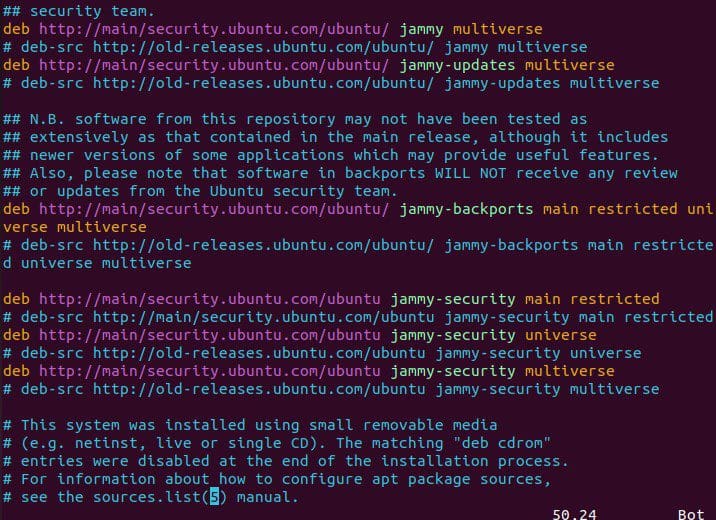
this solution too did not work. Even replaced main/security with the archive as shown below

Replace default repository: The only solution that worked!
The majority of the PPAs and repositories in your sources.list are broken and no longer functional. The default repositories should be restored, in my opinion.
So let’s make a directory change into it and write the following code
mkdir ~/solution
cd ~/solution/

cat << EOF > ~/solution/sources.list
deb http://archive.ubuntu.com/ubuntu/ focal main restricted universe multiverse
deb-src http://archive.ubuntu.com/ubuntu/ focal main restricted universe multiverse

deb http://archive.ubuntu.com/ubuntu/ focal-updates main restricted universe multiverse
deb-src http://archive.ubuntu.com/ubuntu/ focal-updates main restricted universe multiverse

deb http://archive.ubuntu.com/ubuntu/ focal-security main restricted universe multiverse
deb-src http://archive.ubuntu.com/ubuntu/ focal-security main restricted universe multiverse

deb http://archive.ubuntu.com/ubuntu/ focal-backports main restricted universe multiverse
deb-src http://archive.ubuntu.com/ubuntu/ focal-backports main restricted universe multiverse

deb http://archive.canonical.com/ubuntu focal partner
deb-src http://archive.canonical.com/ubuntu focal partner
EOF

sudo rm /etc/apt/sources.list
sudo cp ~/solution/sources.list /etc/apt/sources.list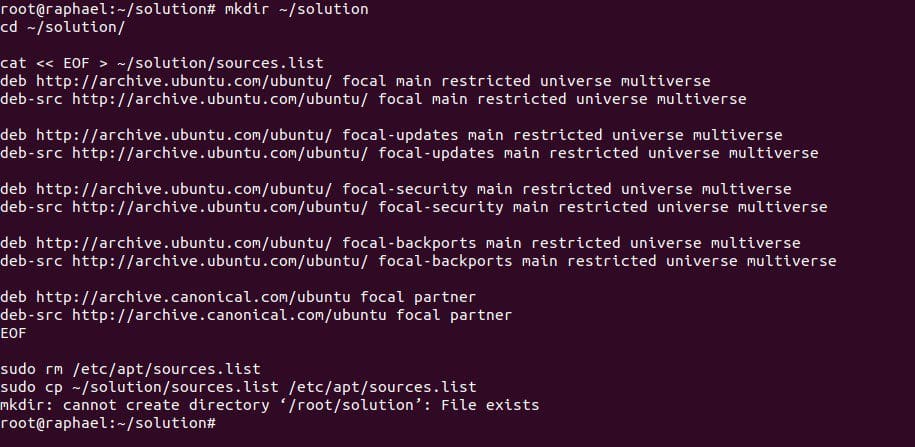
Remove all the PPAs in your system:
sudo mv /etc/apt/sources.list.d/* ~/solutionrun the command to update again and you will see that the problem has been solved
apt update
Summary
404 Not Found is a common problem in Ubuntu and the only effective way to solve this is to replace the default repository just as we saw in the final step above. I hope you found this blog post helpful on how to Fix 404 Not Found Repository Errors in Ubuntu/Debian distribution. If you have any questions, please let me know in the comment session.



Thank you so much, I have been searching everywhere to figure this out. your a god bro, again thank you and much abundance to you and yours!
tks !! work for me!! , (kubuntu 22,10) regards from argentina
Thanks brother..A life saver! It worked on Ubuntu 21.04, June 2023
My guy you are a genius and a scholar. Thanks for this save late at night.
That is it, perfect, thank you after hours finding incomplete solutions…this did it!