Skip to content

TechDirectArchive

Hands-on IT, Cloud, Security & DevOps Insights

  • Home
  • About
  • Advertise With US
  • Reviews
  • Contact
  • Toggle search form
Home » Windows » Windows Defender Antivirus Management with Intune
  • hero windowsserver hyperv
    Why does the legacy PXE not does work on Generation 2 VM Virtualization
  • How to Check what files are taking up space
    How to Check what files are taking up space on Windows 11 Windows
  • Disable and Enable USB in Windows
    Disable and Enable USB Usage for Certain Users in Windows Windows
  • images 1 3
    Failed to create a new scheduled task name RemoteException: Cannot create the file when that file already exists Windows Server
  • screenshot 2020 04 17 at 17.09.01
    How to configure a remote Windows Server to Support Ansible Windows Server
  • 1 kajkbmlyehn0inifwrh 8w 1
    How to configure Kerberos for Ansible Authentication Configuration Management Tool
  • Migrate from SQL Database
    Migrate Veeam One Database from SQL Server 2017 to 2025 Backup
  • Docker Installation on Ubuntu
    Docker Engine Installation on Ubuntu Network | Monitoring

Windows Defender Antivirus Management with Intune

Posted on 26/08/202214/12/2023 Imoh Etuk By Imoh Etuk No Comments on Windows Defender Antivirus Management with Intune
Defender-Antivirus
Defender Antivirus

Microsoft included Windows Defender Antivirus by default in Windows 10/11 and Windows Server. In this article, we shall discuss Windows Defender Antivirus Management with Intune. This security component can be managed by Group Policies, PowerShell, or the Settings app. Defender for Endpoint, which requires a monthly subscription, is the only option for reporting and monitoring functions. As an alternative, you can accomplish this using Intune. Please see how to update Microsoft Defender Antivirus into the install image of Windows (install.wim) and Install.wim: How to view Microsoft Defender Antivirus update details on Windows 10 image

“Use Windows Defender Antivirus alone or with Microsoft Defender for Endpoint for better security.” (20 words) Microsoft Defender Antivirus serves as the enterprise endpoint security component of this umbrella solution.

Manage Windows antivirus in Intune for centralized administration and MDfE capabilities. This is especially true for remotely monitoring and activating Defender functions.

To learn more about Windows Defender Antivirus, please review the following related guides: How to manage Microsoft Defender Antivirus with Group Policy and Microsoft Malware Protection from the Command Line, How to restore quarantined files in Microsoft Defender Antivirus,

Tracking and reporting for Windows Defender Antivirus using PowerShell

Secure endpoints need reliable Microsoft Defender Antivirus monitoring. The Get-MpComputerStatus cmdlet in PowerShell can be used to run simple status checks.

Cmdlet provides engine, product versions, service status, antispyware status, full scan age, and behavior monitor state details.

Microsoft Defender Antivirus
Verifying Microsoft Defender Antivirus by using the Get-MpComputerStatus Cmdlet

PowerShell checks Defender status, but it’s limited for enterprise use with off-network endpoints.

Utilizing Windows Defender Antivirus Endpoint Manager for Monitoring

Complete monitoring and reporting for Microsoft Defender Antivirus through Endpoint Manager with Intune. You are also alerted about critical failures, inactive agents, and status unknowns.

To access the Endpoint Manager, visit the Admin center and login with your details. In Admin center, find Endpoint Security, click Antivirus for reporting dashboard.

Windows Security Antivirus
Endpoint Dashboard security reporting and tracking

Dashboards show shabby endpoints, Active malware, and overall status for swift identification of security flaws.The ability to customize and create settings to cover the overall setup of Windows Defender Antivirus, exclusions, etc., is also provided by the ability to develop robust Antivirus policies.

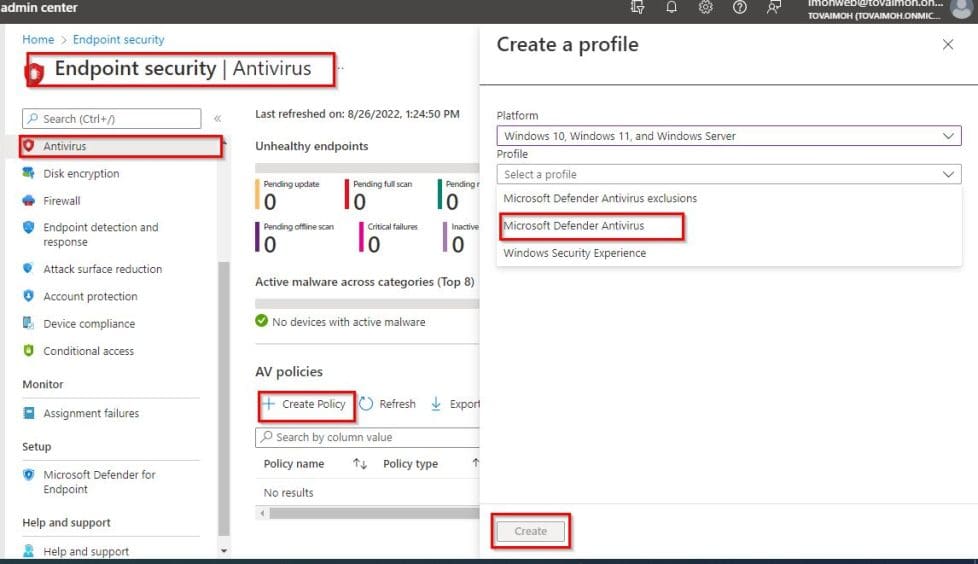
To create a policy, simply click on "Create Profile". Select Windows 10, Windows 11 and Windows Server in the platform and Microsoft Defender Antivirus in the Profile column, and click on Create as shown in the screenshot below.
Defender Antimalware
Creating AV Policies

When the next page displays, type the profile name, description (optional) and click next

Supplying-details
Creating AV Profiles

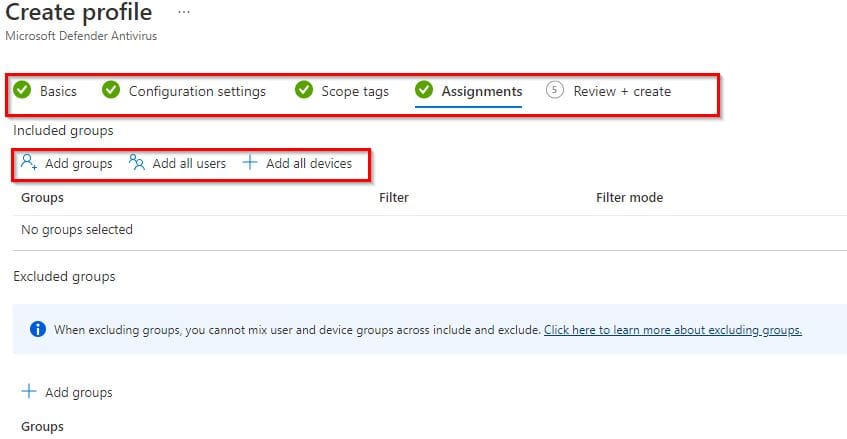
Go ahead and configure all the tabs to suite your needs including the assignment options which gives the opportunity to include or exclude users, groups or devices.
Include-groups
Configuring Policy Assignment Option

Please see Register Devices to Intune and EntraID Using Company Portal. How to Configure Windows LAPS Management with Microsoft Intune, and Windows 11 Taskbar: Modifying via Intune and GPO.

Intune reporting

Additionally, Intune offers reporting tools that make it easier to create and deliver reports for compliance, SecOps, and other needs Windows Defender Antivirus.

You may find the Summary tab presenting data similar to that of the Endpoint Security -> Antivirus dashboard above by going to Microsoft Endpoint Manager admin center -> Reports->Microsoft Defender Antivirus.

Summary-of-Defender-Antivirus-in-Intune
Intune Microsoft Defender Antivirus summary

The Windows Defender Antivirus agent status report and the Detected Malware report are both accessible by clicking the Reports tab.

The status of your devices including which ones offer real-time or network protection is displayed in the antivirus agent status. While the detected malware displays the state of devices, identifies any that have malware, and also provides additional information about it.

Intune-Reporting
Intune Report for Defender Antivirus

If you click on the Antivirus Agent Status, you will see the status as similar to the screenshot below:

Status-of-Antivirus-Agent
Report of the Antivirus Agent Status

You can also access the Detected malware report, which lists any malware found as well as specifics about the harmful program Windows Defender Antivirus.

Detected-Malware

Both reports give IT administrators insight into the health of endpoint security as well as any malware that has been found in the environment. Allowing the security team to monitor and manage Microsoft Defender within the company.

In conclusion, modern versions of Windows come with a Windows Defender Antivirus as a built-in security solution. It is a different product than Microsoft Defender for Endpoint, as this cloud-based solution includes Defender Antivirus as the endpoint security component.

Microsoft Defender Antivirus is more powerful when used in conjunction with Endpoint Manager’s monitoring, reporting, and configuration tools even though it may run in a standalone setup.

I hope you found this guide on Windows Defender Antivirus Management with Intune useful. Please feel free to leave a comment below.


Rate this post

Thank you for reading this post. Kindly share it with others.

  • Share on X (Opens in new window) X
  • Share on Reddit (Opens in new window) Reddit
  • Share on LinkedIn (Opens in new window) LinkedIn
  • Share on Facebook (Opens in new window) Facebook
  • Share on Pinterest (Opens in new window) Pinterest
  • Share on Tumblr (Opens in new window) Tumblr
  • Share on Telegram (Opens in new window) Telegram
  • Share on WhatsApp (Opens in new window) WhatsApp
  • Share on Pocket (Opens in new window) Pocket
  • Share on Mastodon (Opens in new window) Mastodon
  • Share on Bluesky (Opens in new window) Bluesky
  • Share on Threads (Opens in new window) Threads
  • Share on Nextdoor (Opens in new window) Nextdoor
Anti-Virus Solution, Security | Vulnerability Scans and Assessment, Windows, Windows Server Tags:AntiVirus, Defender Antivirus, Microsoft Defender Antivirus

Post navigation

Previous Post: How to secure a Web Server on a Windows VM in Azure using TLS/SSL Certificates Saved in Azure Key Vault
Next Post: How to Fix 404 Not Found Repository Errors in Ubuntu/Debian distribution

Related Posts

  • csdfg
    What is Cortona: How to disable Cortana via the registry or GPO Windows
  • Banner
    How to Stop OneDrive from Starting Up Automatically on Windows 11 Windows
  • Capture
    An account with the same name exists in Active Directory: Re-using the account was blocked by a security policy Security | Vulnerability Scans and Assessment
  • How to Turn Off Windows 11 Tips and Suggestions Notifications
    How to Turn Off Windows 11 Tips and Suggestions Notifications Windows
  • MAP virtual disk error
    Install Workstation Pro 17: Fix failed to initialise library for mounting and unmounting virtual disks Virtualization
  • How To Enable Single Sign On (SSO) For Windows Admin Center
    Setup Windows Admin Center Modern Gateway for Single Sign-On Windows Server

More Related Articles

csdfg What is Cortona: How to disable Cortana via the registry or GPO Windows
Banner How to Stop OneDrive from Starting Up Automatically on Windows 11 Windows
Capture An account with the same name exists in Active Directory: Re-using the account was blocked by a security policy Security | Vulnerability Scans and Assessment
How to Turn Off Windows 11 Tips and Suggestions Notifications How to Turn Off Windows 11 Tips and Suggestions Notifications Windows
MAP virtual disk error Install Workstation Pro 17: Fix failed to initialise library for mounting and unmounting virtual disks Virtualization
How To Enable Single Sign On (SSO) For Windows Admin Center Setup Windows Admin Center Modern Gateway for Single Sign-On Windows Server

Leave a Reply Cancel reply

You must be logged in to post a comment.

Microsoft MVP

VEEAMLEGEND

vexpert-badge-stars-5

Virtual Background

GoogleNews

Categories

veeaam100

sysadmin top30a

  • hero windowsserver hyperv
    Why does the legacy PXE not does work on Generation 2 VM Virtualization
  • How to Check what files are taking up space
    How to Check what files are taking up space on Windows 11 Windows
  • Disable and Enable USB in Windows
    Disable and Enable USB Usage for Certain Users in Windows Windows
  • images 1 3
    Failed to create a new scheduled task name RemoteException: Cannot create the file when that file already exists Windows Server
  • screenshot 2020 04 17 at 17.09.01
    How to configure a remote Windows Server to Support Ansible Windows Server
  • 1 kajkbmlyehn0inifwrh 8w 1
    How to configure Kerberos for Ansible Authentication Configuration Management Tool
  • Migrate from SQL Database
    Migrate Veeam One Database from SQL Server 2017 to 2025 Backup
  • Docker Installation on Ubuntu
    Docker Engine Installation on Ubuntu Network | Monitoring

Subscribe to Blog via Email

Enter your email address to subscribe to this blog and receive notifications of new posts by email.

Join 1,836 other subscribers
  • RSS - Posts
  • RSS - Comments
  • About
  • Authors
  • Write for us
  • Advertise with us
  • General Terms and Conditions
  • Privacy policy
  • Feedly
  • Telegram
  • Youtube
  • Facebook
  • Instagram
  • LinkedIn
  • Tumblr
  • Pinterest
  • Twitter
  • mastodon

Tags

Active Directory AWS Azure Bitlocker Microsoft Windows PowerShell WDS Windows 10 Windows 11 Windows Server 2016

Copyright © 2025 TechDirectArchive


Loading Comments...
 

You must be logged in to post a comment.