Skip to content

TechDirectArchive

Hands-on IT, Cloud, Security & DevOps Insights

  • Home
  • About
  • Advertise With US
  • Reviews
  • Contact
  • Toggle search form
Home » Linux » Associate SSH Public key with Azure Linux VM
  • Razer
    Administrative rights gained through Razer devices on Windows 10 Security | Vulnerability Scans and Assessment
  • Screenshot 2020 06 22 at 10.17.18
    How to disable Outlook and Yahoo Auto-Complete Network | Monitoring
  • Featured image System Tray icons
    How to Fix System Tray Icons not showing in Taskbar on Windows 11 Windows
  • How to Disable TLS 1.0, TLS 1.1 and TLS 1   banner
    How to Disable TLS 1.0, TLS 1.1 and TLS 1.2 in Windows Using GPO Security | Vulnerability Scans and Assessment
  • Comprehensive guide on WSUS setup
    How to install WSUS on Windows Server 2022 Windows Server
  • Was ist Windows Server und wie unterscheidet er sich vom normalen Windows
    Create a certificate template for BitLocker Network Unlock Windows Server
  • Run Linux on Windows Server
    How to install Windows Subsystem for Linux on Windows Server Linux
  • images copy
    How to disable automatic screen lock in Ubuntu Linux Linux

Associate SSH Public key with Azure Linux VM

Posted on 19/09/202203/04/2024 Imoh Etuk By Imoh Etuk 1 Comment on Associate SSH Public key with Azure Linux VM
Generate-SSH-Keys

You can create virtual machines (VMs) in Azure that use SSH keys for authentication using a secure shell (SSH) key pair. This article will demonstrate how to quickly generate and use an SSH public-private key file pair for Linux virtual machines. This guide shows the step on how to use PowerShell to generate and associate an SSH public key with an existing Azure Linux-based Virtual Machine. Please see how to perform SSH key-based authentication in Linux and how to disable RC4 Cipher Algorithms support in SSH Server.

You will gain hands-on experience configuring SSH authentication keys for a Linux system running on Microsoft Azure. The steps in this article are essential for a Linux system administrator, platform administrators who use the SSH service, cybersecurity professionals, and penetration testers. Please follow along as I show you how to generate and associate SSH Public key with Azure Linux VM.

As part of the things I will cover in this article, you will browse to the Azure portal, find your Linux virtual machine, and reset the SSH public key configuration to your new key, which is assumed you have lost or failed to download the SSH key during the virtual machine set up.

Accomplishing this step demonstrates the ease of administration of your Linux host via the Azure portal.

Read other related guides on Linux and SSH: How to perform SSH key-based authentication in Linux, how to Generate SSH Key in Windows 10, and how to SSH into a Virtual Machine created using Azure CLI or GUI.

What are SSH and SSH Keys?

SSH, also known as Secure Shell or Secure Socket Shell, is a network protocol that allows users, especially system administrators, to access a computer securely over an insecure network. Therefore, an SSH key allows us to connect to VMs without using passwords by passing a private key that you or your organization can manage.

If you use the portal regularly to deploy Linux VMs, you could perhaps make using SSH keys easier by generating them directly on the portal or uploading them from your computer.

When you first create a VM, you can generate SSH keys that you can reuse for other VMs. Alternatively, you can create SSH keys separately so that you have a set of keys in Azure that are specific to your organization’s needs. You can generate a new SSH key to be used with your existing Linux VM if:

  1. You forgot to download and save the copy of the SSH key while creating the VM on Azure
  2. Or you found out that your existing SSH Key has been compromised.
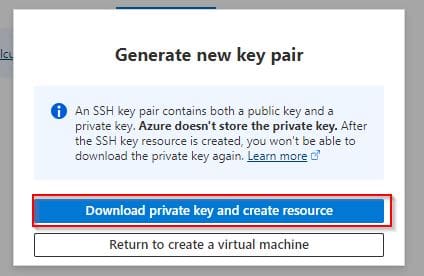
Download-ssh-keys
Download SSH Key prompt
Note: If you already have keys and want to make it easier to use them in the portal, you can upload and store them in Azure for reuse.

Generate SSH Keys

To generate an SSH key for an existing Azure Linux Ubuntu-based VM (generate SSH Public key with Azure Linux VM), follow the steps below:

Step 1-Search for and launch PowerShell on your PC as an Admin.
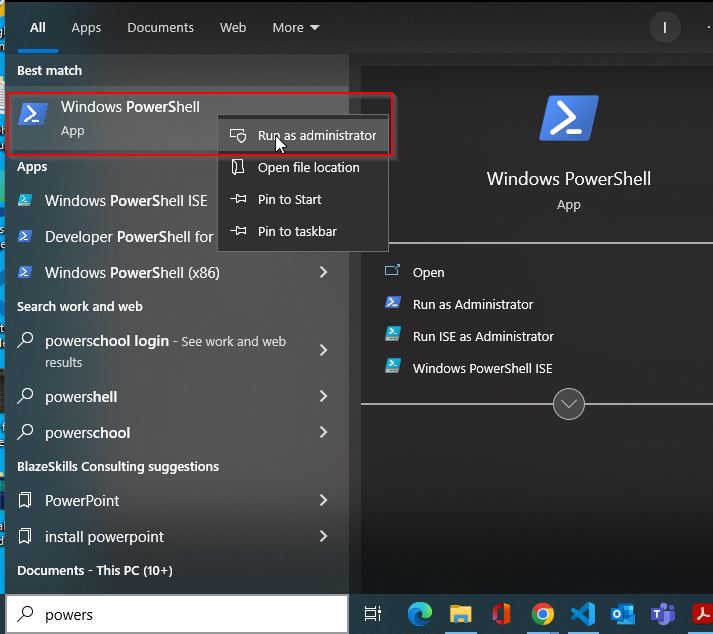
Open-PowerShell-As-An-Admin
Open PowerShell as Admin

Step 2-Run the below command to generate the SSH keys in 2048 or 4096 bit size. Here we’re generating the SSH key in 4096 bits.

ssh-keygen -m PEM -t rsa -b 4096
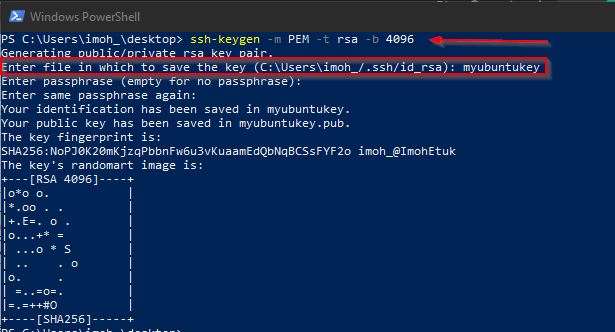
Generate-the-key
Generating SSH Key

Before you generate the key, ensure you navigate to the directory that will be easily accessible to you. Here I am in the Desktop directory.

Before you can use the key for the Azure Linux VM, the key must be converted to a public key. To do so, kindly review this article to learn how to convert your SSH key from Privacy Enhanced Mail (PEM) to Public Private Key (PPK) format using Puttygen.

After converting the key to PPK format, use the cat command to view the content of your Public key file.

Cat-the-mynewubuntukey-to-reveal-the-pub-keys
View the Content of the PPK Key format

Now, highlight and copy the key to be used for the Azure Linux VM while resetting the key.

Note: Ensure you copy it to include ---- BEGIN SSH2 PUBLIC KEY ---- and ---- END SSH2 PUBLIC KEY ----

Resetting SSH Key for Azure Linux VM

Head to the Azure portal, and do the following:

Step 1-Reset the SSH Key on your Azure Linux-Based VM. To do so, go to the Linux VM you deployed earlier, and then click on “Connect” and select SSH as the connection type.

click-on-connect-and-choose-SSH

On the second screen, select Replace/reset your SSH private key.

Reset-Keys

Step 4-Type the username of your VM into the namespace while keeping the
Reset SSH public key selected, paste the SSH public key you copied in the previous step, and click on Update.
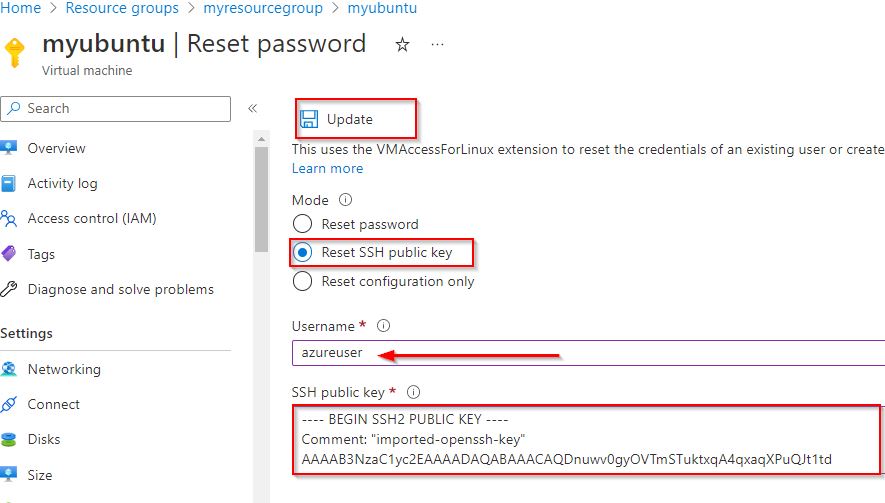
Paste-the-pub-key-on-Azure-within-the-VM-connection-page
Paste the SSH Pub Keys

You will get a notification as shown below:

Starting-key-reset-notifications
Starting SSH key Reset

Connecting to your Linux VM with the New SSH Key Using Putty

To connect to the VM, do the following:

Step 1 – Search for and click on Putty to open it. When the Putty app is open, go to the Linux VM overview page on Azure Portal, and copy and paste the public IP Address of the VM into Pthe utty connection space.
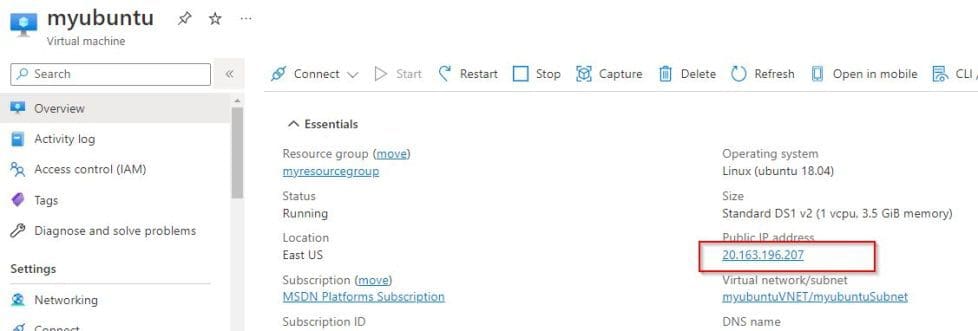
Copy-vm-IP-Address
Copying the VM Public IP Address

Paste it into Putty.

Copy-and-past-pub-IP
Pasting the VM Public IP Address in Putty

Step 2-From the Putty screen, click on the Auth blade on the left-hand side and select Browse to find the location where you stored the SSH public key you converted using the Puttygen app, and then click on Open.
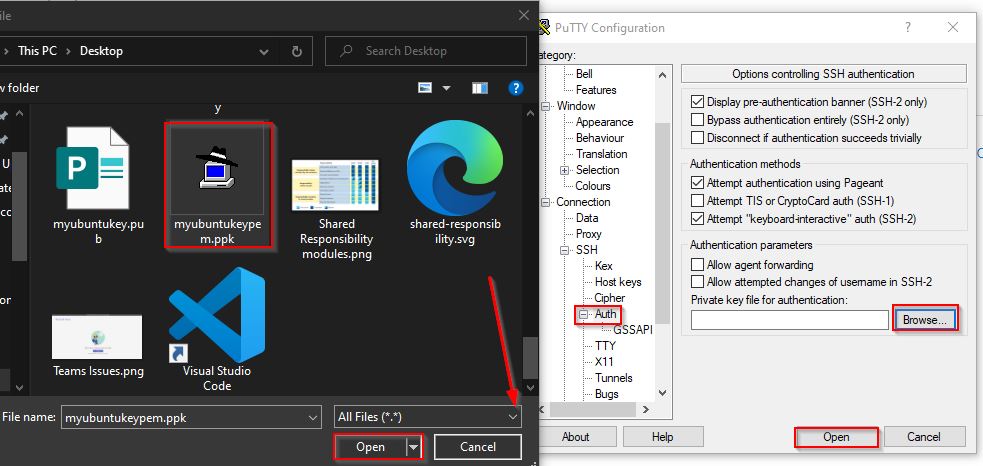
Setup-the-connection-via-putty
Browse to the public key and open it.

After clicking on Open, you will receive a prompt to accept the connection as shown on the screenshot below, go ahead and accept the connection.

Accept-connect-from-host
Accept Connection to the Host

Finally, you’re connected to your Linux VM on Azure. If you type the whoami command, you should see the username of your Linux VM displayed.

Successfully-signed-using-SSH-key
Signed into the Azure Linux VM

Now you have learned how to associate SSH Public key with Azure Linux VM. if you have followed the steps above up to this level, congratulations!

You’ve successfully generated a new SSH public key and associated it with your existing Azure Linux Virtual Machine on the Azure Portal and are also able to connect to it using an SSH client called Putty.

Rate this post

Thank you for reading this post. Kindly share it with others.

  • Click to share on X (Opens in new window) X
  • Click to share on Reddit (Opens in new window) Reddit
  • Click to share on LinkedIn (Opens in new window) LinkedIn
  • Click to share on Facebook (Opens in new window) Facebook
  • Click to share on Pinterest (Opens in new window) Pinterest
  • Click to share on Tumblr (Opens in new window) Tumblr
  • Click to share on Telegram (Opens in new window) Telegram
  • Click to share on WhatsApp (Opens in new window) WhatsApp
  • Click to share on Pocket (Opens in new window) Pocket
  • Click to share on Mastodon (Opens in new window) Mastodon
  • Click to share on Bluesky (Opens in new window) Bluesky
  • Click to share on Threads (Opens in new window) Threads
  • Click to share on Nextdoor (Opens in new window) Nextdoor
AWS/Azure/OpenShift, Linux, Scripts Tags:VMs

Post navigation

Previous Post: How to run Apps as an administrator on Windows
Next Post: Veeam at Microsoft Ignite 2022 from 12-14 October

Related Posts

  • add subheading 5 4
    Access EC2 Linux Instance via the Password AWS/Azure/OpenShift
  • chamedk8s featured
    Install CNF Certified Kubernetes in AWS AWS/Azure/OpenShift
  • featureunions
    How to Install Unison on Linux System Linux
  • Screenshot 2020 06 30 at 18.04.49
    How to install and configure Jitsi video conferencing server on Ubuntu Linux
  • Webp.net resizeimage 4
    Create a Service Fabric Cluster using the Azure Stack Hub portal and the CLI AWS/Azure/OpenShift
  • runlevels
    How to check your current Runlevel in Linux Linux

More Related Articles

add subheading 5 4 Access EC2 Linux Instance via the Password AWS/Azure/OpenShift
chamedk8s featured Install CNF Certified Kubernetes in AWS AWS/Azure/OpenShift
featureunions How to Install Unison on Linux System Linux
Screenshot 2020 06 30 at 18.04.49 How to install and configure Jitsi video conferencing server on Ubuntu Linux
Webp.net resizeimage 4 Create a Service Fabric Cluster using the Azure Stack Hub portal and the CLI AWS/Azure/OpenShift
runlevels How to check your current Runlevel in Linux Linux

Leave a Reply Cancel reply

You must be logged in to post a comment.

Microsoft MVP

VEEAMLEGEND

vexpert-badge-stars-5

Virtual Background

GoogleNews

Categories

veeaam100

sysadmin top30a

  • Razer
    Administrative rights gained through Razer devices on Windows 10 Security | Vulnerability Scans and Assessment
  • Screenshot 2020 06 22 at 10.17.18
    How to disable Outlook and Yahoo Auto-Complete Network | Monitoring
  • Featured image System Tray icons
    How to Fix System Tray Icons not showing in Taskbar on Windows 11 Windows
  • How to Disable TLS 1.0, TLS 1.1 and TLS 1   banner
    How to Disable TLS 1.0, TLS 1.1 and TLS 1.2 in Windows Using GPO Security | Vulnerability Scans and Assessment
  • Comprehensive guide on WSUS setup
    How to install WSUS on Windows Server 2022 Windows Server
  • Was ist Windows Server und wie unterscheidet er sich vom normalen Windows
    Create a certificate template for BitLocker Network Unlock Windows Server
  • Run Linux on Windows Server
    How to install Windows Subsystem for Linux on Windows Server Linux
  • images copy
    How to disable automatic screen lock in Ubuntu Linux Linux

Subscribe to Blog via Email

Enter your email address to subscribe to this blog and receive notifications of new posts by email.

Join 1,839 other subscribers
  • RSS - Posts
  • RSS - Comments
  • About
  • Authors
  • Write for us
  • Advertise with us
  • General Terms and Conditions
  • Privacy policy
  • Feedly
  • Telegram
  • Youtube
  • Facebook
  • Instagram
  • LinkedIn
  • Tumblr
  • Pinterest
  • Twitter
  • mastodon

Tags

AWS Azure Bitlocker Microsoft Windows PowerShell WDS Windows 10 Windows 11 Windows Deployment Services Windows Server 2016

Copyright © 2025 TechDirectArchive


Loading Comments...
 

You must be logged in to post a comment.