Skip to content

TechDirectArchive

Hands-on IT, Cloud, Security & DevOps Insights

  • Home
  • About
  • Advertise With US
  • Contact
  • Reviews
  • Toggle search form
Home » Windows » How to work with Windows Performance Toolkit
  • Prevent Local Administrators from turning off BitLocker 1
    Prevent Local Administrators from managing BitLocker with the manage-bde command Windows
  • maxresdefault
    Linux Directory Hierarchy Linux
  • Run Linux on Windows Server
    How to install Windows Subsystem for Linux on Windows Server Linux
  • Featured image 6
    How to remove OneDrive from Windows Microsoft Exchange/Office/365
  • veeam agent for mac backup
    Backup Mac with Veeam Agent for Mac to Synology DS923+ NAS Backup
  • Task Scheduler Error 0x2 1
    How to fix Windows Task Scheduler 0x2 Error Windows
  • Copilot Microsoft
    How to Disable Copilot in Windows and Microsoft Edge Windows
  • cisco asa 5505 adaptive security appliance desktop firewall 10 100 47 18790 04 56708 pekm1000x469ekm
    Administer Cisco ASA: Mastering CLI Management Network | Monitoring

How to work with Windows Performance Toolkit

Posted on 02/10/202222/11/2023 Temitope Odemo By Temitope Odemo No Comments on How to work with Windows Performance Toolkit
perform0

Windows Performance Toolkit is a performance monitoring tool that you can use to determine the general in-depth performance profiles of Windows operating systems. The Windows Performance Toolkit consists of tools like Windows Performance Recorder (WPR) and Windows Performance Analyzer (WPA). In this article, you will learn how to work with Windows Performance Toolkit. Please see How to check the version of Windows ADK, and how to correctly uninstall and upgrade Windows Assessment and Deployment Kit, Windows Preparation Environment, and Microsoft Deployment Toolkit.

The WPR records system events and the WPA analyze the events and create graph and data tables of event. The GPUView which is part of the Windows Performance Toolkit can be used to read any logged videos and kernel events and the data can be displayed graphically to users. Here is a video that demonstrates how to work with the Windows Performance Toolkit.

With GPUView developers and testers will know different events that might cause conditions like glitches, delays, and poor synchronization.

Windows Assessment and Deployment Kit

The Windows Assessment and Deployment Kit (ADK) was formerly referred to as Windows Automated Installation Kit. Windows ADK contains core assessment and deployment tools that IT Pros can use to deploy Windows 10 company-wide. You may want to learn about Performance and Diagnostics in Microsoft Cloud with Azure Monitor, and how Performance Monitor works in Windows 10.

Note: The Windows Performance Toolkit (WPT) is part of the Windows Assessment and Deployment Kit.

The WPT consists of performance monitoring tools that produce in-depth performance profiles of Windows operating systems and applications. This article discusses both Windows Performance Recorder (WPR) and Windows Performance Analyzer (WPA).

You may want to learn about “What Event Tracing for Windows is“, and What is ADK, MDT, Microsoft Endpoint Configuration Manager (SCCM), Intune, Autopilot, and WSUS.

Windows Performance Analyzer

The image below shows the Windows Performance Analyzer. We will be discussing the installation and usage as we progress through this guide.

You may also want to read about how to track your device performance and health via Windows Security in Windows 10. You can also read How to use Windows 11 PC Health Check App, and learn how to use the Reliability Monitor in Windows.

perform0
Follow the below steps to kick-start:

Download the Windows Assessment and Deployment Kit

1: Download the Windows Assessment and Deployment Kit (Windows ADK) from Microsoft for your version of Windows. I will be downloading Windows ADK for  Windows 10.

2. Run the downloaded adksetup.exe file.
3. You may decide to select to install on the current system or another system. But I will be installing it on the current system path.

image-1
Specify Location

4. Select Yes or No to send anonymous data to Microsoft for the Windows 10 Kits installed on the system.
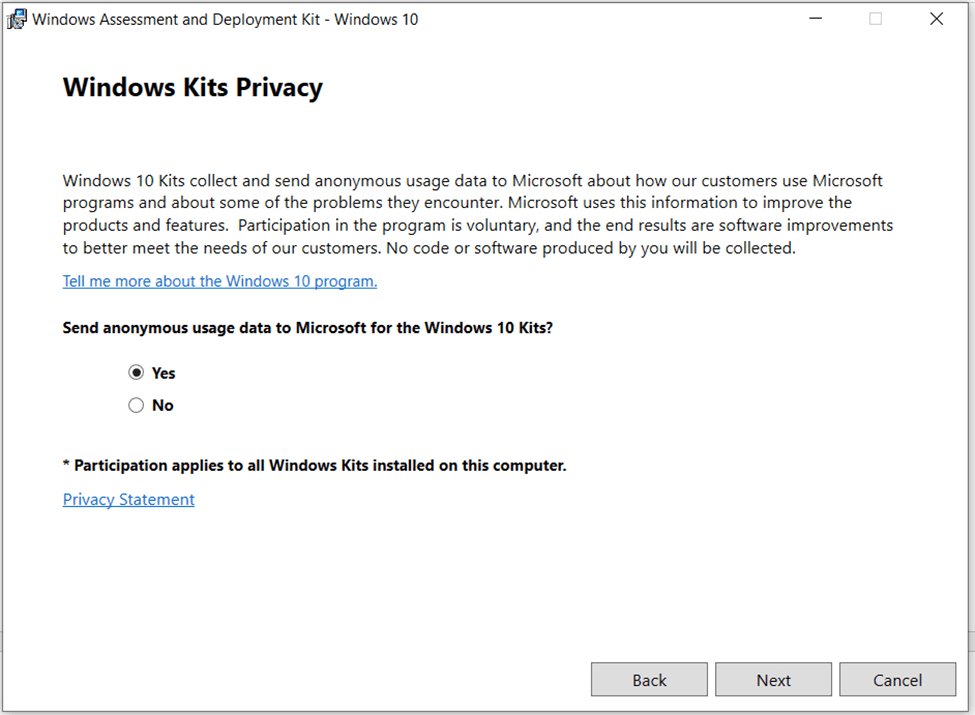
image-2
Windows Kits Privacy

5. Uncheck all but Check only the Windows Performance Toolkit and click install.

image-13
Select features you want to install

6. Wait for the Installation to finish.

image-4
Installing the Windows Performance ToolKit

7. After successful installation click close.

image-5
Installation Completed

8. If you check your start menu you will find the Windows Performance Recorder, GPUView, and Windows Performance Analyzer listed

assessment6
Windows Performance and Analyzer

9. When you click the Performance Monitor you will see the below image

image-7
Performance Monitor Dashboard

Performance Recorder

10. Click the Performance Recorder records all current performance statuses on your system and save afterward.

image-8
Windows Performance Recorder

Upon starting, you can click on save as shown below.

image-10
Recording file saved

11. Then use the Performance Analyzer to analyze the Performance recorded data that was saved. Click the Open in WPA

image-11
Windows Performance Recorded File Location

12. Immediately the Windows Performance Analyzer will open and you can analyze the results of the recording.

image-12
Windows Performance Analyzer

I hope you found this blog post how to Work with Windows Performance Toolkit interesting and helpful. If you have any questions do not hesitate to ask in the comment section.

5/5 - (1 vote)

Thank you for reading this post. Kindly share it with others.

  • Click to share on X (Opens in new window) X
  • Click to share on Reddit (Opens in new window) Reddit
  • Click to share on LinkedIn (Opens in new window) LinkedIn
  • Click to share on Facebook (Opens in new window) Facebook
  • Click to share on Pinterest (Opens in new window) Pinterest
  • Click to share on Tumblr (Opens in new window) Tumblr
  • Click to share on Telegram (Opens in new window) Telegram
  • Click to share on WhatsApp (Opens in new window) WhatsApp
  • Click to share on Pocket (Opens in new window) Pocket
  • Click to share on Mastodon (Opens in new window) Mastodon
  • Click to share on Bluesky (Opens in new window) Bluesky
  • Click to share on Threads (Opens in new window) Threads
  • Click to share on Nextdoor (Opens in new window) Nextdoor
Windows Tags:Microsoft Windows, Performance, Windows 10, Windows 11, Windows Server 2016

Post navigation

Previous Post: Workaround for a zero-day vulnerability on Microsoft Exchange Server
Next Post: VMSA-2022-0026: An arbitrary file read vulnerability in VMware Aria Operations

Related Posts

  • scandium
    How to Test Web Applications Using Scandium Configuration Management Tool
  • Featured image Windows Security
    How to clear Cache and Manually Update Microsoft Defender Anti-Virus Solution
  • whatsappImage
    How to add WhatsApp UWP on Windows 11 Windows
  • Performancewin10
    How Performance Monitor works in Windows 10 Windows
  • main
    How to Move OneDrive Folder to a different location in Windows Windows
  • Featured image batch file.
    Retrieve Recent Windows Update: How to create batch script files Scripts

More Related Articles

scandium How to Test Web Applications Using Scandium Configuration Management Tool
Featured image Windows Security How to clear Cache and Manually Update Microsoft Defender Anti-Virus Solution
whatsappImage How to add WhatsApp UWP on Windows 11 Windows
Performancewin10 How Performance Monitor works in Windows 10 Windows
main How to Move OneDrive Folder to a different location in Windows Windows
Featured image batch file. Retrieve Recent Windows Update: How to create batch script files Scripts

Leave a Reply Cancel reply

You must be logged in to post a comment.

Microsoft MVP

VEEAMLEGEND

vexpert-badge-stars-5

Virtual Background

GoogleNews

Categories

veeaam100

sysadmin top30a
 
  • Prevent Local Administrators from turning off BitLocker 1
    Prevent Local Administrators from managing BitLocker with the manage-bde command Windows
  • maxresdefault
    Linux Directory Hierarchy Linux
  • Run Linux on Windows Server
    How to install Windows Subsystem for Linux on Windows Server Linux
  • Featured image 6
    How to remove OneDrive from Windows Microsoft Exchange/Office/365
  • veeam agent for mac backup
    Backup Mac with Veeam Agent for Mac to Synology DS923+ NAS Backup
  • Task Scheduler Error 0x2 1
    How to fix Windows Task Scheduler 0x2 Error Windows
  • Copilot Microsoft
    How to Disable Copilot in Windows and Microsoft Edge Windows
  • cisco asa 5505 adaptive security appliance desktop firewall 10 100 47 18790 04 56708 pekm1000x469ekm
    Administer Cisco ASA: Mastering CLI Management Network | Monitoring

Subscribe to Blog via Email

Enter your email address to subscribe to this blog and receive notifications of new posts by email.

Join 1,841 other subscribers
  • RSS - Posts
  • RSS - Comments
  • About
  • Authors
  • Write for us
  • Advertise with us
  • General Terms and Conditions
  • Privacy policy
  • Feedly
  • Telegram
  • Youtube
  • Facebook
  • Instagram
  • LinkedIn
  • Tumblr
  • Pinterest
  • Twitter
  • mastodon

Tags

AWS Azure Bitlocker Microsoft Windows PowerShell WDS Windows 10 Windows 11 Windows Deployment Services Windows Server 2016

Copyright © 2025 TechDirectArchive


Loading Comments...
 

You must be logged in to post a comment.