Skip to content

TechDirectArchive

Hands-on IT, Cloud, Security & DevOps Insights

  • Home
  • About
  • Advertise With US
  • Contact
  • Reviews
  • Toggle search form
Home » Windows » Configure and validate Exclusions for Microsoft Defender Antivirus scans
  • How to download install and use Kitty SSH Client on Windows
    How to Download and Use KiTTY SSH Client on Windows Configuration Management Tool
  • windows update 03
    How to target WSUS clients with the registry keys Windows Server
  • Hub Transport 1
    Hub Transport Server: Resolving ‘Failed to Reach Running Status’ Network | Monitoring
  • Account restrictions are preventing this user from signing in
    Resolve Account restrictions are preventing this user from signing in: User Account Password has expired Windows
  • Header image
    How to setup a Third-Party DNS Server on a Linux Server Linux
  • Reverse Image Search
    How to Perform a Reverse Image Search on Your Browsers Network | Monitoring
  • Check Hard Drive Health (SMART) in Windows
    How to check Hard Drive Health (SMART) in Windows Windows
  • WindowsWebClientcoverPH67
    ​​​​​Install HTML Web Client for Microsoft RDS Windows

Configure and validate Exclusions for Microsoft Defender Antivirus scans

Posted on 18/10/202216/12/2023 Matthew By Matthew No Comments on Configure and validate Exclusions for Microsoft Defender Antivirus scans
Feature-image-1
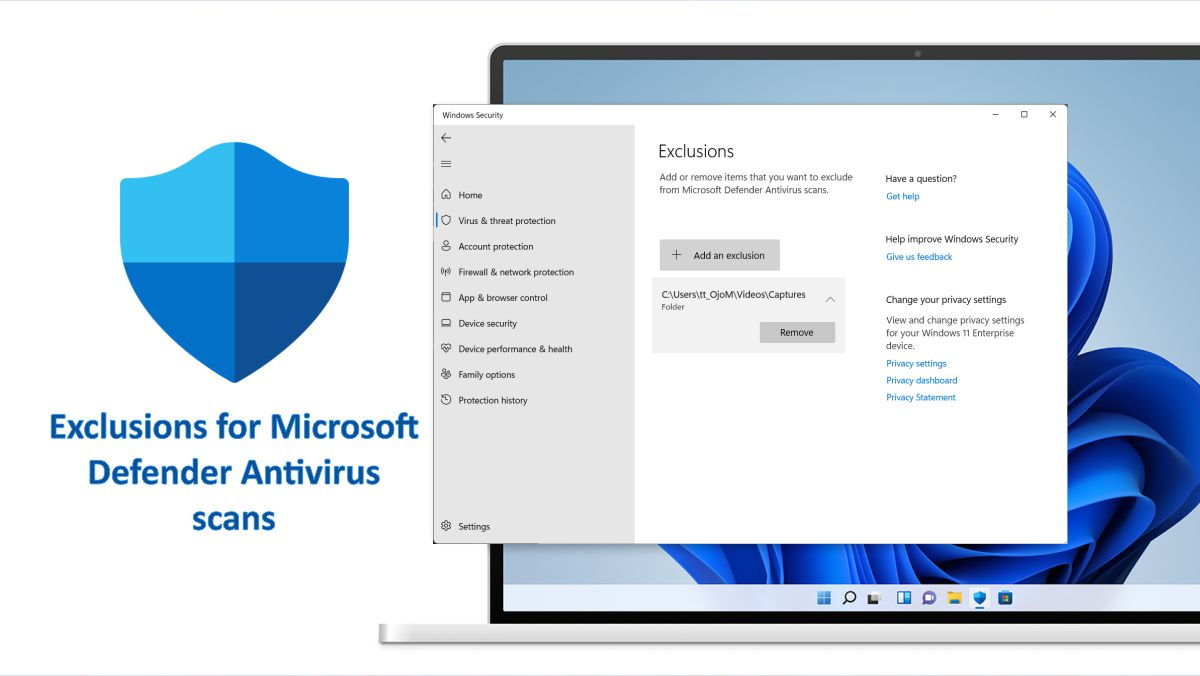
Configure and Validate Exclusions for Microsoft Defender Antivirus Scans

Windows Defender Antivirus is the default anti-malware engine on Windows, and it protects your device and data against viruses, rootkits, ransomware, and other security threats. Please see Microsoft Endpoint Manager: How to manage Microsoft Defender Antivirus with Group Policy and Microsoft Malware Protection via the Command Line Utility, and Smart App Control and how to enable Phishing Protection: Windows 11 New Security Features.

Although the built-in Windows antivirus performs well on the whole, it may flag a file or folder that you trust as harmful. If you wish to avoid this sort of behaviour, Windows Defender Antivirus has a setting that allows you to exclude files and folders, as well as file types and processes, from being examined and blocked.

Such exclusions apply to scheduled scans, on-demand scans, and always-on real-time protection and monitoring.

Here are other related guides: How to find and remove Malware with Microsoft Defender Offline, How to turn on Windows 10 Tamper Protection for Microsoft Defender,

Some Guidelines for defining exclusions Defender Antivirus

The following are some considerations that Microsoft advises you to bear in mind while defining exclusions:

  • When defining exclusions, take into account all of your possibilities. Other approaches include just ensuring that the excluded location has the required access-control lists (ACLs) or initially setting policies to audit mode.
  • Periodically review the exclusions. As part of your review process, double-check and reinforce mitigations.
  • Exclusions should only be used for specific reasons, such as performance or program compatibility, when exclusions might help.

The following table lists some examples of exclusions based on file extension and folder location.

ExclusionExamplesExclusion list
Any file with a specific extensionAll files with the specified extension, anywhere on the machine.Valid syntax: .test and testExtension exclusions
Any file under a specific folderAll files under the c:\test\sample folderFile and folder exclusions
A specific file in a specific folderThe file c:\sample\sample.test onlyFile and folder exclusions
A specific processThe executable file c:\test\process.exeFile and folder exclusions
Table source: Learn.microsoft.com

Ways to Configure and Validate Exclusions

In this section, we’ll walk you through how to configure and exclude particular files, file types, folders, and processes from Windows Defender Antivirus scans.

Method 1: Add Exclusions to Microsoft Defender Antivirus in Windows Security

Press the Windows + I keys together to open the Settings menu. Select Privacy and Security, and choose Windows Security on the right pane.

Windows Defender Antivirus
Settings

Under Windows Security, select the Open Windows Security option.

Microsoft Security Antivirus
Opening Windows Security in Settings

In Windows Security, click Virus and Threat Protection.

Defender Antimalware
Virus & Threat Protection

Click on the Manage settings link under Virus & Defender Antivirus settings.

Microsoft Antivirus Protection
Windows Security

Click on the “Add or remove exclusions” link under the Virus & threat protection settings. If prompted by UAC, click Yes.

Defender Antimalware


Click Add an exclusion and specify what type of exclusion (file, Folder, File type, Process) you want to add Defender Antivirus.

image6-1
Windows Security: Exclusions

How to Remove Exclusions from Microsoft Defender Antivirus in Windows Security

If you no longer want to exclude a certain item from the Windows Defender scans, you can easily remove it by going to the Add or remove exclusions link under Virus & threat protection settings.

image5-2
Remove exclusions


Click on an added extension you want to remove to expand it open and click Remove.

image8-1
Added extension removed.

Method 2: Use Group Policy Editor to configure folder or file extension exclusions Defender Antivirus

If you provide a fully qualified path to a file, just that file is excluded. If a folder is specified in the exclusion, all files and subdirectories inside that folder are excluded.

For Folder Extension Exclusion:

To open the Local Group Policy Editor, press the Win+R keys together to launch the Run dialog box, type gpedit.msc and press the Enter button Defender Antivirus.

Windows Defender Antivirus
Run dialog box

In the Group Policy Management Editor go to: Computer Configuration > Administrative Templates > Windows Components

Expand the tree to Microsoft Defender Antivirus > Exclusions. On the right pane, double-click to open the Path Exclusions setting for editing.

Microsoft Antivirus Protection
Local Group Policy editor

Set the option to “Enabled.” And under the Options section, select Show.

Windows Defender Antivirus
Path Exclusions

Specify each folder on its own line under the Value name column.

Microsoft Security Antivirus
Path Exclusions Settings

Enter 0 in the Value column and click OK.

For File Extension Exclusion:

If you are specifying a file, ensure that you enter a fully qualified path to the file, including the drive letter, folder path, file name, and extension.

Next, double-click to open the Extension Exclusions setting for editing and add your exclusions.

Windows Defender Antivirus
Extension Exclusions

Set the option to Enabled and, under the Options section, select Show.

image14
Extension Exclusions Settings

Enter each file extension on its own line under the Value name column.

image13
Extension Exclusions Settings

Enter 0 in the Value column and click OK.

Method 3: Add or Remove File Exclusion for Microsoft Defender Antivirus in PowerShell

To access PowerShell, simply initiate the Start menu and type in “PowerShell” in the search bar.

For the inclusion of a file exclusion, input the subsequent command:

Add-MpPreference -ExclusionPath "<Full path of file>" -Force​
For example:
Add-MpPreference -ExclusionPath " C:\Windows\Fonts" -Force

Enter the following command to eliminate a file exclusion:

Remove-MpPreference -ExclusionPath "<Full path of file>" -Force​
For example:

Remove-MpPreference -ExclusionPath " C:\Windows\Fonts" -Force

You can use PowerShell commands to do the same thing for every other exclusion type you want to exclude.

I hope you found this guide useful on configure and validate Exclusions for Microsoft Defender Antivirus scans. Please feel free to leave a comment below.

Rate this post

Thank you for reading this post. Kindly share it with others.

  • Click to share on X (Opens in new window) X
  • Click to share on Reddit (Opens in new window) Reddit
  • Click to share on LinkedIn (Opens in new window) LinkedIn
  • Click to share on Facebook (Opens in new window) Facebook
  • Click to share on Pinterest (Opens in new window) Pinterest
  • Click to share on Tumblr (Opens in new window) Tumblr
  • Click to share on Telegram (Opens in new window) Telegram
  • Click to share on WhatsApp (Opens in new window) WhatsApp
  • Click to share on Pocket (Opens in new window) Pocket
  • Click to share on Mastodon (Opens in new window) Mastodon
  • Click to share on Bluesky (Opens in new window) Bluesky
  • Click to share on Threads (Opens in new window) Threads
  • Click to share on Nextdoor (Opens in new window) Nextdoor
Anti-Virus Solution, Security | Vulnerability Scans and Assessment, Windows Tags:Defender, Defender Antivirus, Microsoft Defender, Microsoft Defender Antivirus, Microsoft Windows, Windows 10, Windows 11, Windows Defender, Windows Defender Antivirus

Post navigation

Previous Post: An error has occurred in the script on this page: HTA applications report a Script error after upgrading to ADK for Windows 11, version 22H2
Next Post: How to deploy MBAM Client as part of a Windows Deployment

Related Posts

  • WonderFox Video Watermark
    Install and use WonderFox Video Watermark Windows
  • Featured image dataTransfer.
    How to transfer data from an old PC to a new PC Windows
  • banner
    How to Check and Reset Network Data Usage in Windows 11 Network | Monitoring
  • AppLocker
    Fix unable to start the Application Identity Service Windows
  • Featured image 10
    Add a Printer Using an IP Address in Windows 11 Network | Monitoring
  • screenshot 2020 02 08 at 15.53.31
    Enable Automatic Logon via Windows Registry Windows

More Related Articles

WonderFox Video Watermark Install and use WonderFox Video Watermark Windows
Featured image dataTransfer. How to transfer data from an old PC to a new PC Windows
banner How to Check and Reset Network Data Usage in Windows 11 Network | Monitoring
AppLocker Fix unable to start the Application Identity Service Windows
Featured image 10 Add a Printer Using an IP Address in Windows 11 Network | Monitoring
screenshot 2020 02 08 at 15.53.31 Enable Automatic Logon via Windows Registry Windows

Leave a Reply Cancel reply

You must be logged in to post a comment.

Microsoft MVP

VEEAMLEGEND

vexpert-badge-stars-5

Virtual Background

GoogleNews

Categories

veeaam100

sysadmin top30a

  • How to download install and use Kitty SSH Client on Windows
    How to Download and Use KiTTY SSH Client on Windows Configuration Management Tool
  • windows update 03
    How to target WSUS clients with the registry keys Windows Server
  • Hub Transport 1
    Hub Transport Server: Resolving ‘Failed to Reach Running Status’ Network | Monitoring
  • Account restrictions are preventing this user from signing in
    Resolve Account restrictions are preventing this user from signing in: User Account Password has expired Windows
  • Header image
    How to setup a Third-Party DNS Server on a Linux Server Linux
  • Reverse Image Search
    How to Perform a Reverse Image Search on Your Browsers Network | Monitoring
  • Check Hard Drive Health (SMART) in Windows
    How to check Hard Drive Health (SMART) in Windows Windows
  • WindowsWebClientcoverPH67
    ​​​​​Install HTML Web Client for Microsoft RDS Windows

Subscribe to Blog via Email

Enter your email address to subscribe to this blog and receive notifications of new posts by email.

Join 1,839 other subscribers
  • RSS - Posts
  • RSS - Comments
  • About
  • Authors
  • Write for us
  • Advertise with us
  • General Terms and Conditions
  • Privacy policy
  • Feedly
  • Telegram
  • Youtube
  • Facebook
  • Instagram
  • LinkedIn
  • Tumblr
  • Pinterest
  • Twitter
  • mastodon

Tags

AWS Azure Bitlocker Microsoft Windows PowerShell WDS Windows 10 Windows 11 Windows Deployment Services Windows Server 2016

Copyright © 2025 TechDirectArchive


Loading Comments...
 

You must be logged in to post a comment.