Is there a best GPT converter to run MBR and GPT conversion? You can find the answer in this post. Summary: You may need to convert the system drive to GPT when upgrading from Windows 10 to Windows 11. Here, you are going to learn how to do it without losing data. Here are some related guides: How to Convert a System Drive from MBR to GPT Partition on Windows 10, how to convert a GPT disk into an MBR disk error: Windows cannot be installed on drive 0 Partition 1, and how to extend System Drive Partition on Windows. In this guide, you will learn how to run MBR and GPT conversion with the best GPT converter.
Why do we need the best GPT converter?
As we all know, Windows 11 has been released for a long time. During this period, many old users have upgraded from Windows 10 to Windows 11. However, some users are still running Windows 10. For those users who want to upgrade to Win 11, they may not be sure whether Win 11 should use MBR or GPT.
According to the Windows 11 configuration requirements announced by Microsoft, Windows 11 pays more attention to user data security. So Windows 11 abandons the traditional MBR partition style and uses the GPT partition style instead.
This is because GPT is booted by UEFI, while MBR is booted by BIOS, and UEFI boot mode is more secure than BIOS boot mode. In short, if you want to upgrade from Check for Update of Windows 10 to Win 11, you must convert the system disk from MBR to GPT.
Disk Management can only convert an empty disk from MBR to GPT, so you should delete the partitions in advance. But we can’t convert the system disk to a GPT disk because Windows doesn’t support deleting the system partition while running. Of course, you can also use Diskpart to convert MBR to GPT.
But similar to Disk Management, this requires you to completely delete the partitions to complete the conversion, and you cannot delete the system partition. So we need the best MBR to GPT converter to help you achieve this purpose.
Best GPT converter: Perform MBR and GPT conversion
Is there a way to convert MBR to GPT without deleting the partition? I recommend you a free partition software called AOMEI Partition Assistant Standard(compatible with Windows 11, 10, 8, 7, XP, and Vista), which can convert MBR/GPT to MBR/GPT without losing data. It has the following advantages:
- This is an all-in-one disk partition management expert that provides multiple functions to solve different disk problems, especially when Disk Management and Diskpart can’t satisfy you.
- It has a friendly interface and a detailed operation guide, so it is suitable for every user, even if you have no computer experience.
- Provides other useful features, such as cloning SSD to larger SSD without reinstalling, converting NTFS to FAT32 without losing data, cleaning PC junk files, etc.
"Alert section of type warning": Kindly take note of the following points below.
- Std Edition only supports converting data disk to GPT. To convert the system disk from MBR to GPT, please turn to Pro Edition.
- Before converting the system disk to GPT, you need to make sure whether UEFI is installed on the motherboard. If installed, you also need to ensure that the firmware is too old to meet the requirements of Windows 11. Otherwise, your PC may not boot properly after converting the system disk to GPT.
Now, please follow the steps to see how to convert MBR to GPT with AOMEI Partition Assistant.
Step 1. Download and install AOMEI Partition Assistant. On the main interface, right-click the target disk and select “Convert to GPT Disk”.

Step 2. Then, read the warning window and click “OK”.

Step 3. After that, you will see the target disk has converted to the GPT. Click the “Apply” to generate the operations.

Tip: If you want to convert MBR to GPT when the operating system fails to boot properly, you can create a bootable media and finish the conversion from the Windows PE mode.
How to boot the GPT system disk from the UEFI
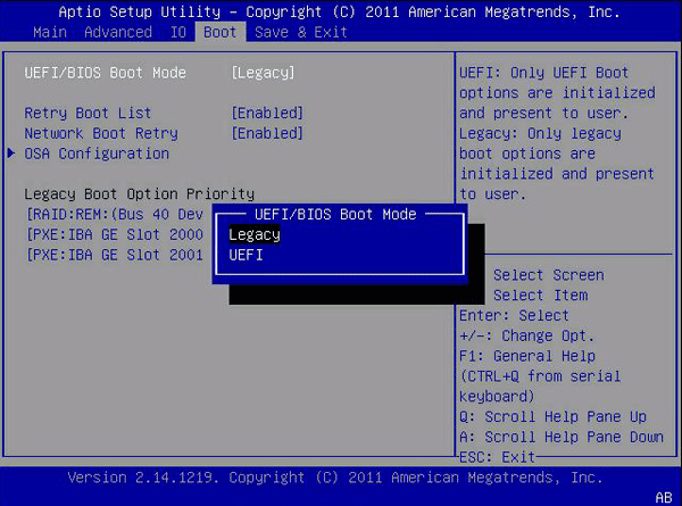
If you have converted the system disk from MBR to GPT, how can you start it? Don’t worry, you need to go into the BIOS setup and change the boot method from BIOS to UEFI. Please refer to the following steps:
- Step 1. Keep pressing F9/F10/F11/F12/Esc when booting to enter BIOS setup.
- Step 2. Use the arrow keys of the keyboard to navigate to the Boot option and change Legacy to UEFI.
Step 3. Save and exit. After that, your computer will restart.
I hope you found this blog post helpful. Please let me know in the comment session if you have any questions.