Rename or Move Files or Directories in Linux with Bash Terminal


In this article, we shall discuss how to rename or Move Files or Directories in Linux with Bash Terminal. When it comes to working on the Linux OS renaming files and directories is a common daily task for a system administrator. It is a routine operation that can be carried out whether you are using the command line or the GUI. Please see How to install Windows Subsystem for Linux on Windows 11 via the Command line, and Microsoft Store, and how to get Domain information using WHOIS Command in Linux.
The CLI is a particularly potent tool when compared to the GUI (or Graphical User Interface). This is partially because you can rename files in bulk or even schedule the scripts to do it at a specific time.
See the following guides to learn more: How to fix SU authentication failure and Sudo Permission denied Prompt in Ubuntu, Linux Cheat Sheet: The Linux Command Line,
The CLI is a particularly potent tool when compared to the GUI (or Graphical User Interface). This is partly due to the fact that you can rename files in batch and or schedule the scripts to do it at a specific time.
Bash is a command generator that normally operates in a text window where users enter instructions to trigger operations Linux OS. A shell script is a file that contains commands that Bash can read and execute. Apart from having the rename or file moving command (mv), there are thousands of other Bash commands that are worth knowing as a system administrator.
If will like to read about Git, see the following guides: Git command not found: How to fix Git is not recognized as an internal or external command. Git Vulnerability: Git for Windows uninstaller is vulnerable to DLL hijacking when run under the SYSTEM user account.
What is BASH?
Bash stands for Bourne Again Shell. Computers provide two types of interfaces to the user Linux OS; that is, the Graphical User Interface (GUI), and text-based interfaces (through the command line or terminal). These interfaces allow you to navigate through the operating system and file system.
In text-based interfaces, a command line interpreter or shell is used to interpret the given commands by the user. Thus, allowing users to provide commands through which the user can specify what they want to do. Before providing the commands, bash displays a prompt, as you open the command line (in Linux and macOS), such as the one below.
user@localhost:~$Renaming a File in Linux
In this section, you will learn how you can rename or move files in the Linux command line using the built-in mv command.
In Linux operating systems, the mv command moves and renames files and directories. You can use the built-in Linux command mv to rename files.
The mv command follows this syntax:
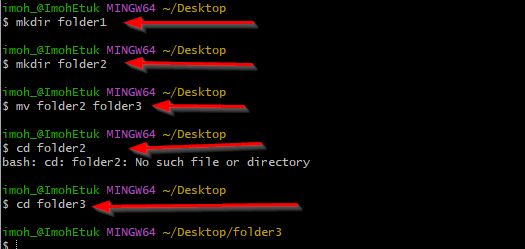
mv [options] source_file destination_fileFor instance, in the screenshot below I created a directory called folder1 and folder2 with the mkdir command and later renamed folder2 to folder3.
To test if that really took effect, I navigated to folder1 with the cd command but got an error and later cd into folder3 and it worked Linux OS.
While using the mv command below are some useful options:
-v , --verbose: Explains what is being done.
-i, --interactive: Prompts before renaming the file.
Another example is, let’s say you want to rename index.html to mywebsite_page.html. You use the mv command as shown below:
$ mv index.html web_page.html
Renaming files extension in bulk using the mv command Linux OS
Having learned about renaming singles, let’s take a look at how to rename bulk files.
In thejsfiles directory, we have a bunch of .js files that we will like to rename in bulk.

Next, we want to convert them to .json extensions. To do so, run the command below:
for f in *.js; do mv -- "$f" "${f%.js}.json"; done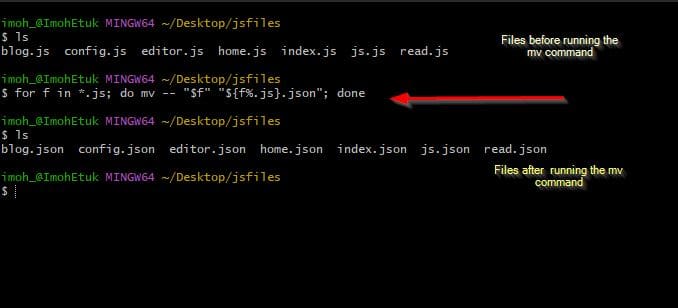
Now let’s take brief look at this long command to see what it means:
The first part [for f in *.js] tells the for loop to process each “.js” file in the directory.
 The next part [do mv -- "$f" "${f%.js}.json] specifies what the processing will do. It is using mv to rename each file. The new file is going to be named with the original file’s name excluding the .js part. A new extension of .json will be appended instead.
 The last part [done] simply ends the loop once all the files have been processed.
Renaming using regular expressions Linux OS
mv does not interpret regular expressions (regex). If you want to rename many files using a complex or nuanced mapping from old to new file names, you use the rename command instead. rename accepts Perl regular expressions. For example Linux OS:
rename 's/My\ file(..)/newdocs$1/' My*This command renames files My file.txt and My file 2.txt to newocs.txt and newdocs 2.txt.
Moving Files to a Directory using the mv command
The mv command is a powerful command as it can also be used to move files between directories.

In the above screenshot, we created a file named text1.txt in the Desktop location and moved it to the myfiles directory.
Another example is if we move the file myfile.txt into the directory myfiles. If myfiles is a file, it is overwritten. If the file is marked as read-only but you own the file. You are prompted before overwriting it.

Another instance is if myfiles is a file or directory and myfiles1 is a directory, move myfiles into myfiles1. If myfiles1 does not exist, the file or directory myfiles is renamed myfiles1.

Now let’s move the directory myfiles to the parent directory of the current directory Linux OS.

In conclusion, renaming and moving files or directories is quite easy using the mv command. You can use it to perform a lot of powerful tasks on Linux.
I hope you found this article useful on how to rename or Move Files or Directories in Linux with Bash Terminal. Please feel free to leave a comment below.


