
Skip to content

TechDirectArchive

Hands-on IT, Cloud, Security & DevOps Insights

  • Home
  • About
  • Advertise With US
  • Reviews
  • Contact
  • Toggle search form
Home » Network | Monitoring » Perform Office Online Server Update via the Microsoft Update Catalog
  • S3 Bucket Replication
    Set up Cross-Region Replication for S3 Buckets AWS/Azure/OpenShift
  • ChatGPT on Linux
    Set Up and Use ChatGPT in Linux Terminal Linux
  • powershell commands lede 1024x276 1
    Enable WinRM on Windows Servers and Windows PCs Scripts
  • a Multiple SPF Records  Issues and Examples@2x
    How to setup SPF and TXT Records in AWS AWS/Azure/OpenShift
  • SQL server authentication mode
    Change from SQL Server and Windows Authentication Mode to Windows authentication Mode Oracle/MSSQL/MySQL
  • Run Android Apps on Windows with BlueStacks
    How to Run Android Apps on Windows with BlueStacks Windows
  • Delete VM and Storage in Proxmox
    How to delete a VM and Storage in Proxmox Virtualization
  • ansible business cards 1600x0 c default
    Kerberos error: Clock skew too great while getting initial credentials Windows Server

Perform Office Online Server Update via the Microsoft Update Catalog

Posted on 14/11/202223/10/2024 Christian By Christian No Comments on Perform Office Online Server Update via the Microsoft Update Catalog
Office Online Server Update: A Comprehensive Guide

In this article, we shall discuss how to perform Office Online Server Update via the Microsoft Update Catalog. Here and then, Microsoft makes software updates and new versions available to help improve server security, performance, and reliability. If you wish to apply software updates to multiple server farms. Here is how to set up and Configure Office Online Server, and How to Troubleshoot Unable to Install Office.

This article describes how to apply software updates or new versions to individual servers in an Office Online Server farm. Released updates for the Office Online Server will not only update the server itself but also any installed Office Online Server language packs.

There are no separate updates for Office Online Server language packs. This guide applies only to a single server farm. See how to perform Office Online Server Update via Windows Updates

Caution! Applying Office Online Server updates or new versions by using the automatic updates process isn’t supported with Office Online Server. This is because updates to an Office Online Server must be applied in a specific way.

Note: If Office Online Server updates are applied automatically, users may not be able to view or edit documents in Office Online. If this happens, you have to rebuild your Office Online Server farm.

Note: I am sure you do not want to embark on this cumbersome route. Therefore, it is paramount that you pay attention to the steps in the update process for the Office Online Server farm.

Here are some related guides: How to Cancel Office 365 Family Subscription, how to install and activate Office 2019 on your Mac PC, How do you change the account that Office says it belongs to on a Mac, and how to Fix Microsoft Excel Crash Issue

Apply software updates or new versions to a single server farm

As the title says, this update applies only to a single server farm.

Step 1: On the Office Online Server that you want to apply the software update to, open the Microsoft PowerShell prompt as an administrator and run the following command.

Remove-OfficeWebAppsMachine

Remove server Farm to begin updating office online server

Since I only have a single server Office Web Apps farm. Removing the server from the farm results in the dissolution of the farm.

Step 2 (optionally only for a new version)

If this is a new release of Office Online Server that you downloaded from the Volume Licensing Service Center (VLSC), then you must uninstall the existing version before you install the new version.

Note: If this is an update from Microsoft Update, then there’s no need to uninstall Office Online Server.

Step 3: Since I am not installing a new version, I will proceed to step 3 below. Install the Office Online Server update or a new version on that server.

At the time of writing this guide, here is the most recent Security Update for Microsoft Office Online Server (KB5002276) farm deployment. If you’re not using WSUS as recommended, you can download this from the Microsoft Update Catalog.

Microsoft update catalogue to continue updating office online server

Kindly accept the EULA, and click on continue to start the update process.

accept the EULA to start updating the office online server process

Observe below as the update is presently being applied.
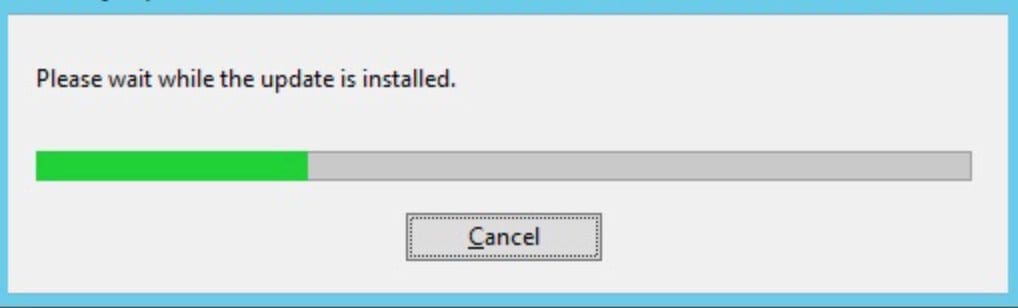
updating office online server in progress

If prompted, restart the server. Click on “Yes“.

reboot server to complete office online update

Following the server reboot, you need to reconfigure the farm. Therefore, proceed to the next step.

Step 4: re-create an Office Online Server farm

Open the Microsoft PowerShell prompt as an administrator and run the New-OfficeWebAppsFarm cmdlet to re-create an Office Online Server farm. These steps are similar to the steps described on how to install, and configure the Office Online Server.

The URL you specify for -InternalURL is the name of the server that runs Office Online Server, such as URL. Kindly refer to the command below, all you need to do is to replace the URLs with yours!

New-OfficeWebAppsFarm -InternalUrl "URL" -ExternalUrl "URL" -CertificateName "OfficeWebApps Certificate" -EditingEnabled
OfficeOnline 18

As you can see, I used the same URLs as discussed during the OOS setup. In conjunction with SharePoint Server, the -EditingEnabled parameter empowers Office Online with editing capabilities. Parameters

  • InternalURL is the fully qualified domain name (FQDN) of the server that runs Office Online Server, such as URL
  • ExternalURL is the FQDN that can be accessed on the Internet.
  • CertificateName is the friendly name of the certificate.
  • EditingEnabled is optional and enables editing in Office Online when used with SharePoint Server. Skype for Business Server 2015 and Exchange Server do not utilize this parameter since these hosts do not support editing.

Please see how to Upgrade Microsoft Office 2019 to 2021 on Mac, learn Group Policy GPUpdate Commands, and “Out-of-Band Security Update for PrintNightmare: Patch released for Windows Print Spooler Remote Code Execution Vulnerability“.

Verify that the Office Online Server farm was created successfully

After establishing the farm, the Microsoft PowerShell prompt will display farm details, as shown above. To confirm the proper installation and configuration of the Office Online Server, access the Office Online Server discovery URL through a web browser, as illustrated below.

The discovery URL is the InternalUrl parameter you specified when you configured your Office Online Server farm, followed by /hosting/discovery. For example

URL/hosting/discovery

I hope you found this blog post on how to Office Online Server Update via the Microsoft Update Catalog helpful. Please let me know in the comment session if you have any questions.

5/5 - (1 vote)

Thank you for reading this post. Kindly share it with others.

  • Click to share on X (Opens in new window) X
  • Click to share on Reddit (Opens in new window) Reddit
  • Click to share on LinkedIn (Opens in new window) LinkedIn
  • Click to share on Facebook (Opens in new window) Facebook
  • Click to share on Pinterest (Opens in new window) Pinterest
  • Click to share on Tumblr (Opens in new window) Tumblr
  • Click to share on Telegram (Opens in new window) Telegram
  • Click to share on WhatsApp (Opens in new window) WhatsApp
  • Click to share on Pocket (Opens in new window) Pocket
  • Click to share on Mastodon (Opens in new window) Mastodon
  • Click to share on Bluesky (Opens in new window) Bluesky
  • Click to share on Threads (Opens in new window) Threads
  • Click to share on Nextdoor (Opens in new window) Nextdoor
Network | Monitoring Tags:Microsoft Windows, office, Office 2019, Windows Server 2016

Post navigation

Previous Post: Use Windows Sandbox as a security feature
Next Post: Write a Shell Script that Count Lines and Words in a File

Related Posts

  • How to determine Active Directory Site Name
    How to determine Active Directory Site Name Network | Monitoring
  • creating the perfect grafana dashboard  main
    How to install Grafana on Ubuntu Linux Network | Monitoring
  • cisco switches 2
    How to disable Spanning-Tree Globally Network | Monitoring
  • elastic ip association error screen
    Fix Elastic IP Address Could not be Associated AWS/Azure/OpenShift
  • cisco catalyst switch 1
    How to Reset a Cisco 3650 Catalyst Switch Network | Monitoring
  • Grammarly integration with Word on Mac
    Integrate Grammarly in Microsoft Word on Mac Network | Monitoring

More Related Articles

How to determine Active Directory Site Name How to determine Active Directory Site Name Network | Monitoring
creating the perfect grafana dashboard  main How to install Grafana on Ubuntu Linux Network | Monitoring
cisco switches 2 How to disable Spanning-Tree Globally Network | Monitoring
elastic ip association error screen Fix Elastic IP Address Could not be Associated AWS/Azure/OpenShift
cisco catalyst switch 1 How to Reset a Cisco 3650 Catalyst Switch Network | Monitoring
Grammarly integration with Word on Mac Integrate Grammarly in Microsoft Word on Mac Network | Monitoring

Leave a Reply Cancel reply

You must be logged in to post a comment.

Microsoft MVP

VEEAMLEGEND

vexpert-badge-stars-5

Virtual Background

GoogleNews

Categories

veeaam100

sysadmin top30a

  • S3 Bucket Replication
    Set up Cross-Region Replication for S3 Buckets AWS/Azure/OpenShift
  • ChatGPT on Linux
    Set Up and Use ChatGPT in Linux Terminal Linux
  • powershell commands lede 1024x276 1
    Enable WinRM on Windows Servers and Windows PCs Scripts
  • a Multiple SPF Records  Issues and Examples@2x
    How to setup SPF and TXT Records in AWS AWS/Azure/OpenShift
  • SQL server authentication mode
    Change from SQL Server and Windows Authentication Mode to Windows authentication Mode Oracle/MSSQL/MySQL
  • Run Android Apps on Windows with BlueStacks
    How to Run Android Apps on Windows with BlueStacks Windows
  • Delete VM and Storage in Proxmox
    How to delete a VM and Storage in Proxmox Virtualization
  • ansible business cards 1600x0 c default
    Kerberos error: Clock skew too great while getting initial credentials Windows Server

Subscribe to Blog via Email

Enter your email address to subscribe to this blog and receive notifications of new posts by email.

Join 1,839 other subscribers
  • RSS - Posts
  • RSS - Comments
  • About
  • Authors
  • Write for us
  • Advertise with us
  • General Terms and Conditions
  • Privacy policy
  • Feedly
  • Telegram
  • Youtube
  • Facebook
  • Instagram
  • LinkedIn
  • Tumblr
  • Pinterest
  • Twitter
  • mastodon

Tags

AWS Azure Bitlocker Microsoft Windows PowerShell WDS Windows 10 Windows 11 Windows Deployment Services Windows Server 2016

Copyright © 2025 TechDirectArchive


Loading Comments...
 

You must be logged in to post a comment.