Skip to content

TechDirectArchive

Hands-on IT, Cloud, Security & DevOps Insights

  • Home
  • About
  • Advertise With US
  • Contact
  • Reviews
  • Toggle search form
Home » Web Server » How to Create a React App with Vite
  • ESNAS Virtualization 01
    How to remove Recent vSphere Client Connections Virtualization
  • Time machine
    How to Backup MacOS to Synology NAS via Time Machine Backup
  • credentialguard
    Enable or disable Windows Defender Credential Guard Security | Vulnerability Scans and Assessment
  • Manage OU
    Delete or Rename and Create a Protected Organisation Unit in AD Windows Server
  • Error 0x800f0823 The specified package cannot be added to this Windows Image
    Error 0x800f0823: Wizard.hta Screen stuck during WDS Deployment Windows Server
  • cisco catalyst switch 1
    How to Reset a Cisco 3650 Catalyst Switch Network | Monitoring
  • powershell01
    How to create a KDS root key using PowerShell Scripts
  • ansiblebanner
    Install and configure Ansible on Azure Virtual Machine Configuration Management Tool

How to Create a React App with Vite

Posted on 08/07/202321/11/2023 Temitope Odemo By Temitope Odemo No Comments on How to Create a React App with Vite
banner-3

If you have been using create-react-app to set up your React project, it’s now time to start using Vite for better performance and faster development speed. Vite is a frontend build tool that was developed and designed to improve your development experience because it will offer you faster development and better performance. In this guide, I will show you how to create a React App with Vite. Please see how to automatically resolve errors associated with failed dependencies, How to set up a self-hosted speed test server on Ubuntu Linux, and how to fix “The web application “Administration Portal” cannot be enabled because one or more software dependencies are not met“.

Vite improves the development server start time by first dividing the modules in an application into two parts which are dependencies and source code. Dependencies are modules within your application that do not change, unlike the source code which is often edited all through the development. Below is a YouTube video discussing this topic.

Vite makes use of esbuild which ensures optimal output and behavioural consistency between your dev server and the production build. 

This is why Vite comes with a pre-configured build command that can create many performance optimizations for your development. If you want to deploy your React application to AWS S3 read about How to deploy a React Application to AWS S3  and if it’s Netlify you can read about How to Deploy a React Application on Netlify.

How to Create a Vite Project

Before you can create a Vite Project you need to install Node.js. Installing Node.js on Windows is very simple just go to the Nodejs website to download your specific version and follow the guidelines to install it. But you may also want to know how to install Node.js on Ubuntu.

1. Run the following commands to create your first Vite Project

This command will help launch the Vite Project with a specific version in mind but if you leave it as latest, you will get the current version installed.

npm create vite@latest or npm create vite@4.1.0

After this command is run, you will need to supply the project name and hit the enter key.

project-name

Vite will now prompt you to select a framework. Select React.

select-framework

Vite will now ask you to select a variant or a language. You can choose TypeScript or JavaScript. But in this guide, I will be using TypeScript as our language.
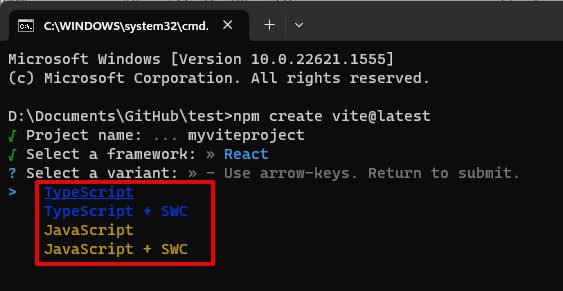
select-variant

After this, your Vite Project will be created successfully. Here is an article on how to install new fonts in Microsoft Office.

Project-done

2. Installing Node Package Dependencies

Change the directory to the project folder and install the node package inside. Run this command:

npm install    
npm-install

Please note that while installing this npm package it’s possible you get stuck. You can check this guide on How to fix npm install hangs on ‘sill idealTree buildDeps’

npm-install-hangs-1

After installing npm, you can run the project by using this command:

npm run dev

Once successful you will see the Local Address with the port number where you can access your application.

local-host-address

Your Project is successfully launched when you see this homepage. Please also see how to clean packages laying around in Linux.

Vite-React

I hope you found this blog post on how to Create a React App with Vite. Interesting and helpful. In case you have any questions do not hesitate to ask in the comment section.

Rate this post

Thank you for reading this post. Kindly share it with others.

  • Share on X (Opens in new window) X
  • Share on Reddit (Opens in new window) Reddit
  • Share on LinkedIn (Opens in new window) LinkedIn
  • Share on Facebook (Opens in new window) Facebook
  • Share on Pinterest (Opens in new window) Pinterest
  • Share on Tumblr (Opens in new window) Tumblr
  • Share on Telegram (Opens in new window) Telegram
  • Share on WhatsApp (Opens in new window) WhatsApp
  • Share on Mastodon (Opens in new window) Mastodon
  • Share on Bluesky (Opens in new window) Bluesky
  • Share on Threads (Opens in new window) Threads
  • Share on Nextdoor (Opens in new window) Nextdoor
Version Control System, Web Server, Windows

Post navigation

Previous Post: Fix npm install hangs on “sill idealTree buildDeps”
Next Post: Free Remote Desktop Software for Windows

Related Posts

  • Enable autologon and autostart for user session
    Enable Autologon and Autostart for user session Windows
  • Featured image GettingWinReady
    Fix “Getting Windows Ready” Don’t turn off your computer stuck on Windows Windows
  • Install ROOT CA Enterprise
    How to Install ROOT CA Enterprise and NPS Wifi Certificate Windows
  • Private and Public networks in Windows to VPN
    The differences between Private and Public networks in Windows to VPN? Network | Monitoring
  • wacxx
    Install Windows Admin Center in an unattended mode using a self-signed certificate Windows
  • screenshot 2020 02 09 at 17.11.11
    How to uninstall a program via command prompt in Windows Windows

More Related Articles

Enable autologon and autostart for user session Enable Autologon and Autostart for user session Windows
Featured image GettingWinReady Fix “Getting Windows Ready” Don’t turn off your computer stuck on Windows Windows
Install ROOT CA Enterprise How to Install ROOT CA Enterprise and NPS Wifi Certificate Windows
Private and Public networks in Windows to VPN The differences between Private and Public networks in Windows to VPN? Network | Monitoring
wacxx Install Windows Admin Center in an unattended mode using a self-signed certificate Windows
screenshot 2020 02 09 at 17.11.11 How to uninstall a program via command prompt in Windows Windows

Leave a Reply Cancel reply

You must be logged in to post a comment.

Microsoft MVP

VEEAMLEGEND

vexpert-badge-stars-5

Virtual Background

GoogleNews

Categories

veeaam100

sysadmin top30a

  • ESNAS Virtualization 01
    How to remove Recent vSphere Client Connections Virtualization
  • Time machine
    How to Backup MacOS to Synology NAS via Time Machine Backup
  • credentialguard
    Enable or disable Windows Defender Credential Guard Security | Vulnerability Scans and Assessment
  • Manage OU
    Delete or Rename and Create a Protected Organisation Unit in AD Windows Server
  • Error 0x800f0823 The specified package cannot be added to this Windows Image
    Error 0x800f0823: Wizard.hta Screen stuck during WDS Deployment Windows Server
  • cisco catalyst switch 1
    How to Reset a Cisco 3650 Catalyst Switch Network | Monitoring
  • powershell01
    How to create a KDS root key using PowerShell Scripts
  • ansiblebanner
    Install and configure Ansible on Azure Virtual Machine Configuration Management Tool

Subscribe to Blog via Email

Enter your email address to subscribe to this blog and receive notifications of new posts by email.

Join 1,825 other subscribers
  • RSS - Posts
  • RSS - Comments
  • About
  • Authors
  • Write for us
  • Advertise with us
  • General Terms and Conditions
  • Privacy policy
  • Feedly
  • Telegram
  • Youtube
  • Facebook
  • Instagram
  • LinkedIn
  • Tumblr
  • Pinterest
  • Twitter
  • mastodon

Tags

AWS Azure Bitlocker Microsoft Windows PowerShell WDS Windows 10 Windows 11 Windows Deployment Services Windows Server 2016

Copyright © 2025 TechDirectArchive


Loading Comments...
 

You must be logged in to post a comment.