Skip to content

TechDirectArchive

Hands-on IT, Cloud, Security & DevOps Insights

  • Home
  • About
  • Advertise With US
  • Contact
  • Reviews
  • Toggle search form
Home » Windows » Fix Remote Connection Issue: An Authentication Error Has Occurred with Code 0x80004005

Fix Remote Connection Issue: An Authentication Error Has Occurred with Code 0x80004005

Posted on 30/08/202305/02/2025 Christian By Christian No Comments on Fix Remote Connection Issue: An Authentication Error Has Occurred with Code 0x80004005
FIX RDP Authentication Error

The Remote Desktop Protocol (RDP) is a proprietary protocol developed by Microsoft. It provides a user with a graphical interface giving users the ability to connect to remote Windows PCs over the internet or on a local network. This connection gives them full access to the tools and software installed on these PCs. In this guide, we will discuss how to “Fix Remote Connection Issue: An Authentication Error Has Occurred with Code 0x80004005”. Please see Resolve Account restrictions are preventing this user from signing in: User Account Password has expired. The various Ansible Authentication Options, and how to fix “The following error occurred attempting to rename the computer Account already exists”.

Note: When attempting to Remote Desktop (RDP) to a Windows machine, you may receive an error. In my case, this error is not related to the Network Level Authentication (NLA) feature since the “Function Requested Is Not Supported” was not included in the error message.

It is important for you to be aware of your environment. And be able to apply a fix to issues and not just every fix suggested on the internet. They might not be applicable to you. You may be interested in this: How to Check What Files Are Taking Up Space on Windows 11.

Reason for the error

For me, this error was prompted due to incorrect credentials entered. Since this server was moved into a different domain, the connection needs to happen with the right domain credentials. Below is the error that was prompted when the remote connection was initiated.

AuthenticationError

Upon hitting the see details button, you will find more information such as the Error code, Extended error code, timestamp and activity ID. Click on OK to close this window. Learn how to Disable credential Prompts for Remote Desktop Connections.

RDp Extended error code and timestamp

Please see Failed to run the action install Operating System: Lifetouch deployment failed, Return Code = -2147467259 0x80004005 when installing Windows image via MDT, and Error code 15601: How to resolve DISM unspecified error when removing preinstalled packages.

Resolve Authentication Error Code 0x80004005

Now that we have been able to determine the error for this error. Launch the Remote desktop connection once again. This time, click on the show option.

Show more rdp optionsjpg

Note: Ensure that you are using the full domain username in this form domain\username or username@domain.com for example.

On the general tab, enter the computer (server) name, and the username in the SAM or UPN format. I will go with the SAM account format. When you are done, click on Connect.

Enter-Remote-PC-Connection-Information

You will be prompted to enter your password. Enter your password and click on the OK button. Please see Remote Desktop cannot find the computer this in the specified network: Verify the computer name and domain that you are trying to connect.
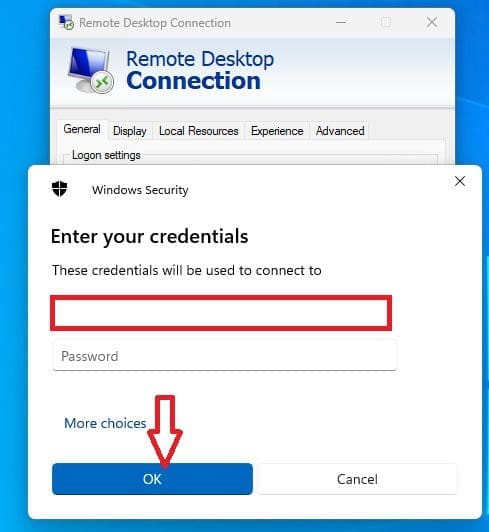
Enter-your-credential-to-connect-remotely

As you can see, the connection is successful. Please see Cannot find the computer: Fix the following error occurred while using Kerberos authentication, and how to enable dark theme in Windows 11.

RDP-Connection-Sucessful

I hope you found this blog post helpful on how to “Fix Remote Connection Issue: An Authentication Error Has Occurred with Code 0x80004005”. Please let me know in the comment section if you have any questions.

5/5 - (1 vote)

Thank you for reading this post. Kindly share it with others.

  • Share on X (Opens in new window) X
  • Share on Reddit (Opens in new window) Reddit
  • Share on LinkedIn (Opens in new window) LinkedIn
  • Share on Facebook (Opens in new window) Facebook
  • Share on Pinterest (Opens in new window) Pinterest
  • Share on Tumblr (Opens in new window) Tumblr
  • Share on Telegram (Opens in new window) Telegram
  • Share on WhatsApp (Opens in new window) WhatsApp
  • Share on Mastodon (Opens in new window) Mastodon
  • Share on Bluesky (Opens in new window) Bluesky
  • Share on Threads (Opens in new window) Threads
  • Share on Nextdoor (Opens in new window) Nextdoor
Windows, Windows Server Tags:Microsoft Windows, Windows 10, Windows Server 2016

Post navigation

Previous Post: How to enable dark theme in Windows 11
Next Post: Great details on VMware Tech Showcase

Related Posts

  • banner 4
    How to Install Windows on VMware Workstation Windows
  • Run Linux on Windows Server
    How to install Windows Subsystem for Linux on Windows Server Linux
  • ccsC
    NTuser.dat file: How to correctly load Windows Registry Hive Windows
  • How to Disable the Password Manager of Google Chrome
    How to Disable the Password Manager of Google Chrome Password Manager
  • needthetools
    Fix no BitLocker Recovery tab in Active Directory Windows Server
  • iscsi
    Install and configure iSCSI Target Server and iSCSI Initiator on a Windows Server Windows Server

More Related Articles

banner 4 How to Install Windows on VMware Workstation Windows
Run Linux on Windows Server How to install Windows Subsystem for Linux on Windows Server Linux
ccsC NTuser.dat file: How to correctly load Windows Registry Hive Windows
How to Disable the Password Manager of Google Chrome How to Disable the Password Manager of Google Chrome Password Manager
needthetools Fix no BitLocker Recovery tab in Active Directory Windows Server
iscsi Install and configure iSCSI Target Server and iSCSI Initiator on a Windows Server Windows Server

Leave a Reply Cancel reply

You must be logged in to post a comment.

Microsoft MVP

VEEAMLEGEND

vexpert-badge-stars-5

Virtual Background

GoogleNews

Categories

veeaam100

Veeam Vanguard

  • schedulepythontasksinWindows
    Task Scheduler shows task still running despite successful Windows
  • PlayF
    How to Install PlayonLinux on a Linux System Linux
  • SUID GUID Sticky Bit 1
    Set Special File Permissions with SUID or GUID and Sticky Bit Linux
  • Install Veeam Backup and Replication with the default PostgreSQL
    Install Veeam Backup and Replication with the default PostgreSQL Backup
  • sshfs
    Mounting remote directory using sshfs Linux
  • change default apps windows 10 1
    Fresh Start, Clean Install and PC Reset: How to perform a Fresh Start installation of Windows 10 Windows
  • How to Activate Full-Screen (Kiosk Mode) in Internet Explorer Windows
  • Cloud Infrastructure and Application Security Best Practices
    [AZURE] Hybrid Cloud Infrastructure and Application Security Best Practices Network | Monitoring

Subscribe to Blog via Email

Enter your email address to subscribe to this blog and receive notifications of new posts by email.

Join 1,817 other subscribers
  • RSS - Posts
  • RSS - Comments
  • About
  • Authors
  • Write for us
  • Advertise with us
  • General Terms and Conditions
  • Privacy policy
  • Feedly
  • Telegram
  • Youtube
  • Facebook
  • Instagram
  • LinkedIn
  • Tumblr
  • Pinterest
  • Twitter
  • mastodon

Tags

Active Directory Azure Bitlocker Microsoft Windows PowerShell WDS Windows 10 Windows 11 Windows Deployment Services Windows Server 2016

Copyright © 2025 TechDirectArchive


Loading Comments...
 

You must be logged in to post a comment.