Skip to content

TechDirectArchive

Hands-on IT, Cloud, Security & DevOps Insights

  • Home
  • About
  • Advertise With US
  • Reviews
  • Contact
  • Toggle search form
Home » Security | Vulnerability Scans and Assessment » How to Secure your API key in Postman
  • Private and Public networks in Windows to VPN
    The differences between Private and Public networks in Windows to VPN? Network | Monitoring
  • blue screen error during windows 10 upgrade thumbnail
    Replace a blue screen error with a blank screen for system errors Windows
  • GPO 2
    Why GPO is not the best solution for managing Windows updates Windows Server
  • 1 WeXxkEX0JG3oB781HD8Hrg 1
    OOBESETTINGSMULTIPLEPAGE error on Windows 10 Windows
  • Migrate from Universal Analytics to GA4 property
    Configure and Migrate from Universal Analytics to GA4 property Automation
  • image 77
    How to use the DigiCert certificate utility for Windows to create a CSR Windows
  • Machine translation software min
    Self-hosted translator: How to install and uninstall SYSTRAN 6 translator on Windows Security | Vulnerability Scans and Assessment
  • azure resource groups 1
    Setup Public Load Balancer in Azure AWS/Azure/OpenShift

How to Secure your API key in Postman

Posted on 29/06/202416/12/2025 Temitope Odemo By Temitope Odemo No Comments on How to Secure your API key in Postman
banner

In this article, I will show you how to Configure Postman for a Secure API key Authentication. API “Application Programming Interface” is the bedrock of all system applications. Without an API it will be impossible for the backend logic of an application to communicate with the frontend. Please see How to Import Data from a GitHub Repository to Postman, and “Benefits of Azure API Management and how to create an API instance“.

API also makes it possible for an application to make a call or send a request to another application.

You can further read about How to Integrate Postman With GitHub. Also, see how to use Postman for your POST Request, How to Use Postman with the Amazon Pinpoint API.

One of the many ways to prove your identity and gain access to an API is using an API key. I am going to show you three ways to secure API keys.

1: Do not Hard Code your API keys directly into your code

Instead of hard-coding or embedding your API keys into your code why not store them as variables? Variables work perfectly in decoupling your secrets or API keys from your code. When you store your API key as a variable makes it easier for you to revoke, or refresh the value anytime.

We are going to create an API key as an environment variable that can be used with different collections and can be shared with team members and collaborators.

Open Postman and click on the + icon to create an environment and the environment variable. I name my environment variable api-key. Make sure you save the environment by clicking on the Save button.

Creating-Environment

On the No environment drop-down by the top right you can select the new environment just created to set as active.

You can also select from Environments in the left sidebar and select the Set active icon next to an environment to make it the active environment.

Configure-Postman-for-a-Secure-API-key-Authentication-set-active-environment

If the API Key is not supplied or the wrong API Key is added during a request. You will get an Invalid API Key response like the below request.
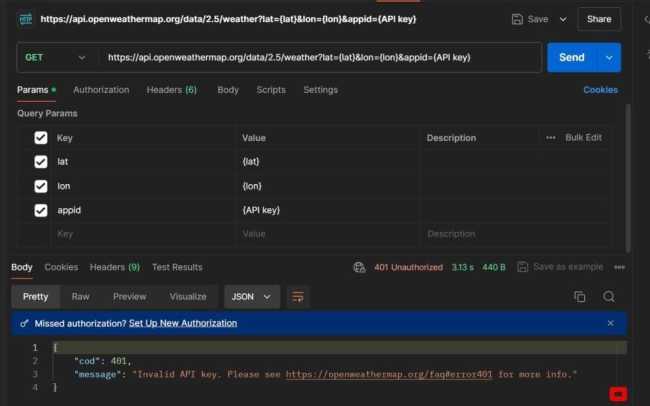
Configure-Postman-for-a-Secure-API-key-Authentication-API-Key

The variable you created earlier can be referenced in text fields with double curly braces, as you can see here in the Params. Hover over the variable name “api-key” to inspect the variable’s value and scope.

Configure-Postman-for-a-Secure-API-key-Authentication-reference-key

Also, see How to use Command-Line on Git Bash and GitHub Desktop to PUSH local code to GitHub, and how to Setup Public Load Balancer in Azure.

2.   Do not share your API keys with third-party or your team

If you are sharing the same Postman environment with your team. You will need to keep your Keys safe and private by only updating the current value.

The current value is only local to your Postman app session. Immediately you log out of Postman all the values will disappear and it does not get synced to the account you shared with your team unless you persist the value.

default

You can also define environment variables by Type. You can change the default type which is plain text to secret which masks the initial and current values. The Secret type is used to prevent the disclosing of sensitive data like API Keys, passwords, and tokens.

Configure-Postman-for-a-Secure-API-key-Authentication-Initial-Value

3. Use a Place-holder name and not leak your API keys publicly

When generating your API documentation and publishing it publicly, avoid leaking secrets, tokens, or API Keys to the public.

You can use a placeholder text or a dummy value for your API key’s value. The initial value is what will be posted publicly while the current value will remain locally.

Placeholder

When the API Documentation is finally published the key will not be exposed as the image below depicts.

published

FAQs

Is it safe to use API key in Postman?

It is very important that you keep your API Key safe because once it’s exposed to the public it can lead to unauthorized access to the API and data leaks will occur.

What is the most secure method to transmit an API key?

The best way to secure your API keys is to keep them on your personal server where you can securely access them. You can carry out authentication to your server using a JWT.

I hope you found this blog post on how to Secure your API key in Postman Interesting and helpful. If you have any questions do not hesitate to ask in the comment section.

5/5 - (1 vote)

Thank you for reading this post. Kindly share it with others.

  • Share on X (Opens in new window) X
  • Share on Reddit (Opens in new window) Reddit
  • Share on LinkedIn (Opens in new window) LinkedIn
  • Share on Facebook (Opens in new window) Facebook
  • Share on Pinterest (Opens in new window) Pinterest
  • Share on Tumblr (Opens in new window) Tumblr
  • Share on Telegram (Opens in new window) Telegram
  • Share on WhatsApp (Opens in new window) WhatsApp
  • Share on Pocket (Opens in new window) Pocket
  • Share on Mastodon (Opens in new window) Mastodon
  • Share on Bluesky (Opens in new window) Bluesky
  • Share on Threads (Opens in new window) Threads
  • Share on Nextdoor (Opens in new window) Nextdoor
Password Manager, Security | Vulnerability Scans and Assessment Tags:Backup Repository, postman, Repository, security, Windows 10

Post navigation

Previous Post: BitLocker Windows Update Shutdown or Reboot option behavior
Next Post: Deploying Next.Js App Using Heroku Cloud Application Platform

Related Posts

  • azure just in time
    How to secure access to your Virtual Machine with Just-in-Time (JIT) VM Access AWS/Azure/OpenShift
  • PrintNightMare 1
    PrintNightmare security update for Windows Server and Windows 10 Security | Vulnerability Scans and Assessment
  • TamperProtection
    Protect Microsoft Defender Settings with Tamper Protection Security | Vulnerability Scans and Assessment
  • Protecting DS923 NAS
    DSM Security: How to Protect Synology DS923+ NAS Reviews
  • images 2
    How to configure and use Pleasant Password RDP SSO Password Manager
  • Trellix BitLocker and fileVault Recovery
    Selfservice Recovery: Trellix BitLocker and fileVault Recovery Security | Vulnerability Scans and Assessment

More Related Articles

azure just in time How to secure access to your Virtual Machine with Just-in-Time (JIT) VM Access AWS/Azure/OpenShift
PrintNightMare 1 PrintNightmare security update for Windows Server and Windows 10 Security | Vulnerability Scans and Assessment
TamperProtection Protect Microsoft Defender Settings with Tamper Protection Security | Vulnerability Scans and Assessment
Protecting DS923 NAS DSM Security: How to Protect Synology DS923+ NAS Reviews
images 2 How to configure and use Pleasant Password RDP SSO Password Manager
Trellix BitLocker and fileVault Recovery Selfservice Recovery: Trellix BitLocker and fileVault Recovery Security | Vulnerability Scans and Assessment

Leave a Reply Cancel reply

You must be logged in to post a comment.

Microsoft MVP

VEEAMLEGEND

vexpert-badge-stars-5

Virtual Background

GoogleNews

Categories

veeaam100

sysadmin top30a

  • Private and Public networks in Windows to VPN
    The differences between Private and Public networks in Windows to VPN? Network | Monitoring
  • blue screen error during windows 10 upgrade thumbnail
    Replace a blue screen error with a blank screen for system errors Windows
  • GPO 2
    Why GPO is not the best solution for managing Windows updates Windows Server
  • 1 WeXxkEX0JG3oB781HD8Hrg 1
    OOBESETTINGSMULTIPLEPAGE error on Windows 10 Windows
  • Migrate from Universal Analytics to GA4 property
    Configure and Migrate from Universal Analytics to GA4 property Automation
  • image 77
    How to use the DigiCert certificate utility for Windows to create a CSR Windows
  • Machine translation software min
    Self-hosted translator: How to install and uninstall SYSTRAN 6 translator on Windows Security | Vulnerability Scans and Assessment
  • azure resource groups 1
    Setup Public Load Balancer in Azure AWS/Azure/OpenShift

Subscribe to Blog via Email

Enter your email address to subscribe to this blog and receive notifications of new posts by email.

Join 1,831 other subscribers
  • RSS - Posts
  • RSS - Comments
  • About
  • Authors
  • Write for us
  • Advertise with us
  • General Terms and Conditions
  • Privacy policy
  • Feedly
  • Telegram
  • Youtube
  • Facebook
  • Instagram
  • LinkedIn
  • Tumblr
  • Pinterest
  • Twitter
  • mastodon

Tags

AWS Azure Bitlocker Microsoft Windows PowerShell WDS Windows 10 Windows 11 Windows Deployment Services Windows Server 2016

Copyright © 2025 TechDirectArchive


Loading Comments...
 

You must be logged in to post a comment.