Achieve 3-2-1 rule with SOBR on Synology or OOTBI and Wasabi


Veeam’s Scale-Out Backup Repository (SOBR) can be used to implement the 3-2-1 backup rule. The 3-2-1 backup rule recommends having three copies of your data, stored on two different types of media, with one copy kept off-site. SOBR is built upon collections of individual repositories as we will see very shortly. In this article, I will demonstrate how you can Achieve 3-2-1 rule with SOBR on Synology or OOTBI and Wasabi. Please see How to Configure Object First OOTBI Appliance, how to update Veeam Backup and Replication [VBR], and how to update Object First OOTBI Cluster.
In a nutshell, a scale-out backup repository is an architecture that enables you to extend your backup storage by adding multiple repositories. Adding a new extent to an existing scale-out repository is an easy way to extend storage without relocating backup chains.
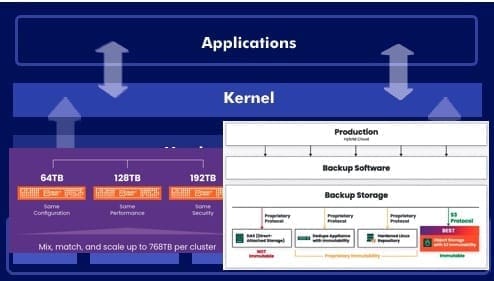
Note: The focus of this article is using Synology DS923+ Appliance. But you can also achieve 3-2-1 with Object First OOTBI appliance. With the recent addition of 192TB, you are sure of 768- TB in a four-node OOTBI Cluster! With Veeam’s 12.1.2 release, you can get over 3PB of storage using OOTBI clusters as extents in a Veeam Scale-Out Backup Repository (SOBR).
With the above information about OOTBI, you could deploy OOTBI appliance in the Performance Tier on the primary data center and as a Capacity Tier in the secondary data center, with immutability enabled in both tiers. Then deploying S3 public cloud services with immutability enabled in the Capacity Tier. This way, you will also achieve the 3-2-1 rule.
See How to Offload Individual Apps on iPhone, how to automatically offload unused Apps on iPhone, and how to Disable Automatic Offloading of Apps on iPhones.
Tiers in Scale-out Backup Repo
From the architecture below, these are the various repository types that make up a Scale-out Backup Repository (SOBR). In this article, we will focus on the Performance and Capacity Tier.

Below is a short description of these tiers. You can learn more about backup strategy.
- Performance tiers: Allows granular placement of backup on one or more extents based on a policy set by users or characteristic of the storage.
- Capacities Tier: Extends the backup storage transparently and intelligently to the object storage. Cloud Tier is also referred to as the Capacity Tier.
- Archive Tier: Archive tier is an additional tier of storage that can be attached to a scale-out backup repository. You can transfer data to the archive tier from From performance extents that consist of Amazon S3, Microsoft Azure, or S3 compatible with data archiving object storage repositories and capacity extents.
Please see How to create a Tailscale VPN connection to Synology NAS, how to Manage User Permission on Synology with Active Directory [Part 1], and how to Configure Synology DS923+ NAS for File Sharing [Part 2].
Create Wasabi Storage Bucket
In this section, we will create an object storage repository to act as Capacity Tier. This will help us store backup in an off-site location, thereby complying to the 3-2-1 rule.
Note: To help our customers choose an object storage platform which is compatible with Veeam Backup & Replication, Veeam has a qualification program called “Veeam Ready”.
Navigate to the Wasabi Management Console (dashboard). Click on Buck and then on “Create Bucket”.

In the set Properties window, ensure “Object versioning” and “Object Lock” is selected. Click on Next to proceed.

I do not care about “Bucket logging for now”. Click Next to proceed.

I will skip Object replication also for now.

I do not need Tags, so I will click Next to proceed.

As you can see, the bucket has been created.

Below is the bucket we have created. You can start creating folders and uploads if you wish. But I will do this over the VBR.

Do not configure any tiering or lifecycle rules on object storage buckets used for Veeam Object Storage Repositories. They are unsupported at the time of writing this article.
Create an Access Key
To do this, log into the Wasabi console and click on Access Key. Then, click on “create New Access key”

Ensure you download the CSV or copy keys to clipboard and save in a safe location. Else, when this window is closed, you will never be able to access the Secret key anymore.

Learn how to determine Tombstone Lifetime in Active Directory, steps in Enabling and Configuring WinRM via GPO, and how to Implement Split-Brain DNS Policies in Active Directory.
Setup Wasabi S3 Veeam Repository
This process is pretty straight forward. Launch Veeam backup and Replication console and navigate to the Backup Infrastructure. Click on Backup Repository and select “Add Repository”.
On the add backup repository wizard, select “Object Storage’.

Select S3 Compatible

On the S3 compatible wizard, select S3 Compatible as this will add an S3 compatible storage.

From the “New Object Storage repository’ wizard, enter the name and click next.

On the Account section, specify the Service point, region and credential. You can learn more about the service URLs for Wasabi’s Storage Regions.
Note: Object storage not limited to Wasabi as used in this article includes Amazon S3, Microsoft Azure Blob Storage, and other S3-compatible storage services such as Wasabi.

Enter the Access Key and Secret key you have configured above.

Click Next to continue.

Here we will have to browse to the Bucket and also create a Folder from here as discussed above.

I will select one of the buckets I have on Wasabi which I created above.

I will click on “New Folder” and then specify the name and then click on OK.

Do not forget to check the button “make recent backup immutable” and click next.
Note: Immutability provides protection from ransomware attacks by locking the objects which prevents them from being modified or deleted by malicious software or humans.

Here, you must specify to “make the recent backup immutable for x-number of days as you wish”. You bucket must have the object lock and versioning enabled for this to work. Else, you will have to create a new bucket if not enabled previously during creation.

Hit the Next button to continue or specify a different mount server.

Select Apply to continue.

Click on Next as shown below

Lastly, click on Finish to complete the Object Storage creation.

Create scale Out Backup Repository
Launch the Open Veeam Backup & Replication. Navigate to the “Backup Infrastructure” tab. Right-click on “Scale-Out Repositories” and select “Add Scale-Out Backup Repository.”

Performance Tier
After you add a backup repository or an object storage repository to the scale-out backup repository, they no longer exist as individual backup repositories. When a backup repository or an object storage repository is added as a performance extent, some of its original settings are kept, and some are not.
Note: The performance extents of the scale-out backup repository should be located in the same site. Please refer to Veeam User Guide for what is technically possible when performance extents resides in a different site. Also, you cannot have a mixed configuration and use different types of repositories within one performance tier.
To add some “Extents” (Backup Repositories), click on the Add button.

I will be selecting two repositories to act as the Performance Tier. These are on two different Synology DS923+ NAS. Click Ok to proceed.
Please see ‘Setup DS923+ Synology NAS as a Backup Repository for VBR“, and how to Setup iSCSI Target and Storage LUN on Synology DS923+ for VBR.
Note: We will be storing backup in two separate media and this help us comply with the 3-2-1, and another offsite to Wasabi Object storage.

Having selected the two repositories, I will click Next to proceed. This ensure you have at least two different types of media and thereby complies to the 3-2-1. we will add the capacity tier extent very soon.

Click on “Yes” in order for the jobs to be automatically updated to point to SOBR.

When you configure a scale-out backup repository, you must set the backup file placement policy for backup repositories. The backup file placement policy describes how backup files are distributed between extents.
Note: The Data locality policy does not put any limitations to backup chains. A new backup chain can be stored on the same extent or another extent. For example, if you create an active full backup, Veeam Backup & Replication may store the full backup file to another extent, and all dependent incremental backup files will be stored together with this full backup file.
Select “Data locality” and click on Next.

another extent as described in this image.
Capacity Tier
Note: You cannot use the same object storage repository as a performance extent and as a capacity extent.
For the Capacity Tier, I will check the button to extend “Scale-out backup repository capacity with object storage”.

Then I will have the option to choose the S3 compatible object storage I have added above and then click on OK.

Do not forget to check the “Copy backup to object storage as soon as they are created“. This help comply with the 3-2-1 rule.
Note: Veeam Backup and Replication uses a “SOBR Offload” background task to copy and/or move the backup data to the Capacity Tier. The SOBR Offload background task uses “Repository Tasks” to transfer the data to the object storage.

Note: If you use some existing REPO for SOBR, Veeam Backup and Replication will detect the existing backup file in your Performance Tier extents (REPO). You will then be asked if you want to copy all existing backups to the Capacity Tier or just the latest backup chains.
I am fine with the latest backup and will then click on Next to proceed. Here, Veeam Backup & Replication will copy the active backup chain only to the Capacity Tier.

SOBR Archive Tier
With version 11 of VBR we now are able to integrate a third type of storage into the SOBR called the called “archive tier”.
According to Michael M. and I quote ‘From V10 we already saw the “copy mode”. This now allowed us to fully leverage the capacity tier of the SOBR to obey the 3-2-1 rule by having a copy of the backups in another site. It could even be considered an air-gapped backup as it is only accessible via an API and no direct access to disks whatsoever is possible”. Direct deletion from within Veeam by a rogue admin though is still possible.

If you wish to implement the Archive Tier, please check the button and click on Add as shown below.
Note: Wasabi can be also utilized as an archive tier. Archive data is usually stored on less expensive, slower-performing storage media such as tape, inexpensive disks, or in a remote cloud storage tier that typically has delayed data retrieval time association.

For me, I will be testing this feature at a later time. So I have unselected it and will click on Apply to save the SOBR.

As we can see, the Scale Out Backup Repository (SOBR) is being saved.

Click on finish to close the Scale-out Backup Repository wizard.


Create Backup Job
In the Veeam Backup and Replication console, and click on the Home view. Then select “Backup Job” on the ribbon. I am interested in backing up a Virtual Machine at the moment.

Enter the Backup name and click next.

Click on Add and in the “Add Objects” wizard, select the VM and click on OK.

Click on Next to proceed

Select the Backup Repository we created above. This is the Scale-out Backup Repository.

I am okay with the recommended Backup mode.

In this field, you must ensure that the right Object Storage Repository is selected. In this case, the Repository that we have created.

On Guess processing, I will click next to proceed. If you select “Enable application-aware processing”. This will require you to enter the Guest OS credentials. Click on Next to proceed.

At this time, I do not care about automatic job schedule because this is different for everyone. Click on Apply.

In order to run the job, click on “Run the job when I click Finish”.

VBR Job Progress
To discover on which performance extent of the scale-out backup repository a particular backup file is stored, you can examine the job session statistics or check the backup properties from the inventory pane. Click Backup under Jobs, in the working area, right-click the job and select Statistics. In the bottom left pane of the window, click the VM name. In the Action pane, locate the message: “Using ….. repository extent*.
As you can see, the full backup has completed


The client backup offload is running and the Scale-out Backup Repository will kick off as well.

By leveraging SOBR, you can effectively adhere to the 3-2-1 backup rule, enhancing your data protection strategy.


Now you can perform restore also from the Capacity Tier as the backup is available in the object storage.

Start Veeam SOBR Offload Job Manually
As already discussed above, Veeam SOBR Offload job is a storage management job to offload the backup from performance tier to capacity tier in SOBR. By default, this job will be kicked off every 4 hour by Veeam server. Below is a “Hidden” feature to run the offload job as below.
To do this, hold down the control button and right-click on the SOBR. Then , click on “Run tiering job now”.

The SOBR Offload job(s) may not get assigned enough repository slots to finish within your preferred time frame.
VM Restore
Since our backup succeeded without errors, it makes sense to test restoration from the backup we have created. We can perform restore from any of the repository backup. Please take a look at the summary below below for the importance of backup testing.
Implement 3-2-1 Rule with SOBR [Summary]
As you can see, we have been able to maintain three copies of our data (original data and two copies), with two different media types (Synology DS923+) NAS, and one kept off-site for redundancy.
In summary, leveraging SOBR in your backup strategy allows you to easily meet the 3-2-1 backup rule by creating multiple copies of your data across different types of storage, including at least one offsite location. This approach enhances data redundancy and ensures data availability in case of local failures or disasters by avoiding a single points of failure. This plays a pivotal role in disaster recovery, adapting to evolving technologies, and meeting compliance requirements
This rule ensure data resiliency, redundancy and provides the ability to recover data even in the face of unexpected events or disasters.
Note: In today’s digital age, the 3-2-1 Rule has evolved and expanded and we have the 3-2-1-1-0 Rule with at least three backups of your data on two different media, with one off-site and one that is offline, air-gapped, or immutable for zero errors after automated backup testing and recoverability verification with Veeam Data Platform as shown in the image below.

I hope you find this article very useful on how to achieve 3-2-1 rule with SOBR on Synology or OOTBI and Wasabi. Please feel free to leave a comment below.