Skip to content

TechDirectArchive

Hands-on IT, Cloud, Security & DevOps Insights

  • Home
  • About
  • Advertise With US
  • Reviews
  • Contact
  • Toggle search form
Home » Storage » How to update Object First OOTBI Cluster

How to update Object First OOTBI Cluster

Posted on 14/08/202423/10/2025 Christian By Christian No Comments on How to update Object First OOTBI Cluster
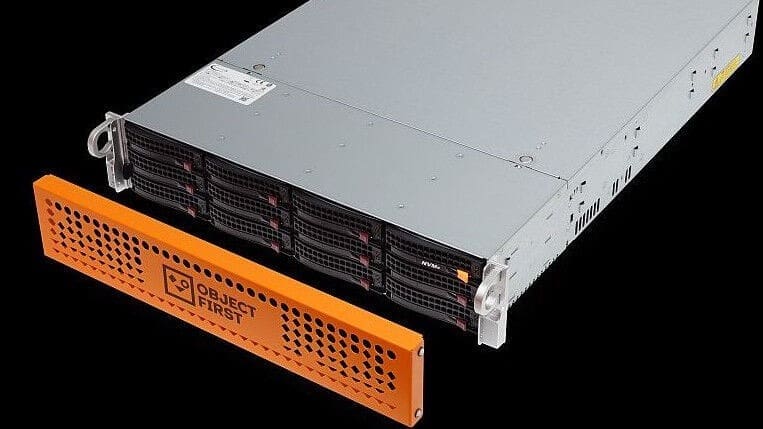
Object first ootbi

Object First OOTBI (Out-of-the-box immutability) is an easy to use backup storage solution designed specifically for Veeam customers and it offers ransome-proof solution by providing immutable storage and above all, it is built on Zero Trust and data security principles. In this article, I will show you the steps on how to update Object First OOTBI Cluster. Please see How to integrate ObjectFirst OOTBI Appliance with VBR, What is the difference between iDRAC, IPMI, and ILO, and Deep Dive into Protecting AWS EC2, RDS Instances and VPC.

Table of contents

  • Connect to OOTBI with IPMI
    • Access the Cluster Management
    • Patch OOTBI via the Object First Dashboard

As you can see below, there is an alert that a new software is available for installation on the cluster management console. To apply this updates, I will have to access the IPMI interface of the OOTBI and have it patched from there.

Also, I will show you how to update the Cluster via the Object First Management Console. Here is Offline and Online Update for Object First Out-of-the-Box Cluster.

OOTBI Updates available

Connect to OOTBI with IPMI

To do this, log in to IPMI via the web browser as shown. The IPMI Username is “ADMIN” in CAPs and the password can be found on the factory-generated IPMI credentials under PWD.

You will find some more information about this in these articles “How to Configure Object First OOTBI Appliance, and Object First OOTBI Appliance Unboxing and Quick Setup.

If the login is successful. You will be prompted with the main IPMI screen as shown below. Select or Click on the Remote Control” as shown below.

Note: If you do not wan to use HTML5 and want the JAVA applet option, you are free to change this. I will proceed with HTML5 as shown below.

Remote console

After appliance set up. Each time you wish to access the TUI. You will need a username and password for the OOTBI user that were specified during the setup process.

login

Apply OOTBI Software Updates

The TUI options are available to us after a successful login. Navigate to Software Updates and tap the “Enter key”.

run update

As we can see below, the system is checking for updates.

checking for updates

Updates found. Hit the “Enter” button to install the updates as shown below.

Apply updates

Updating software

updating nodes

As you can see below, the update process has completed. you can now logout of the TUI window.

Update installed

Access the Cluster Management

Now, we can access the cluster management console via the IP address with our credentials.

As you can see below, the OOTBI Cluster is successfully updated.

cluster updated

Patch OOTBI via the Object First Dashboard

Navigate to Settings and under the Cluster Update. Search for updates and click on Update Cluster to apply the updates.

Usually, you will be notified via email and also find the available update on the window below.

Updates availaböe

Install the updates

Install OOTBI Updates

Installing Cluster update

Cluster updates

Cluster update completed.

Updated

As you can see from the Cluster Update settings Window below. The cluster has been updated.

Updated complated

I hope you found this article very useful on “how to update Object First OOTBI Cluster”. Please feel free to leave a comment below.

5/5 - (1 vote)

Thank you for reading this post. Kindly share it with others.

  • Share on X (Opens in new window) X
  • Share on Reddit (Opens in new window) Reddit
  • Share on LinkedIn (Opens in new window) LinkedIn
  • Share on Facebook (Opens in new window) Facebook
  • Share on Pinterest (Opens in new window) Pinterest
  • Share on Tumblr (Opens in new window) Tumblr
  • Share on Telegram (Opens in new window) Telegram
  • Share on WhatsApp (Opens in new window) WhatsApp
  • Share on Mastodon (Opens in new window) Mastodon
  • Share on Bluesky (Opens in new window) Bluesky
  • Share on Threads (Opens in new window) Threads
  • Share on Nextdoor (Opens in new window) Nextdoor
Storage Tags:Object First Ootbi, Ootbi

Post navigation

Previous Post: How to create a Tailscale VPN connection to Synology NAS
Next Post: How to update Veeam Backup and Replication [VBR]

Related Posts

  • CloudFrontAWS
    Serve Private S3 Bucket Contents Via CloudFront AWS/Azure/OpenShift
  • Distributed File System DFS
    How to find Dfs Referral Path and clear Dfs referral Cache Storage
  • Synology Cloud Sync
    How to Sync Data in Cloud Drives to Synology NAS Backup
  • Synology NAS as a Backup Repository for VBR
    Setup DS923+ Synology NAS as a Backup Repository for VBR Reviews
  • Object First OOTBI   Best Storage Repo for Veeam
    Understanding User Roles & Access Control in Object First OOTBI Backup
  • removing containers and unused images from Docker synology
    Kill Containers and remove unused images from Docker Correctly Storage

More Related Articles

CloudFrontAWS Serve Private S3 Bucket Contents Via CloudFront AWS/Azure/OpenShift
Distributed File System DFS How to find Dfs Referral Path and clear Dfs referral Cache Storage
Synology Cloud Sync How to Sync Data in Cloud Drives to Synology NAS Backup
Synology NAS as a Backup Repository for VBR Setup DS923+ Synology NAS as a Backup Repository for VBR Reviews
Object First OOTBI   Best Storage Repo for Veeam Understanding User Roles & Access Control in Object First OOTBI Backup
removing containers and unused images from Docker synology Kill Containers and remove unused images from Docker Correctly Storage

Leave a Reply Cancel reply

You must be logged in to post a comment.

Microsoft MVP

VEEAMLEGEND

vexpert-badge-stars-5

Virtual Background

GoogleNews

Categories

veeaam100

Veeam Vanguard

  • Was ist Windows Server und wie unterscheidet er sich vom normalen Windows
    Create a certificate template for BitLocker Network Unlock Windows Server
  • AppLocker
    Fix unable to start the Application Identity Service Windows
  • RSAT 678x381 1
    DNS manager console missing from RSAT tools on Windows 10 Windows
  • BitLocker Protection off Update UEFI BIOS to fix issues
    BitLocker Protection off: Update UEFI/BIOS to fix issues Windows
  • troubleshooting Active Directory Replication
    How to troubleshoot Active Directory Replication issues Network | Monitoring
  • yarnfinalfeature
    How to Install and Uninstall Yarn on Ubuntu Linux Linux
  • FileZilla
    Access FTP Server from your browser: How to create a shortcut and access Filezilla from Windows Explorer Windows Server
  • http to https redirection
    URL Rewrite: How to redirect from HTTP to HTTPS Web Server

Subscribe to Blog via Email

Enter your email address to subscribe to this blog and receive notifications of new posts by email.

Join 1,808 other subscribers
  • RSS - Posts
  • RSS - Comments
  • About
  • Authors
  • Write for us
  • Advertise with us
  • General Terms and Conditions
  • Privacy policy
  • Feedly
  • Telegram
  • Youtube
  • Facebook
  • Instagram
  • LinkedIn
  • Tumblr
  • Pinterest
  • Twitter
  • mastodon

Tags

AWS Azure Bitlocker Microsoft Windows PowerShell WDS Windows 10 Windows 11 Windows Deployment Services Windows Server 2016

Copyright © 2025 TechDirectArchive


Loading Comments...
 

You must be logged in to post a comment.