Configure WebLAPS to manage Microsoft LAPS


WebLAPS Pro is a web-based solution for managing Microsoft’s Local Administrator Password Solution (LAPS). In other words, WebLAPS relies on Microsoft’s Local Administrator Password Solution (LAPS) to retrieve and manage local admin passwords. Therefore, in this guide, we shall discuss how to configure WebLAPS to manage Microsoft LAPS. We have discussed how to configure Windows LAPS, how to fix 0x800f0831 Error when installing Windows update, how to configure Windows LAPS Management with Microsoft Intune.
NOTE: The Microsoft LAPS product is deprecated as of Windows 11 23H2 and later. Installation of the legacy Microsoft LAPS MSI package is blocked on newer OS versions, and Microsoft will no longer consider code changes for the legacy Microsoft LAPS product. Please use Windows LAPS, available on Windows Server 2019 and above, and on supported Windows 10 and Windows 11 clients, for managing local administrator account passwords.
Microsoft will continue to support the legacy Microsoft LAPS product on older versions of Windows (prior to Windows 11 23H2) on which it was previously supported. That support will end upon the normal End of Support for those OSes.
Therefore, this article targets users that are still using the legacy Microsoft LAPS and not the Windows LAPS. Windows LAPS does not use the “ms-Mcs-AdmPwd” and “ms-Mcs-AdmPwdExpirationTime” attributes. Rather, it uses the “msLAPS-Password”, “msLAPS-EncryptedPasswordHistory”,“msLAPS-EncryptedPassword”,“msLAPS-EncryptedDSRMPassword”,msLAPS-EncryptedDSRMPasswordHistory, and the “msLAPS-Password-ExpirationTime”. But if you are using Windows LAPS, I have got good news for you. You can use Windows Admin Center v2401.

You may want to take a look at CAYASOFT, an alternate product. You may also want to see LAPS password not showing up in GUI, how to Fix an appropriate resource file could not be found for LAPS, and how to Shrink and Compact Virtual Hard Disks in Hyper-V.
Download Java JRE 8
Note: WebLAPS could be used to implement just-in-time administration (JITA) approach recommended by MS when accounts of system administrators are added to privileged groups for defined period of time and automatically removed after.
Please navigate to the following URL to download the required JAVA version. I will be downlöoading the Windows version as shown below.

Kindly accept the license agreement

You will be prompted to sign-in. Enter your username and password when prompted.ro

Download WebLAPS Community Edition
I will recommend installing the WebLAPS Pro solution on a member server and not on a DC to reduce the attack surface on the Domain Controller. Therefore, proceed to the following URL and Download WebLAPS.

Download the WebLAPS Free Community Version and the WebLAPS Agent. In this guide, we will not be touching the WebLAPS Agent.
Note: This community version of WebLAPS.pro provides basic functionality with a web interface to retrieve LAPS passwords stored in Active Directory.
Note: WebLAPS agent is used to manage passwords of local users and control membership in local groups and can be used on joined or non-domain joined computers.

Install Java
Since WebLAPS Pro follows a Java-based service model and requires Java Runtime Environment (JRE) 1.8 to function. We will be installing it as shown below.
I have provided the link above to download JAVA. Click on install as shown below. Please see how to install Java Runtime Environment on MAC.
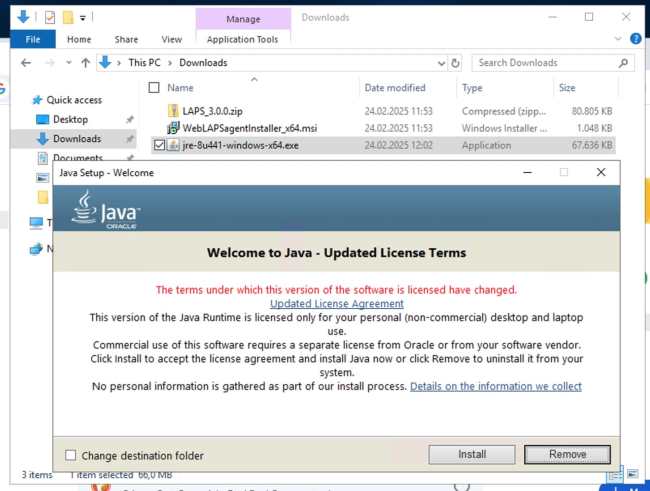
As you can see, JAVA has been installed.

Create a Local User for WebLAPS
I will launch the computer management and create a user called “Laps”. Assign a password and also ensure you set the user cannot change the password and password never expires.

Configure Log on as a service
This will allow user “laps” to work as a service:

Please expand “Computer Configuration > Windows Settings > Security Settings > Local Policies > User Rights Assignment”. Select “Log on as a service”.

Add the laps user created and click on OK.


Create WebLAPS Directory
Create the directory C:\laps as shown below.


Extract the WebLAPS distributive (installation package) into C:\laps

As you can see, the extraction was successful.

Next, we will modify the folder permissions.

Search for “laps” and assign the “read & write” access. Please, deny access to all other users except administrators.

Verify or Create Environmental Variable
Launch System Properties and click on “Environment Variable” under the Advanced Tab.

As you can see below, we have the JAVA JRE Installation path.

Note: If the Java JRE is not added to the system environment variables (PATH). Running the following command in Command Prompt or PowerShell will result in an error

Verify the Java Path in Configuration
The official documentation specified this step as an optional step if you have the JRE Installation path in the environment variable. However, this was not the case for me as the service did not start.

If Java is not in the system PATH, WebLAPS might not find it and start correctly. To fix this, get the path

Change it to the full path to java.exe, using / instead of \ as discussed in the official guide.

Install WebLAPS Service
Note: You must run this command with Administrative rights. Otherwise, it will fail with the following (Error in PenSCManager: 5″ Access Denied).
To do this, open the Command Prompt (Admin) and navigate to the WebLAPS folder and run the installation script

As you can see below, the script succeeded and the service is running.

Create AD Service Account
We will need to create a service account (LAPSAdmin) to authenticate WebLAPS to read LAPS passwords from Active Directory.

Grant LAPS Read Permission
In ADUC, navigate to the OU where LAPS is applied. Right-click and select Properties, then Security and Advanced.
Add LAPSAdmin and allow: Read ms-Mcs-AdmPwd and Read ms-Mcs-AdmPwdExpirationTime

Optional Steps below: Alternatively, you could manually assign Permissions for ms-Mcs-AdmPwd Using ADSI Edit if you do not want to use the console as discussed above.
First, verify the LAPS attributes.

But if the LAPS attributes are missing, you need to install the LAPS Schema Extension.

Now, that I have shown you that the LAPS attributes are available. We need to assign permissions to the ms-Mcs-AdmPwd attributes for the WebLAPS service account (LAPSAdmin).
To do this, open ADSI Edit (adsiedit.msc), and connect to the Schema Naming Context.

Navigate to the ms-Mcs-AdmPwd and Read ms-Mcs-AdmPwdExpirationTime attribute.

Right-click on ms-Mcs-AdmPwd and select Properties. In the Properties window, go to the Security tab and click on Add.

Ensure the Read and Write permissions are assigned.

Also, do this for the ms-Mcs-AdmPwdExpirationTime attribute.

Launch WebLAPS in Browser
Open the browser and navigate to the URL shown in the image below. This might be different in your case.
Note: Ignore the certificate warning, accept it (since WebLAPS uses a self-signed certificate by default).

Log in to WebLAPS. The default username: admin. The default password: admin. After logging in, change the default password if you wish.

To allow WebLAPS to manage LAPS passwords stored in Active Directory, we need to integrate WebLAPS with Active Directory (AD).
To do this, click on Administration, Communications and LDAP as shown below. Enter the AD server details accordingly and save the settings.


Now WebLAPS should be fully functional. Try retrieving a LAPS password as shown below.

Other recommended settings for WebLAPS
I would recommend adding a valid certificate in order to eliminate the security warning. To do this, navigate to Administration > Communications > Certificates. After certificates import do not forget to restart LAPS Portal.

You could also integrate your SIEM solution as shown below..

If you have a license, you can also add here here.

LAPS mobile client allows to get passwords of local administrators managed by MS LAPS solution. LAPS mobile client connects to an instance of the WebLAPS portal deployed in your environment.

Do not forget to change the default admin password.

You may want to explore the JITA. Just in time administration (JITA) module activates privileged roles (membership in defined AD groups) to authorized user for finite amount of time.
Retrieve Windows LAPS via WACmg
You can use Windows Admin Center to manage your passwords on your LAPS enabled machines within the domain. With this tool, you can reveal and copy passwords of a given machine. View the corresponding password expiration time and update time stamp.
Not only that, you can set the expiration time and reset passwords for multiple machines at a time, making password management and authentication more secure, simpler, and efficient.
I hope you found this article on “how to Configure WebLAPS to manage Microsoft LAPS very useful. Please feel free to leave a comment below.


