Upgrade Windows Admin Center 2306 – 2311: Install WACmg 2410


In this article, we shall discuss “how to Upgrade Windows Admin Center 2306 – 2311: Install WACmg 2410“. Windows Admin Center is a versatile tool for managing Windows Clients, Windows Servers, and Windows Clusters. In December 2023, Microsoft released the Windows Admin Center modernized gateway (WACmg) to public preview through the Windows Server Insider program. Please see how to configure WebLAPS to manage Microsoft LAPS, and how to Apply and Enable Automatic Windows Admin Center Update
This new v2401 release serves as an additional version alongside the latest generally available Windows Admin Center release, version 2311.
Note: The modernized gateway introduces vital improvements to Windows Admin Center. Thereby, making it more efficient and adaptable for managing your server infrastructure
Also, see how to Fix Windows Admin Center cannot be reached, how to Manage Azure Virtual Machine with Windows Admin Center and Serial Console, and how to Install Windows Admin Center on Windows 10 and Windows 11.
Modernized gateway
When running the installer, you will be presented the following installation modes: express setup, and custom setup. The express installation is very quick but offers limited flexibility, whereas the custom installation provides full flexibility and control. The table below shows the differences between the custom and express setup.
| Feature / Option | Express Setup | Custom Setup |
|---|
| Login authentication mode | Not configurable | Configurable |
| Host access (localhost / FQDN) | Localhost only (port 6600) OR remote access (port 443) | Configurable: localhost only or remote via machine name / FQDN |
| External port | Localhost: 6600 Remote: 443 | Configurable |
| Internal ports | 6601–6610 | Configurable (default range = 10 ports; extensible for additional services) |
| TLS certificate type | Self-signed only | Configurable: Self-signed or official TLS certificate |
| Certificate thumbprint | Not configurable | Configurable |
| Endpoint FQDN | Not configurable | Configurable (must match TLS certificate) |
| Trusted hosts mode | Not configurable | Configurable: Trusted domain only OR non-domain joined machines |
| WinRM over HTTPS | Not configurable (HTTP only) | Configurable: Enable/disable HTTPS for WinRM |
Please, see steps in migrating SAP HANA Plugin to Veeam, how to Fix what is taking up my Mac Storage? Delete Snapshots, and how to Convert Windows Server Datacenter to Standard: Install Windows Server via iDRAC Virtual Media.
Error: The existing Windows Admin Center (v1) installation is too old to migrate data from
Error: The existing Windows Admin Center (v1) installation is too old to migrate data from. Please upgrade to the latest version of (v1) and try again.
Unfortunately, there are no logs to determine or pinpoint this root cause. As you can see, I could not install Windows Admin Center 2410 alongside Windows Admin center 2306. But, on a separate test PC, this was possible. Therefore, read along.
According to Microsoft, you can install a modernized gateway build of Windows Admin Center side-by-side with a legacy gateway build as long as you don’t choose the same ports for both installations. Please see below for this installation steps.

If you wish to remove the old Windows Admin Center. Please, run the installer again, or uninstall via the Windows Settings or Control Panel. If you are having issues installing 2401, removing the legacy WAC will not fix this issue.

If you wish to remove it, click on Remove and click on Next.

Please see how to Upgrade Windows Admin Center Manually, how to Test Network Connection to Windows Admin Center Gateway, and how to set up Windows Admin Center on a Windows Server.
Upgrade Windows Admin Center from v2306 to v2311
So, I have decided to upgrade from v2306 to Windows Admin Center 2311 as shown below. This minor build update makes quality improvements for localization and Azure hybrid services like Azure Arc onboarding and Azure Migrate.
Afterwards, I will show you how to run the old (legacy WAC) alongside the modernized gateway. If you wish to deploy Windows Admin Center with high availability by installing WAC on a on a failover cluster thereby providing an active-passive solution.
Some of these popular tools includes Virtual Machines, Server Overview, and Updates also got some improvements.
To upgrade to v2311, please follow the steps below. First, determine your current Windows Admin Center version. As you can see, we are running v2306 and this can be upgraded as discussed above.

Click on the Settings gear as shown below. Next, you should click on updates as shown below.

Note: Ideally, this will redirect you to download Windows Admin Center latest version. In this case version 2410.
But, this is not what we want as we wish to upgrade the legacy Windows Admin Center. The newer version 2401 is supposed to run side-by-side as we will see very shortly.

Please see Windows Server 2022 Capabilities: Register Windows Admin Center with Azure, how to Upgrade Windows Admin Center Manually, and how to create a scheduled task with Windows Admin Center.
So, what can be done? Download via WindowsUpdate Catalog to upgrade Windows Admin Center from 2306 to 2311
To upgrade the legacy Windows Admin Center from 2306 to 2311. Downloading Windows Admin Center from the Windows Admin Center Release History often fails and defaults to the latest version, 2401.
To work around this issue, I accessed the Microsoft Update Catalog and manually downloaded Windows Admin Center 2311.
Click the “Download” button next to the desired version 2311 in my case. A pop-up will appear with a link to the .msu file. Download the .msu file to your computer.

Locate the downloaded .msu file on your PC. Double-click the .msu file to begin the installation process. Sometimes, you may need to extract the file in order to run the installer.

Follow the on-screen prompts to complete the installation. You can choose the diagnostic option that is applicable to you and click next.

Click on Next to proceed.

I am fine with the default parameters. I will click on Install to proceed.

As you can see, the installation is in progress.

Click on Finish. You can choose to open Windows Admin Center when you click on Finish.

You will be prompted to select a certificate for authentication and click Ok.

We have successfully installation Windows Admin Center v2311.

As you can see below, upon upgrading to version 2311, we still have updates available as shown in the image below. Please follow the prompt to download WAC v2410 in order to install it side by side as we will be doing in the next section of this guide.

You can continue using Windows Admin Center 2311.
You can read about the release updates and known issues. Also, see how to set up System Insights on Windows Admin Center, and how to Install Windows Admin Center in an unattended mode using a self-signed certificate
Download and install Windows Admin Center Modernized Gateway
Note: The installation of Windows Admin Center on a domain controller (DC) is not officially supported. It does work but it will increase your attack surface etc. Therefore, I do not recommend it. Before performing an upgrade, it makes sense to differentiate between the “Legacy Windows Admin Center” and the “Modernized Windows Admin Center”.
When installed on Desktop OS, WAC is installed in a “desktop” mode but can be changed. Also, when it is installed on Windows OS, Windows Admin Center is installed in a “gateway” mode.
On a different PC, it was possible for me to run both versions of Windows Admin Center side-by-side. Kindly refer to this table comparing the old (legacy) and modernized Windows Admin Center. You can read more about the latest version modernized gateway 2410.
| Feature | Old Windows Admin Center | Modernized Windows Admin Center |
|---|---|---|
| Purpose | The old WAC evolved from traditional tools like Server Manager and MMC. | The modernized WAC provides enhanced performance, security, and extensibility. |
| Functionality | Managed various aspects of server infrastructure. | Offers more scalable and flexible management capabilities. |
| Use Case | Best for managing servers on private networks not connected to the Internet. | Suitable for both on-premises and cloud environments with improved capabilities. |
| Backend | Utilized the .NET Framework 4.6.2. | Migrated to .NET Core for better performance and cross-platform support. |
| Web Server | Used Katana components for the backend web server. | Shifted to an ASP.NET Core Kestrel web server, supporting HTTP/2 for better responsiveness. |
| Extensions | Supported extensions through gateway plug-ins. | Extensions are impacted as they must now be updated to .NET Core. |
| Installer Flexibility | Limited customization options. | Offers more flexibility, including network access settings, trusted hosts, and FQDN customization. |
| Architecture | Traditional monolithic architecture. | Adopts a microservice-based architecture, with processes managed separately for scalability and resilience. |
Please see Fix Certificate Error: Unable to access Windows Admin Center from the Web, How to uninstall Hyper-V on a Windows PC, and how to Set Microsoft Defender AV to Passive mode on a Windows Server.
Platform updates
Since Performance has been top of mind by customers, v2410 delivers this solution and brings efficiency and convenience to you while bridging the gap in feature parity for virtual machine management.
Microsoft upgraded the framework from .NET Core 6 to .NET Core 8, enhancing security with stronger cryptographic methods. This update also introduces support for HTTP/2, reducing latency and improving overall performance.

Microsoft has enhanced the Windows Admin Center installer with new customization options, allowing administrators to configure network access settings, specify trusted hosts, and define a fully qualified domain name (FQDN) for the gateway machine. More of this as we discuss how to modify the WACmg.
Additionally, a new data migration workflow enables seamless transitions to the latest build. You can read more here. Windows Admin Center modernized gateway (WACmg) installer doesn’t use MSI anymore. Now the installer is build with Inno Setup. It can be installed on a desktop and server OS and this includes server core.
Part 1: Custom Installation of Windows Admin Center v2410
Upon download of the installation file from Microsoft’s official site as shown below. Double click on it and click next.

Accept the license terms and click next.

As you can see below, the installation is in progress.

I am fine with the defaults. Click Next to continue

For the login and authorisation selection. Please, select “HTML Form Login”. In the next section of installation, we will select Windows Authentication which is my preferred method of connection as it permits the SSO usage.
Here, you can decide on the TLS certificate to use. If you have no certificate installed, you can use the self signed certificate but will expire in 60 days.

If a certificate is installed, you can access it from the Personal certificate store and obtain its Thumbprint value

Now, we are ready to install WACmg unto our PC. Click on install as shown below.

When done, click on Finish.
Note: To run Windows Admin Center v2401 and 2311 on the same PC, you must change the port.

As you can see below, both (legacy and the modern Admin center) are now installed side by side.

You can see the Desktop shortcuts as shown below. The v2 (WACmg) is above while the v2311 is below.

Access Windows Admin Center via the Browser
Upon installation, both URLS are automatically open if you selected the option to start WAC during the end of the installation.
To log into the Windows Admin Center (v2) after installing it. specify your credential in the sAMAccountName format in the form of “DomainUsername” and your password

Upon login, you will be greeted with the the installed version below.

As you can see below, these are the two instances of the WAC we have installed. The legacy is first (above) and the modern is below.

Please see How to create a password reset disk: Reset Windows Password, how to install and configure FSRM in Microsoft Windows Server, and “Run Hyper-V on Windows 11: Convert Physical PC to Hyper-V VM“.
Part 2: Custom Installation of Windows Admin Center (WAC)
Recently, I had to reinstall WAC on a production server. Because the installation has changed from the custom installation above, I have decided to show the steps once again.
After download the setup file as shown in Part 1 above. I would recommend that you run the installer as Administrator, and then choose Setup Type which is “Custom”. See the table above for the differences between Express and Custom installation.
Configure Network Access. Also, for the login and authorisation selection. Please, select “Windows Authentication”.

Enter the FQDN such as TechDA01.xxx.xxx

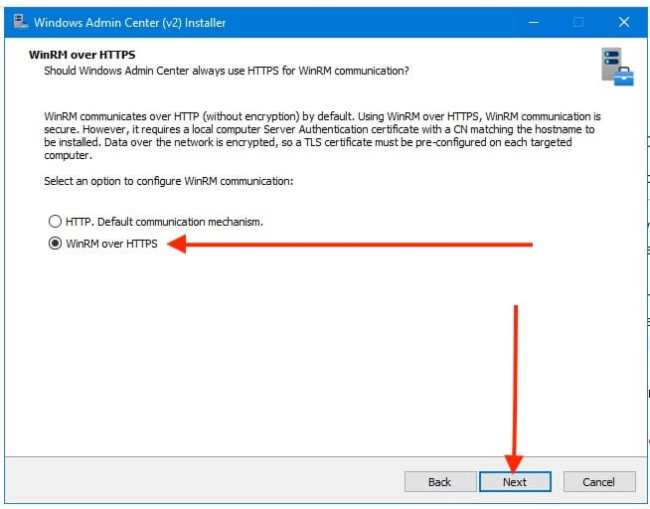
I would select WinRM over HTTPS. By default, WAC uses WinRM over HTTP. Select HTTPS for encrypted management sessions.
For automatic updates, select “install Updates automatically (recommended)”. You can configure any of the options as you wish.

I will select the “Required diagnostic data” and click on Next.

On the “Ready to Install” window, review the settings/configurations you have selected and click on install.

As you can see, WAC is currently being installed

Select the checkbox to start WAC when you click on Finish.

Authenticate to Windows Admin Center (WAC)

As you can see, you have successfully, accessed WACmg 2401.

Please, see this article on how to add connections to Windows Admin Center. If Windows Admin Center is running in service mode on Windows Server, but you don’t have Kerberos delegation configured. You must reenter your Windows credentials. Else, you have to configure Kerberos delegation.
Note, if you have selected to use WinRM over HTTPs, this port must be open to allow WinRM connection to the server and a certificate must be configured for the server too. If you do not meet this requirement, feel free to use WinRM over HTTP which is the default and this port is open by default on servers. Therefore, no firewall rule is needed.

When the WinRM issue is fixed, then the connection tot he server will happen using the default WinRM HTTP port.

Modify Windows Admin Center Installation
You can modify your settings by re-running the setup file. Then, you can choose between two express options (local or remote) or a custom setup. The express options skip customization of the following settings.
Note: If you wish to configure these options, you must select the custom setup:

- Sign-in authentication mode (FormLogin, WindowsAuthentication, or AadSso)
- Host access network names
- Internal and external network ports
- Endpoint FQDN
- Trusted hosts mode (allow access to any computer or only trusted domain computers)
- WinRM over HTTPS (HTTP or WinRM over HTTPS)

As mentioned earlier, if you wish to have the legacy and the modern (WACmg) running side by side. You must specify a different port.
I have decided to change this from 6516 to 6517 just to show you the steps. This is why the URL above has the port “6517”. You will see the when lunching it over the web-browser.

You can decide to use a preinstalled TLS certificate issues by a trusted CA or use the self-signed certificate that expires in 60 days.

If you decide to use the preinstalled certificate that you have installed on the server. Please use the drop down button to select the certificate thumbprint and click on next to continue.

Uninstalling version 2410
There are different ways to uninstall the Windows Admin Center version 2410. Please perform one of the following actions:
- Use the Control Panel or Windows Settings. When using the Windows settings, select Windows Admin Center as shown below from the installed apps list and then select uninstall.
- or, navigate to the folder where the Windows Admin Center is installed (default directory is C:ProgramDataMicrosoftWindowsStart MenuProgramsWindows Admin Center) and select “Uninstall Windows Admin Center”
- Lastly, you can run C:Program FilesWindowsAdminCenterunins000.exe

Running the installer again will not result in an uninstall option at this time. To ensure your installation was removed successfully, check if a Windows Admin Center folder exists in C:ProgramData or C:Program Files. If it does not exist in either location, your application has been successfully uninstalled.

Please see how to uninstall installed Windows Update, how to delete User Profile in Windows, and how to Perform Key Distribution Center Service [krbtgt] Password reset. Below is a YouTube video on “Windows Admin Center Virtualization Mode: Manage Your Hyper‑V Fabric”.
I hope you found this article very useful on “Upgrade Windows Admin Center 2306 – 2311: Install WACmg 2410”. Please feel free to leave a comment below.