How to upgrade PostgreSQL Engine used by VBR


PostgreSQL is a relational database management system (RDBMS) for storing and managing data. It offers a variety of features for database administration, queries, and security. In this article, we shall discuss the steps on how to upgrade PostgreSQL Engine used by VBR. Please see How to install PostgreSQL on Ubuntu, ho to Fix “Perform Site Maintenance or reset this site” greyed out, and how to Configure NIC Teaming on Windows Server.
To upgrade the PostgreSQL engine used by Veeam Backup & Replication (VBR). All you need to do is follow the steps below. Upgrading the PostgreSQL engine can improve performance and security, but it must be done carefully to avoid data loss or service interruption. More on why you should perform an upgrade very shortly.
Note: PostgreSQL supports complex queries, indexes, transactions, and has an active developer community that is constantly bringing new features and improvements. It’s a popular choice for businesses and developers who need a high-performance, reliable, and scalable database.
If you are still using Microsoft SQL Server, here is a guide on how to upgrade Microsoft SQL Server 2019 to 2022. If you wish to perform migration as well, here is a guide on how to Migrate Veeam Configuration Database to PostgreSQL Server.
Why should you upgrade the PostgreSQL Engine used by VBR?
Upgrading the PostgreSQL engine used by Veeam Backup & Replication (VBR) is important for several key reasons. While the list is extensive, here are two of the most significant benefits:
1: Performance Improvements: Each new PostgreSQL version includes optimisations for queries, indexing, and caching, which can significantly enhance VBR performance. Improved handling of concurrent operations, reducing bottlenecks.
2. Security Enhancements: PostgreSQL updates patch vulnerabilities and security flaws, keeping your VBR database protected from potential exploits. Older versions may become unsupported and exposed to security risks.
There are numerous reasons for upgrading the PostgreSQL Engine used by VBR? I will therefore refer you to the following release note. Here is how to update Veeam Backup and Replication [VBR], and how to apply and install Veeam NFR License.
Determine the PostgreSQL version and Backup
Before proceeding, verify Veeam’s official support for the target PostgreSQL version (system requirements for the compatibility list). At the time of writing this article, Veeam currently supports “local or remote” installation of the following versions of PostgreSQL instance for the Configuration Database.
- PostgreSQL 14.x
- PostgreSQL 15.x (PostgreSQL 15.12.1 is included in the Veeam Backup & Replication 12.3 setup).
To determine my current PostgreSQL version, please launch pgAdmin as shown below.

Please verify that the database has UTF-8 which is the default encoding.

Next, perform the PostgreSQL database backup. Right-click on the Veeam database and select “Backup”.

Shortly, the backup will start and should end very shortly.

Please, see how to Fix you need the right to sign in through Remote Desktop Services, and how to Install Veeam Backup and Replication with the default PostgreSQL.
Prerequisite for upgrading PostgreSQL?
Stop all backup jobs as shown below. Note: At the time of writing this guide, Veeam still recommended to use Microsoft SQL Server when you backup more than 5000 VMs.

Create a configuration backup. To do this, click on the Hamburger menu and select configuration backup.

Click on backup now. As you can see, the backup is being processed.

Backup successfully created

Stop the Veeam services on the Veeam Backup Server. To do this, you can launch the Services Manager as shown below.

Proceed and stop the Veeam Services.

Alternatively, you could use the following command below to stop all veeam related services.
Get-Service Veeam* | Stop-Service -Force
Please, see how to fix Unable to run downloaded Programs due to Defender SmartScreen, and how to Manage Microsoft Defender Antivirus with Argon ACMP.
Steps to Upgrade PostgreSQL Engine
All PostgreSQL update releases include all fixes and improvements from earlier updates within the same major version. Each new update builds on the previous ones, so when you upgrade from version 15.6 to 15.13 as it is in my case. You automatically get everything introduced in 15.6 and 15.13 as well.
Please, proceed and download the latest version of PostgreSQL. As you can see below, upon clicking on the supported platform to download, the download will start.


Note: There are various ways to perform an upgrade of PostgreSQL.
Please, see how to change the default user password in PostgreSQL, and how to Configure SQL Server Instance to listen on a specific TCP Port.
Method 1: Upgrading within the same major version (e.g., 15.6 → 15.13)
Installing packages with a new version of PostgreSQL. It is suitable only for minor updates. Before performing the update, study the release notes. This involves updating the existing binaries (replacing the executables) with those from the new version, assuming no changes to the data directory format as we will see very shortly.
Note: Here, no dump, restore, or
pg_upgradeis required. This method is also fast and safe.
Since, this is a minor update, and you can safely stop the postgreSQL service as shown below.

Next, install the new version (same major version). This will replace the binaries, and do not forget to restart the service. Please, see how to “Install PostgreSQL on Windows server as Veeam Database Engine“.
During installation, please keep the same directory data for postgresql. When the installation completes, reboot your Veeam Server and re-enable Veeam jobs.

Select the components you want installed or upgraded and click next. Note that by default, they are all selected.

An existing PostgreSQL installation has been found. Please click next to upgrade it

Select Next on the “Existing data directory”

Hit the Next button on the Pre-installation Summary window

Click on Next on the ready to install window

Click on OK, as we do not have the services running.

Installation progress


Feel free to uncheck the “Stack Builder” and click on Finish to complete this upgrade process.

Note: The PostgreSQL service is usually started automatically. I will recommend that you verify this, as shown below by launching the services manager.

Launch pgAdmin to determine the version upgrade.

Now, start all Veeam services as shown below
Get-Service -Name 'Veeam*' | Where-Object {$_.Status -ne 'Running'} | Start-Service
As you can see below, all the services are running
Get-Service | Where-Object { $_.Name -like 'Veeam*' }

Method 2: Via the standard pg_dumpall program
This is a more reliable method, but it may sometimes require a longer downtime. Kindly communicate the downtime with your stakeholders. I will demonstrate this step when Veeam decides to support a different version of PostgreSQL, say version 16.
Back up your database using pg_dumpall as shown below.
pg_dumpall -U postgres -f alldb_backup.sqlAll we need to do is ensure that the service is stopped as shown above.
Install the new PostgreSQL version (e.g., 15.13) using the EnterpriseDB installer as discussed above.
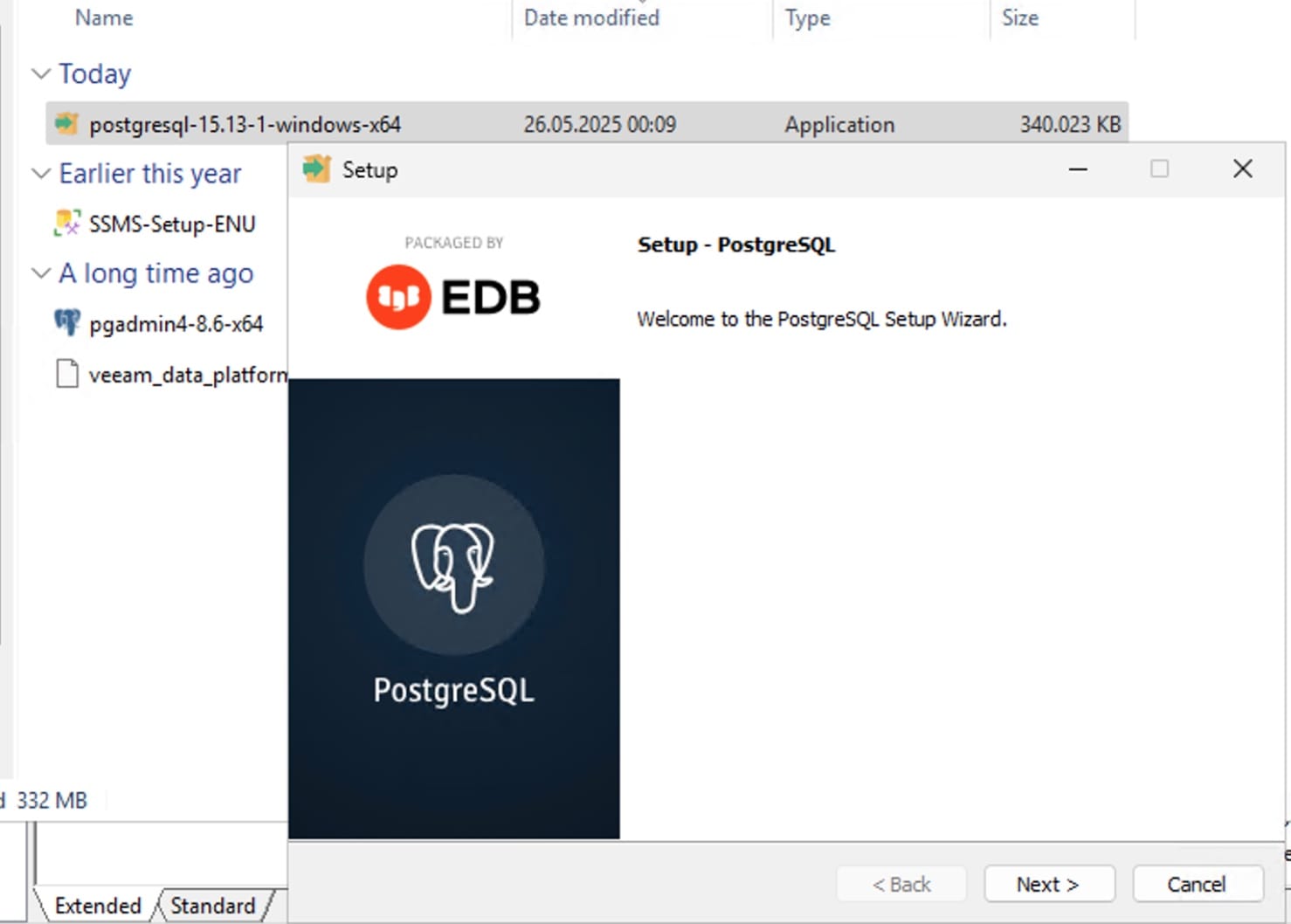
Next, you will have to restore your data
psql -U postgres -f alldb_backup.sqlWhen complete, ensure all services are running and re-enable your jobs.
Method 3: Via the Standard pg_upgrade program
When you upgrade PostgreSQL to a new major version, use the pg_upgrade tool to update your existing data files in place. This method avoids the need for a full data dump and reload, which can be time-consuming, especially with large datasets. PostgreSQL provides a Windows-compatible version of pg_upgrade. Please, take a look at this GitHub page for more information. Also, see this link for more information.
The pg_upgrade on Windows is less common and more complex than on Linux. Most Windows users especially when using PostgreSQL bundled with applications like Veeam prefer dump/reload or use the PostgreSQL installer from EnterpriseDB as I have discussed above as it handles upgrades more cleanly.
I hope you found this article very useful on how to upgrade PostgreSQL Engine used by VBR. Please, feel free to leave a comment below.