Skip to content

TechDirectArchive

Hands-on IT, Cloud, Security & DevOps Insights

  • Home
  • About
  • Advertise With US
  • Reviews
  • Contact
  • Toggle search form
Home » Oracle/MSSQL/MySQL » Install SQL Server Management Studio 21 on Windows Server
  • 1 WeXxkEX0JG3oB781HD8Hrg 3
    Fix Access denied to the hard drive, and the security tab missing under properties Windows Server
  • Perform slfservice rBitLocker recovery
    Resolve Invalid Key ID when requesting BitLocker Recovery Key Windows
  • Microaoft Edge
    Bing AI-Powered Copilot: How to install Microsoft Edge on macOS Network | Monitoring
  • Remove Desktop Desktop services
    How to Remove Remote Desktop Services Role on Windows Server Windows Server
  • a3a5a8be58fa09468cd4f70d36869e98
    Restore AD Objects: How to restore deleted user accounts in Active Directory with Microsoft LDP and PowerShell Windows Server
  • dd featured 1
    How to delete obsolete drivers from the Driver Store in Windows Windows
  • image 10
    Change Visual Studio Code UI language JIRA|Confluence|Apps
  • How to Set up a Single Site to Site VPN Connection on AWS
    Setup a Site-to-Site VPN Connection on AWS AWS/Azure/OpenShift

Install SQL Server Management Studio 21 on Windows Server

Posted on 19/06/202519/06/2025 Christian By Christian No Comments on Install SQL Server Management Studio 21 on Windows Server
Install SQL Server Management Studio 21 on Windows Server

In this article, we shall discuss how to Install SQL Server Management Studio 21 on Windows Server. SSMS 21 can be installed via the “Visual Studio Installer.” Microsoft’s shift to using the Visual Studio-style installer for tools like SSMS 21 as highlighted during Microsoft Build. This reflects a broader strategy on unified experience, and also for Cloud and Azure Integration. How to install SQL Server Management Studio 20 on Windows Server, and “how to install Endpoint Configuration Manager on HyperV VM“.

By aligning SSMS and other developer tools with the Visual Studio installer. Microsoft creates a consistent installation and update experience across its ecosystem. It’s easier for developers already familiar with Visual Studio.

This version of SSMS 21 works with SQL Server 2014 (12.x) and later versions. Interestingly, SSMS 21 can be installed alongside SSMS 20.x, SSMS 19.x, SSMS 18.x, SSMS 17.x, and SSMS 16.x.

Also, see How to verify whether the xp_cmdshell feature is enabled or disabled in MSSQL Server, How to enable an SA account that has been disabled, how to encrypt Microsoft SQL Server Traffic, and Install SQL Server 2022 Express and SQL Server Management Studio.

SQL Server Management Studio 21 Download

SQL Server Management Studio 21 is a powerful tool for managing SQL Server instances, Azure SQL databases, and Azure SQL managed instances. To install SSMS 21, you can navigate to the following URL to have it downloaded.

Since I recently installed SQL Server on this server. I also wanted to use the SQL Server Installation to initiate the SSMS download. When you click on Install SQL Server Management Tools. You will be redirected to the following URL to have it downloaded.

SSMS install

Upon redirection, click on download SSMS 21 as shown below.

download ssms

Also, see how to use Microsoft SQL Server Management Studio to Export and Import your MsSQL database from Azure to local computer, and how to manually check and update SQL Server Management Studio.

Installation

Before proceeding with the installation, kindly apply the latest Windows updates. These updates ensure that your server has both the latest security updates and the required system components for SSMS.

Also, do not forget restart. Restarting ensures that any pending installs or updates don’t hinder your SSMS install.

Run the installer by double clicking on the downloaded the bootstrapper file as shown below. When prompted, click on Continue.

Run setup
Note: Administrative rights is needed to perform the initial installation.

The bootstrapper installs the latest version of the Visual Studio Installer. The installer is a separate program that provides everything you need to both install and customise SSMS

downloading and installing

Shortly, the Visual Studio Installer opens up. Now, you can customise SSMS installation with the workload that we want to include in the installer. Note that this is optional
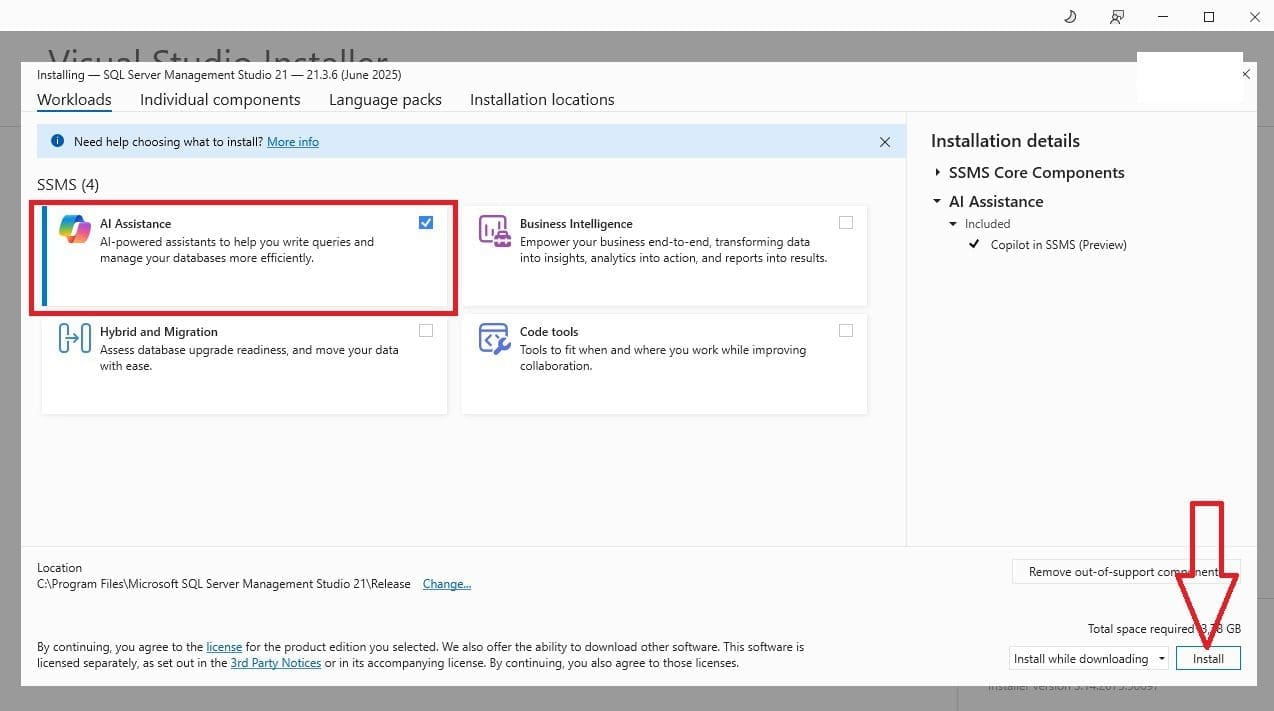
workload

If you don’t want to use the workloads feature to customise your SSMS installation. You can add more individual components from the Individual components tab as shown below.

Now that you have selected the workloads that you want, select Install. 

individual components ssms 21

As you can see below, SQL Server Management Studio (SSMS) 21 is downloaded and installing.

installing ssms 21

In addition to SQL Server Management Studio. From the Available menu, you can also install any product that Visual Studio Installer offers.

available solutions

When the installation is complete, you will be prompted to restart the server.

restart server

Please, see how to encrypt Microsoft SQL Server Traffic, how to Change from SQL Server and Windows Authentication Mode to Windows authentication Mode, and how to install SSMS traditionally.

Launch SSMS

Upon restart, you can launch the SQL Server Management Studio (SSMS) 21 from the start menu.

launch ssms 21

You will be prompted to sign in or create an account. Alternatively, you can skip and add an account later. So, I will click on skip for now.

Not logging into SQL Server Management Studio (SSMS) 21 doesn’t create any cloud dependencies by default. You can still use SSMS to connect to local or on-premises SQL Server instances without signing in.

skip and sign in

On the prompt to use the new connection dialog experience, click on Yes. Else, you will continue to use the classic connection dialog experience.

ssms connection dialog

Please, see How to uninstall Microsoft SQL Server Management Studio, how to Install MSSQL 2019 Developer Edition and SSMS on Windows, and how to perform vulnerability scan on Microsoft SQL Server.

Connect to SQL Server

To connect to the SQL Server instance, kindly enter the server name in under the connection properties as shown below.

connect to database

Note: If you prompted with the error “network-related or instance-specific error” when connecting to SQL Server. Ensure that the correct server name and database are specified in the connection string, and that SQL Server services are is running. Below are two related errors you can encounter.

If you run into the following error “‘Fix a network-related or instance-specific error occurred while establishing a connection to SQL Server [Part 2]“. Here is another guide discussing “Windows could not start the SQL Server service on local computer 17051: A network-related or instance-specific error occurred while establishing a connection to SQL Server“

As you can see below, we have successfully connected to the SQL server instance.

connected to server

Also, if you wish to use Copilot in SSMS, you will be required to provides the below details.

Copilot ssms

I hope you found this article very useful on how to install SQL Server Management Studio 21 on Windows Server. Please, feel free to leave a comment below.

5/5 - (1 vote)

Thank you for reading this post. Kindly share it with others.

  • Click to share on X (Opens in new window) X
  • Click to share on Reddit (Opens in new window) Reddit
  • Click to share on LinkedIn (Opens in new window) LinkedIn
  • Click to share on Facebook (Opens in new window) Facebook
  • Click to share on Pinterest (Opens in new window) Pinterest
  • Click to share on Tumblr (Opens in new window) Tumblr
  • Click to share on Telegram (Opens in new window) Telegram
  • Click to share on WhatsApp (Opens in new window) WhatsApp
  • Click to share on Pocket (Opens in new window) Pocket
  • Click to share on Mastodon (Opens in new window) Mastodon
  • Click to share on Bluesky (Opens in new window) Bluesky
  • Click to share on Threads (Opens in new window) Threads
  • Click to share on Nextdoor (Opens in new window) Nextdoor
Oracle/MSSQL/MySQL Tags:Microsoft SQL, Microsoft SQL Server Management Studio, Microsoft SQL Server Studio, SSMS

Post navigation

Previous Post: Install Windows Server 2025 via iDRAC Virtual Media or PXE
Next Post: Fix long path names to files on SQL Server installation media error

Related Posts

  • How to upgrade to SQL Server 2025
    SQL Server 2025 Upgrade Requirements and Compatibility Oracle/MSSQL/MySQL
  • sql server
    Download and install MSSQL 2019 Express Edition and SSMS Oracle/MSSQL/MySQL
  • upgrade Microsoft SQL Server
    How to upgrade Microsoft SQL Server 2019 to 2022 Oracle/MSSQL/MySQL
  • tredfghgfde3456578
    How to install Java Runtime Environment on Mac OS Mac
  • mysqlhero
    How to reset MySQL Root password Oracle/MSSQL/MySQL
  • images
    Unable to connect to MSSQL Server after changing Server name Oracle/MSSQL/MySQL

More Related Articles

How to upgrade to SQL Server 2025 SQL Server 2025 Upgrade Requirements and Compatibility Oracle/MSSQL/MySQL
sql server Download and install MSSQL 2019 Express Edition and SSMS Oracle/MSSQL/MySQL
upgrade Microsoft SQL Server How to upgrade Microsoft SQL Server 2019 to 2022 Oracle/MSSQL/MySQL
tredfghgfde3456578 How to install Java Runtime Environment on Mac OS Mac
mysqlhero How to reset MySQL Root password Oracle/MSSQL/MySQL
images Unable to connect to MSSQL Server after changing Server name Oracle/MSSQL/MySQL

Leave a Reply Cancel reply

You must be logged in to post a comment.

Microsoft MVP

VEEAMLEGEND

vexpert-badge-stars-5

Virtual Background

GoogleNews

Categories

veeaam100

sysadmin top30a
 
  • 1 WeXxkEX0JG3oB781HD8Hrg 3
    Fix Access denied to the hard drive, and the security tab missing under properties Windows Server
  • Perform slfservice rBitLocker recovery
    Resolve Invalid Key ID when requesting BitLocker Recovery Key Windows
  • Microaoft Edge
    Bing AI-Powered Copilot: How to install Microsoft Edge on macOS Network | Monitoring
  • Remove Desktop Desktop services
    How to Remove Remote Desktop Services Role on Windows Server Windows Server
  • a3a5a8be58fa09468cd4f70d36869e98
    Restore AD Objects: How to restore deleted user accounts in Active Directory with Microsoft LDP and PowerShell Windows Server
  • dd featured 1
    How to delete obsolete drivers from the Driver Store in Windows Windows
  • image 10
    Change Visual Studio Code UI language JIRA|Confluence|Apps
  • How to Set up a Single Site to Site VPN Connection on AWS
    Setup a Site-to-Site VPN Connection on AWS AWS/Azure/OpenShift

Subscribe to Blog via Email

Enter your email address to subscribe to this blog and receive notifications of new posts by email.

Join 1,841 other subscribers
  • RSS - Posts
  • RSS - Comments
  • About
  • Authors
  • Write for us
  • Advertise with us
  • General Terms and Conditions
  • Privacy policy
  • Feedly
  • Telegram
  • Youtube
  • Facebook
  • Instagram
  • LinkedIn
  • Tumblr
  • Pinterest
  • Twitter
  • mastodon

Tags

AWS Azure Bitlocker Microsoft Windows PowerShell WDS Windows 10 Windows 11 Windows Deployment Services Windows Server 2016

Copyright © 2025 TechDirectArchive


Loading Comments...
 

You must be logged in to post a comment.