Fix Windows defender blocked incoming connection on Windows


Microsoft Defender Antivirus is a next-generation protection solution that comes pre-installed with Windows 11. It provides always on real-time antivirus protection. In this guide, we shall discuss the fix Windows defender blocked incoming connection on Windows. Please, see What you need to know about Microsoft Defender Antivirus, how to enable FIPS mode on Windows Server, and how to create and configure a Shared Folder on Windows Server.
Administrators are required to customize the firewall profiles using firewall rules, so that they can work with applications or other types of software. Allowing specific types of inbound traffic is required for applications to function in the network.
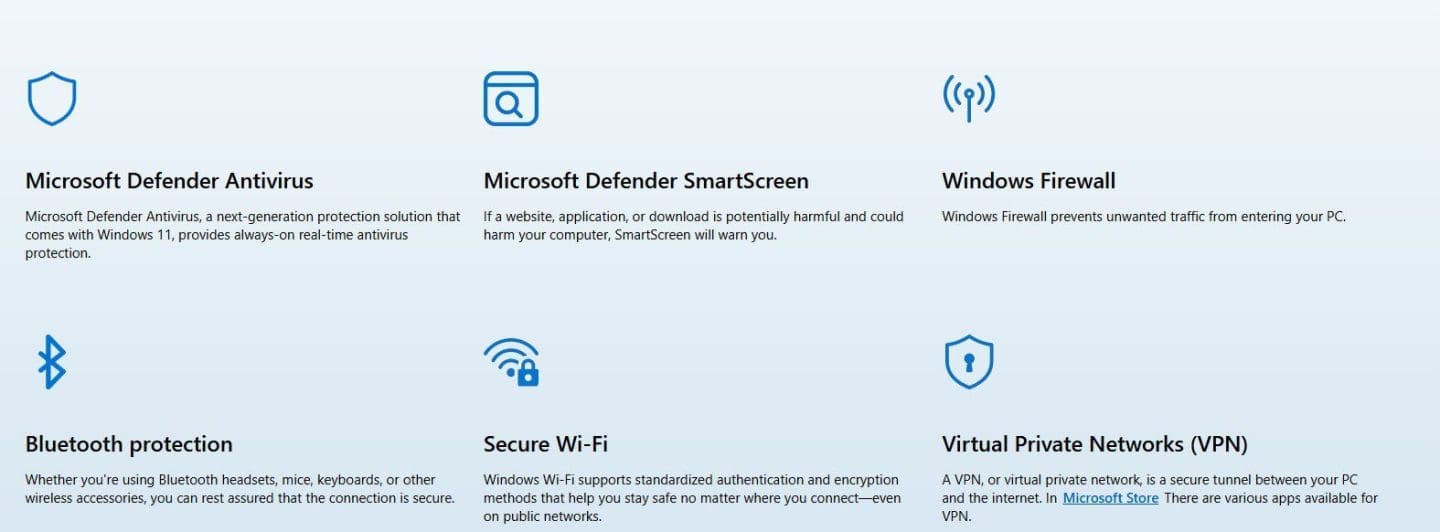
Windows 11 PCs are equipped with multiple layers of advanced security to help protect against malicious threats. From malware defense and privacy safeguards to secure app verification, your credentials, photos, and files are continuously protected.
Also, see how to Set Microsoft Defender AV to Passive mode on a Windows Server, how to fix Unable to run downloaded Programs due to Defender SmartScreen, and how to create a Windows firewall rule on Windows.
Reason for the error “Windows defender blocked an application from accepting incoming connection”
I ran into the following error while working on “Upgrade Windows Admin Center 2306 – 2311: Run WACmg v2401“. Below are some of the reasons for error “windows defender was unable to notify a user that it blocked an application from accepting incoming connection to the network”.
The error occurs because Windows Defender Firewall is blocking inbound connections to the application. Thereby preventing it from receiving network traffic. Below is a non-exhaustive list of possible causes for this error:
- Application Not on the Allowed List: Some applications require explicit permission to communicate over the network. If it’s not listed in Allowed apps and features, it will be blocked.
- Network Profile Restrictions: Windows Firewall rules are profile-specific (Domain, Private, Public). If the rule is not enabled for the current network type. The application will be blocked.
- Blocked by Group Policy (GPO): In enterprise environments, Group Policy settings may enforce strict firewall policies, preventing applications from accepting inbound connections.
- Windows Defender Firewall with Advanced Security Rules: Even if a basic rule exists, an advanced rule (e.g., based on IP, port, or protocol) may override it and block the connection as shown in the Windows Event log below. Therefore, if no no Inbound Rule Exists, that is. No firewall rule explicitly allowing the application to accept incoming connections, Windows Defender will block it by default as it is in my case.
- Third-Party Security Software: Some antivirus or security suites include their own firewall, which might block the connection even if Windows Defender Firewall allows it.
Due to the wide range of possible causes, examining the Windows Event Log is crucial to pinpoint the exact reason for the application’s blocked inbound connection.
Permit Incoming Connection
As already discussed above, you will need an inbound rule in Windows Defender Firewall to allow the application to accept incoming network connections.
By default, Windows Defender Firewall blocks unsolicited inbound connections unless there’s an existing rule allowing them. This error indicates a network connectivity issue when connecting to the Windows Admin Center gateway.

connection issue
To pin-point this issue, it is necessary to take a look at the Windows event log. As we can see below, there are some entries relating to this error message. We can see the protocol and port associated.
These events often appears alongside Event ID 5032 or 5031 in the Event Viewer. It indicates the connection attempt was blocked and silent. No pop-up or prompt was shown to the user.


More details on ports to be permitted.

To resolve this, you must configure a Windows Defender Firewall rule to allow inbound traffic on the specified ports.
Please, see Full Integration Guide on how to Add Nutanix AHV to Veeam, the “BitLocker behavior when MBAM agent is removed: No Uninstall Option in Control Panel“, and how to shrink and create new partition on Windows Server.
Configure Windows Firewall to Allow Applications on Specific Ports
Note: Our goal is not to enable notification for Windows Firewall with Advanced Security to notify the user when an application is blocked by the firewall, and ask if the application should continue to be blocked in the future. This behavior is so by default on older windows systems such as Windows Vista, and turned off by default in Windows Server 2008.
Because we have discussed the steps to create a firewall rules in details in these guides, I will not be showing all steps ‘How to create a Windows firewall rule on Windows“, and how to resolve request timed out when pinging.
Launch the Windows Defender Firewall. Below is a Firewall rules recommendations from Microsoft. Now, navigate to Advanced Settings.
To create a New Inbound Rule, click Inbound Rules in the left pane. Click New Rule in the right pane. Next, select Rule Type, and choose Program if you want to allow a specific executable.
Choose Port if the application uses specific network ports. Specify the Application or Port.
- For Program, browse to the
.exefile of the blocked application. - For Port, enter the port number (e.g., 80 for HTTP, 443 for HTTPS).
Next, select Allow the connection, and choose a Profile. Select the profiles where the rule applies:
- Domain (for work networks)
- Private (for home networks)
- Public (for public Wi-Fi)
Name the Rule and Save. Give the rule a meaningful name, like "Allow Incoming for AppName". In my case, I entered WAC. Below are the properties for the rule I have created.

You may want to see how to Permit a Blocked File or App in Windows Security Manually, and How to permit and run only certain apps in windows.
I hope you found this guide on how to Fix Windows defender blocked incoming connection on Windows very useful. Please, feel free to leave a comment below.