

It is interesting to note that SQL Server 2025 (17.x) builds on previous releases to grow SQL Server. This enables you to use your choices of development languages, data types, on-premises or cloud environments, and operating system. In this article, we shall discuss “SQL Server 2025 upgrade Requirements and Compatibility”. Please, see How to upgrade PostgreSQL Engine used by VBR, and how to “install PostgreSQL on Windows server as Veeam Database Engine“.
If you want to install or upgrade SQL Server to SQL Server 2022 (16.x) or a later version, on Windows Server 2022 or greater, make sure there are no restarts pending. You should restart Windows first, and then run the SQL Server installation or upgrade as we will see very shortly.
Also, see how to migrate Veeam Configuration Database to PostgreSQL Server, and how to “Downgrade VMware Workstation: Fix the Processor does not support xsave on VMware Workstation“. Here is “how to migrate Veeam One Database from SQL Server 2017 to 2025“.
Edition Changes in SQL Server 2025 (17.x)
In this section, we will discuss some of the new changes introduced in the SQL Server 2025 Edition. For more information not discussed here, kindly refer to the feature highlights as discussed here.
Standard Edition: SQL Server 2025 significantly expands the capabilities of the Standard Edition:
- Compute capacity: Up to the lesser of 4 sockets or 32 cores per instance.
- Memory: Up to 256 GB buffer pool memory per SQL Server instance. Previous SQL Server Standard Edition supported a maximum of 128GB.
Resource Governor is now fully available in Standard and Standard Developer editions, with the same functionality previously exclusive to Enterprise.
Web Edition: The SQL Server Web Edition is discontinued. For details, refer to the Product Changes section in the SQL Server 2025 GA announcement.
Express Edition: The SQL Server Express also receives expanded limits and changes:
- Maximum database size: Increased to 50 GB (per relational database).
- Express with Advanced Services (SQLEXPRADV): Discontinued.
- Express now includes all features that were previously offered only in Advanced Services.
New Developer Editions: Two free, development-only editions now align with Standard and Enterprise capabilities. I will be showing you these editions during the installing of SQL Server 2025.
Standard Developer Edition: The free edition designed for building and testing apps targeting SQL Server Standard 2025. This includes all Standard Edition features, and ideal for development, staging, and validation before production upgrades.
Enterprise Developer Edition: Built for developing apps for Enterprise deployments. Functionally equivalent to Developer Edition in previous versions includes all Enterprise Edition features.
Please, see “Editions of MSSQL Server: What are the differences between various Editions of Microsoft SQL Server“, and “Microsoft SQL Evaluation period has expired: How to upgrade SQL Server instance“.
Supported Upgrade Paths to SQL Server 2025
Running an outdated version of SQL Server may look like a way to cut costs, but it often creates more problems than it solves. Older SQL Server releases fall out of Microsoft’s mainstream support cycle, which means your business could be operating without critical security patches, performance fixes, and compliance safeguards.
The table below shows an Overview of the supported Upgrade Paths to SQL Server 2025. Unlike on Windows Server, you can perform a direct upgrade from SQL Server 2017 to SQL Server 2025 (in-place or side-by-side) as it is in my case according to official supported paths.
Please, see the following table lists the supported upgrade scenarios from earlier versions of SQL Server to SQL Server 2025 (17.x).
| Source Version | Direct Upgrade to 2025? | Edition-Mapping |
|---|
| SQL Server 2014 SP3 or later | Supported (Yes) | SP3 or later required |
| SQL2016 SP3 or later | ” Yes | — |
| SQL2017 | ” Yes | All editions (Enterprise, Standard, Developer, Express) map to 2025-equivalents |
| SQL2019 | ” Yes | — |
| SQL Server 2022 | ” Yes | — |
For unsupported scenarios, kindly proceed to the following link. For instance, the cross-version instances of SQL Server 2025 (17.x) aren't supported. Version numbers of the Database Engine components must be the same in an instance of SQL Server 2025 (17.x).
Also, cross-platform upgrade isn’t supported. You can’t upgrade a 32-bit instance of SQL Server to native 64-bit using SQL Server Setup. You can’t add new features during the upgrade of your existing instance of SQL Server. After you upgrade an instance of SQL Server to SQL Server 2025 (17.x), you can add features by using the SQL Server 2025 (17.x).
Please, see Download and install MSSQL 2019 Express Edition and SSMS, and “how to Install SQL Server 2022 Express and SQL Server Management Studio“.
Pre-Upgrade Checklist
Upgrading SQL Server, especially in-place upgrading to SQL Server 2025 (17.x) requires adequate planning. A smooth upgrade depends on validating hardware, security configuration, feature support, and system health before you launch Setup.
Before upgrading from one SQL Server 2025 edition to another such as the “Standard, Enterprise and theDeveloper version”. Ensure that every feature you are using today is available in the edition you are migrating to. This is important due to the below reasons:
- Some features exist only in Enterprise Edition (e.g., advanced compression, online indexing, certain Always On capabilities).
- SQL Server Setup will block the upgrade if a currently-enabled feature is missing in the target edition.
Also, SQL Server 2025 enforces updated hardware and OS requirements. Please validate the below to ensure a smooth upgrade (migration):
- Supported Windows Server version (SQL 2025 no longer supports some older OS builds).
- CPU architecture (x64 only. No 32-bit support anywhere.
- RAM, storage, and memory-optimized requirements.
- .NET Framework and Visual C++ runtime dependencies.
The image below shows which editions of SQL Server 2025 (17.x) are compatible with which versions of Windows. Please, see “Enhanced Proactive Monitoring with Veeam ONE“.

The SQL Server 2025 Setup engine depends on the Windows Installer (MSI) service. Please, ensure the Windows Installer Service Is Running. Upgrade will be blocked Windows Installer service is disabled, if another MSI process is running (e.g., a stuck uninstall), or if the Windows Installer is corrupted
Also, validate the SQL Server Agent and ensure that it is configured correctly before an upgrade. Please, ensure SQL Server Agent uses Windows Authentication (using Windows Authentication, not SQL login-based tasks). Also, The SQL Server Agent service account must be a member of the sysadmin server role.
Lastly, the image below discuss the memory and processor requirements for SQL Server 2025. This applies to all editions of SQL Server by the way.
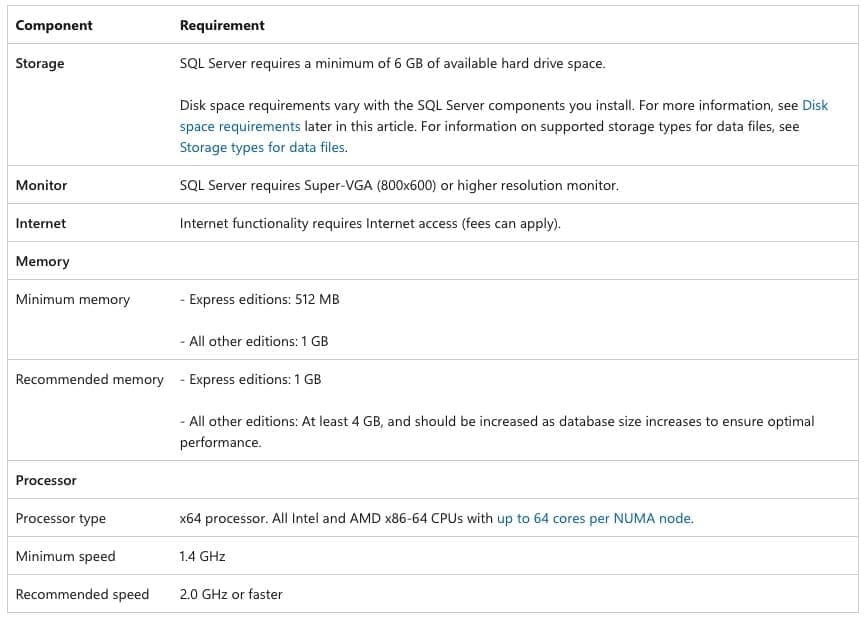
Please, see how to install PostgreSQL on Windows and migrate an existing workload away from MSSQL Express, and “how to use the Program Compatibility Troubleshooter to Test Application Compatibility on Windows 11“.
Pre-Upgrade Summary
Below is a refined pre-upgrade checklist in a clean blog style, followed by an optional table you can include in technical posts or documentation
As mentioned above, when there are also pending updates, you will run into the following issue “upgrade blocked”. You can verify this with the registry key. If the key exists, then, a reboot is needed.
Get-ItemProperty "HKLM:\SOFTWARE\Microsoft\Windows\CurrentVersion\Component Based Servicing\RebootPending"
| Requirement | Why It Matters | Consequences |
|---|
| Edition feature compatibility | Ensures all used features exist in the target edition | Upgrade may be blocked or features break |
| Supported OS & hardware | Ensures the environment meets SQL 2025 requirements | Setup will stop with unsupported system error |
| SQL Server Agent using Windows Authentication | Required for job migration and Agent stability | Jobs may fail or Agent may not start post-upgrade |
| Agent account in sysadmin role | Required for metadata and job upgrades | Upgrade issues or permission failures |
| No pending restart | SQL Setup cannot proceed with pending reboot flags | Upgrade is blocked |
| Windows Installer service running | SQL Setup depends on MSI engine | Upgrade is blocked |
Also, see how to upgrade Windows Server Evaluation to Full Version, how to upgrade Microsoft SQL Server 2019 to 2022, and how to upgrade Windows Admin Center 2306 – 2311: Run WACmg v2401.
Why Upgrade to Microsoft SQL Server 2025?
For Veeam Customers, at this time, SQL Server 2025 is not supported yet. This support is inevitable. SQL Server Express previously had a strict 10 GB per-database limit, which often became a bottleneck in environments with larger workloads.
This was especially noticeable with Veeam ONE databases that store extensive retention data or handle many tape jobs. Kindly keep an eye on this link to see when SQL Server 2025 will be supported.
With SQL Server 2025, the limit increases to 50 GB. This gives SQL Express far more room to grow and making it much more suitable for real-world deployments. This upgrade removes one of the main reasons many teams switched to PostgreSQL for default installations also for Veeam Backup and Replication. Now that SQL Server Express scales much better, that old limitation is largely gone, and organisations can confidently continue using it without quickly outgrowing the platform.
Also, to date, Veeam recommends using Microsoft SQL Server (MSSQL) instead of PostgreSQL in the following scenarios;
- Large-Scale Deployments: When your Veeam Backup & Replication infrastructure manages thousands of VMs or petabytes of data. MSSQL provides better scalability and performance. This is also applicable to organisations already using and have expertise in MSSQL for administration and integration.
- Advanced MSSQL Features: Features like Always On Availability Groups, Transactional Replication, and SQL Server Agent Jobs are exclusive to MSSQL and can benefit large, high-availability environments.
- Lastly, Veeam ONE currently requires an MSSQL database. Therefore, some users still have their VBR tied to the SQL engine. Therefore, this guide will be beneficial to upgrade the database.
Upgrade SQL Server 2017 to SQL Server 2025
Therefore, here is a guide for you if you wish to upgrade Microsoft SQL Server 2019 to 2022. The steps are basically the same. Therefore, I will only show you the basic steps here.
To reiterate, ensure SQL Server 2017 is fully patched (latest CU recommended) and there is no pending update required. This is because, upgrades are blocked if Windows requires a restart. Have your SQL Server 2025 product key ready.
Launch SQL Server Installation Center by navigating through the start menu, Microsoft SQL Server 2017 and then click on the SQL Server Installation Center.

This is open the SQL Server Installation Center. To proceed, navigate to “Maintenance”, and click on the Edition Upgrade as shown below.
Alternatively, you can simply use the downloaded SQL Server 2025 ISO. When you mount the ISO or extract the installer and run setup.exe. It will automatically open the SQL Server Installation Center for you, and from there you can follow the exact same upgrade steps.

Kindly wait for the below process to complete.
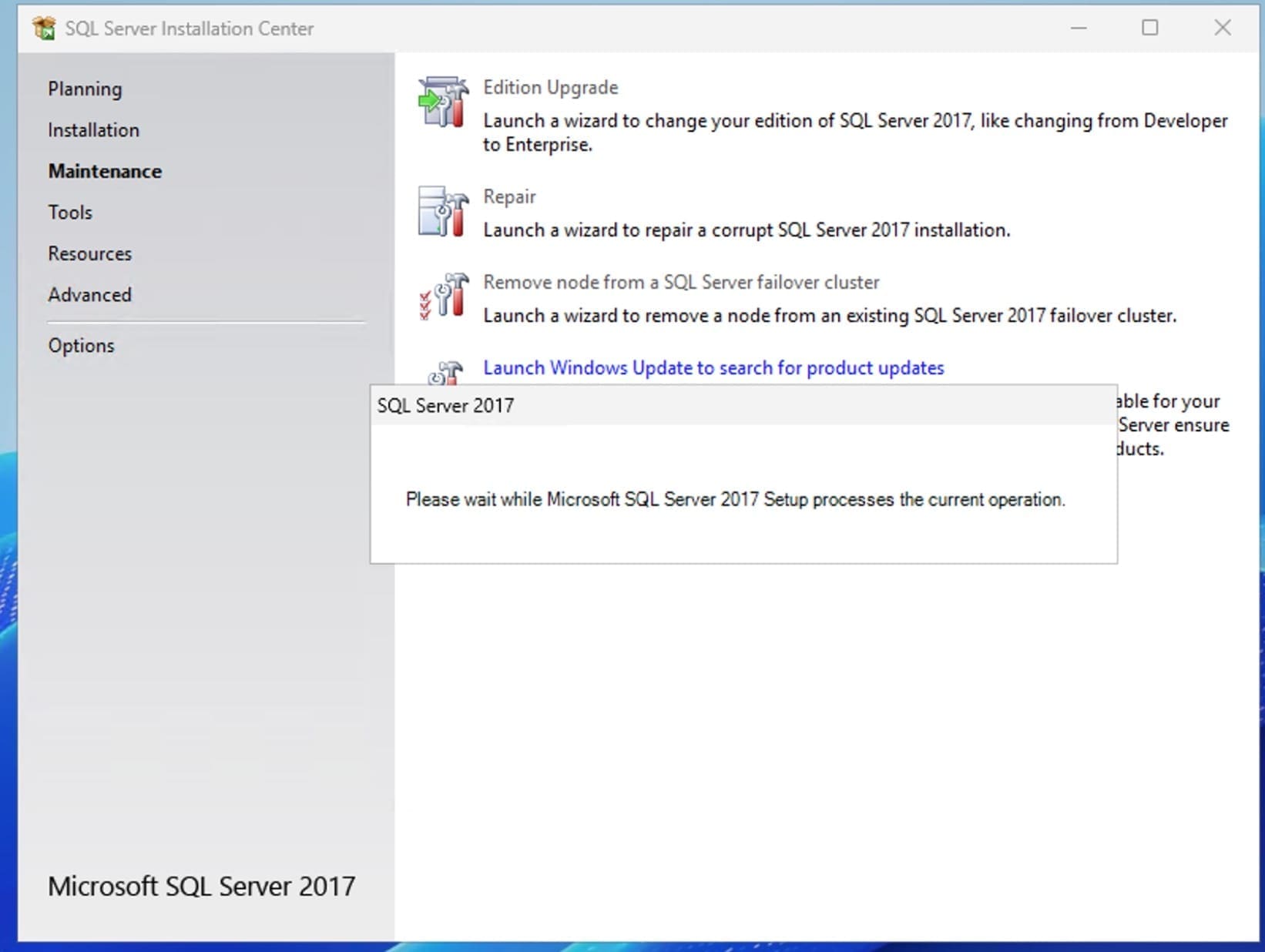
This step is very vital. Please, specify product key for MSSQL 2025 and proceed with the steps as discussed in the article above.

If this is a lab environment and you do not have a license, you could select one of the options below and follow the steps to upgrade.

For what’s new in SQL Server 2025 not discussed in this article, please take a look at the YouTube video below.
I hope you found this guide on “SQL Server 2025 upgrade Requirements and Compatibility” very useful. Please, feel free to leave a comment below.


