All About Distributed File System

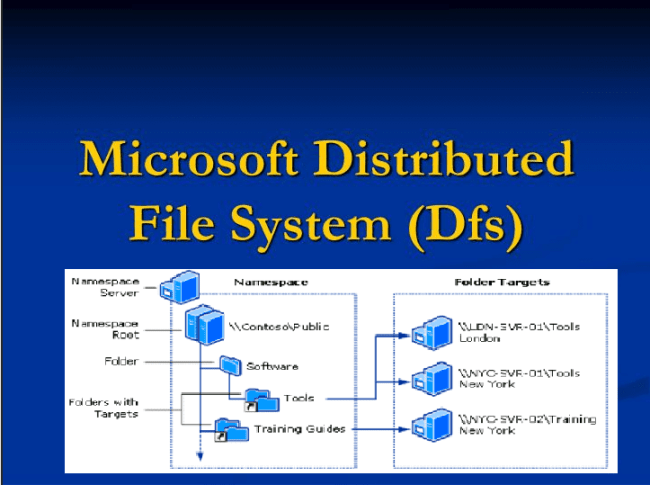
The image below shows the distributed file system logo. A distributed file system (DFS) or network file system is any file system that allows access to files from multiple hosts. DFS provides users with a single virtual file store across heterogeneous platforms. The users are not aware of where these files are physically located. Therefore data can be moved transparently to users. This article discusses a great aspect of the Distributed File System. Please see How to uninstall Git from MacOS, and how to Import Repo to Bitbucket Cloud: Seamless Migration to GitLab.
How does Dfs work?
The idea of DFS is to bundle or let you group shared folders that reside on different servers into logically structured namespaces.
Note: This allows a virtual view of the shared folders for users, with a single path leading to files residing on multiple servers.
The topology of the Dfs includes a directory as a Dfs root and links to the target directories i.e., the idea is to have a NameSpace Root Folder
- With folders (on the same server).
- Now you have this Folder house Target paths or directories (folder on other servers).

Types of DFS root
The directories can reside in different data stores and still appear to users as a closed structure. You can optionally create two variants of a DFS root
1. Stand-alone Dfs root
- Can not have root DFS shared folders
- Can only have a single level of DFS links
2. Domain-based Dfs strain
- Can have shared DFS root-level folders
- Can have multiple levels of DFS links
- Must be set up as a member server of the domain.
- Automatically in Active Directory published
The folder destination is the place where data and content are stored. In the picture above, the folder named Tools has two folder destinations, one in London and one in New York, and the folder named Training Guide has a single folder destination in New York. A user navigating to Contoso Public Software Tools is transparently redirected to the shared folder LDN-SVR-01 Tools or NYC-SVR-01 Tools, depending on the user’s location currently located in.
Note: Folder folders without folder targets add structure and hierarchy to the namespace, and folders with folder targets provide users with the actual content. When users browse a folder that has folder targets in the namespace, the client computer receives a reference that transparently points the client computer to one of the folder destinations.
Install Dfs Namespaces
This can be installed via the Server Manager or PowerShell. Below are the steps to install DFS by using Server Manager.
In Server Manager, click Manage, and then follow the steps below.
- click Add roles and features.
- The Add Roles and Features Wizard appear.
- On the Server Selection page, select the server or Virtual Hard Disk (VHD) of a virtual machine in offline mode on which you want to install DFS.
- Select the role services and features to install.
- To install the DFS Namespaces service on the Server Roles page,
- select DFS Namespaces.
- Expand on the side features the option Remote Server Administration Tools,
- expand Role Administration Tools, expand File Services Tools,
- And then select DFS management tools.
Note: As part of the DFS management tools, the server installs the DFS Management snap-in, the Windows PowerShell DFS Namespaces module, and command-line tools, but not DFS services.
You may want to see How to fix importing the project failed: Project namespace path can contain only letters, digits, etc, Active Directory Forest – Trees and Domain and Sites, and how to determine why an MBAM-protected device is non-compliant.
Deploying Distributed File System Namespaces
Distributed File System (Dfs) Namespaces and Dfs Replication can be used to publish documents, software, etc to users throughout the organization. Although Dfs replication alone is sufficient to distribute data, you can use the Dfs namespaces to configure the namespace to host a folder from multiple servers, each containing an updated copy of the folder.
This increases the availability of the data and distributes the client load on the servers.
Optimize a Distributed File System Namespace
After creating a namespace and adding folders and targets, you can use the following checklist to customize or optimize them. The DFS namespace handles referrals and queries Active Directory Domain Services (AD DS) for updated ones.
Scenarios that can be configured to enhance the configuration of DFS.- Prevent users from seeing folders in a namespace they do not have access to
- Allow or prevent users from being directed to a namespace or folder target when accessing the folder in the namespace.
How to select a Distributed File System Namespace type
When you create a namespace, you must choose one of two namespace types: A stand-alone namespace or a domain-based namespace.
Note: If you select a domain-based namespace, you must also select a namespace mode: Windows 2000 Server or Windows Server 2008 Mode.
Select a stand-alone namespace
- Your organization will not use Active Directory Domain Services (AD DS).
- You should use a failover cluster to increase the availability of the namespace.
- You must create a single namespace with more than 5,000 DFS folders in a domain that does not meet the requirements for a domain-based namespace
Select a domain-based namespace if any of the following conditions apply to your environment:
- You should use multiple namespace servers to secure the availability of the namespace.
- You should hide the namespace server name from the users. This makes it easier to replace the namespace server or to migrate the namespace to another server.
Create a DFS Namespace
To create a new namespace, you can use Server Manager to create the namespace when you install the DFS Namespaces role service
Note: This can also be done using the PowerShell. These steps are very basic. See below.Create a folder in a DFS namespace
You can use folders to create additional levels of hierarchy in a namespace. You can also create a folder folder folder to add shared folders to the namespace.
Proceed and create Folder in Dfs (This is very basic and straightforward)Important Distributed File System Scenarios
Migrate a domain-based namespace to Windows Server 2008 mode. To do this, you must export the namespace to a file, delete the namespace, re-create it in Windows Server 2008 mode, and then import the namespace settings. Follow the steps discussed in this article “Migrate a domain-based namespace to Windows Server 2008 Mode” for more information.
I hope you found this blog post helpful. If you have any questions, please let me know in the comment session.


