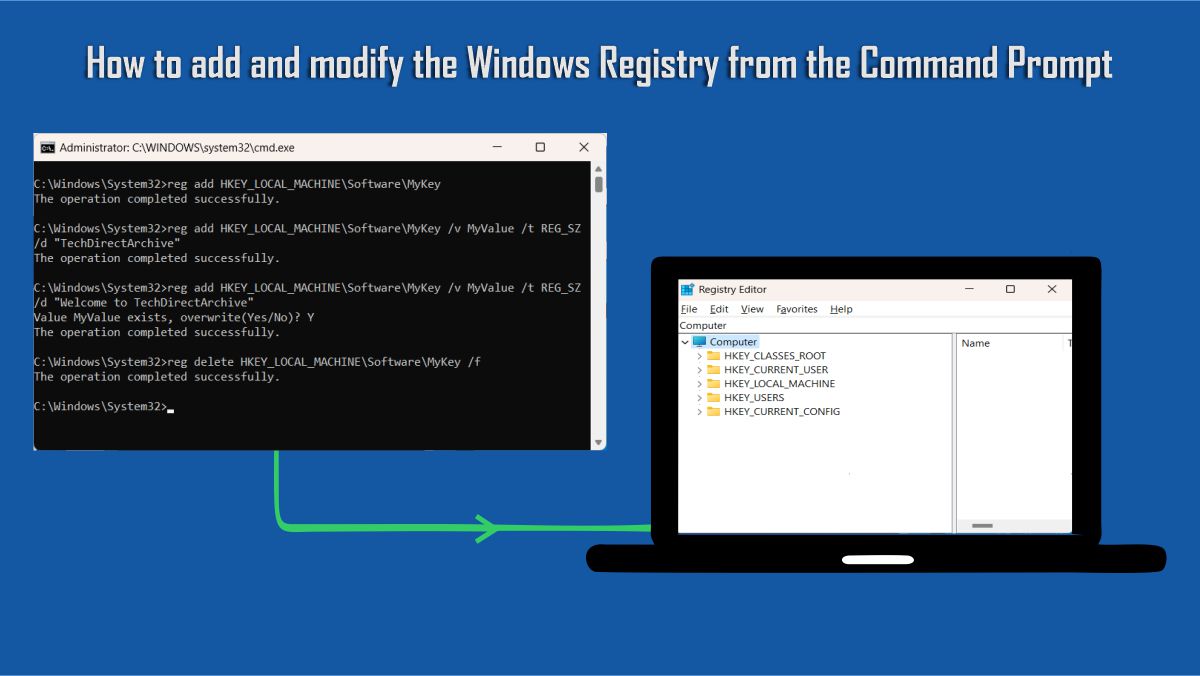
In this article, we shall discuss the prerequisites for setting up a Single and Multi App Kiosk. The requirements are as follows. It must be a Windows 10 Pro, Enterprise, and Education Edition. The same requirements apply to the Multi-App kiosk. Please refer to the following guides for related articles. Pre-requisites for setting up a Single and Multi App Kiosk, and how to disable the sleep mode in Windows 10 to never turn off the display, what is Registry Editor and how to access the registry hives and how to search through Windows Registry.
Pre-requisites for setting up a Single and Multi App Kiosk
Here are the prerequisite to setting up a single Kiosk application as it relates to my environment.1. Turn on User Access Control (UAC):
UAC must be turned on to enable kiosk mode. Please see how to Resolve Account restrictions are preventing this user from signing in: User Account Password has expired.
- Search for User Access Control under the search menu or
- From the Control Panel,
- Click on User Accounts
- Click on User Accounts and
- Click on Change User Account Control Settings

Kiosk mode is not supported over a remote desktop connection (RDP). Your kiosk users must sign-in on the physical device that is set up as a kiosk. Apps that run in kiosk mode cannot use copy and paste. Also, Kiosk Mode can be tested and deployed on a Hyper- VM, and VMware Horizon.
2. Hide update notifications
Here are the steps in hiding notifications on your workstation. Launch the Group Policy Editor and navigate through the following errors
- Computer Configuration
- Administrative Templates
- Windows Components
- Windows Update
- Display options for update notifications

Or this can also be done via the registry key and MDM as well. But will discuss only the registry settings too.
Navigate to this path
- HKLMSOFTWAREPoliciesMicrosoftWindowsWindowsUpdate
Set the following parameters as follow. - SetUpdateNotificationLevel with a value of 1, and
- UpdateNotificationLevel with a value of 1 to hide all notifications except restart warnings, or
- value of 2 to hide all notifications, including restart warnings.

The “UpdateNotificationLevel” has been entered as 1

3. Enable and schedule automatic updates
Here are the steps below to have this done. Launch the Group Policy Editor
- Computer Configuration
- Administrative Templates
- Windows Components
- Windows Update
- Configure Automatic Updates, and select option 4 (Auto download and schedule the install).

To schedule the automatic update,
– Configure Schedule Install Day, Schedule Install Time, and
– Schedule Install Week.
4. Enable automatic restart at the scheduled time
Follow the following steps to achieve this.
- Launch the Group Policy Editor
- Computer Configuration
- Administrative Templates
- Windows Components
- Windows Update
- Always automatically restart at the scheduled time

5. Replace The blue screen Error (BSoD error) with a blank screen for OS Errors
See this link on how this is configured
6. Put the device in Tablet mode
Follow the steps below and if you also want your users to be able to use the touch (on-screen) keyboard.
- Click on Settings
- System
- Tablet mode and choose On.
Note: Do not turn on this setting if users will not interact with the kiosk, such as for a digital sign.

7. Hide the Ease of access feature on the sign-in screen
Use the following article to have this done. See remove the power button from the Welcome screen and block the physical power button.
8. Disable the hardware power button
Here are the steps below to perform this task.
- Access and click on the Power Options
- Choose what the power button does,
- Change the setting to Do nothing, and then
- Click on save changes.
Control PanelHardware and SoundPower OptionEdit Plan Settings

9: Remove the power button from the sign-in screen
Here are the steps below to have this done.
- Launch the GPO Editor
- Go to Computer Configuration
- Windows Settings
- Security Settings
- Local Policies
- Security Options
- Shutdown: Here under a “Allow the system to be shut down without having to log on” and
- Select Disabled.

10: Disable the camera: Here are the steps to have this done.
- Click on Settings
- Privacy
- Click on Camera, and
- Turn off Let apps use my camera.

11: Turn off app notifications on the lock screen
Follow the steps below to have this done. Open the Group Policy Editor
- Click on Computer Configuration
- Administrative TemplatesSystemLogon
- And Turn off app notifications on the lock screen

12: Disable removable media.
- Launch the Group Policy Editor
- Computer Configuration
- Administrative Templates
- SystemDevice InstallationDevice Installation Restrictions.

Review the policy settings available in Device Installation Restrictions for the settings applicable to your situation.
– Note: To prevent this policy from affecting a member of the Administrators group, in Device Installation Restrictions, enable Allow administrators to override Device Installation Restriction policies.
13: Enable AssignedAccess logging
This helps in troubleshooting errors associated with Assigned Access. Follow the steps to have this turned on.
- Lunch the event viewer and navigate to Microsoft
- Expand Window
- Assigned Access and
- Enable Log

The image below shows the Assigned Access Log has been enabled.

14. Enable Automatic logon
You may want to set up automatic login for your kiosk device follow the steps in this article.
15. Prevent users from shutting down in a VM
Follow the steps described in this link.
16. How to Remove the All Apps Option from Windows Start Menu via GPO /Registry:
Follow the steps described in this link.
I hope you found this blog post helpful on the Prerequisites for setting up a Single and Multi App Kiosk. If you have any questions, please let me know in the comment session.