How to install Ansible on Windows with Cygwin


Ansible is an open-source software provisioning, configuration management, and application-deployment tool enabling infrastructure as code. It runs on many Unix-like systems and can configure both Unix-like systems as well as Microsoft Windows. Installing Ansible generally is pretty straight forward but on windows, it is a little bit complicated. Ansible uses the pywinrm package to communicate with Windows servers over WinRM. It is not installed by default with the Ansible package but can be installed, see the following link. Here are some related contents: How to view installed packages in Cygwin in Windows, how to configure Kerberos for Ansible Authentication, and how to determine Cygwin version.
Cygwin is free software that provides a Unix-like environment and software toolset to users of any modern x86 32-bit and 64-bit versions of Microsoft Windows. Cygwin consists of a Unix system call emulation library, cygwin1.dll, together with a vast set of GNU and other free software applications organized into a large number of optional packages. Among these packages are high-quality compilers and other software development tools, an X11 server, a complete X11 development toolkit, GNU emacs, TeX and LaTeX, OpenSSH (client and server), and much more, including everything needed to compile and use PhysioToolkit software under MS-Windows.If you wish to install Ansible on Windows, follow these steps.
Note: Cygwin is a simple program that allows UNIX commands to be run on Windows systems. To automate Ansible for VMware Infrastructure Automation.
1. Install cygwin: Here are the steps below to install Cygwin
– From https://cygwin.com/install.html
– Download the installer

– Run the setup (install) the file that was just downloaded.

– on the next page, select the Installation Type
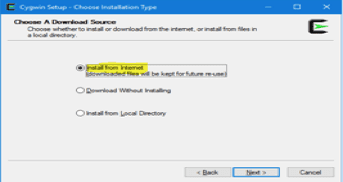
– Select the root directory (will leave as default)
– Also, select install for all users if multiple users will be using the server

– Select the Local Package Directory will store installation,( I will leave this as default as it is a test environment). It usually takes (assumes) the location of the initial download file (setup).
C:\Users\tester\Downloads
– Select Connection Type (Select Direct Connection)

– Choose a download site (will select the first by default)

– Click on Next
– This will continue the installation on Cygwin on your windows system and show the progress bar of the installation.

– Select Packages to install

2. Install the following packages from the list
- curl
- python
- python-setuptools
- python-crypto
- openssl
- openssl-devel
- libffi-devel
- gcc-g++
- vim
- git
To install, you can use the search menu or expand the packages and from the New drop-down list associated with each package,
– Select install as shown below if you wish to install all the packages associated with the Editor.

– Or use the search menu for a single package and install.

– For Git

– For Libffi-Devel which is a portable foreign function interface library

– Click on Next and will prompt a windows allowing you to review and confirm changes.

– This step is a two-step process and will download and then install the following packages on your device.

– Installing the Cygwin onto our system

Note: Do not interrupt this installation as this can take a lot of time.
– Click on Finish when the installation is complete

– Lastly, ensure to set the environment variable for Cygwin (This will enable you to run Cygwin from the terminal). Setting the path and environment variables will differ depending on the version of Windows you have on your computer. Choose a link below for your version of Windows.
– Access the System properties
– Click on System Properties via the Explorer window (Note: There are different steps to launch this window).

Previously this will open the control panel on the fly, but now it will open the Windows About Settings page.
– Then Click on System info and this will open the control panel window.

– Click on Advanced System settings

- Click on Environment Variable
- In the Environment Variable window
- Search for “Path”

- Double click or select and click on edit.
- On the Edit environment variable
- Click on New
- Add the following parameter


– Select on ok.
Note:
– This will ensure all windows are confirmed and ok is clicked about 3x.
– You may have to restart your environment or else this will not work on the fly in order to use Cygwin on Windows CMD.


The steps below are necessary only if you want to explore other methods of installing Ansible on Windows. You can avoid the steps below if you wish to install Ansible with Cygwin as shown below.

For other methods of installing Ansible on Windows, follow the steps below.
Install PIP: What is PIP? It is an alternate installer for python packages that many uses in managing python related package activities.
Right-click “Cygwin64 terminal on your desktop” and run as Administrator or run from the CMD because UNIX commands can be run now from the command prompt.
For more information about easy_install and PIP, see https://packaging.python.org/discussions/pip-vs-easy-install/
To install PIP, run the command below.
-Note: If you do not have the right python packages installed, the easy_install pip will not work
easy_install-2.7 pip


Install Pywinrm: Ansible uses the pywinrm package to communicate with Windows servers over WinRM. It is not installed by default with the Ansible package, but can be installed by running the following.
pip install "pywinrm>=0.3.0"

Install Ansible:
Method 1: The best way to achieve this is to install Ansible via Cygwin.
– Select the packages alongside other packages and install them.
Method 2. Use the command below.
- pip install Ansible

Note: You need also to rebase all the packages to solve the problem of forking. For this perform the following below.
- Rebase-trigger full
- Close Cygwin shells (or even reboot your windows)
- Run Cygwin installer again and just click on “Next” until you reach the end of the installation, then Cygwin will rebase all the packages.
Building wheel for ansible (setup.py) ... done
  Created wheel for ansible: filename=ansible-2.9.5-cp27-none-any.whl size=16162543 sha256=b83577e80aa8c47d9647ed665de4bf59d7a45e7c3d128dc5f565ab9dc9841d32

Stored in directory: /home/tester/.cache/pip/wheels/3b/ab/74/4629c803bf5475edf5c0369f5cb95e834bdd2f7d70f439a027
Successfully built ansible
Installing collected packages: ansible
Successfully installed ansible-2.9.5
WARNING: You are using pip version 19.2.3, however version 20.0.2 is available.
You should consider upgrading via the 'pip install --upgrade pip' command.
To run Ansible on other Operating Systems, see https://techdirectarchive.com/2020/02/23/ansible-installation-and-configuration-on-ubuntu/
After installing Ansible, using the version to see if Ansible is correctly installed.
$ ansible --version
$ ansible --version
ansible 2.9.5
  config file = None
  configured module search path = [u'/home/tester/.ansible/plugins/modules', u'/usr/share/ansible/plugins/modules']
  ansible python module location = /usr/lib/python2.7/site-packages/ansible
  executable location = /usr/bin/ansible
  python version = 2.7.16 (default, Mar 20 2019, 12:15:19) [GCC 7.4.0]
To see the default host files, navigate to the path C:\cygwin64\etc\ansible

Now that Ansible is installed, let’s perform our first test. The below steps and command helps to test Ansible locally. Running some commands like ping by using the ping Ansible module against the localhost.
You will get a success message displayed in green after completion of the ping commands. – Response will to the ping command is the “pong” output.
ansible localhost -m ping


