Skip to content

TechDirectArchive

Hands-on IT, Cloud, Security, Veeam & DevOps

  • Home
  • About
  • Advertise With US
  • Reviews
  • Tech News
  • Contact
  • Toggle search form

Veeam Host Components: Unable to reinstall Deploy Service SSH

Posted on 14/01/202624/06/2026 IT Expert By IT Expert No Comments on Veeam Host Components: Unable to reinstall Deploy Service SSH
  1. Home
  2. Backup
  3. Veeam Host Components: Unable to reinstall Deploy Service SSH
Unable to reinstall Deploy Service SSH

Upgrading Veeam Backup & Replication v13 host components such as Proxmox often hits a wall during the “Upgrade Veeam Host Components” phase. In this guide, we shall discuss how to upgrade Host Components: Unable to reinstall Deploy Service SSH. The root cause of this issue is a missing single-use SSH credentials configured at upgrade time. Please, see How to deploy and integrate VHR with VBR, and Harden Active Directory Using CIS Benchmark and MSCT 1.0.

Veeam generates Single-Use Credentials as temporary, ephemeral credentials to securely deploy and upgrade components on managed hosts. The system creates these credentials dynamically during deployment or upgrade operations and limits their lifetime. Veeam requires Single-Use Credentials to meet modern security and compliance expectations.

Also, see how to reset and reinstall Windows 10 from the cloud and how to recover your Windows 10 when you cannot boot to Windows,

Failed to upgrade Veeam Host Components

During an upgrade path and in-place upgrade to Veeam Backup & Replication v13, you may encounter an error when upgrading host components: “Unable to reinstall Deploy Service (SSH)”.

As mentioned above, this is because of the unavailable Single-Use Credentials (SUCs) at the time of the upgrade as shown below.

Managed servers
Single-use SSH credentials in Veeam Backup & Replication v12 and v13 represent a major security evolution, replacing static credentials with ephemeral, operation-specific authentication.

Please, see How to reset and reinstall Windows 10 locally, how to reinstall Server Manager and disable Server Manager at startup for all users and login users, and how to Associate SSH Public key with Azure Linux VM.

Why a simple upgrade cannot fix this issue

The below steps will not work. As you can see, the component upgrade and Server upgrade are available.

When you try to upgrade via this method, the upgrade will fail. This is because, we have to provide a single use credential for the VHR.

update compoment

The same behavior from the Backup repository wizard as it does not offer the opportunity to enter the single use credential. The upgrade will also fail.

upgrade repo

Please, se How to add or remove email addresses from a mailbox, how to Remove a profile on outlook, and Basic Cisco ASA troubleshooting Commands Guide.

Fix Unable to reinstall Deploy Service SSH

The backup infrastructure is the collection of components that work together to create, transport, process, store, and restore backup data.

To fix this, we will have to navigate to the Backup Infrastructure, select the server and click on “Edit Server”.

Edit Manager servers
After installing the Veeam Backup Server, the Backup Infrastructure becomes the central hub for discovering and managing all data sources and storage targets required to create functional backup jobs

Click on Single-use credential for hardened repository as shown below

single use cred

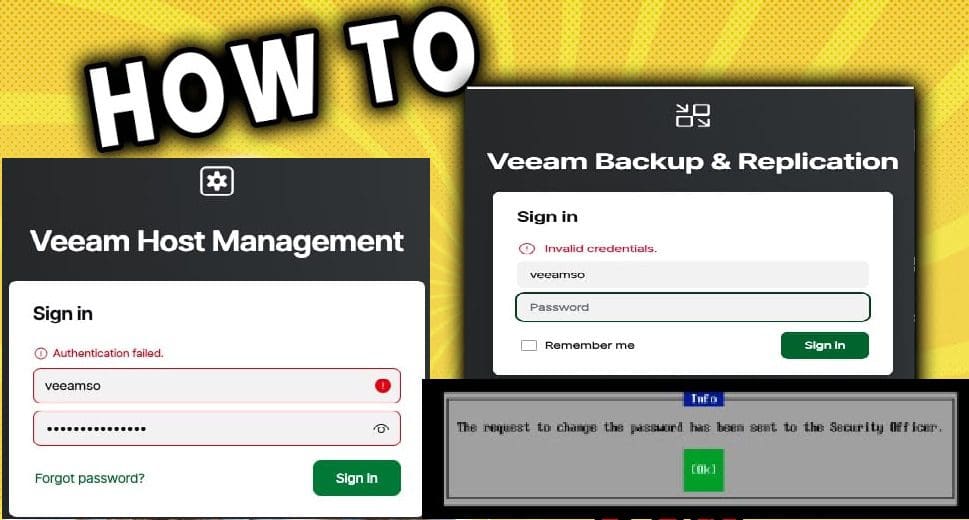
If you select SSH credential and enter a password. It will fail with the below error “unable to change credential for “REPO”. It has a hardened repository role assigned which requires the usage of single use credentials.

Therefore, ensure you follow my directive above as you do not have this password and can only be generated from the VHR.

single use credentials

Please, see How to perform Password Change with OWA, how to Fix Outlook Not Responding and Outlook Crashing or freezing, and Cluster creation in Proxmox VE.

Get Single-Use Credential from the Hardened Repository

To get the single-use credential from the Hardened Repository, navigate tot he VHR as deployed here “How to deploy and integrate VHR with VBR“.

launch the Shell and click on Start SSH

ssh start

When this process completes, Veeam generates a single-use credential with a username and password.

Start SSH

Next, from the VBR console, enter the credentials as shown below and click on OK.

Use single use creation

As you can see, it is checking for SSH connection.

SSH connection

The previous installed components are being detected. I will be showing you how to upgrade to the latest VHR in the next guide. When complete, click on Next.

installed components

Operation slowly being performed.

operation performed

Click Next to continue to summary window or click Finish on the fly here.

sever state

Below is the summary of the operations performed (upgraded). Now, feel free to click the finish button

Finish

Please, see some guides from tile “Administer LXC Containers: Easy Guide“, how to Block Change Password for Specific Exchange Users, and how to block the Change Password Feature for All Users via the Exchange Administrative Center“.

Stop VHR SSH Service

Lastly and most importantly, do not forget to stop the SSH service on the VHR when complete.

Stop SSH

When prompted, click on Yes as shown below.

Confirm SSH stop

SSH has been stopped and disabled.

SSH Disabled

I hope you found this article on how to upgrade Host Veeam Components: Unable to reinstall Deploy Service SSH very useful. Please, feel free to leave a comment below.

5/5 - (1 vote)

Thank you for reading this post. Kindly share it with others.

  • Share on X (Opens in new window) X
  • Share on Reddit (Opens in new window) Reddit
  • Share on LinkedIn (Opens in new window) LinkedIn
  • Share on Facebook (Opens in new window) Facebook
  • Share on Pinterest (Opens in new window) Pinterest
  • Share on Tumblr (Opens in new window) Tumblr
  • Share on Telegram (Opens in new window) Telegram
  • Share on WhatsApp (Opens in new window) WhatsApp
  • Share on Mastodon (Opens in new window) Mastodon
  • Share on Bluesky (Opens in new window) Bluesky
  • Share on Threads (Opens in new window) Threads
  • Share on Nextdoor (Opens in new window) Nextdoor
Backup Tags:Failed to upgrade hostProxmox Components, Fix Unable to reinstall Deploy Service SSH, Get Single-Use Credential from the Hardened Repository, Stop VHR SSH Service, VBR, VBR v13, VHR

Post navigation

Previous Post: Upgrade Path and In-Place Upgrade for VBR v13 and Known Fixes
Next Post: Bypassing BitLocker Loop by Unlocking or Disabling or PC Reset

Related Posts

  • vmwarevinchin
    3 Ways to Convert VMware VMs to Hyper-V Backup
  • Failed To Open Deployer Service Management Port
    Failed to Upgrade VIHR Component: Failed to open deployer Service Management Port Backup
  • Word Backup Day Veeam Backup Configuration File Saved The Backup Sever
    [World Backup Day] V13 Upgrade Failure: Veeam Configuration Backup Saved the Day Backup
  • veeam
    Install Veeam Backup And Replication With Dedicated SQL Server Backup
  • Featured image
    How to Disable or Uninstall OneDrive on Windows 10 and 11 Backup
  • Perform an in place upgrade of Windows Server
    In-place upgrade of Windows Server 2022 to 2025 Backup

More Related Articles

vmwarevinchin 3 Ways to Convert VMware VMs to Hyper-V Backup
Failed To Open Deployer Service Management Port Failed to Upgrade VIHR Component: Failed to open deployer Service Management Port Backup
Word Backup Day Veeam Backup Configuration File Saved The Backup Sever [World Backup Day] V13 Upgrade Failure: Veeam Configuration Backup Saved the Day Backup
veeam Install Veeam Backup And Replication With Dedicated SQL Server Backup
Featured image How to Disable or Uninstall OneDrive on Windows 10 and 11 Backup
Perform an in place upgrade of Windows Server In-place upgrade of Windows Server 2022 to 2025 Backup

Leave a Reply Cancel reply

You must be logged in to post a comment.

Microsoft MVP

VEEAMLEGEND

vexpert-badge-stars-5

Virtual Background

GoogleNews

Categories

veeaam100

Veeam Vanguard

  • esd convert wim 1280x720 1
    Differences between Capture image, Discover image, Install and Boot images Windows Server
  • Windows10 11
    Block Upgrade to Windows 11 via Group Policy or Registry Windows
  • youtube cover blue
    How to use the Azure Cloud Shell or Azure CLI and Azure PowerShell AWS/Azure/OpenShift
  • xvbn
    How to restore accidentally deleted calendars, bookmarks, files, or contacts from iCloud Mac
  • Determine GPO from GUID or Name
    How to determine GPO from GUID or Name Windows
  • Mimikatz hacktool Trillix
    Windows Defender detects Endpoint Security HipHandlers.dll Security | Vulnerability Scans and Assessment
  • windows 10 lock screen
    How to reset your lost or forgotten Windows 10 Password Windows
  • image 8
    Enable or disable Core Isolation Memory Integrity in Windows 10 and 11 Windows

Subscribe to Blog via Email

Enter your email address to subscribe to this blog and receive notifications of new posts by email.

Join 1,780 other subscribers
  • RSS - Posts
  • RSS - Comments
  • About
  • Authors
  • Write for us
  • Advertise with us
  • General Terms and Conditions
  • Privacy policy
  • Feedly
  • Telegram
  • Youtube
  • Facebook
  • Instagram
  • LinkedIn
  • Tumblr
  • Pinterest
  • Twitter
  • mastodon

Tags

Active Directory Azure Bitlocker Microsoft Windows PowerShell WDS Windows 10 Windows 11 Windows Deployment Services Windows Server 2016

Copyright © 2026 TechDirectArchive

Loading Comments...

You must be logged in to post a comment.