Skip to content

TechDirectArchive

Hands-on IT, Cloud, Security & DevOps Insights

  • Home
  • About
  • Advertise With US
  • Reviews
  • Contact
  • Toggle search form
Home » Mac » Package Manager for macOS: How to install Homebrew on macOS

Package Manager for macOS: How to install Homebrew on macOS

Posted on 20/03/202019/09/2023 Christian By Christian No Comments on Package Manager for macOS: How to install Homebrew on macOS
Package Manager

A package manager or package-management system is a collection of software tools that automates the process of installing, upgrading, configuring, and removing computer programs for a computer’s operating system in a consistent manner. Homebrew is the preferred package manager for macOS and the installation is pretty straight forward. How to add a new partition to an existing Linux server, How to setup and configure a lamp stack, ESXI 6.7 ALARM: Seat disk exhaustion on 10, how to setup up WatchGuard Log and Report Server in a VM, how to encrypt a partition with Cryptsetup on Linux and how to disable RC4 Cipher Algorithms support in SSH Server.

Homebrew is package manager for Macs which makes installing lots of different software like Git, Ruby, and Node simpler etc. Homebrew keeps its standard commands simple and installs only single-file applications through its default brew command-line interface.

Launch the iTerm terminal (Terminal emulator for macOS) on your macOS
– Navigate to the website https://brew.sh/ and paste the command below in the terminal

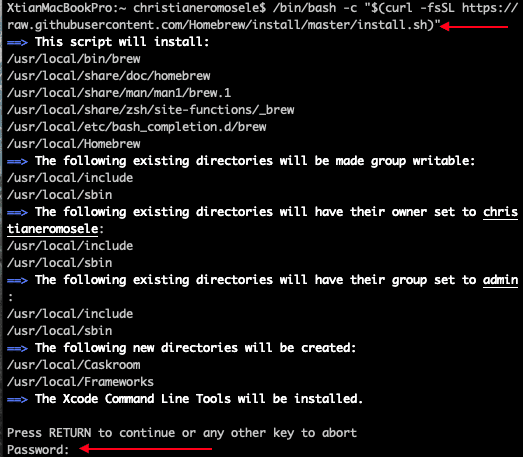
/bin/bash -c "$(curl -fsSL https://raw.githubusercontent.com/Homebrew/install/master/install.sh)"

This will continue the installation of Homebrew on your macOS. This will at some point prompt for a password to allow the installation to continue.
macOS
install Homebrew

Now, Homebrew package manager has been successfully installed on your device as shown above. See the following how-to article to see if Homebrew is installed on your device.

Furthermore, I hope you found this blog post helpful. However, Please let me know in the comment session if you have any questions.

Rate this post

Thank you for reading this post. Kindly share it with others.

  • Share on X (Opens in new window) X
  • Share on Reddit (Opens in new window) Reddit
  • Share on LinkedIn (Opens in new window) LinkedIn
  • Share on Facebook (Opens in new window) Facebook
  • Share on Pinterest (Opens in new window) Pinterest
  • Share on Tumblr (Opens in new window) Tumblr
  • Share on Telegram (Opens in new window) Telegram
  • Share on WhatsApp (Opens in new window) WhatsApp
  • Share on Mastodon (Opens in new window) Mastodon
  • Share on Bluesky (Opens in new window) Bluesky
  • Share on Threads (Opens in new window) Threads
  • Share on Nextdoor (Opens in new window) Nextdoor
Mac

Post navigation

Previous Post: How to check if homebrew is installed on macOS
Next Post: How to install and uninstall PowerShell on macOS via Homebrew

Related Posts

  • macos 10 14
    How to Launch macOS Activity Monitor from the Utility and Terminal Mac
  • Norton AV
    Enable or disable Norton silent mode on Mac Anti-Virus Solution
  • Bang ad Olufsen.
    Bang and Olufsen Bluetooth connection: How to connect and remove Beoplay E8 3rd Generation to Mac Mac
  • How To Stop Mac From Sleeping Automatically
    How to prevent macOS from going to sleep Mac
  • disableFaceTime567u
    Sign out of FaceTime: How to disable or enable FaceTime on Mac Mac
  • fsa
    How to prevent MacBook from automatically Logging out Mac

More Related Articles

macos 10 14 How to Launch macOS Activity Monitor from the Utility and Terminal Mac
Norton AV Enable or disable Norton silent mode on Mac Anti-Virus Solution
Bang ad Olufsen. Bang and Olufsen Bluetooth connection: How to connect and remove Beoplay E8 3rd Generation to Mac Mac
How To Stop Mac From Sleeping Automatically How to prevent macOS from going to sleep Mac
disableFaceTime567u Sign out of FaceTime: How to disable or enable FaceTime on Mac Mac
fsa How to prevent MacBook from automatically Logging out Mac

Leave a Reply Cancel reply

You must be logged in to post a comment.

Microsoft MVP

VEEAMLEGEND

vexpert-badge-stars-5

Virtual Background

GoogleNews

Categories

veeaam100

Veeam Vanguard

  • Screenshot 2020 12 06 at 17.44.32
    Windows cannot connect to the printer: Operation Failed with error 0x000004f8 Windows
  • Preventing Attacks on Cisco Switches Blog Header
    How to enable ssh via ASDM on Cisco ASA Network | Monitoring
  • Data drive is locked by BitLocker and not OS drive Fastboot Option
    Fast Boot Options: Fix specific Drive issue with BitLocker [MBAM] Windows
  • Reduce VMDK dile defragment and compact
    Analyse Disks with Treesize: Defragment and Shrink VMware Workstation VM Disks Virtualization
  • banner
    How to Integrate TestRail with Cypress Automation
  • Header picture 1
    Find BIOS Serial Number and System Information on Windows 11 Windows
  • windows hello la gi
    All you need to know before deploying Windows Hello for Business Key and Certificate Trust Windows
  • sonarcloud
    How to Integrate SonarCloud with Azure DevOps Pipeline AWS/Azure/OpenShift

Subscribe to Blog via Email

Enter your email address to subscribe to this blog and receive notifications of new posts by email.

Join 1,808 other subscribers
  • RSS - Posts
  • RSS - Comments
  • About
  • Authors
  • Write for us
  • Advertise with us
  • General Terms and Conditions
  • Privacy policy
  • Feedly
  • Telegram
  • Youtube
  • Facebook
  • Instagram
  • LinkedIn
  • Tumblr
  • Pinterest
  • Twitter
  • mastodon

Tags

AWS Azure Bitlocker Microsoft Windows PowerShell WDS Windows 10 Windows 11 Windows Deployment Services Windows Server 2016

Copyright © 2025 TechDirectArchive


Loading Comments...
 

You must be logged in to post a comment.