How to Upgrade Windows Admin Center Manually


Windows Admin Center is your remote management tool for Windows Server running anywhere. Be it physical, virtual, on-premises, in Azure, or in a hosted environment–at no additional cost. There is a need to quickly update from WAC 1910 to WAC 2007 because of the numerous issues (bugs). See the following links for “How to setup Windows Admin Center and also how to troubleshoot Windows Admin Center (WAC) access from the Web. In this article, you will learn how to upgrade Windows Admin Center Manually.
Updated! With the recent version of Windows Admin Center, you do not have to manually perform Windows Admin center Upgrade. This is because there is an option to automatically Update Windows Admin center (WAC) as shown below.

You should be aware and prepare yourself adequately for the update of WAC updates as it is being deployed at regular intervals. That is, WAC is subject to the Modern Lifecycle Policy and this means that frequent updates are compulsory.
Note: These steps are still valid for updating non-preview versions of the Windows Admin Center. Please see these steps on the new steps to upgrade Windows Admin Center and how to automatically update Windows Admin Center to auto-install the updates for Windows Admin Center.
If you would like to install, uninstall and upgrade your applications using Windows Package Manager “Chocolatey”. Please see the following articles “How to install Chocolatey” and “How to install, upgrade and uninstall software with Chocolatey“.
Determine Windows Admin Center Version
Windows Admin Centre will alert you whenever there is a new version for download. To determine the prevent version of WAC that I am running. Click on the question (?) icon at the top right as shown in the image below.
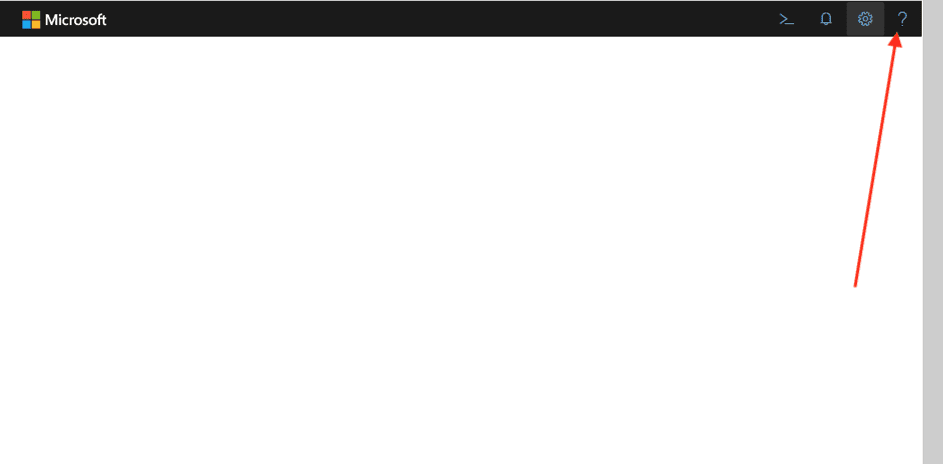
As you can see, we are currently running WAC 1910.
This needs to be upgraded to WAC 2007.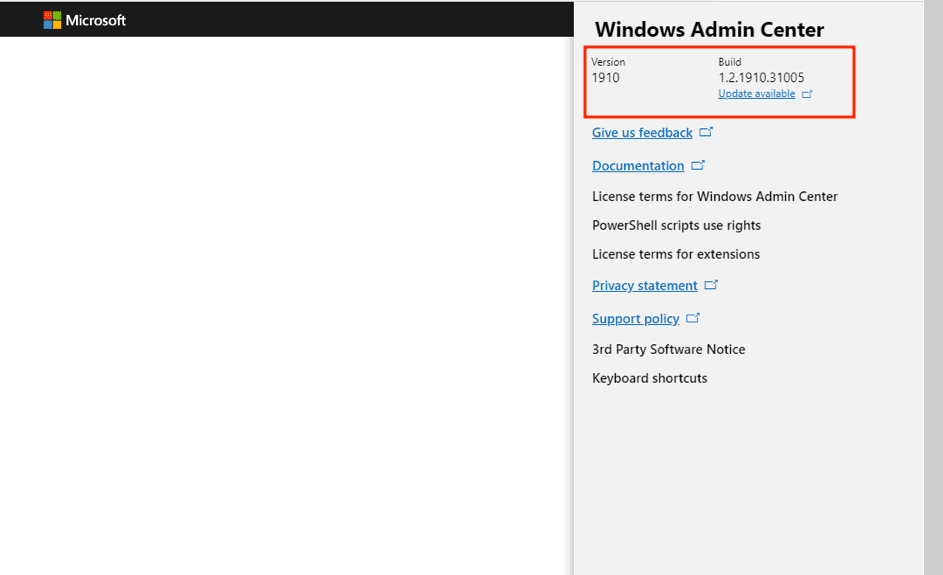
Windows Admin Center can also be installed on Windows 10 or Windows 11 and they will serve as a trusted host. See how to Install Windows Admin Center on Windows 10 & 11.
You may also be interested in learning about the following how to fix CPU at 100% when nothing is running problem on Windows, how to Disable Or Enable Secure Boot on Windows 10 & 11, and how to Solve “The parameter is incorrect” problem on External Hard Disk in Windows.
Download a New Version of the Windows Admin Center
Upon clicking on the link as shown above “Updates Available”, you will be redirected to a Microsoft page to have this downloaded.
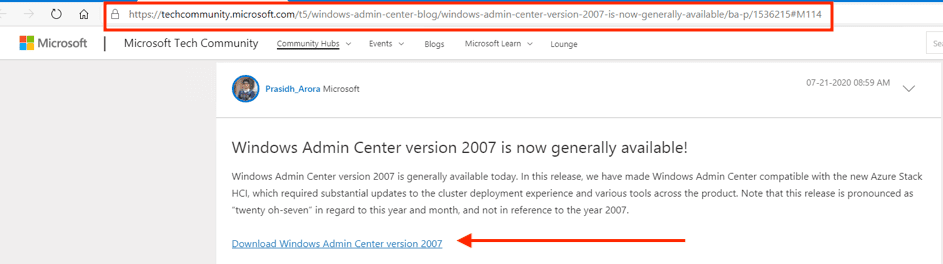
Click on download as shown below
Click on Continue in order to proceed
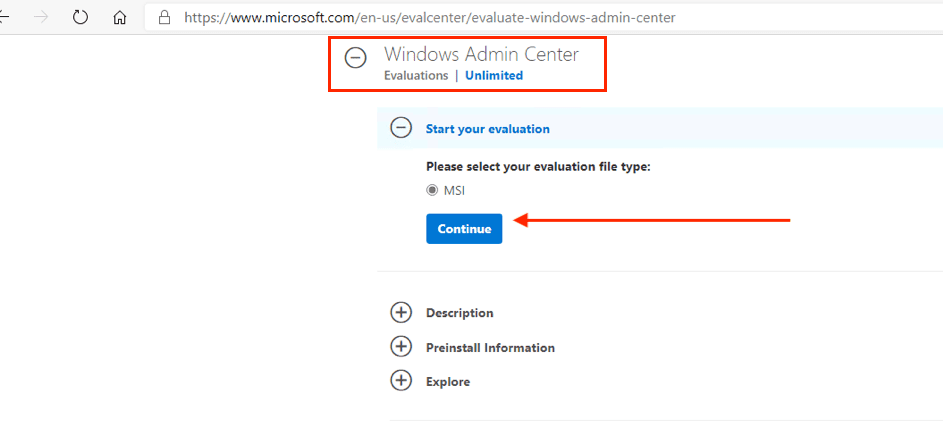
Since this is an evaluation copy. You will be required to enter your information. Populate it and proceed as described

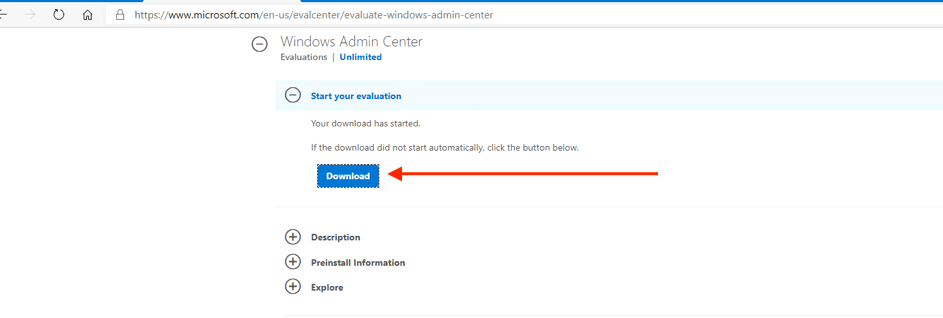
Now, we can download the setup file as shown below. Just click on the download
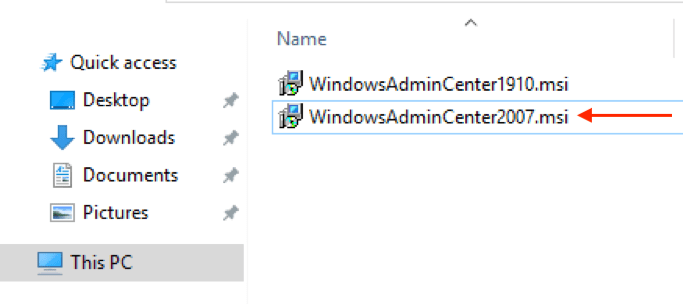
As you can see, the MSI file has been downloaded.
You may also be interested in Winglet, which is also a Windows Package manager “Winglet”. See how to install Winglet and how to install applications with Winglet CLI.
Upgrade Windows Admin Center
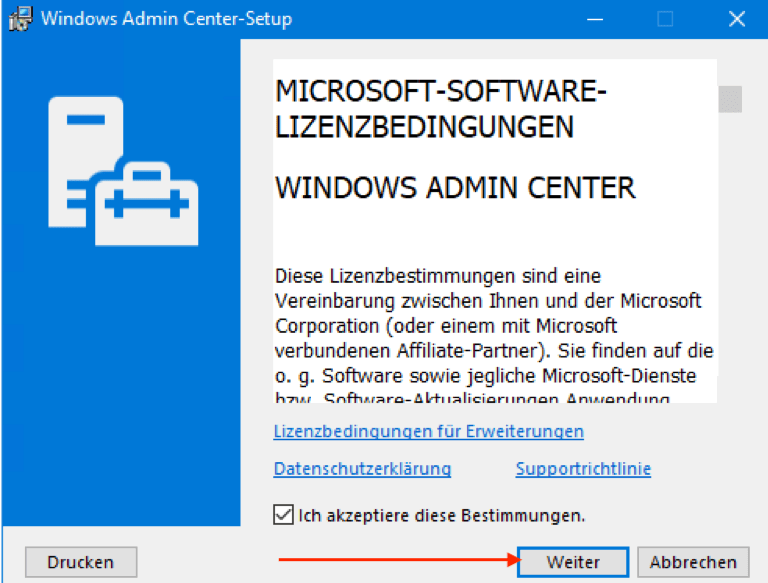
In order to have this new version of WAC installed, we need to double-click on the file. This will open up the Admin Center – Setup page as shown below. Accept the license and click on continue
Specify the port
Do not make any changes to the window below. Except if you have installed a new certificate and would like to use that. Click on Install as shown below

As we can see, WAC version 2007 is being installed.

When this is complete, please click on finish and that is all that needs to be done.To reveal the version of Windows Admin Centre we are currently running, click on the question (?) icon at the top right. As you can see, we are now running WAC 2007.

Please see How to create a scheduled task with Windows Admin Center, and how to Test Network Connection to Windows Admin Center Gateway. Also see how to schedule and run update via Windows Admin Center, and how to fix Git always asking for my Username and Password
Note: You can also use PowerShell, Windows Update, or WSUS to fulfil this task.
There is a PowerShell script written by Paolo to upgrade WAC. This can be found in his GitHub repository. I hope you found this blog post helpful on how to upgrade Windows Admin Center Manually. If you have any questions, please let me know in the comment session.


