Skip to content

TechDirectArchive

Hands-on IT, Cloud, Security & DevOps Insights

  • Home
  • About
  • Advertise With US
  • Reviews
  • Contact
  • Toggle search form
Home » Windows Server » How to query a list of installed programs in Windows
  • screenshot 2020 02 07 at 20.59.01
    How to use the utility “Whoami” in windows Windows
  • article 1280x720.78eff5c4
    How to reset your built-in Local Administrator password in Windows 10 Windows Server
  • screenshot 2020 02 08 at 15.53.31
    Enable Automatic Logon via Windows Registry Windows
  • Secure Web Server
    How to secure a Web Server on a Windows VM in Azure using TLS/SSL Certificates Saved in Azure Key Vault AWS/Azure/OpenShift
  • runlevels
    How to check your current Runlevel in Linux Linux
  • OpenSSL on Windows
    How to Install OpenSSL on Windows Computers Windows
  • WhatsApp
    How to retrieve deleted WhatsApp messages on iPhone JIRA|Confluence|Apps
  • EFK Stack
    EFK Stack Installation on Docker Virtualization

How to query a list of installed programs in Windows

Posted on 17/08/202024/10/2024 Christian By Christian No Comments on How to query a list of installed programs in Windows

In this guide, you will learn How to query a list of installed programs in Windows. There are multiple ways to view programs installed on a computer. Please see “WinRM cannot complete the operation, verify that the specified computer name is valid, that the computer is accessible over the network, and that a firewall exception for the WinRM service is enabled“, and how to set the PowerShell Execution Policy via Windows Registry.

Below are the various methods if you wish to query the list of installed applications on Windows 10 or Windows Server.

Also, see how to set PowerShell Execution Policy via Windows Settings, and how to set Execution Policy via Windows PowerShell.

1: Get the list of installed Apps via Windows Settings

This is the easiest way to view the list of installed applications in Windows. Navigate to Windows Settings as shown below or use press the Windows key + I to open settings and click on Apps

Next, click on the installed programs as shown below. There you should be able to see the list of installed programs on Windows
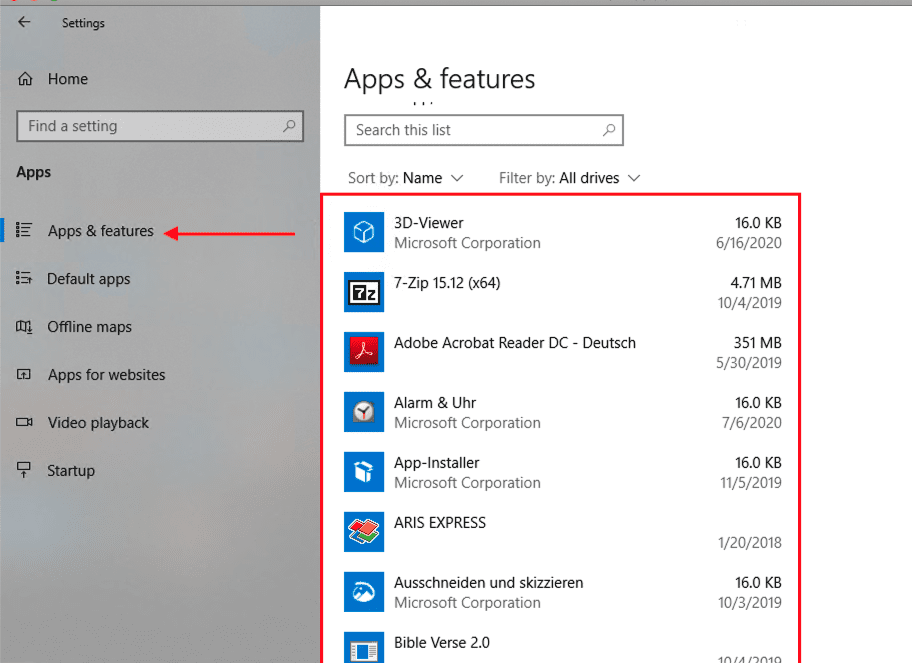
Here is a list of some interesting guides: How to remove pre-provisioned apps from Windows Image and how to determine Apps UWP and remove pre-provisioned appx in Windows 10,

2: Get the list of installed Applications via the Control Panel

This method is similar to using Windows Settings but a bit old-fashioned. In the search box on the taskbar, type control panel, and click on Control Panel as shown below

Next, click on the programs

Now, click on Programs and Features

Below is a list of installed programs via the Windows Control Panel.

3: Get lists of installed Apps via Windows Management Instrumentation Command-line (WMIC)

The WMIC is a command-line and scripting interface that simplifies the use of Windows Management Instrumentation (WMI) and systems managed through WMI. Below are the various steps to make this work.

Run the command below with the desired name in which you wish to have the installed programs listed. In my case, this is “InstalledProgramsonmyPC.txt“.

wmic /OUTPUT:InstalledProgramsonmyPC.txt product get name

Alternatively, you can execute the wmic this way as shown below. Type “wmic” and press Enter.

At the “wmic:root\cli>” prompt, type the following command:

/node:EnterComputerNameHere product get name, version, vendor

Lastly, you could pull a list of installed programs, and have it saved to a text file of your choice. Please specifiy a desired path.

wmic product list brief > C:\temp\installed.txt

List of Installed Programs via PowerShell

Run the following code in order to query the registry for installed programs

$loc = Get-ChildItem HKLM:\Software\Microsoft\Windows\CurrentVersion\Uninstall

$names = $loc |foreach-object {Get-ItemProperty $_.PsPath}

foreach ($name in $names)
{
    Write-Host $name.Displayname
}

5: Get list of installed applications via the Windows Registry

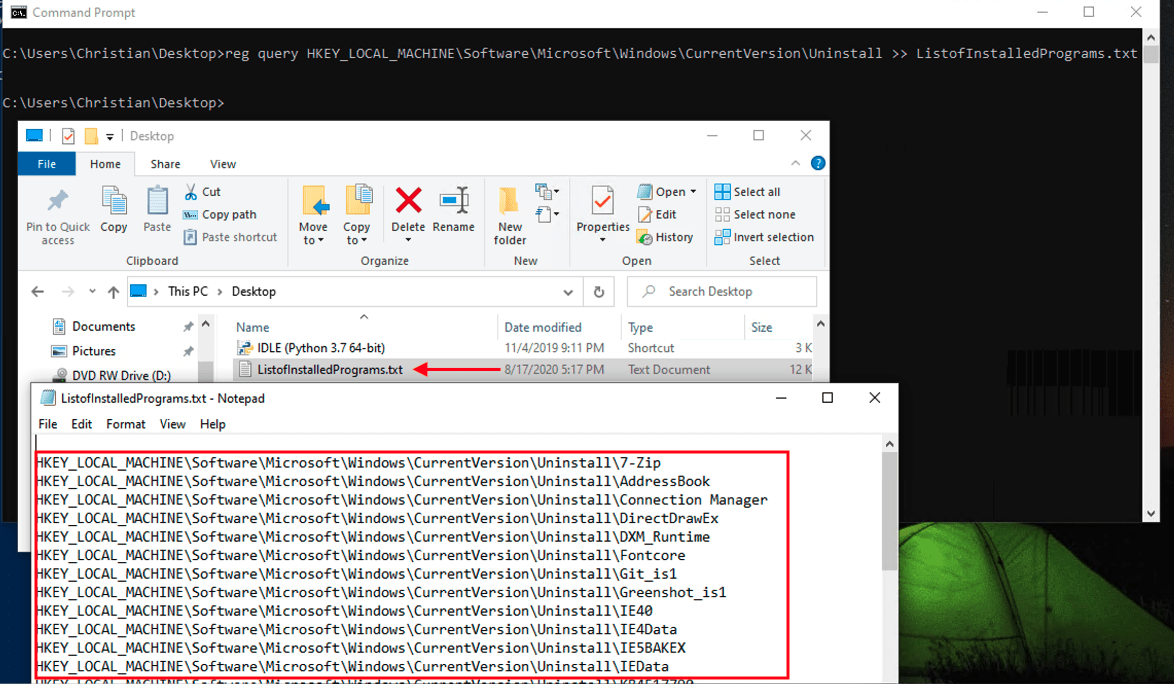
Alternatively, you could use the command below to view the list of installed programs to query the registry. This will query the registry for all programs that are installed with the MSI installer on the system and place the results in a text file.
– Use the command below via the Command Prompt or PowerShell

reg query HKEY_LOCAL_MACHINE\Software\Microsoft\Windows\CurrentVersion\Uninstall >> ListofInstalledPrograms.txt
I hope you found this blog post on how to query a list of installed programs in Windows helpful. If you have any questions, please let me know in the comment session.

5/5 - (1 vote)

Thank you for reading this post. Kindly share it with others.

  • Click to share on X (Opens in new window) X
  • Click to share on Reddit (Opens in new window) Reddit
  • Click to share on LinkedIn (Opens in new window) LinkedIn
  • Click to share on Facebook (Opens in new window) Facebook
  • Click to share on Pinterest (Opens in new window) Pinterest
  • Click to share on Tumblr (Opens in new window) Tumblr
  • Click to share on Telegram (Opens in new window) Telegram
  • Click to share on WhatsApp (Opens in new window) WhatsApp
  • Click to share on Pocket (Opens in new window) Pocket
  • Click to share on Mastodon (Opens in new window) Mastodon
  • Click to share on Bluesky (Opens in new window) Bluesky
  • Click to share on Threads (Opens in new window) Threads
  • Click to share on Nextdoor (Opens in new window) Nextdoor
Windows Server Tags:Microsoft Windows, Programs, Windows 10, Windows 11, Windows Server 2016

Post navigation

Previous Post: How to link your Android or iPhone to your Windows 10 PC
Next Post: No valid offer received: WDS PXE-E16 error when booting clients

Related Posts

  • Missing ADML File
    Fix an appropriate resource file could not be found for LAPS Windows
  • How to Decrypt Files and Folders Encrypted with EFS in Windows 10
    How to decrypt Files and Folders Encrypted with an Encryption File System (EFS) in Windows Windows
  • sdfgh 1
    How to fix “Unable to Sign In: Domain Not Available” Windows Server
  • Capture 91
    How to install IIS Web Server on Windows Server Web Server
  • sdfg
    How to Upgrade Windows Admin Center Manually Windows Server
  • ghfg 1
    Handy WSUS Commands: Windows Server Update Services Commands, WAUACLT, PowerShell and USOClient Windows Server

More Related Articles

Missing ADML File Fix an appropriate resource file could not be found for LAPS Windows
How to Decrypt Files and Folders Encrypted with EFS in Windows 10 How to decrypt Files and Folders Encrypted with an Encryption File System (EFS) in Windows Windows
sdfgh 1 How to fix “Unable to Sign In: Domain Not Available” Windows Server
Capture 91 How to install IIS Web Server on Windows Server Web Server
sdfg How to Upgrade Windows Admin Center Manually Windows Server
ghfg 1 Handy WSUS Commands: Windows Server Update Services Commands, WAUACLT, PowerShell and USOClient Windows Server

Leave a Reply Cancel reply

You must be logged in to post a comment.

Microsoft MVP

VEEAMLEGEND

vexpert-badge-stars-5

Virtual Background

GoogleNews

Categories

veeaam100

sysadmin top30a

  • screenshot 2020 02 07 at 20.59.01
    How to use the utility “Whoami” in windows Windows
  • article 1280x720.78eff5c4
    How to reset your built-in Local Administrator password in Windows 10 Windows Server
  • screenshot 2020 02 08 at 15.53.31
    Enable Automatic Logon via Windows Registry Windows
  • Secure Web Server
    How to secure a Web Server on a Windows VM in Azure using TLS/SSL Certificates Saved in Azure Key Vault AWS/Azure/OpenShift
  • runlevels
    How to check your current Runlevel in Linux Linux
  • OpenSSL on Windows
    How to Install OpenSSL on Windows Computers Windows
  • WhatsApp
    How to retrieve deleted WhatsApp messages on iPhone JIRA|Confluence|Apps
  • EFK Stack
    EFK Stack Installation on Docker Virtualization

Subscribe to Blog via Email

Enter your email address to subscribe to this blog and receive notifications of new posts by email.

Join 1,839 other subscribers
  • RSS - Posts
  • RSS - Comments
  • About
  • Authors
  • Write for us
  • Advertise with us
  • General Terms and Conditions
  • Privacy policy
  • Feedly
  • Telegram
  • Youtube
  • Facebook
  • Instagram
  • LinkedIn
  • Tumblr
  • Pinterest
  • Twitter
  • mastodon

Tags

AWS Azure Bitlocker Microsoft Windows PowerShell WDS Windows 10 Windows 11 Windows Deployment Services Windows Server 2016

Copyright © 2025 TechDirectArchive


Loading Comments...
 

You must be logged in to post a comment.