Skip to content

TechDirectArchive

Hands-on IT, Cloud, Security & DevOps Insights

  • Home
  • About
  • Advertise With US
  • Contact
  • Reviews
  • Toggle search form
Home » Windows Server » Fix Error 0xc1510111: You do not have permission to mount and modify this image
  • microsoft authenticator 1280x720 1
    How to setup Microsoft Authenticator Password Manager
  • Microsoft 365 Developer Program instant
    Get your free Microsoft 365 E5 Sandbox today AWS/Azure/OpenShift
  • mbamreports
    Email notifications for MBAM Enterprise and Compliance and Recovery Audit reports Windows
  • Feature image OCS inventory
    Install and use OCS inventory on Windows Windows
  • banner 1
    How to use the Program Compatibility Troubleshooter to Test Application Compatibility on Windows 11 Windows
  • https   blogs images.forbes.com jasonevangelho files 2018 06 windows 7 2018 edition 1200x676 1
    Windows deployment cannot continue, the operating system is missing via MDT deployment Windows Server
  • Shrink and Compact Virtual Hard Disks
    How to Shrink and Compact Virtual Hard Disks in Hyper-V Virtualization
  • image 10
    How to use Microsoft SQL Server Management Studio to Export and Import your MsSQL database from Azure to local computer AWS/Azure/OpenShift

Fix Error 0xc1510111: You do not have permission to mount and modify this image

Posted on 14/09/202001/01/2024 Christian By Christian No Comments on Fix Error 0xc1510111: You do not have permission to mount and modify this image
Windows error 0xc1510111

In this article, you will learn how to fix error 0xc1510111: You do not have permission to mount and modify this image. Windows Permissions help determine which users can access, modify, and delete files and folders in your environment. Every file and folder on your Windows computer has individual permissions settings. Here are some guides relating to WDS. BOOTP Vendor Extensions and DHCP Options, and how to save and stop modification to Microsoft Management Console.

Why was this error prompted “Image Modification Error 0xc1510111”?

You may run into the following error below if you wish to mouth a boot.wim or install.wim file. In my case, it was the install.wim file.

Mount and modify image permission
Error: 0xc1510111 You do not have permissions to mount and modify this image
Deployment Image Servicing and Management tool
Version: 10.0.10586.0
Error: 0xc1510111
You do not have permissions to mount and modify this image.
Verify that you have Read/Write permissions or mount the image using the /ReadOnly option. Note that you cannot commit changes to an image with read-only permissions

For more details on Automatic IP Assignment: Dynamic Host Configuration Protocol (DHCP), how to install Dynamic Host Configuration Protocol on Windows Server 2019, and how to configure Post-deployment of Dynamic Host Configuration Protocol.

Resolution

To resolve this issue, follow the steps described below.

Log into Windows as an administrator or Domain Admin (or similar privilege). Right-click on the install.wim file.

Select Properties. In the file property window, as shown below, on the General tab, uncheck the Read-only option. This was checked previously.

sedn

After unchecking it, it will appear like this.

Access denied image modification

After encountering the Image Modification Error 0xc1510111 and deciding to unset the read-only file, click OK to apply changes to this folder, subfolders, and files. Finally, click OK again

Windows error 0xc1510111

Note: This steps depends on your security layout in your environment. You may also need to take ownsership and full control permission on your account.

To do this follow the steps described below.
– Click the “Security” tab. This will display a list of groups and users currently having permissions for the object, including any instances of the Image Modification Error 0xc1510111.

Click on Advanced settings. Now you can take ownership of this file and add yourself (or a user to the permission entries with adequate rights).

Click on Apply and then OK. Close all windows, and you should be able to out your Image Modification Error 0xc1510111 as shown below.
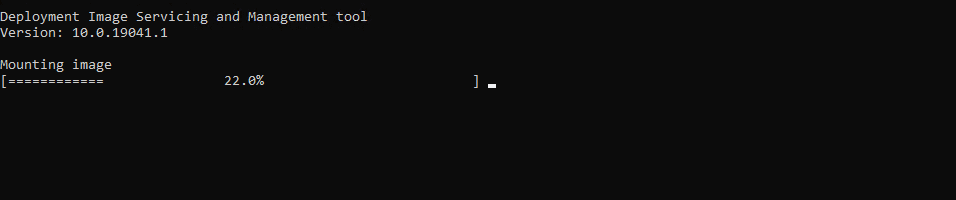
Mount and modify image permission

As you can see the mount process is about finishing. That is how to resolve the issue “do not have permissions to mount and modify this image”.

Image mounting error

See how to fix “Error 740: Elevated permissions are required to run DISM“. Also see, You require permission from trustedinstaller: How to delete or rename files protected by Trusted Installer and Folder Access Denied, you require permission from SYSTEM: Unable to delete old windows folder.

I hope you found this blog post on how to fix Error 0xc1510111: You do not have permission to mount and modify this image helpful. Please let me know in the comment section if you have any questions.

Rate this post

Thank you for reading this post. Kindly share it with others.

  • Click to share on X (Opens in new window) X
  • Click to share on Reddit (Opens in new window) Reddit
  • Click to share on LinkedIn (Opens in new window) LinkedIn
  • Click to share on Facebook (Opens in new window) Facebook
  • Click to share on Pinterest (Opens in new window) Pinterest
  • Click to share on Tumblr (Opens in new window) Tumblr
  • Click to share on Telegram (Opens in new window) Telegram
  • Click to share on WhatsApp (Opens in new window) WhatsApp
  • Click to share on Pocket (Opens in new window) Pocket
  • Click to share on Mastodon (Opens in new window) Mastodon
  • Click to share on Bluesky (Opens in new window) Bluesky
  • Click to share on Threads (Opens in new window) Threads
  • Click to share on Nextdoor (Opens in new window) Nextdoor
Windows Server Tags:DISM, Microsoft Deployment Toolkit (MDT), Microsoft Windows, Permission, WDS, Windows 10, Windows 11, Windows Deployment Services, Windows Server 2016

Post navigation

Previous Post: Error 740: Elevated permissions are required to run DISM
Next Post: Fix Error 0xc1420127: The specified image in the specified wim is already mounted for read and write access

Related Posts

  • Screenshot 2020 05 24 at 22.40.50
    The security database on the server does not have a computer account for this workstation trust relation [Part 1] Windows Server
  • Slide1
    Desktop Wallpaper and Screen Saver Management: Configure and apply Group Policy Objects on Windows Server Windows
  • BitLocker renamedevicefghjkl
    What are the effect of renaming an MBAM-Protected Computer Windows
  • screenshot 2020 04 04 at 01.38.38
    Fix Failed to create scheduled task due to Windows Server Management service issue Windows Server
  • hero activedirectory 2
    Concept of Active Directory Computer Account Windows Server
  • Shared Folder
    How to access shared resources from two different domains Windows

More Related Articles

Screenshot 2020 05 24 at 22.40.50 The security database on the server does not have a computer account for this workstation trust relation [Part 1] Windows Server
Slide1 Desktop Wallpaper and Screen Saver Management: Configure and apply Group Policy Objects on Windows Server Windows
BitLocker renamedevicefghjkl What are the effect of renaming an MBAM-Protected Computer Windows
screenshot 2020 04 04 at 01.38.38 Fix Failed to create scheduled task due to Windows Server Management service issue Windows Server
hero activedirectory 2 Concept of Active Directory Computer Account Windows Server
Shared Folder How to access shared resources from two different domains Windows

Leave a Reply Cancel reply

You must be logged in to post a comment.

Microsoft MVP

VEEAMLEGEND

vexpert-badge-stars-5

Virtual Background

GoogleNews

Categories

veeaam100

sysadmin top30a
 
  • microsoft authenticator 1280x720 1
    How to setup Microsoft Authenticator Password Manager
  • Microsoft 365 Developer Program instant
    Get your free Microsoft 365 E5 Sandbox today AWS/Azure/OpenShift
  • mbamreports
    Email notifications for MBAM Enterprise and Compliance and Recovery Audit reports Windows
  • Feature image OCS inventory
    Install and use OCS inventory on Windows Windows
  • banner 1
    How to use the Program Compatibility Troubleshooter to Test Application Compatibility on Windows 11 Windows
  • https   blogs images.forbes.com jasonevangelho files 2018 06 windows 7 2018 edition 1200x676 1
    Windows deployment cannot continue, the operating system is missing via MDT deployment Windows Server
  • Shrink and Compact Virtual Hard Disks
    How to Shrink and Compact Virtual Hard Disks in Hyper-V Virtualization
  • image 10
    How to use Microsoft SQL Server Management Studio to Export and Import your MsSQL database from Azure to local computer AWS/Azure/OpenShift

Subscribe to Blog via Email

Enter your email address to subscribe to this blog and receive notifications of new posts by email.

Join 1,841 other subscribers
  • RSS - Posts
  • RSS - Comments
  • About
  • Authors
  • Write for us
  • Advertise with us
  • General Terms and Conditions
  • Privacy policy
  • Feedly
  • Telegram
  • Youtube
  • Facebook
  • Instagram
  • LinkedIn
  • Tumblr
  • Pinterest
  • Twitter
  • mastodon

Tags

AWS Azure Bitlocker Microsoft Windows PowerShell WDS Windows 10 Windows 11 Windows Deployment Services Windows Server 2016

Copyright © 2025 TechDirectArchive


Loading Comments...
 

You must be logged in to post a comment.