Skip to content

TechDirectArchive

Hands-on IT, Cloud, Security & DevOps Insights

  • Home
  • About
  • Advertise With US
  • Reviews
  • Contact
  • Toggle search form
Home » Linux » Adding a subnetwork interface to an existing network interface
  • systemd services
    How to use Systemd Timers on Linux Linux
  • Disable BitLocker
    How to Disable BitLocker on Windows 10 Windows
  • the Execute permission was denied
    Fix An error has occurred during report processing (rsProcessingAborted) Oracle/MSSQL/MySQL
  • Screenshot 2020 08 28 at 12.51.10
    The service could not be started either because it is disabled or because it has no enabled devices associated with it Windows Server
  • How to Install Winget on Windows Server
    How to Install Winget on Windows Server Windows Server
  • screenshot 2020 03 20 at 00.44.47
    How to check if homebrew is installed on macOS Mac
  • pst
    Outlook Data File: Fix PST Error – Exceeded Maximum Large Items Network | Monitoring
  • Slide1 1
    How to manage Microsoft Defender Antivirus using Group Policy and Command Line Utility Anti-Virus Solution

Adding a subnetwork interface to an existing network interface

Posted on 27/10/202006/09/2023 Christian By Christian No Comments on Adding a subnetwork interface to an existing network interface
subnetwork interface

A Network Interface Card (NIC) is used to connect a computer to an Ethernet network. This tutorial will teach you two ways you can add a network interface to an already existing network interface.

METHOD 1


– Additionally, we look at my available interfaces by issuing the ip command.
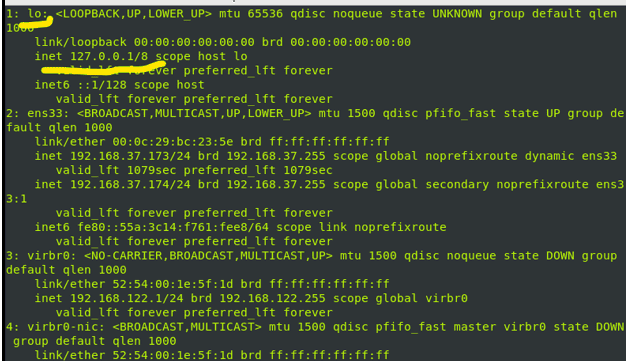
existing network interface

For this tutorial, I am going to create and attach a sub network interface to the lo interface. All the configuration files for the various network interfaces are stored in the etc/sysconfig/network-scripts directory.

First, we will copy the content of the configuration scripts of the interface we want to attach the new subnetwork interface to; copy it to a file that will serve as the configuration script for the new subnetwork interface. The new script must end with a :interger extention. For example, the new interface I am creating will be named lo:1

  • Copy the configuration file with the command:

    cp /etc/sysconfig/network-scripts/ifcfg-lo /etc/sysconfig/network-scripts/ifcfg-lo:1

Remember to change the name of the network interfaces correspondingly when you are trying yours.

network configuration

When you are done copying, open the file you just created with the copy command with a text editor:

network management

Modifying Device Names in Copy Commands

Furthermore, Where you see DEVICE, change the device name to match the one you used in the copy command. In my case, I will change lo to lo:1.
– However, Also change the IPADDR value to the new address you want to add to the existing interface. In my case, I will put 127.0.0.10.

subnetwork interface

Save and quit the editor. Now, restart the interface using the command: ifup interfaceName. In my case, it will be ifup lo:1

network configuration

Moreover, If we run the ip a command again, you will see the new network sub-interface has been added.
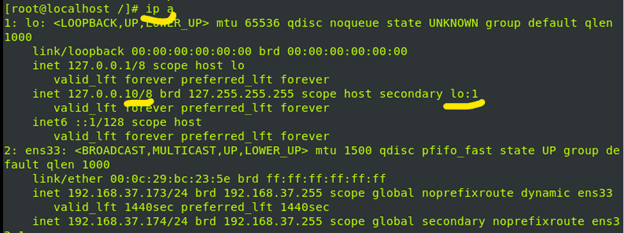
network configuration

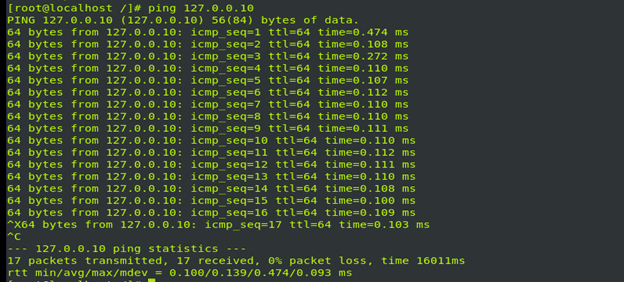
In addition, You can ping the ip address to verify if it is truly up.
METHOD 2
– Nonetheless, Let’s run the ip a command again to view our existing network interfaces.
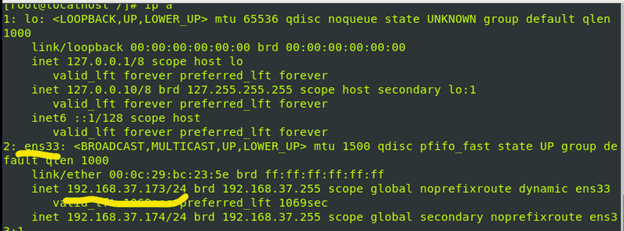
Consequently, For this demonstration, I will attach a new sub network interface to the ens33 interface.

Similarly, Now use the command below to add a new interface to a network interface: nmcli con mod interfaceName +ipv4.addresses  “new-ip-address/nwMask”. In my case, the command will be nmcli con mod ens33 +ipv4.addresses “192.168.37.175/24”.

Nevertheless, Now reboot your system and run the ip a command again.

Nevertheless, The major difference between both methods is that you control naming the newly created interface in the first method.

I hope you found this tutorial helpful.

Rate this post

Thank you for reading this post. Kindly share it with others.

  • Share on X (Opens in new window) X
  • Share on Reddit (Opens in new window) Reddit
  • Share on LinkedIn (Opens in new window) LinkedIn
  • Share on Facebook (Opens in new window) Facebook
  • Share on Pinterest (Opens in new window) Pinterest
  • Share on Tumblr (Opens in new window) Tumblr
  • Share on Telegram (Opens in new window) Telegram
  • Share on WhatsApp (Opens in new window) WhatsApp
  • Share on Pocket (Opens in new window) Pocket
  • Share on Mastodon (Opens in new window) Mastodon
  • Share on Bluesky (Opens in new window) Bluesky
  • Share on Threads (Opens in new window) Threads
  • Share on Nextdoor (Opens in new window) Nextdoor
Linux Tags:Enhanced Networking Adapter, Networking

Post navigation

Previous Post: Log Off: How to sign out of Windows Server 2012
Next Post: How to check your current Runlevel in Linux

Related Posts

  • download
    Remove Packages from a Linux: Quick Guide Linux
  • Errno 256 No more mirrors to try 1
    How to solve Errno 256 Linux
  • feature photo quit vim
    How to Exit Linux Vim or Vi Editor Linux
  • Gfeature
    How to install Googler on a Linux System Linux
  • Groovy
    How to install Groovy on Linux and Windows Configuration Management Tool
  • prometheus feature image
    How to use Prometheus for Monitoring Linux

More Related Articles

download Remove Packages from a Linux: Quick Guide Linux
Errno 256 No more mirrors to try 1 How to solve Errno 256 Linux
feature photo quit vim How to Exit Linux Vim or Vi Editor Linux
Gfeature How to install Googler on a Linux System Linux
Groovy How to install Groovy on Linux and Windows Configuration Management Tool
prometheus feature image How to use Prometheus for Monitoring Linux

Leave a Reply Cancel reply

You must be logged in to post a comment.

Microsoft MVP

VEEAMLEGEND

vexpert-badge-stars-5

Virtual Background

GoogleNews

Categories

veeaam100

sysadmin top30a

  • systemd services
    How to use Systemd Timers on Linux Linux
  • Disable BitLocker
    How to Disable BitLocker on Windows 10 Windows
  • the Execute permission was denied
    Fix An error has occurred during report processing (rsProcessingAborted) Oracle/MSSQL/MySQL
  • Screenshot 2020 08 28 at 12.51.10
    The service could not be started either because it is disabled or because it has no enabled devices associated with it Windows Server
  • How to Install Winget on Windows Server
    How to Install Winget on Windows Server Windows Server
  • screenshot 2020 03 20 at 00.44.47
    How to check if homebrew is installed on macOS Mac
  • pst
    Outlook Data File: Fix PST Error – Exceeded Maximum Large Items Network | Monitoring
  • Slide1 1
    How to manage Microsoft Defender Antivirus using Group Policy and Command Line Utility Anti-Virus Solution

Subscribe to Blog via Email

Enter your email address to subscribe to this blog and receive notifications of new posts by email.

Join 1,832 other subscribers
  • RSS - Posts
  • RSS - Comments
  • About
  • Authors
  • Write for us
  • Advertise with us
  • General Terms and Conditions
  • Privacy policy
  • Feedly
  • Telegram
  • Youtube
  • Facebook
  • Instagram
  • LinkedIn
  • Tumblr
  • Pinterest
  • Twitter
  • mastodon

Tags

AWS Azure Bitlocker Microsoft Windows PowerShell WDS Windows 10 Windows 11 Windows Deployment Services Windows Server 2016

Copyright © 2025 TechDirectArchive


Loading Comments...
 

You must be logged in to post a comment.