Skip to content

TechDirectArchive

Hands-on IT, Cloud, Security & DevOps Insights

  • Home
  • About
  • Advertise With US
  • Contact
  • Reviews
  • Toggle search form
Home » Windows » How to rename a Printer in Windows 10

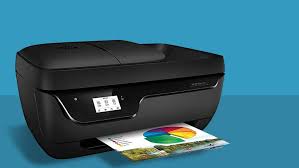
How to rename a Printer in Windows 10

Posted on 05/12/202009/09/2023 IT Expert By IT Expert No Comments on How to rename a Printer in Windows 10
rename Printer

The Rename-Printer cmdlet lets you rename the specified printer on your device. You can specify the printer to rename by using either a printer object retrieved by the Get-Printer cmdlet, or by specifying a printer name. Administrative privilege is required to rename a Printer. See how to delete obsolete drivers from the Driver Store in Windows 10.

Note: You cannot use wildcard characters with Rename-Printer. You can use Rename-Printer in a Windows PowerShell remoting session.

How to rename a Printer in Windows

The PrintManagement module include the following cmdlets for managing printers, drivers, print ports, and queues. You can get the full list of print, driver and print queue management cmdlets available in the PrintManagement module on Windows 10 with the following command below.

Get-Command –Module PrintManagement
Windows 10

Now that we are sure of the right cmdlets to rename our printer, we would run the command below to have this done. For other steps, kindly take a look at this link.

Rename-Printer -Name "HCPXXX" -NewName "ChrisPrinter1"

I hope you found this blog post on How to rename a Printer in Windows helpful. Please let me know in the comment session if you have any questions. I welcome you to follow me on Twitter and Facebook.

Rate this post

Thank you for reading this post. Kindly share it with others.

  • Share on X (Opens in new window) X
  • Share on Reddit (Opens in new window) Reddit
  • Share on LinkedIn (Opens in new window) LinkedIn
  • Share on Facebook (Opens in new window) Facebook
  • Share on Pinterest (Opens in new window) Pinterest
  • Share on Tumblr (Opens in new window) Tumblr
  • Share on Telegram (Opens in new window) Telegram
  • Share on WhatsApp (Opens in new window) WhatsApp
  • Share on Mastodon (Opens in new window) Mastodon
  • Share on Bluesky (Opens in new window) Bluesky
  • Share on Threads (Opens in new window) Threads
  • Share on Nextdoor (Opens in new window) Nextdoor
Windows Tags:HP Printer, Printer, Printer Management, Printing, Remove Printer, Windows 10

Post navigation

Previous Post: How to delete obsolete drivers from the Driver Store in Windows
Next Post: Unable to PXE boot a HyperV VM: F12 key does not work anymore

Related Posts

  • image 24
    How to Resolve Microsoft RDP Connection Black Screen Windows
  • image 30
    How to Fix “Insufficient System Resources Exist to Complete the Requested Service” error Windows
  • windows 10 bjw3 1280x720 1
    How to Find the Pathname of a Mapped Network Drive Windows
  • linkyourandriodtoyourpc
    Microsoft Phone Link: Connect Android to Windows 11 Windows
  • Featured image MSDT.
    How to restrict additional Microsoft Support Diagnostic Tool Downloads on Windows Windows
  • Change BitLocker Password in Windows
    How to Change BitLocker Password in Windows Security | Vulnerability Scans and Assessment

More Related Articles

image 24 How to Resolve Microsoft RDP Connection Black Screen Windows
image 30 How to Fix “Insufficient System Resources Exist to Complete the Requested Service” error Windows
windows 10 bjw3 1280x720 1 How to Find the Pathname of a Mapped Network Drive Windows
linkyourandriodtoyourpc Microsoft Phone Link: Connect Android to Windows 11 Windows
Featured image MSDT. How to restrict additional Microsoft Support Diagnostic Tool Downloads on Windows Windows
Change BitLocker Password in Windows How to Change BitLocker Password in Windows Security | Vulnerability Scans and Assessment

Leave a Reply Cancel reply

You must be logged in to post a comment.

Microsoft MVP

VEEAMLEGEND

vexpert-badge-stars-5

Virtual Background

GoogleNews

Categories

veeaam100

Veeam Vanguard

  • any
    Install AnyDesk on Windows for remote Connections Windows
  • Featured image 1
    Add and Remove Folders in Favorites in Microsoft Outlook Windows
  • Featured image 1
    Transfer Windows License from one PC to the other on Windows Windows
  • download9
    Change the default Save and Download Location in Windows Windows
  • Enable TPM and ecure boot on HyperV to run windoows 11
    How to run Windows 11 on HyperV Virtualization
  • Teams
    How to install Microsoft Teams on a macOS Mac
  • sdfg
    How to Upgrade Windows Admin Center Manually Windows Server
  • xp cmdshell MSSQL
    How to verify whether the xp_cmdshell feature is enabled or disabled in MSSQL Server Oracle/MSSQL/MySQL

Subscribe to Blog via Email

Enter your email address to subscribe to this blog and receive notifications of new posts by email.

Join 1,805 other subscribers
  • RSS - Posts
  • RSS - Comments
  • About
  • Authors
  • Write for us
  • Advertise with us
  • General Terms and Conditions
  • Privacy policy
  • Feedly
  • Telegram
  • Youtube
  • Facebook
  • Instagram
  • LinkedIn
  • Tumblr
  • Pinterest
  • Twitter
  • mastodon

Tags

AWS Azure Bitlocker Microsoft Windows PowerShell WDS Windows 10 Windows 11 Windows Deployment Services Windows Server 2016

Copyright © 2025 TechDirectArchive

Loading Comments...

You must be logged in to post a comment.