Skip to content

TechDirectArchive

Hands-on IT, Cloud, Security & DevOps Insights

  • Home
  • About
  • Advertise With US
  • Reviews
  • Contact
  • Toggle search form
Home » Mac » Fix cannot open the Bluetooth preference pane because it is not available

Cannot open Bluetooth preference pane because it is not available

Posted on 23/01/202104/09/2023 Christian By Christian 4 Comments on Cannot open Bluetooth preference pane because it is not available

Bluetooth is a standardized protocol for sending and receiving data via a 2.4GHz wireless link. In this guide, you will learn how to fix is issue “cannot open the Bluetooth preference pane because it is not available”. It is used for exchanging data between fixed and mobile devices over short distances using UHF radio waves in the industrial, scientific and medical radio bands. Please see How to fix Bluetooth not available on MacBook, and Best MacBook you can find in the year 2022.

You can use Bluetooth to connect certain devices to your device without a cord. After you pair a Bluetooth device for the first time, your devices can pair automatically. Kindly refer to this guide on how to remove a Bluetooth device and connect a new Bluetooth device to a MacBook.

Why deleting the Bluetooth .plist files is not sufficient to fix this issue?

When you are faced with this error, merely deleting the Bluetooth .plist files will not resolve this issue. This is because this solution is meant to fix the following problem “Bluetooth not available”. See this how-to article for more information on how to fix Bluetooth not available on MacBook.

Fix the issue “Cannot open Bluetooth Preference Pane”

You will have to reset the SMC for Notebook computers with a non-removable battery. You may shut down or leave your MacBook on. Both work despite the recommendation by Apple to have it shut down, regardless, just follow the steps below to reset the SMC.

Note: Resetting the SMC doesn’t affect the contents of NVRAM or PRAM

1: Shut down your Mac (optional).
2: On your built-in keyboard, press and hold all of the following key.See the image below for more information.
         - Control  on the left side of your keyboard
         - Option (Alt)  on the left side of your keyboard
         - Shift  on the right side of your keyboard. 
3: Keep holding all four keys for 10 seconds.
4: Release all keys, then press the power button to turn on your Mac.
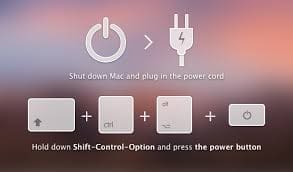
Simultaneously press all these key together at once

As you can see below, after resetting the SMC and restarting our MacBook, and turning it back on, the Bluetooth option will be available and you will be able to switch the Bluetooth on again as shown below.

Now you can now search and connect new devices. See how to remove a Bluetooth device and connect a new Bluetooth device to a MacBook.

For Mac devices with a battery that can be removed fix to the Bluetooth preference pane is not available

Kindly follow the steps discussed below. This applies to all MacBook Pro and MacBook models introduced in early 2009 or earlier etc.

  • Shut down your Mac.

  • Remove the battery. (If you need help removing it, contact an Apple Store or Apple Authorized Service Provider.)

  • Press and hold the power button for 5 seconds.

  • Reinstall the battery.

  • Press the power button to turn on your Mac.

You may be interested in these: How to add a device to Windows. Also, see Unable to Turn Bluetooth On or Off on Mac.

I hope you found this blog post helpful. In this guide, you have learned how to fix “Cannot open the Bluetooth Preference Pane because it is not available on Mac”.

If you still cannot connect to a Bluetooth accessory to your iPhone or iPad after following the above steps, please visit this Apple support. If you have any questions, please let me know in the comment session.

Rate this post

Thank you for reading this post. Kindly share it with others.

  • Share on X (Opens in new window) X
  • Share on Reddit (Opens in new window) Reddit
  • Share on LinkedIn (Opens in new window) LinkedIn
  • Share on Facebook (Opens in new window) Facebook
  • Share on Pinterest (Opens in new window) Pinterest
  • Share on Tumblr (Opens in new window) Tumblr
  • Share on Telegram (Opens in new window) Telegram
  • Share on WhatsApp (Opens in new window) WhatsApp
  • Share on Mastodon (Opens in new window) Mastodon
  • Share on Bluesky (Opens in new window) Bluesky
  • Share on Threads (Opens in new window) Threads
  • Share on Nextdoor (Opens in new window) Nextdoor
Mac Tags:macOS Monterey

Post navigation

Previous Post: How does Bitlocker Network Unlock work?
Next Post: An error occurred while trying to start the Windows deployment services error 0x906

Related Posts

  • Remove icons from Launchpad
    Remove an icon from launchpad that has been deleted Mac
  • Ping commands
    Ping from Source IP Address from all environments Mac
  • Mendeley Cite with MSWord Issue resolved
    Mendeley Cite ECITE40001 Error: Fix issue using Microsoft Word Desktop application Mac
  • fba7f screenshot 2019 04 15 at 18.33.30
    File System Overview: How to decide on the right File System to use for your USB Linux
  • offload apps
    How to automatically offload unused Apps on iPhone Mac
  • zoom
    How to update Zoom Desktop Client on macOS Mac

More Related Articles

Remove icons from Launchpad Remove an icon from launchpad that has been deleted Mac
Ping commands Ping from Source IP Address from all environments Mac
Mendeley Cite with MSWord Issue resolved Mendeley Cite ECITE40001 Error: Fix issue using Microsoft Word Desktop application Mac
fba7f screenshot 2019 04 15 at 18.33.30 File System Overview: How to decide on the right File System to use for your USB Linux
offload apps How to automatically offload unused Apps on iPhone Mac
zoom How to update Zoom Desktop Client on macOS Mac

Comments (4) on “Cannot open Bluetooth preference pane because it is not available”

  1. Avatar photo nicole says:
    23/07/2022 at 4:33 AM

    awesome troubleshooting, thank you!!

    Log in to Reply
    1. chris Christian says:
      03/01/2023 at 9:44 PM

      I am glad you found this guide useful

      Log in to Reply
  2. Avatar photo Zena says:
    30/12/2022 at 4:23 AM

    This Worked! THANK YOU!

    Log in to Reply
    1. chris Christian says:
      03/01/2023 at 9:44 PM

      You are welcome

      Log in to Reply

Leave a Reply Cancel reply

You must be logged in to post a comment.

Microsoft MVP

VEEAMLEGEND

vexpert-badge-stars-5

Virtual Background

GoogleNews

Categories

veeaam100

Veeam Vanguard

  • stuck
    Fix Hyper-V VM Stuck in Stopping State Virtualization
  • Feature image DEP
    Disable Data Execution Prevention and determine that hardware DEP is available and configured Security | Vulnerability Scans and Assessment
  • Featured image 1
    How to Disable Internet Explorer with Group Policy & Registry Windows
  • HyperV copy
    How to convert a VHDX file to a VHD Virtualization
  • Hadoop installation
    How to Install Hadoop on Linux Network | Monitoring
  • featurekube
    How to Install and Use Minikube on a Linux System Containers
  • Trellix Invalid credential
    Fix unable to login to Trellix ePO with Windows authentication Windows Server
  • azure app service with office 365 and yammer sharepoint saturday florence 2015 session 8 638
    WordPress site on Azure: How to create a website hosted in Azure Oracle/MSSQL/MySQL

Subscribe to Blog via Email

Enter your email address to subscribe to this blog and receive notifications of new posts by email.

Join 1,814 other subscribers
  • RSS - Posts
  • RSS - Comments
  • About
  • Authors
  • Write for us
  • Advertise with us
  • General Terms and Conditions
  • Privacy policy
  • Feedly
  • Telegram
  • Youtube
  • Facebook
  • Instagram
  • LinkedIn
  • Tumblr
  • Pinterest
  • Twitter
  • mastodon

Tags

Active Directory Azure Bitlocker Microsoft Windows PowerShell WDS Windows 10 Windows 11 Windows Deployment Services Windows Server 2016

Copyright © 2025 TechDirectArchive


Loading Comments...
 

You must be logged in to post a comment.