Skip to content

TechDirectArchive

Hands-on IT, Cloud, Security & DevOps Insights

  • Home
  • About
  • Advertise With US
  • Contact
  • Reviews
  • Toggle search form
Home » AWS/Azure/OpenShift » How to Integrate SonarCloud with Azure DevOps Pipeline
  • BitLocker 1
    Unable to install Microsoft Bitlocker Administration: Uninstall your current version of MBAM and run setup again Windows
  • Snapshot replication fix on synology
    Fix Task failed to perform Scheduled Snapshot Replication Storage
  • PowerShell Exec
    Determine the execution policy configured on Windows PC Windows
  • Screenshot 2022 02 25 at 02.06.20
    How to install SAMBA file shares for Servers and Clients Linux
  • Cannot save to the location Windows
    How to Fix Cannot Save to Windows System32 Default.rdp Error Network | Monitoring
  • Screenshot 2020 05 16 at 15.18.10
    AWS CLI Error: All commands return Unknown output type [None] Network | Monitoring
  • LINUX CONTAINERS
    How to install LXC/LXD for container management Linux
  • image 75
    Useful Tutorial on CBackup Software Network | Monitoring

How to Integrate SonarCloud with Azure DevOps Pipeline

Posted on 28/08/202110/09/2023 Temitope Odemo By Temitope Odemo No Comments on How to Integrate SonarCloud with Azure DevOps Pipeline
SonarCloud integration

SonarCloud is an application that you can use to build robust and safe applications. With this application, you can use it to rapidly assess your code health to know where your code stands at every level of the software development life cycle (SDLC). This is an application that you can use to build clean code, detect bugs, vand ulnerability and fix issues in your code very early in your SDLC and thereby make your customers happy. This is an application that meets every security standard and can be used to protect your data from getting exposed to a malicious user.

This application can help analyze your code and can be integrated into the Azure DevOps pipeline. All you need is to push your code to the designated repo and set up your pipeline and start analyzing your code while building it before deployment to either the staging environment or production environment.

SonarCloud stands out in terms of accuracy, it does not waste useful time on false positives but will always help you find the real issue for you to fix. Kindly refer to these related guides: How to create and deploy a local Registry Server with Docker Image, how to Pull your first Nginx Container Image from Docker Hub and deploy it to your local machine, Azure DevOps and GitHub integration for Docker and Kubernetes deployment, how to create a static pod in Kubernetes, and how to install, register and start GitLab Runner on Windows.

In this guide we will learn how to integrate Azure DevOps Services with SonarCloud:

  • We will set up an Azure DevOps project and CI/CD Pipeline to integrate with SonarCloud.
  • We will Analyze SonarCloud reports

You need the following prerequisites ready:

  1. A Microsoft account to log in to Azure DevOps.
  2. Create an Azure DevOps organization
  3. Create a new Azure DevOps project.

First login into your Microsoft account and continue to Azure DevOps (dev.azure.com).

Azure DevOps Pipeline
Trying to Login to Azure DevOps

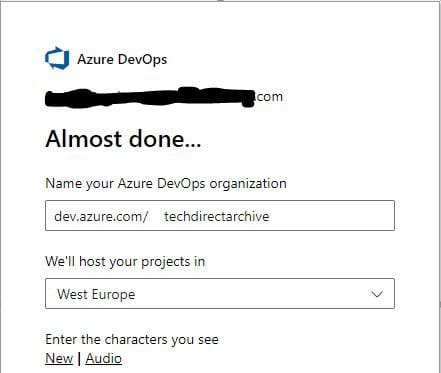
Create your Azure DevOps Organization. In this guide, we are creating techdirectarchive as the Azure DevOps organization.
code quality analysis
Giving your Azure DevOps Organization a name

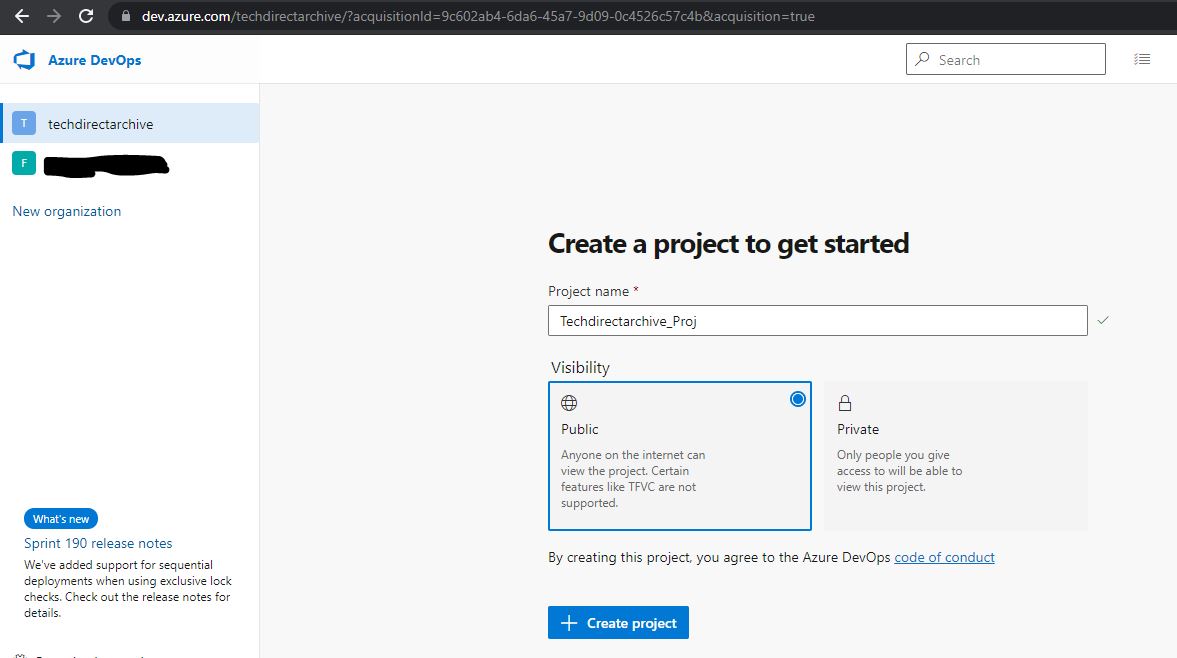
If your plan is to sign up for a paid plan with SonarCloud (see below), make sure that you set your Azure DevOps project to private. If your plan is not to sign up for a paid plan then select public. Furthermore, If your project is open source you can select public but if your code is intellectual property then the option of a paid plan and making your project private is the best.

In this project, we will be using the public.
continuous integration
Getting a Project name and selecting a visibility plan

You can either import your repository from Github or from any other Repo. You can as well push your code from your local computer to Azure Repo.
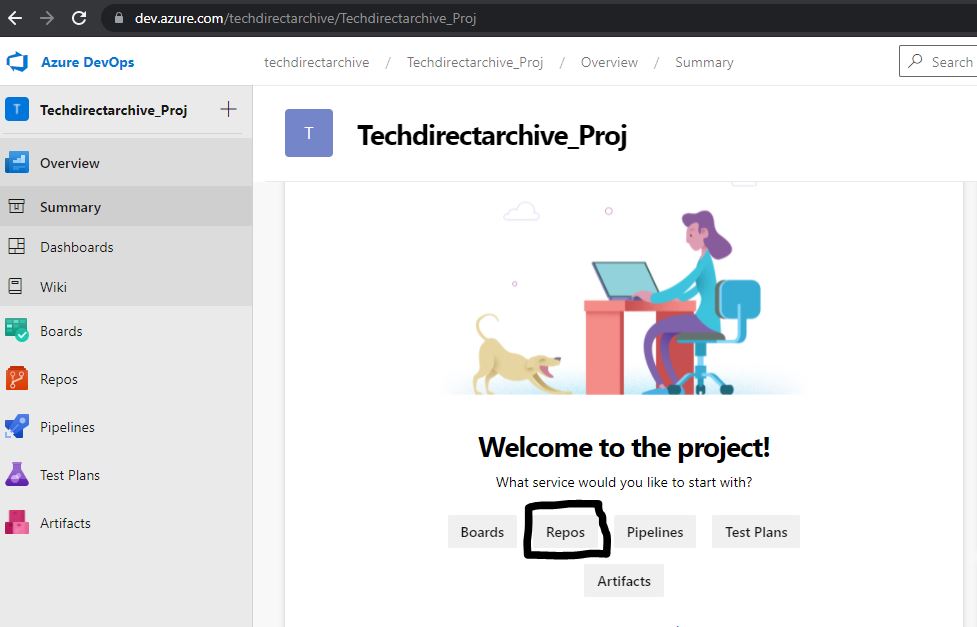
– Select Repos in your project overview:
DevOps tools
your Project Overview page
SonarCloud integration
your Repository initiation

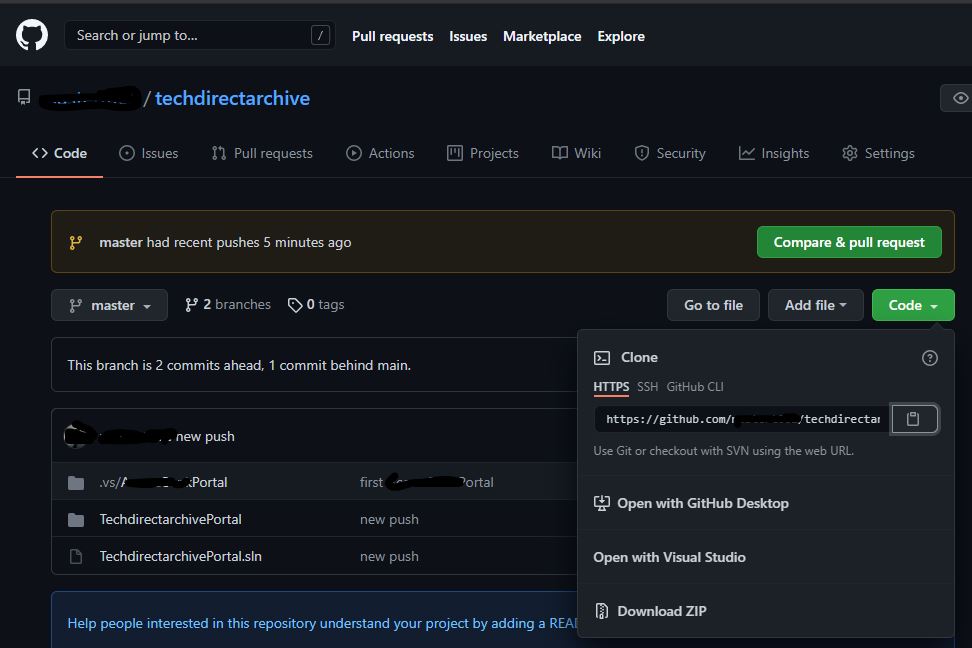
Follow the below steps if you are importing your repository from GitHub:


– Login to your Github where you have your repository and copy the URL
Azure DevOps Pipeline
your GitHub Repository

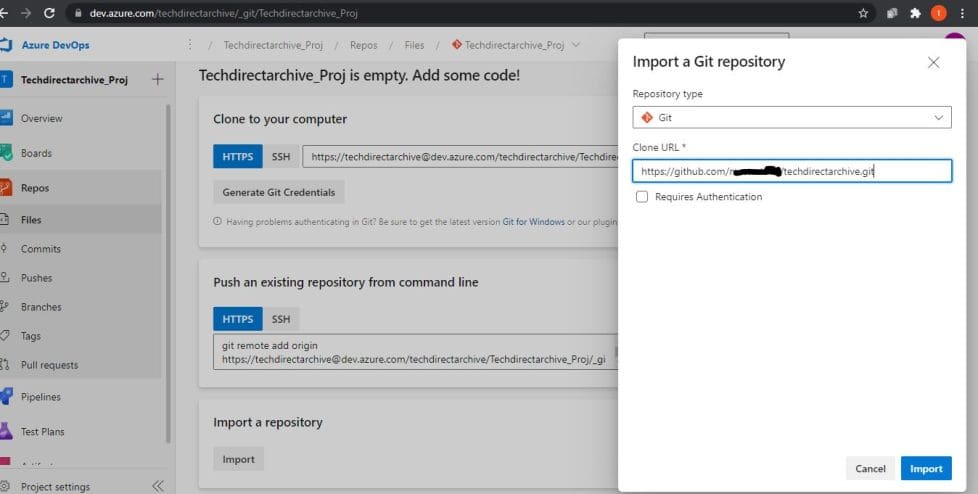
Paste the URL on the Clone URL box and click import.
code quality analysis
Importing a repository from GitHub

Immediately this is done it gets pushed to the Azure DevOps Repo where you can run a build on it.


DevOps tools
Repos Overview
code quality analysis
This push your code to Repo

You can also use the Push an existing repository from the command line by opening the application project with an IDE and running the following Git commands on the terminal.

git
This push your code to Repo
push
Pushing your source code from IDE

Next, you will need to install the SonarCloud extension in your Azure DevOps account. Navigate to the SonarCloud Extension via the Visual Studio Marketplace and click Get it free to install it.
– Then Proceed to the organization once the installation is completed.

marketplace
Marketplace Overview
marketplace2
Installing SonarCloud Extension
marketplace1
SonarCloud Extension installed

Moreover, You can use the same account you used for your Azure DevOps.
– Sign into SonarCloud: https://sonarcloud.io/

sonar
Login to SonarCloud and linking with Azure DevOps
sonar2
Login to SonarCloud and linking with Azure DevOps

Additionally, you will need to create an organization, and within the organization, you will need to create a new Project. Furthermore, The organization and project you set up in SonarCloud must have the same name as the one you set up in Azure DevOps.

organization
Creating an Organization on SonarCloud

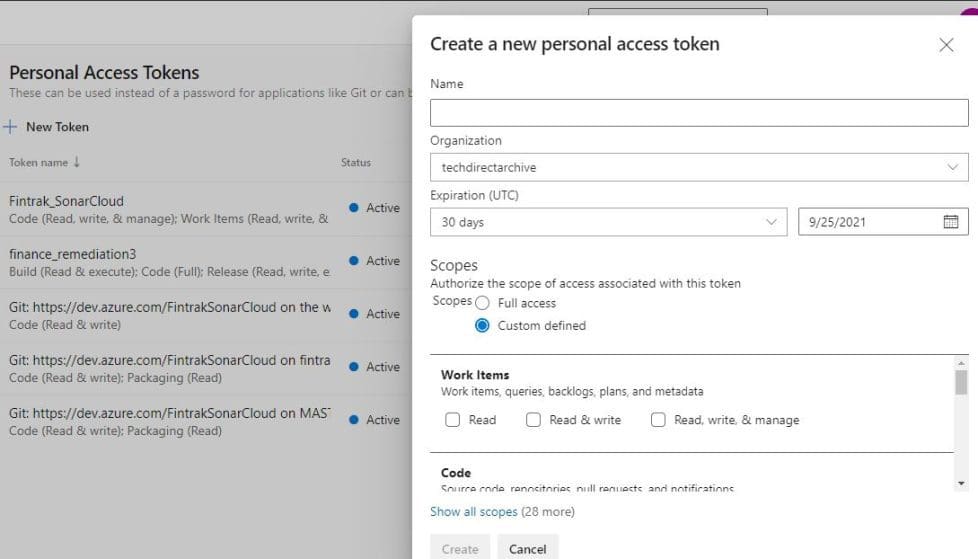
Enter or create a Personal Access Token from your Azure DevOps under the User setting.

personal-access-token
Creating a Personal Access Token for your Azure DevOps
personal-access-token2
Creating a Personal Access Token for your Azure DevOps

Therefore, Once all these are created you will be able to Import organization details from Azure.
– Enter the key you plan to use for your project and click on Continue.

organization2
Creating an Organization on SonarCloud

Choose a plan: You can select a Free Plan with all the projects you analyzed in the public. Similarly, anyone can browse the source code because it’s not restricted.

Consequently, The Paid Plan has unlimited private projects, and the source code is restricted to public access.
– Click on Create Organization

Plan
Choosing a Free or Paid Plan on SonarCloud

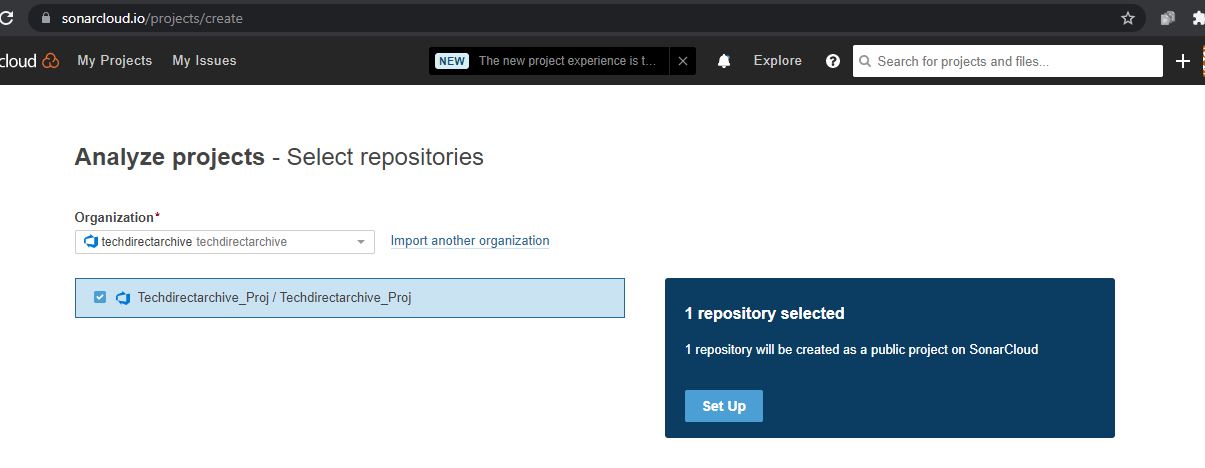
Furthermore, When you click on the Create new project, the Analyze projects – However, Select Repositories page will open that has all the organization and Azure DevOps repositories that exist. Moreover, you can then make your selection.

In addition, Then click Set Up and click on Azure DevOps Pipelines.Nonetheless, On the next page, you can ignore the SonarCloud extension installation if you have earlier installed it.
repo4
Linking your Azure DevOps Repo with SonarCloud

Therefore, you need to select the stack technology used for your build. Additionally, This is what you will need to configure the Azure Pipeline.

pipeline2
Selecting your Stack Technology to build

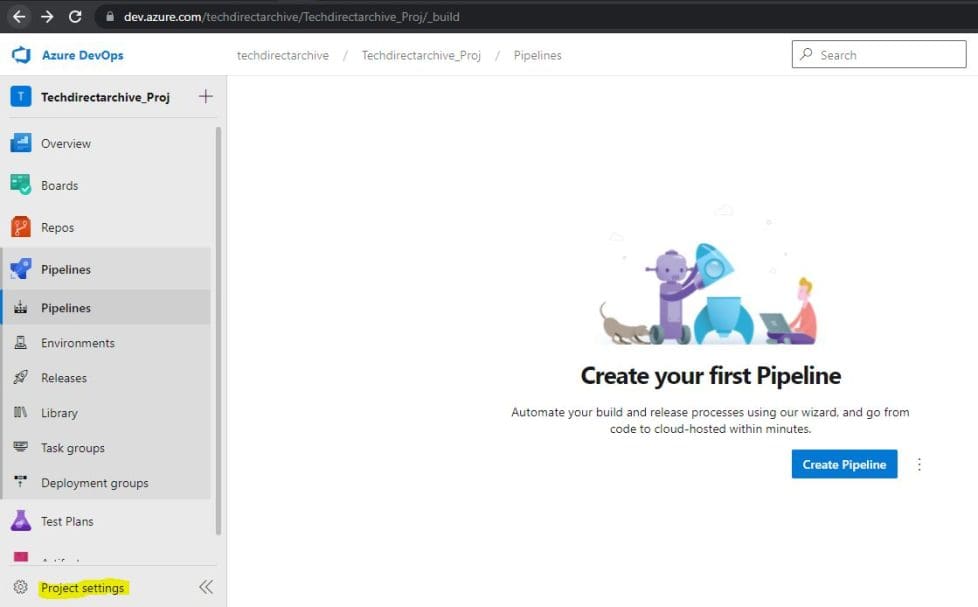
Now, you need to create a new pipeline on your Azure DevOps

Consequently, Follow the below steps on Azure DevOps to initialize your pipeline and link it to your repository.

Add a new SonarCloud Service Endpoint

  1. Go to Project settings > Service connections
  2. Similarly, Add a new service connection of the type SonarCloud
  3. Use this token: “Enter the token that shows here” 
  4. Nevertheless, Click on Verify to check that everything is linked correctly.
Pipeline3
Creating your first Pipeline
pipeline4
When Configuring your Service connections
service-connection
Configuring your Service connections
service-connection2
Configuring your Service connections

On the Create your first Pipeline page clicks on the Create Pipeline button.

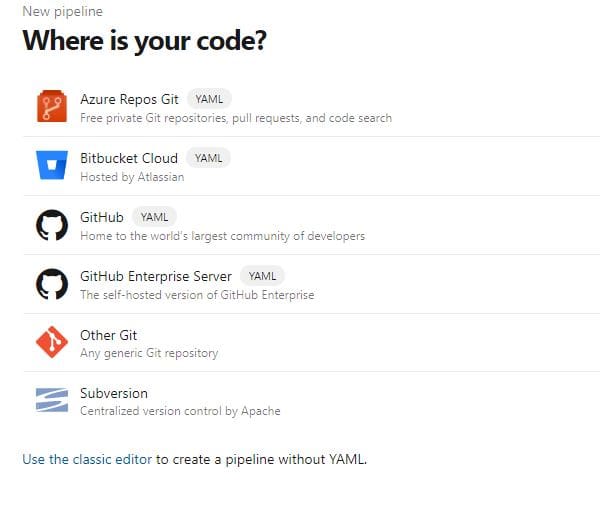
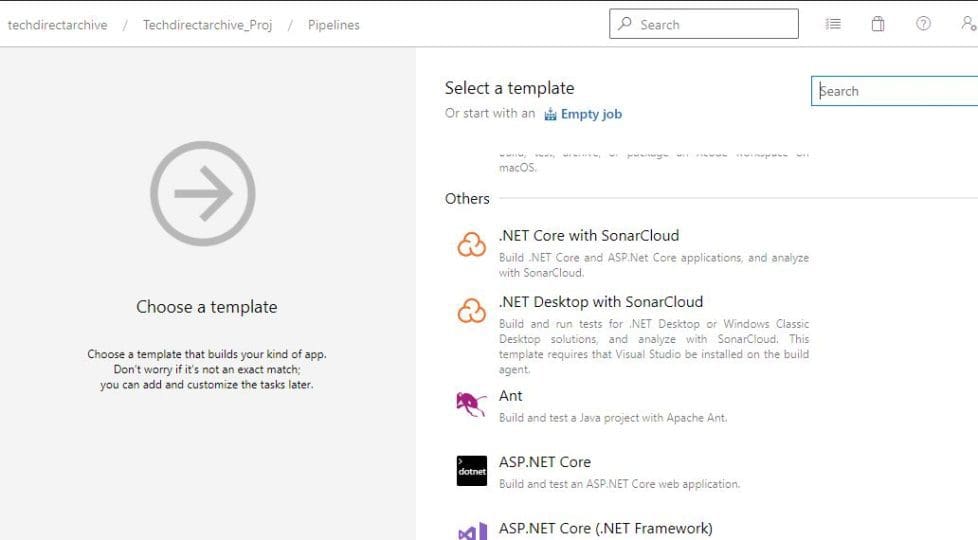
Nonetheless, please Select where your code is situated and use it to create a pipeline, or use the classic editor to create a pipeline. In addition, If your stack technology is .NET Core or ASP.NET Core, you can use a .NET Core with SonarCloud as a template to build your app.

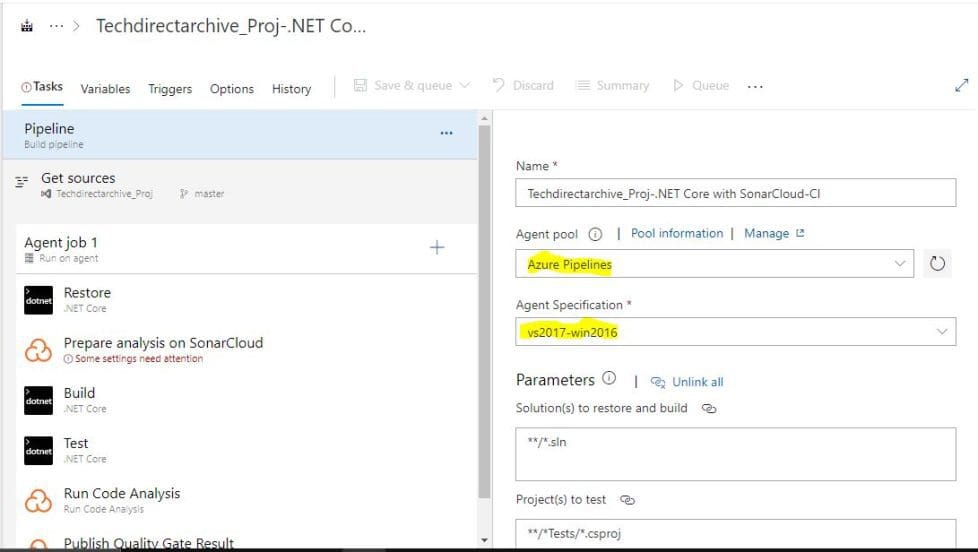
Also, remember to integrate SonarCloud with Azure DevOps Pipeline. The Azure pipelines as the Agent pool and select your Agent Specification for streamlined code quality analysis in your CI/CD workflow.
where-is-your-code
Choose your code Pipeline
template
Choose a template for your Pipeline
template1
Configuring your Pipeline

Follow these three steps to analyze your code in the pipeline

1. Prepare Analysis Configuration

  1. Select the SonarCloud endpoint.
  2. Select the SonarCloud organization techdirectarchive 
  3. In Choose the way to run the analysis, select Integrate with MSBuild.
  4. In the Project Key field, enter techdirectarchive_Techdirectarchive_Proj 
  5. In the Project Name field, enter Techdirectarchive_Proj 
  6. Save and Queue
  7. Run

Please ensure this task runs before your build step.     

prepare
Configuring your Pipeline (Prepare analysis on SonarCloud)
run
Configuring your Pipeline (Run Code Analysis)
agent
Pipeline build result

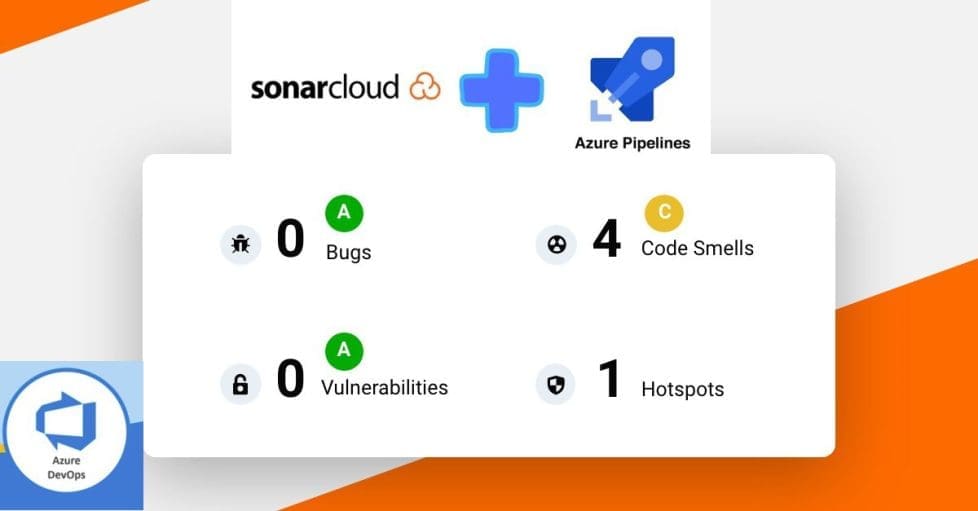
Furthermore, immediately after the Azure DevOps Pipeline is run successfully, you will get the scan report on SonarCloud, showcasing the seamless Integrate SonarCloud with Azure DevOps Pipeline. However, the needed remediation can be performed, and the Pipeline can be re-run after remediation.

sonar3
SonarCloud Report

2. Run Code Analysis

This task needs to run after your build step.

3. Publish Quality Gate Result

This task is not mandatory but will allow you to decorate your Pull Request.

Rate this post

Thank you for reading this post. Kindly share it with others.

  • Click to share on X (Opens in new window) X
  • Click to share on Reddit (Opens in new window) Reddit
  • Click to share on LinkedIn (Opens in new window) LinkedIn
  • Click to share on Facebook (Opens in new window) Facebook
  • Click to share on Pinterest (Opens in new window) Pinterest
  • Click to share on Tumblr (Opens in new window) Tumblr
  • Click to share on Telegram (Opens in new window) Telegram
  • Click to share on WhatsApp (Opens in new window) WhatsApp
  • Click to share on Pocket (Opens in new window) Pocket
  • Click to share on Mastodon (Opens in new window) Mastodon
  • Click to share on Bluesky (Opens in new window) Bluesky
  • Click to share on Threads (Opens in new window) Threads
  • Click to share on Nextdoor (Opens in new window) Nextdoor
AWS/Azure/OpenShift Tags:Azure, Azure Pipelines

Post navigation

Previous Post: Enable or disable automatic Google Chrome Live Caption on macOS
Next Post: There was an error opening the Trusted Platform Module snap-in: You do not have permission to open the Trusted Platform Module Console

Related Posts

  • Install Packages to Amazon Virtual Machine Using Terraform
    How to Install Packages to Amazon VM using Terraform AWS/Azure/OpenShift
  • Screenshot 2024 02 09 at 1.06.54 PM
    Programmatically Deploying App Service Resources in Azure AWS/Azure/OpenShift
  • image 81
    How to Deploy Dynamic Website to AWS EC2 AWS/Azure/OpenShift
  • image 26
    Add an EBS volume to AWS EC2 via the AWS Console and CLI AWS/Azure/OpenShift
  • Deploy to ACI
    Create Azure Container instance to deploy your image to Azure using Azure CLI AWS/Azure/OpenShift
  • Microsoft LAPS
    Configure Windows LAPS Management with Microsoft Intune AWS/Azure/OpenShift

More Related Articles

Install Packages to Amazon Virtual Machine Using Terraform How to Install Packages to Amazon VM using Terraform AWS/Azure/OpenShift
Screenshot 2024 02 09 at 1.06.54 PM Programmatically Deploying App Service Resources in Azure AWS/Azure/OpenShift
image 81 How to Deploy Dynamic Website to AWS EC2 AWS/Azure/OpenShift
image 26 Add an EBS volume to AWS EC2 via the AWS Console and CLI AWS/Azure/OpenShift
Deploy to ACI Create Azure Container instance to deploy your image to Azure using Azure CLI AWS/Azure/OpenShift
Microsoft LAPS Configure Windows LAPS Management with Microsoft Intune AWS/Azure/OpenShift

Leave a Reply Cancel reply

You must be logged in to post a comment.

Microsoft MVP

VEEAMLEGEND

vexpert-badge-stars-5

Virtual Background

GoogleNews

Categories

veeaam100

sysadmin top30a
 
  • BitLocker 1
    Unable to install Microsoft Bitlocker Administration: Uninstall your current version of MBAM and run setup again Windows
  • Snapshot replication fix on synology
    Fix Task failed to perform Scheduled Snapshot Replication Storage
  • PowerShell Exec
    Determine the execution policy configured on Windows PC Windows
  • Screenshot 2022 02 25 at 02.06.20
    How to install SAMBA file shares for Servers and Clients Linux
  • Cannot save to the location Windows
    How to Fix Cannot Save to Windows System32 Default.rdp Error Network | Monitoring
  • Screenshot 2020 05 16 at 15.18.10
    AWS CLI Error: All commands return Unknown output type [None] Network | Monitoring
  • LINUX CONTAINERS
    How to install LXC/LXD for container management Linux
  • image 75
    Useful Tutorial on CBackup Software Network | Monitoring

Subscribe to Blog via Email

Enter your email address to subscribe to this blog and receive notifications of new posts by email.

Join 1,841 other subscribers
  • RSS - Posts
  • RSS - Comments
  • About
  • Authors
  • Write for us
  • Advertise with us
  • General Terms and Conditions
  • Privacy policy
  • Feedly
  • Telegram
  • Youtube
  • Facebook
  • Instagram
  • LinkedIn
  • Tumblr
  • Pinterest
  • Twitter
  • mastodon

Tags

AWS Azure Bitlocker Microsoft Windows PowerShell WDS Windows 10 Windows 11 Windows Deployment Services Windows Server 2016

Copyright © 2025 TechDirectArchive


Loading Comments...
 

You must be logged in to post a comment.