Skip to content

TechDirectArchive

Hands-on IT, Cloud, Security & DevOps Insights

  • Home
  • About
  • Advertise With US
  • Contact
  • Reviews
  • Toggle search form
Home » Network | Monitoring » How to use Container Insights for Azure Kubernetes Workload
  • Veeam Virtual Appliance for Backup and Restore
    How to setup Veeam Software Appliance v13 Backup
  • Featured image 1
    How and where to find your BitLocker recovery key on Windows Security | Vulnerability Scans and Assessment
  • zoom 2
    How to stop Zoom App from launching automatically at startup on Mac Mac
  • image 129
    How to deploy Ansible AWX on centos 8 Linux
  • Azure App Service
    How to Restore Deleted Azure App Service Using PowerShell Automation
  • dsdfg
    Create a Bootable USB Drive Using dd Command on Linux Linux
  • docker desktop 1
    Failed to remove network for build: Error during connect in the default daemon configuration on Windows, the Docker client must be run with elevated privileges Containers
  • convert HEIC image format to JPEG format
    Convert HEIC images to JPEG format on Mac with Quick Actions Mac

How to use Container Insights for Azure Kubernetes Workload

Posted on 19/09/202126/11/2024 Raphael Gab-Momoh By Raphael Gab-Momoh 2 Comments on How to use Container Insights for Azure Kubernetes Workload
Container-insights-1

When deploying a production-grade workload, there is the need to make sure that the agent nodes are working the way they should. This is because Azure works to sure that the master node is working well and fine. Nonetheless, our only headache is the agent nodes or worker nodes. In this guide, I will walk you through how to use container insight for Azure Kubernetes , while ensuring our container workload is alright. Kindly refer to these related guides: How to create a static pod in Kubernetes with demos that can help you become a better Kubernetes administrator and how to create and deliver a report on System Utilization on a Linux-based OS.

Azure Monitor gathers information from Azure resources, apps, and operating systems. In our example, it collected its data from a special feature in the Azure monitor called container insight.  The type of data collected depends on the resource, and it might be a metric, a log, or both, which is then utilized for analysis, visualization, alerts, automation, and other purposes.

Container Insight

Container Insight is a feature of Azure monitor that can be used to monitor an Azure Kubernetes workload. Thus, before we proceed, we need to create an AKS cluster. Creating an AKS cluster requires the following:

1. An account set up in portal www.portal.azure.com
2. Azure Cli installed on our local machine you can get the cli from https://docs.microsoft.com/en-us/cli/azure/

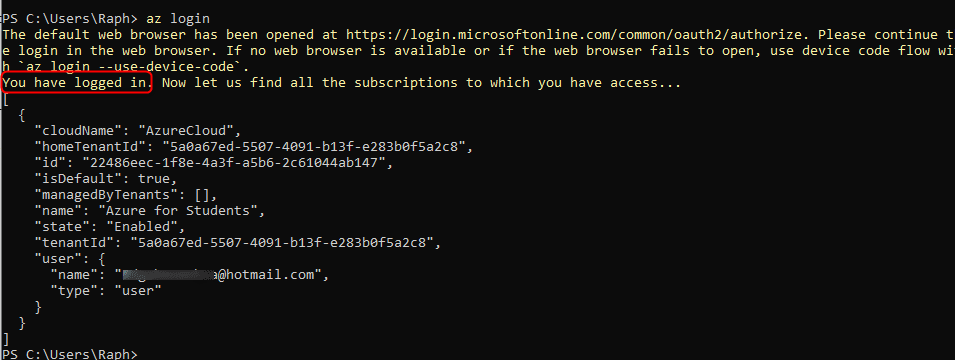
once you log in, you are all set up and start working ( I still use my account from school days because I get free Azure credits with it, so you might want to make good use of your student email from your university days to verify in your usual azure account and you will have the benefits as well )
Container insights for Azure kubernetes-az-login
fig1. interaction in PowerShell after installing Azure CLI

Steps to create an AKS Cluster

  1. From your portal locate resources
  2. click on containers
  3. Cluster details: we have to make sure that Preset configuration is Standard ($$). you can look at the link for more help Cluster configuration presets in the Azure portal.
  4. Add Kubernetes cluster name, such as techDirectArchive Cluster
  5. pick your desired  Region and Kubernetes version for the AKS cluster.
  6. Primary node pool:Leave the default values selected but you should reduce the maximum node count from the default or else you will get an error. When you see a validation passed just as in fig 3 below you are good to go
Container insights for Azure kubernetes-aks-cluster
fig 2. cluster configuration
Container insights for Azure kubernetes-validation
fig 3. validation checked

The completion process might take up to 5 minutes or more

Container insights for Azure kubernetes-succeeded
fig 3 running cluster

Enable Container Insights for Azure Kubernetes

To access the newly created techDirectArchieve cluster and enable “container insights for Azure Kubernetes,” ensure you follow these steps.

If you’re utilizing PowerShell, verify that you have installed Azure CLI. Alternatively, you can utilize cloud shell on the top right-hand side of the portal. When using cloud shell, remember to mount storage before proceeding

az aks get-credentials --resource-group techdirectarchive --name techDirectArchive
Container insights for Azure kubernetes-cloud-shell
fig 4 connected cloud shell to our running cluster
if we inspect the nodes with kubectl get nodes

kubectl-get-nodes-3
fig 5 node inspection

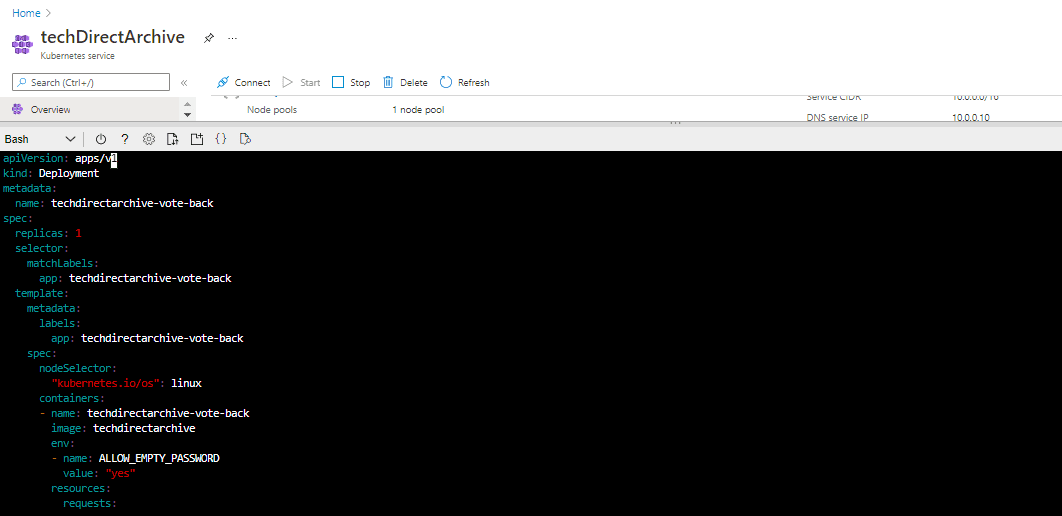
we have only one as a result of our initial configuration of node-pool. Next, we need to make our application up and running. We need to create an empty manifest file so that we can declare all the parameters that our app will have

vi techdirectarchive-vote.yaml
yamlaa
fig 6 pod definition file
kubectl apply -f techdirectarchive-vote.yaml
techdirectarchivevoteyaml
fig 7 output of our pod definition file

As we can see above, we’ve created deployment and service. Before we proceed to use container insight to monitor our application, let’s test it to see if it’s running.

kubectl get service techdirectarchive-vote-front --watch

It returns an external IP address that can be used to display the app on a browser. use CTRL-C to stop the kubectl watch the process and return to the normal prompt

external-ip
fig 8 watching the process

Monitor Containers for Azure

Now that the container is up and running, we will focus on how to use container insight to get metrics about our running container. Container insight gets automatically enable with every running container. To locate the container from insight, follow the guide below

Check Azure Kubernetes resource in Azure portal  
look for monitoring and then choose Insights.
At the top, click on + Add Filter.
Select Namespace as the property, then choose <All but kube-system>.
Select Containers to view them.
rga
fig 9. cluster-info page

The performance of workloads deployed in Kubernetes clusters may be monitored using Container Insights. Container insights may display performance by utilizing the Metrics API to collect data from Kubernetes containers. Logs from containers are also collected.

From the image, under the monitoring section on left, click on insights

filtercontainer
fig 10. container insight configuration page of our created cluster

From the image, click add filter and choose namespace for property for value select <all but kube-system>

second-to-last-az
fig 11. container details

Log Analytics for Azure Kubernetes

From the image, at the right-hand side, the view in analytics and open in another window to view logs about the container. From our pod definition file our container was callled azure-vote-back and Azure-vote-front The logs include the stdout and stderr streams from azure-vote-back and azure-vote-front containers.

finallogs
fig 12. container logs

In Summary, to be able to monitor an AKS workload, first of all, we needed to create the cluster and connected it to it using the resource group name (techdirectarchive)and the cluster name(techDirectArchive).

Next, we created the application( azure-vote-back) in our example using vi editor. When we ran the kubectl apply -f against our pod definition file we got deployment and service as shown in fig 7, showing that the container was successfully created.

Finally, Microsoft Azure Monitor provides a centralized platform for measuring and monitoring the performance of your apps and systems, as well as the resources they use. Custom performance tracking can also be achieved by combining Azure Monitor with a variety of other systems and utilizing custom log queries. Guess by now, you know how to use container insights for Azure Kubernetes.

Cloud resources consume money so please, make sure you have deleted the Kubernetes cluster when you are finally done with practicing along. lastly, please  let us know if you found this Azure Kubernetes Cluster and Container Insight guide helpful in the comments section below.
5/5 - (1 vote)

Thank you for reading this post. Kindly share it with others.

  • Click to share on X (Opens in new window) X
  • Click to share on Reddit (Opens in new window) Reddit
  • Click to share on LinkedIn (Opens in new window) LinkedIn
  • Click to share on Facebook (Opens in new window) Facebook
  • Click to share on Pinterest (Opens in new window) Pinterest
  • Click to share on Tumblr (Opens in new window) Tumblr
  • Click to share on Telegram (Opens in new window) Telegram
  • Click to share on WhatsApp (Opens in new window) WhatsApp
  • Click to share on Pocket (Opens in new window) Pocket
  • Click to share on Mastodon (Opens in new window) Mastodon
  • Click to share on Bluesky (Opens in new window) Bluesky
  • Click to share on Threads (Opens in new window) Threads
  • Click to share on Nextdoor (Opens in new window) Nextdoor
Network | Monitoring Tags:Azure Monitor, Kubernetes

Post navigation

Previous Post: Creating and Deploying Docker Registry Using Docker Image
Next Post: How To Deploy Azure VMware Solution Private Cloud

Related Posts

  • creating the perfect grafana dashboard  main
    How to install Grafana on Ubuntu Linux Network | Monitoring
  • Featured image Microsoft Outlook
    How to Recall an Email in Microsoft Outlook Network | Monitoring
  • AADSTS900144
    Fix AADSTS900144: The request body must contain the parameter Network | Monitoring
  • image 75
    Useful Tutorial on CBackup Software Network | Monitoring
  • Watchguard Firewall 180504 100511 1
    Reset an XTM Firebox Device: Easy Guide Network | Monitoring
  • Create Windows Defender Firewall Rule
    Fix Windows defender blocked incoming connection on Windows Network | Monitoring

More Related Articles

creating the perfect grafana dashboard  main How to install Grafana on Ubuntu Linux Network | Monitoring
Featured image Microsoft Outlook How to Recall an Email in Microsoft Outlook Network | Monitoring
AADSTS900144 Fix AADSTS900144: The request body must contain the parameter Network | Monitoring
image 75 Useful Tutorial on CBackup Software Network | Monitoring
Watchguard Firewall 180504 100511 1 Reset an XTM Firebox Device: Easy Guide Network | Monitoring
Create Windows Defender Firewall Rule Fix Windows defender blocked incoming connection on Windows Network | Monitoring

Comments (2) on “How to use Container Insights for Azure Kubernetes Workload”

  1. Avatar photo thiyagi says:
    26/11/2024 at 8:45 PM

    Nice Article, was helpful 🙂

    Log in to Reply
    1. chris Christian says:
      26/11/2024 at 9:24 PM

      Thank you for your kind words!

      Log in to Reply

Leave a Reply Cancel reply

You must be logged in to post a comment.

Microsoft MVP

VEEAMLEGEND

vexpert-badge-stars-5

Virtual Background

GoogleNews

Categories

veeaam100

sysadmin top30a

  • Veeam Virtual Appliance for Backup and Restore
    How to setup Veeam Software Appliance v13 Backup
  • Featured image 1
    How and where to find your BitLocker recovery key on Windows Security | Vulnerability Scans and Assessment
  • zoom 2
    How to stop Zoom App from launching automatically at startup on Mac Mac
  • image 129
    How to deploy Ansible AWX on centos 8 Linux
  • Azure App Service
    How to Restore Deleted Azure App Service Using PowerShell Automation
  • dsdfg
    Create a Bootable USB Drive Using dd Command on Linux Linux
  • docker desktop 1
    Failed to remove network for build: Error during connect in the default daemon configuration on Windows, the Docker client must be run with elevated privileges Containers
  • convert HEIC image format to JPEG format
    Convert HEIC images to JPEG format on Mac with Quick Actions Mac

Subscribe to Blog via Email

Enter your email address to subscribe to this blog and receive notifications of new posts by email.

Join 1,841 other subscribers
  • RSS - Posts
  • RSS - Comments
  • About
  • Authors
  • Write for us
  • Advertise with us
  • General Terms and Conditions
  • Privacy policy
  • Feedly
  • Telegram
  • Youtube
  • Facebook
  • Instagram
  • LinkedIn
  • Tumblr
  • Pinterest
  • Twitter
  • mastodon

Tags

AWS Azure Bitlocker Microsoft Windows PowerShell WDS Windows 10 Windows 11 Windows Deployment Services Windows Server 2016

Copyright © 2025 TechDirectArchive


Loading Comments...
 

You must be logged in to post a comment.