Whether in life or at work, you generate a lot of data and store a lot of information on a variety of devices, including your files, photos, emails, notes, and more. They may be stored locally for you to access at any time conveniently, but your files are also at risk of being lost. For this, do you consider making an online backup of your significant files to protect them well? There are many types of online backup software in the market. To make your user experience better, we have compared lots of online backup services and chosen the best one finally. For further information on it, just scroll down to get a detailed introduction. Here are some related posts: How to back up an Azure VM from the VM settings, and how to setup Veeam Backup for Microsoft Azure.In this article, you will learn about Useful Tutorial on CBackup Software.
About Online Backup – A tutorial on CBackup Software
Online backup can also call it remote backup or cloud backup is one of the most popular backup options now. Once you create an online backup of your files, they will be saved on the cloud and protected away from many dangerous situations. Please see how to uninstall WAMP Server from Windows, and how to check .NET Framework version on Windows 10 and 11.
Besides, online backup has many outstanding advantages as a backup method:
- Protect data from local disasters: With online backup, your data will be safe on the cloud when fires, earthquakes, floods, etc. come.
- Keep data safe in local equipment failures: Your data will be secure when there are virus attacks, human errors, and system crashes on your computer.
- Flexible cloud storage space: Unlimited online backup is available in online backup software and you can choose different cloud storage plans according to different needs.
- Access data conveniently: Online backup lets you access data without carrying any traditional storage device everywhere.
- Easy data recovery: It will be much easier to recover your deleted or lost data if you have created an online backup of it in advance.

Here Comes the Best Online Backup Software
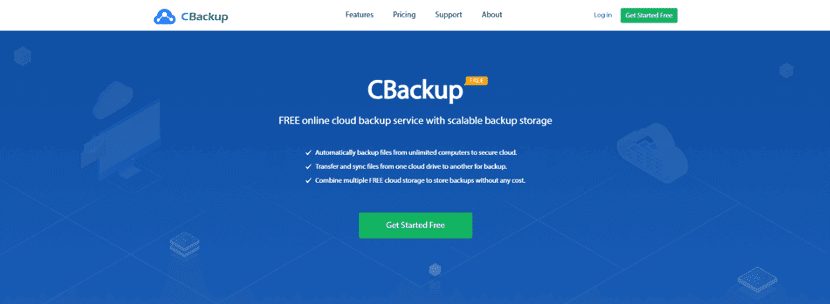
If you are looking for comprehensive online backup software but do not have ideas, here comes the best online backup software – backup. backup is a free and easy online backup service, that provides full and stable backup features.
It does not matter if you have your own cloud drive already. Because CBackup allows you to create an online backup to many mainstream cloud drives directly. If you do not have a cloud storage service to save your data. CBackup provides 10GB of free cloud storage space in its CBackup Cloud and you can back up data to it.
What’s more, all kinds of data are supported to be backed up in CBackup. You can choose to back up documents, pictures, videos, programs, systems, and even the entire computer.
In CBackup, you can enjoy the following online features for free:
- Backup PC to Public Cloud: You are allowed to backup data to many mainstream cloud drives including Google Drive, Dropbox, OneDrive, etc.
- Backup PC to CBackup Cloud: CBackup Cloud with 10GB of free cloud storage space can be a backup destination as well.
- Combine Cloud Storage: With this feature, you can merge unlimited accounts from the same cloud drive. Or different cloud drives to one combined cloud with unlimited cloud storage.
- Sync PC to Public Cloud: The sync feature is also provided in CBackup for free.
- Cloud-to-cloud backup/sync: You can use the cloud-to-cloud backup. Or sync feature to backup or transfer data between any two cloud drives on the CBackup interface conveniently.
Steps to Create an Online Backup
In addition, operation steps in CBackup are very easy. You do not have to worry if you know nothing about IT. Here is a brief introduction of creating an online backup task in CBackup:
1. First, download and install the CBackup desktop app on your PC. Apply for a new CBackup account, then open the desktop client to log into it.
2. Click on the My Storage tab. Choose any cloud drive here and click on Authorize Now. Please let CBackup access to your cloud drive account.

3. Click on the Backup option on the left panel and choose Backup PC to Public Cloud. You can also select Backup PC to CBackup Cloud to back up your data to it.

4. Choose local data on your PC as the backup source. And choose the cloud drive account you just added as the backup destination. Here we take Google Drive as an example.

5. At last, press the Start Backup button to begin the online backup task immediately.

Note: When you want to set up an online backup task, you can go to Settings to enable Scheduler, which will let your backup task perform regularly and automatically, saving much time and effort for you.

Detailed introduction and operation steps of the CBbackup software are all listed in this post. All your data need reliable online backup software. CBackup can be one of your choices. Just download and try it for free.
I hope you found this blog post helpful on useful Tutorials on CBackup Software. If you have any questions, please let me know in the comment session.