Skip to content

TechDirectArchive

Hands-on IT, Cloud, Security & DevOps Insights

  • Home
  • About
  • Advertise With US
  • Reviews
  • Contact
  • Toggle search form
Home » Linux » Deploying a load balancer from scratch and adding backend servers

Deploying a load balancer from scratch and adding backend servers

Posted on 24/09/202121/03/2024 Dickson Victor By Dickson Victor No Comments on Deploying a load balancer from scratch and adding backend servers
load balancer

Load balancing is a key and Major part of IT infrastructure and this is because the High availability and efficient performance of webservers are very important. The purpose of load balancing is to prevent a server from being overloaded and maintain healthy servers by balancing incoming requests. Please see Setup Public Load Balancer in Azure, How to create a load balancer for Azure Stack Hub, and How to Configure Network Load Balancing In Windows Server

A Load Balancer is available, reliable, and highly scalable web application. Furthermore, In this tutorial, I will deploy one Haproxy server and 2 backend servers in a Lab environment. However, in a subsequent post, I will show how to configure, deploy and troubleshoot an ELB on cloud platforms.

NOTE: All deployments are done on CentOS 8.

Also, see Installing and configuring SimpleSAMLphp [Part 2], and How to create an EC2 Instance.

Installing and configuring HAproxy

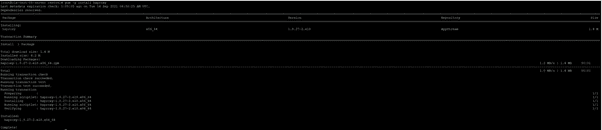
Yum -y install Haproxy
backend servers

NOTE: Back up the default config file, should anything go wrong, we can revert.

mv /etc/haproxy/haproxy.cfg /etc/haproxy/haproxy.cfg-bak

create a new haproxy config file and paste the following

vim /etc/haproxy/haproxy.cfg
#———————————————————————
global
log 127.0.0.1 local2
chroot /var/lib/haproxy
pidfile /var/run/haproxy.pid
maxconn 4000
user haproxy
group haproxy
daemon
# turn on stats unix socket
stats socket /var/lib/haproxy/stats
# utilize system-wide crypto-policies
ssl-default-bind-ciphers PROFILE=SYSTEM
ssl-default-server-ciphers PROFILE=SYSTEM
#———————————————————————
defaults
mode http
log global
option httplog
option dontlognull
option http-server-close
option forwardfor except 127.0.0.0/8
option redispatch
retries 3
timeout http-request 10s
timeout queue 1m
timeout connect 10s
timeout client 1m
timeout server 1m
timeout http-keep-alive 10s
timeout check 10s
maxconn 3000
# main frontend which proxys to the backends
frontend haproxy_balancer # define the name of the frontend.
bind 192.168.0.10:80 # IP address of HAProxy server
option http-server-close
option forwardfor
stats uri /haproxy?stats # Specify the HAProxy status page.
default_backend webservers
# round robin balancing between the various backends
backend webservers # Specify a name for identifying an application
mode http
balance roundrobin # defines the roundrobin load balancer scheduling algorithm
option httpchk HEAD / HTTP/1.1\r\nHost:\ localhost
server nginx-web1 192.168.0.11:80 check # IP address of the first backend server
server nginx-web2 192.168.0.12:80 check # IP address of the second backend server

NOTE: Kindly change the Mode and the server IPs as specified based on your configurations

Test the configuration for errors

haproxy -c -f /etc/haproxy/haproxy.cfg
deployment

Start and Enable the Haproxy service

scratch

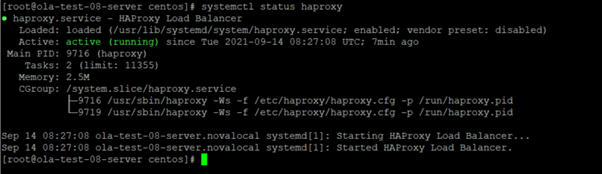
Checking the HAproxy status

load balancer

Open the Web Url of your front end server

Screenshot-2021-09-24-at-13.46.25

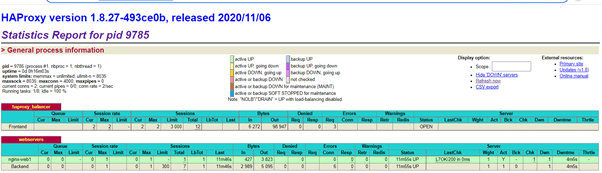
Check Statistics and status of Haproxy
load balancer

Now you can keep adding backend servers.

NOTE: When deploying a load balancer from scratch, ensure that backend servers have Nginx installed. Additionally, confirm the availability and firewall permissions for the backend port.

I hope you found this blog post on Deploying a load balancer from scratch and adding backend servers helpful. Please let me know in the comment session if you have any questions.

Rate this post

Thank you for reading this post. Kindly share it with others.

  • Share on X (Opens in new window) X
  • Share on Reddit (Opens in new window) Reddit
  • Share on LinkedIn (Opens in new window) LinkedIn
  • Share on Facebook (Opens in new window) Facebook
  • Share on Pinterest (Opens in new window) Pinterest
  • Share on Tumblr (Opens in new window) Tumblr
  • Share on Telegram (Opens in new window) Telegram
  • Share on WhatsApp (Opens in new window) WhatsApp
  • Share on Mastodon (Opens in new window) Mastodon
  • Share on Bluesky (Opens in new window) Bluesky
  • Share on Threads (Opens in new window) Threads
  • Share on Nextdoor (Opens in new window) Nextdoor
Linux Tags:deployment

Post navigation

Previous Post: Exchange Recovery: Repair EDB Files and Recover Mailboxes
Next Post: Delivering System Utilization Report on a Linux based OS

Related Posts

  • linux windows 10
    Windows Subsystem for Linux: How to install WSL on Windows 10 Linux
  • images copy
    How to disable automatic screen lock in Ubuntu Linux Linux
  • image 36
    Keepalive Settings: Understanding keepalive configuration Linux
  • Screenshot 2020 06 30 at 18.04.49
    How to install and configure Jitsi video conferencing server on Ubuntu Linux
  • runlevels
    How to check your current Runlevel in Linux Linux
  • FLUTTER Feature
    How to Set Up Flutter with Android Studio on Linux Linux

More Related Articles

linux windows 10 Windows Subsystem for Linux: How to install WSL on Windows 10 Linux
images copy How to disable automatic screen lock in Ubuntu Linux Linux
image 36 Keepalive Settings: Understanding keepalive configuration Linux
Screenshot 2020 06 30 at 18.04.49 How to install and configure Jitsi video conferencing server on Ubuntu Linux
runlevels How to check your current Runlevel in Linux Linux
FLUTTER Feature How to Set Up Flutter with Android Studio on Linux Linux

Leave a Reply Cancel reply

You must be logged in to post a comment.

Microsoft MVP

VEEAMLEGEND

vexpert-badge-stars-5

Virtual Background

GoogleNews

Categories

veeaam100

Veeam Vanguard

  • dfgh
    How to install Pleasant Password Server Password Manager
  • csdfg
    What is Cortona: How to disable Cortana via the registry or GPO Windows
  • dfg
    DISM failed with error 0x800f081f: Source file could not be found Windows Server
  • Watchguard Firewall 180504 100511 1
    WatchGuard Firebox: Restoring Backups on XTM Device Network | Monitoring
  • banner
    How to Create a Child and Tree Domain Windows Server
  • windows 10 technical preview windows 10 logo microsoft 97543 1920x1080
    Disable the sleep mode in Windows to never turn off the display Windows
  • Clone SysPrep
    Clone and Sysprep a Windows Server running on a VMware Workstation Virtualization
  • msinfo32 thumbnail
    How to use MSINFO32 to view System Information Windows

Subscribe to Blog via Email

Enter your email address to subscribe to this blog and receive notifications of new posts by email.

Join 1,819 other subscribers
  • RSS - Posts
  • RSS - Comments
  • About
  • Authors
  • Write for us
  • Advertise with us
  • General Terms and Conditions
  • Privacy policy
  • Feedly
  • Telegram
  • Youtube
  • Facebook
  • Instagram
  • LinkedIn
  • Tumblr
  • Pinterest
  • Twitter
  • mastodon

Tags

Active Directory Azure Bitlocker Microsoft Windows PowerShell WDS Windows 10 Windows 11 Windows Deployment Services Windows Server 2016

Copyright © 2025 TechDirectArchive


Loading Comments...
 

You must be logged in to post a comment.