Skip to content

TechDirectArchive

Hands-on IT, Cloud, Security & DevOps Insights

  • Home
  • About
  • Advertise With US
  • Reviews
  • Contact
  • Toggle search form
Home » Security | Vulnerability Scans and Assessment » Fix WDAC vulnerabilities by updating PowerShell

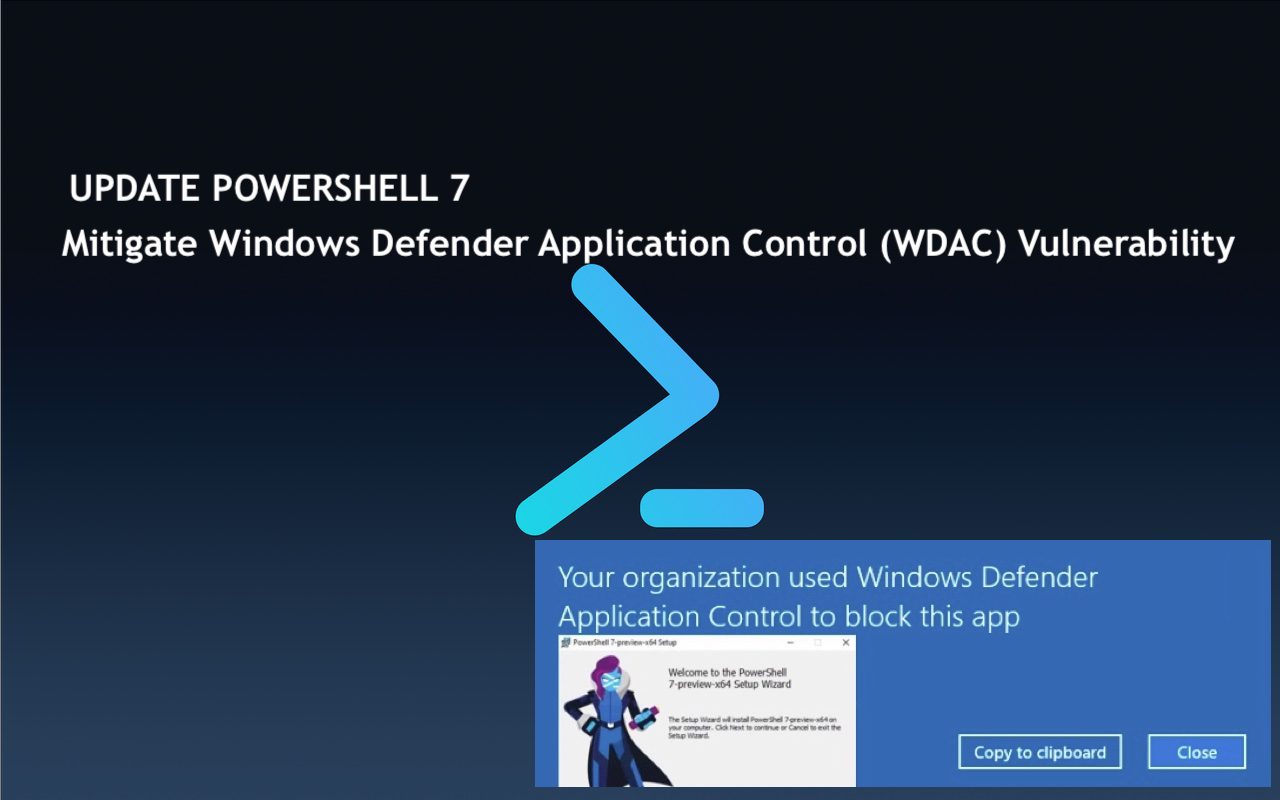
Fix WDAC vulnerabilities by updating PowerShell

Posted on 20/10/202120/08/2024 Christian By Christian No Comments on Fix WDAC vulnerabilities by updating PowerShell
update-powershell

Windows Defender Application Control (WDAC) can control what runs on Windows 10 and Windows 11 by setting policies that specify whether a driver or application is trusted. A policy includes policy rules that control options such as audit mode and file rules (or file rule levels) that specify how applications are identified and trusted. . Please see Configure Multiple IP Addresses on a Single or Multiple NICs, and how to fix Windows cannot find the Microsoft software license terms.

Microsoft Defender Application Control changes the security application model from trust everything to trust nothing until the trust is earned. “Application allowlisting” approach offers significant security improvements. This way, it blocks unknown applications, such as malware, such that only trusted applications can run.

Microsoft has asked system administrators to patch their PowerShell 7 installations against two vulnerabilities that can allow attackers to bypass Windows Defender Application Control (WDAC) to run arbitrary code, and even gain access to plain text credentials.

Microsoft has recommended System Admins to patch PowerShell 7 to help fix these WDAC vulnerabilities. As they could allow attackers to bypass Windows Defender Application Control (WDAC) enforcements and gain access to plain text credentials.

These security flaws in PowerShell 7 and PowerShell 7.1 received the PowerShell 7.0.8 and PowerShell 7.1.5 security updates branches in September and October.

How Passwords can be leaked by WDAC bypass?

By default, Windows devices from potentially malicious software safeguarded by WDAC by design. It does this by permitting only trusted apps and drivers to run, thereby blocking malware and unwanted software from launching.

Enabling the software-based WDAC security layer in Windows triggers an automatic transition of PowerShell into constrained language mode. This limits access exclusively to a restricted set of Windows APIs.

Threat actors can exploit the CVE-2020-0951 vulnerability, which bypasses the Windows Defender Application Control security feature. Exploiting this vulnerability empowers malicious actors with the capability to circumvent WDAC’s allow list. As such PowerShell commands that WDAC normally blocks when active would execute.

In order to exploit this vulnerability, an attacker needs administrator access on a local machine where PowerShell is running. The attacker could then connect to a PowerShell session and send commands to execute arbitrary code,” Microsoft explains.

Kindly refer to the following guides. “how to set PowerShell Execution Policy via Windows Settings, how to set Execution Policy via Windows PowerShell, how to set the PowerShell Execution Policy via Windows Registry, and How to update PowerShellGet and Package Management.

Vulnerability disclose

Successful exploitation of this vulnerability by an attacker could result in the disclosure of sensitive information. CVE-2021-41355, a tracked flaw, represents an information disclosure vulnerability within .NET Core. On non-Windows platforms, this vulnerability could potentially lead to the clear text leakage of credentials.

An Information Disclosure vulnerability exists in Microsoft Dotnet (.NET) where System.DirectoryServices.Protocols.LdapConnection may send credentials in plain text on non-Windows Operating systems,” Microsoft said.

To check for vulnerability, the CVE-2020-0951 vulnerability affects PowerShell 7 and PowerShell 7.1 versions, while CVE-2021-41355 only impacts users of PowerShell 7.1. Here are some related guides: how to update PowerShellGet and Package Management via Group Policy Object, and how you can install and update PowerShell 7 via GPO.

Verify your PowerShell version to assess vulnerability to attacks exploiting these bugs effectively. Run the following command to determine your PowerShell version. Reference: BleepingComputer!

pwsh -v

Microsoft says no mitigation measures are currently available to block the exploitation of these security flaws. We strongly recommend that System Administrators install the updated versions of PowerShell 7.0.8 and 7.1.5 as soon as possible. This will help protect systems from potential attacks.

Microsoft’s latest announcement states easier PowerShell updates for Windows 10 and Windows Server users via the Microsoft Update service. See this guide on “how to install and update PowerShell version 7 on Windows and Linux“.

Here is a one-liner that you can use to install and update PowerShell version 7. You can use this single command in Windows PowerShell to install PowerShell 7.

iex "& { $(irm https://aka.ms/install-powershell.ps1) } -UseMSI"

I hope you found this blog post on how to fix for WDAC vulnerabilities helpful. If you have any questions, please let me know in the comment session.

Rate this post

Thank you for reading this post. Kindly share it with others.

  • Share on X (Opens in new window) X
  • Share on Reddit (Opens in new window) Reddit
  • Share on LinkedIn (Opens in new window) LinkedIn
  • Share on Facebook (Opens in new window) Facebook
  • Share on Pinterest (Opens in new window) Pinterest
  • Share on Tumblr (Opens in new window) Tumblr
  • Share on Telegram (Opens in new window) Telegram
  • Share on WhatsApp (Opens in new window) WhatsApp
  • Share on Mastodon (Opens in new window) Mastodon
  • Share on Bluesky (Opens in new window) Bluesky
  • Share on Threads (Opens in new window) Threads
  • Share on Nextdoor (Opens in new window) Nextdoor
Security | Vulnerability Scans and Assessment Tags:Microsoft Windows, PowerShell, PowerShell version 7, PowerShellGet, Windows 10, Windows Server 2016

Post navigation

Previous Post: Remove Microsoft Defender Update on Windows 10 & Server
Next Post: Disable BitLocker: How to correctly disable MBAM-encrypted devices

Related Posts

  • DUE Deligence vs Due Care
    Relating Due Diligence and Due Care to Veeam Backup and Replication Backup
  • Disable Open File Security Warnings on Windows
    How to Disable Open File Security Warnings on Windows Security | Vulnerability Scans and Assessment
  • BitLocker34
    BitLocker Back Door: Stolen laptop to inside the company network Security | Vulnerability Scans and Assessment
  • Featured image Periodic scanning
    How to enable or disable Windows Defender Antivirus Scanning periodically on Windows via Windows Settings Security | Vulnerability Scans and Assessment
  • encrypt your Data with Trellix Data Encryption
    How to encrypt your system with Trellix Data Encryption Security | Vulnerability Scans and Assessment
  • How to Disable TLS 1.0, TLS 1.1 and TLS 1   banner
    How to Disable TLS 1.0, TLS 1.1 and TLS 1.2 in Windows Using GPO Security | Vulnerability Scans and Assessment

More Related Articles

DUE Deligence vs Due Care Relating Due Diligence and Due Care to Veeam Backup and Replication Backup
Disable Open File Security Warnings on Windows How to Disable Open File Security Warnings on Windows Security | Vulnerability Scans and Assessment
BitLocker34 BitLocker Back Door: Stolen laptop to inside the company network Security | Vulnerability Scans and Assessment
Featured image Periodic scanning How to enable or disable Windows Defender Antivirus Scanning periodically on Windows via Windows Settings Security | Vulnerability Scans and Assessment
encrypt your Data with Trellix Data Encryption How to encrypt your system with Trellix Data Encryption Security | Vulnerability Scans and Assessment
How to Disable TLS 1.0, TLS 1.1 and TLS 1   banner How to Disable TLS 1.0, TLS 1.1 and TLS 1.2 in Windows Using GPO Security | Vulnerability Scans and Assessment

Leave a Reply Cancel reply

You must be logged in to post a comment.

Microsoft MVP

VEEAMLEGEND

vexpert-badge-stars-5

Virtual Background

GoogleNews

Categories

veeaam100

Veeam Vanguard

  • azure 1
    Fix SSO sign-in and non-routable domain issues AWS/Azure/OpenShift
  • Screenshot 2024 02 28 at 11.17.41 PM
    GitHub Pages Deployment Guide Linux
  • Configure Data Deduplication on Windows Server
    How to Configure Data Deduplication on Windows Server 2022 Windows Server
  • ansible vault
    Concept of Ansible on Windows using Cygwin Configuration Management Tool
  • screenshot 2020 03 14 at 22.47.56
    How to block apps from running in Windows Windows
  • image
    How to find Computer Serial Number stated change to be filled by OEM Windows Server
  • Container insights
    How to use Container Insights for Azure Kubernetes Workload Network | Monitoring
  • Fix Boot Failed UEFI SCSI Device on HyperV
    How to Fix Boot Failed UEFI SCSI Device on HyperV Virtualization

Subscribe to Blog via Email

Enter your email address to subscribe to this blog and receive notifications of new posts by email.

Join 1,821 other subscribers
  • RSS - Posts
  • RSS - Comments
  • About
  • Authors
  • Write for us
  • Advertise with us
  • General Terms and Conditions
  • Privacy policy
  • Feedly
  • Telegram
  • Youtube
  • Facebook
  • Instagram
  • LinkedIn
  • Tumblr
  • Pinterest
  • Twitter
  • mastodon

Tags

Active Directory Azure Bitlocker Microsoft Windows PowerShell WDS Windows 10 Windows 11 Windows Deployment Services Windows Server 2016

Copyright © 2025 TechDirectArchive


Loading Comments...
 

You must be logged in to post a comment.