Stopping, Removing and Naming Docker Container


Containers provide a lightweight feature for your applications to run in an isolated environment. Furthermore, it packages your application code and dependencies together and runs them at the application layer. Multiple containers can run on the same machine and share the same OS kernel with other containers when compared to Virtual Machines which requires a full copy of an Operating System before it can run Here’s all you need to know about stopping, removing and naming docker containers. For details on Container VS Operating System, refer to the related post on how to Pull your first Nginx Container Image from Docker Hub and deploy it to your local machine. To learn further about Docker, please see other related posts on Azure DevOps and GitHub integration for Docker and Kubernetes deployment, and how to create and deploy a local Registry Server with Docker Image.
You can also refer to my previous articles on how to Create an App Service Plan with Continuous Deployment to deploy a .NET Application from GitHub.I have my container created already and hosted in my local environment. In addition, to get along with this write-up, you need to:
- install Docker Desktop Application on your Windows 10 Operating System. Afterward, click here to download
- enable the Hyper-V on your System. Follow these steps to enable it.
- download and install Git Bash Terminal. Download it here
After you’ve prepared and set your environment, and have your container up and running. Then, it’s time to get to the business of the day.
We have a container named dazzling_kapitsa running on TCP Port 3000 localhost and mapped to the TCP Port 80 in the NGINX container. This write-up aims to show you the quickest ways to stop, remove and name Containers in your localhost machine.

Stopping a Docker Running Container
Container being a running instance of an image and they are connected in some ways, that’s why when you run the command <docker stop> and pass the name or the Id of the container you wish to stop, the container, as well as the Docker Image, will automatically stop running.
For instance, in my case the name of my container is dazzling_kapitsa , so what I will just do to stop it is to run the command <docker stop> in my terminal followed by the container Id <b004138ff9b4> or <dazzling_kapitsa> and hit the Enter key. To do this, I will run the <docker ps> command so I will be able to locate the container Id or name of the running container. Refer to the screenshot below for clarity:

Now we have successfully stopped our Container. Thus, if we refresh the web browser, it will report the error showing on the screenshot below:

Moving forward, an interesting thing is we just stopped the Container, but we haven’t removed it, so the container is still available to start. So, to start the Container again, simply grab the name or the Id and press enter to get it up and running again.
To see a list of running Containers, run docker ps. As you can see there is no running container at the moment. See the screenshot below:

To explore the docker ps command more, run docker ps –help
List containers
Options:
- -a, –all: Show all containers (default shows just running)
- -f, –filter filter: Filter output based on conditions provided u
- –format string: Pretty-print containers using a Go template
- -n, –last int: Show n last created containers (includes all states) (default -1)
- -l, –latest: Show the latest created container (includes all states)
- –no-trunc: Don’t truncate output
- -q, –quiet: Only display container IDs
- -s, –size: Display total file sizes
Now, let’s go ahead and use docker ps –a to see the names of all the Containers in our runtime environment.

Note! Each time we stopped and restarted a Container, it changes the name and the Id. We never reuse those details. we get a brand new container name and Id.How do we delete a container? This takes us to another point below:
Removing/Deleting a Docker Container from Runtime Environment
To delete a container what you need to do is to run, docker delete followed by the container Id or name. To do so run the command below:
docker rm <container Id or Name>
From the screenshot above, notice that we had three containers when we run the docker ps -a command and two containers left after we ran the docker rm <containerId> command. For clarity, let’s execute the -aq command above. By running docker ps -aq. This gives us the Id only as shown in the screenshot below:

The -aq command, runs the container in a quiet mode by displaying only the IDs.
Now, what if we want to remove all the Containers? Yes, let’s remove all the containers by running:
docker rm $(docker ps -aq)
Bear in mind that if you have a running container, the command above won’t work.
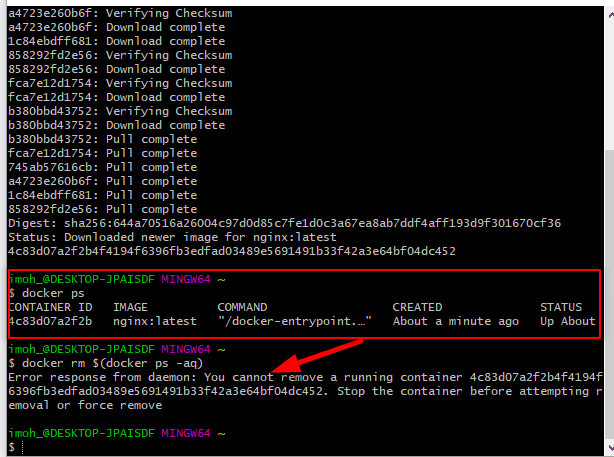
Now let’s go ahead and pull a container and run it then attempt to use the docker rm $(docker ps -aq) command again. Furthermore, run docker ps command to see the running Container and attempt to remove it again with the docker rm $(docker ps -aq) command.
From the screenshot below, we can see the there is an error message that the Container cannot be deleted because it is still in a running mode which means you need to stop the Container first before the docker rm $(docker ps -aq) command can work.
What if you want to force delete the Container even if it’s in the running mode? That’s if you say all I want is to delete the Container I really don’t care if it’s running or not 😊😊. Then, all you need to do is to just run:
docker rm –f $(docker ps –aq)
Running the above command will remove the running Container. Therefore, let’s confirm it with the screenshot below:

How to Name a Docker Container
While we’ve explored the essentials of stopping and removing containers, let’s delve into naming a docker container.
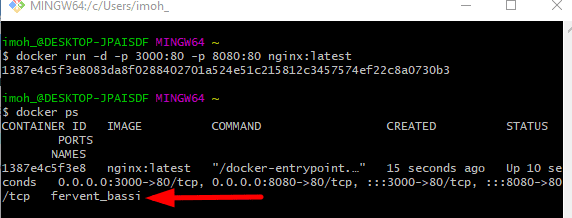
You can see from the screenshot above that we have the Container named as fervent_bassi. So usually, this is a random name that’s given to you if you don’t have a name but in reality, when you create your own container, you should give them a name so that you don’t rely on the Id nor the actual random name. So the way that you give a name to a container is simply by using a double dash (–) flag and then the word name.
To get started, let’s go ahead and fore remove the running Container with the docker rm –f $(docker ps –aq) command.
Now, let’s go ahead and run the exact command that we ran to get the Container running i.e. docker run -d -p 3000:80 -p 8080:80 nginx: latest and add the double dash (- -) name flag. To do so, we will run docker docker run –-name techdirectarchive_website -d -p 3000:80 -p 8080:80 nginx:latest
Now if we run docker ps, we can see that the name has changed from fervent_bassi. to techdirectarchive_website. Thus, see the screenshot below:

This makes it much easier for you to identify your Container. Trust me, if you always name your Containers because most likely you will be running multiple containers in your live production environment, it will make your life and the work very easy for you.
With this guide, stopping, removing and naming docker containers has become so easy. Thanks for reading👏


