
Skip to content

TechDirectArchive

Hands-on IT, Cloud, Security & DevOps Insights

  • Home
  • About
  • Advertise With US
  • Reviews
  • Contact
  • Toggle search form
Home » Windows » Create Task Manager Shortcuts: How to add access, pin the Task Manager on Windows 11
  • Laps in Windows
    How to Reset Services Restore Mode (DSRM) Password Windows Server
  • Password Migration to ICloud Keychain
    How to import your Chrome or Firefox passwords into your iCloud Keychain Mac
  • maxresdefault 2 2
    Fix Outlook Not Responding and Outlook Crashing or freezing Network | Monitoring
  • DockerEn
    How to Install and Upgrade Docker Engine From Binaries Containers
  • descargar jitsi meet 2 700x336 1
    How to setup and configure Jitsi as SoftPhone Network | Monitoring
  • Screenshot 2020 08 07 at 21.09.01
    Error 0x204: Unable to Connect to Remote PC [Part 2] Windows
  • Rport
    RPORT the free and open source remote management tool Linux
  • GitMarkdown
    Install Git on Windows: Practical Git use with markdown Version Control System

Create Task Manager Shortcuts: How to add access, pin the Task Manager on Windows 11
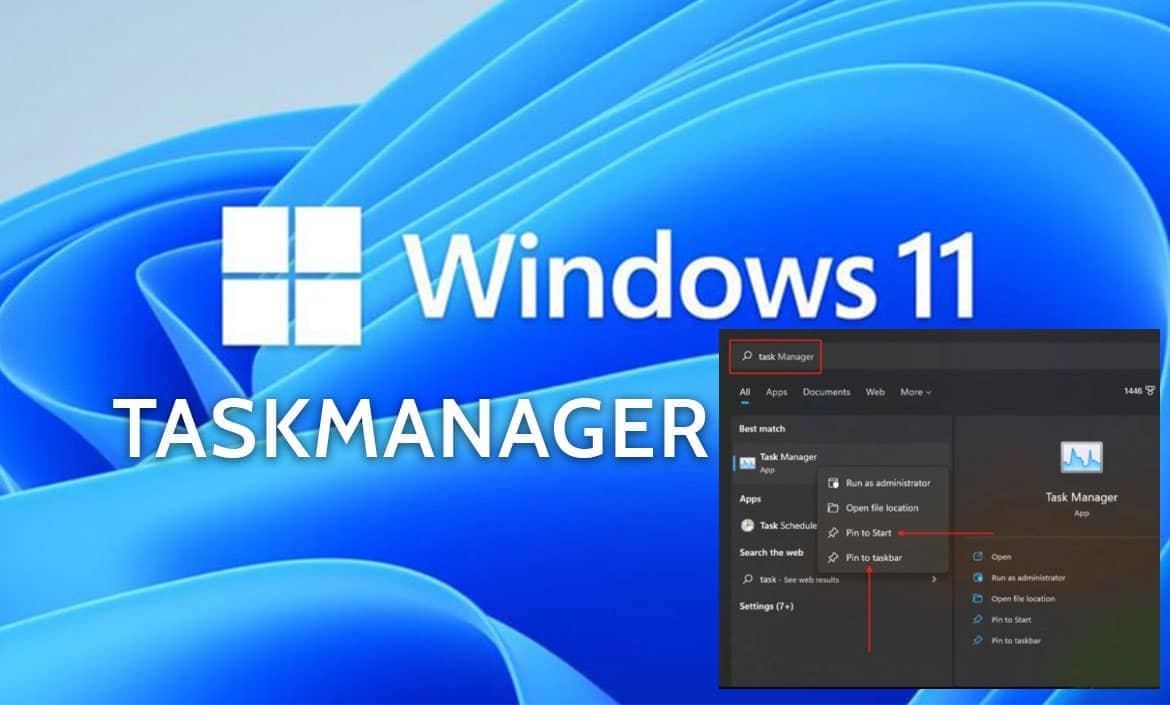
Posted on 05/11/202122/11/2023 Christian By Christian No Comments on Create Task Manager Shortcuts: How to add access, pin the Task Manager on Windows 11
Windows 11 task manager

The Task Manager popularly referred to as Windows Task Manager, is a task manager, system monitor, and startup manager included with Microsoft Windows systems. At the time of writing this guide, you cannot open the Task Manager in Windows 11 just by right-clicking on the Taskbar. This post will show you various ways to open Task Manager in Windows 11, and shall discuss how to “create Task Manager Shortcut on Windows”. Kindly refer to these related guides: Process Explorer: Replace built-in Task Manager, and how to enable and disable automatic startup in Windows 11.

The task mgr can be launched in any of the following ways. Via the “Run command, PowerShell, Command Prompt, and the File Explorer etc”. Kindly refer to these similar guides: Enable or disable startup programs: How to view or change programs that run on startup. How to stop Cisco Webex Meetings from starting up automatically on macOS, how to stop Zoom App from launching automatically at startup on Mac,

Add the Task Manager access to the Start menu or Taskbar

Since the Windows 10 taskbar isn’t accessible. We will find the Task Manager and pin it to the start menu or taskbar. To do this, please follow the steps below.

Open Start or use the search button as shown below. Search for Task Manager and click the best match (result) to open the app. Right-click the icon and select the Pin to taskbar or Start.

Task manger pin to Start - pin to taskbar

Here are some interesting articles: Various methods on how to launch Windows Task Manager. How to Launch macOS Activity Monitor (Task Manager) from the Utility and Terminal (Command Line), how to forcefully kill or stop a process in Windows, and how to view or change programs that run on startup.

Add the Task Manager shortcut to the Desktop

Most users are used to having shortcuts on their desktops. If you’re a user wanting the task manager item on your desktop, you’ve come to the right place. Kindly follow the below steps to do this.

Right-click a space on the desktop and select New
- And choose the Shortcut option in the submenu as shown below.
create Shortcut

This will open the shortcut wizard. If you are ok with the name “taskmgr.exe”, then click on Finish.

I wish to name it “Task Manager” and will click on Finish”

Type in Shortcut name
Click Finish

As you can see below, we have successfully created the Task Manager on the Desktop. Here is a related guide: manage automatic login on macOS: Fix username greyed out for automatic login. And start an application automatically on Mac.

Task Manger ShortCut is now available

To launch the Task Manager, double-click on it and you can see below. We have successfully created a shortcut on the desktop and can access the Task Manager from there.

double-click to Launch

I hope you found this blog post on Create Task Manager Shortcut on Windows on helpful. If you have any questions, please let me know in the comment session.

Rate this post

Thank you for reading this post. Kindly share it with others.

  • Share on X (Opens in new window) X
  • Share on Reddit (Opens in new window) Reddit
  • Share on LinkedIn (Opens in new window) LinkedIn
  • Share on Facebook (Opens in new window) Facebook
  • Share on Pinterest (Opens in new window) Pinterest
  • Share on Tumblr (Opens in new window) Tumblr
  • Share on Telegram (Opens in new window) Telegram
  • Share on WhatsApp (Opens in new window) WhatsApp
  • Share on Pocket (Opens in new window) Pocket
  • Share on Mastodon (Opens in new window) Mastodon
  • Share on Bluesky (Opens in new window) Bluesky
  • Share on Threads (Opens in new window) Threads
  • Share on Nextdoor (Opens in new window) Nextdoor
Windows Tags:Microsoft Windows, Task Manager, Windows 10, Windows Server 2016

Post navigation

Previous Post: Remove Xbox from automatic startup: How to enable and disable automatic startup in Windows 11
Next Post: How to end a program via the Task Manager in Windows 11

Related Posts

  • Feature image
    When Should I Use TPM or TPM + PIN Security | Vulnerability Scans and Assessment
  • Windows10 as a Service Waas
    Windows 10 Feature and Quality Updates Windows
  • command prompt powershell 670x335 1
    How to Start, Stop and Restart Windows Server Update WSUS Services via PowerShell and CMD Windows
  • winSEARCH
    Hide or Remove Search Button from Windows 10 Taskbar Windows
  • How to Enable High Dynamic Range on Windows 11
    How to Enable High Dynamic Range on Windows 11 Windows
  • Fix Boot Failed UEFI SCSI Device on HyperV
    How to Fix Boot Failed UEFI SCSI Device on HyperV Virtualization

More Related Articles

Feature image When Should I Use TPM or TPM + PIN Security | Vulnerability Scans and Assessment
Windows10 as a Service Waas Windows 10 Feature and Quality Updates Windows
command prompt powershell 670x335 1 How to Start, Stop and Restart Windows Server Update WSUS Services via PowerShell and CMD Windows
winSEARCH Hide or Remove Search Button from Windows 10 Taskbar Windows
How to Enable High Dynamic Range on Windows 11 How to Enable High Dynamic Range on Windows 11 Windows
Fix Boot Failed UEFI SCSI Device on HyperV How to Fix Boot Failed UEFI SCSI Device on HyperV Virtualization

Leave a Reply Cancel reply

You must be logged in to post a comment.

Microsoft MVP

VEEAMLEGEND

vexpert-badge-stars-5

Virtual Background

GoogleNews

Categories

veeaam100

sysadmin top30a

  • Laps in Windows
    How to Reset Services Restore Mode (DSRM) Password Windows Server
  • Password Migration to ICloud Keychain
    How to import your Chrome or Firefox passwords into your iCloud Keychain Mac
  • maxresdefault 2 2
    Fix Outlook Not Responding and Outlook Crashing or freezing Network | Monitoring
  • DockerEn
    How to Install and Upgrade Docker Engine From Binaries Containers
  • descargar jitsi meet 2 700x336 1
    How to setup and configure Jitsi as SoftPhone Network | Monitoring
  • Screenshot 2020 08 07 at 21.09.01
    Error 0x204: Unable to Connect to Remote PC [Part 2] Windows
  • Rport
    RPORT the free and open source remote management tool Linux
  • GitMarkdown
    Install Git on Windows: Practical Git use with markdown Version Control System

Subscribe to Blog via Email

Enter your email address to subscribe to this blog and receive notifications of new posts by email.

Join 1,831 other subscribers
  • RSS - Posts
  • RSS - Comments
  • About
  • Authors
  • Write for us
  • Advertise with us
  • General Terms and Conditions
  • Privacy policy
  • Feedly
  • Telegram
  • Youtube
  • Facebook
  • Instagram
  • LinkedIn
  • Tumblr
  • Pinterest
  • Twitter
  • mastodon

Tags

Active Directory AWS Azure Bitlocker Microsoft Windows PowerShell WDS Windows 10 Windows 11 Windows Server 2016

Copyright © 2025 TechDirectArchive


Loading Comments...
 

You must be logged in to post a comment.