Skip to content

TechDirectArchive

Hands-on IT, Cloud, Security & DevOps Insights

  • Home
  • About
  • Advertise With US
  • Reviews
  • Contact
  • Toggle search form
Home » Windows » Oracle VirtualBox: Installing Windows 11 without TPM Support
  • FixThunderboltissue
    Fix the Thunderbolt application is not in use and can be safely uninstalled Windows
  • VMware
    How to install Windows Server 2022 on VMware Workstation Virtualization
  • squid proxy feature
    How to Set Up and Configure a Squid Proxy Server Linux
  • create a Mapped Drive via GPO
    How to create a Mapped Drive via GPO Preferences Windows
  • banner 6
    How to Set a Static IP Address in Windows 11 Windows
  • Feature image DEP
    Disable Data Execution Prevention and determine that hardware DEP is available and configured Security | Vulnerability Scans and Assessment
  • plain blue background
    Request a certificate signing request in Windows using Microsoft Management Console Windows Server
  • Azure Backup For AKS
    How to protect Azure Kubernetes Service (AKS) with Azure Backup AWS/Azure/OpenShift

Oracle VirtualBox: Installing Windows 11 without TPM Support

Posted on 16/11/202124/07/2024 Imoh Etuk By Imoh Etuk 6 Comments on Oracle VirtualBox: Installing Windows 11 without TPM Support
Slide2-2

Windows 11 is in high demand by many who desire to have a feel of the amazing great features that come with it Oracle VirtualBox. To those who desired to do so and had their hope cut off when Microsoft released the official requirements for systems that can install Windows 11. In this article, we shall discuss installing Windows 11 without TPM Support. Please see How to Grant Local Admin Permissions to a Group [Part 1], and Security researchers bypass Windows Hello with fake fingerprints with Raspberry Pi 4.

This requirement also particularly requires that you have a system with TPM 2.0 support. But in a situation where your PC doesn’t have the supported TPM nor the processor that meets the official requirement.

You will definitely want to fall back to running Windows 11 on a Virtual Machine Manager solution like Oracle VirtualBox Manager. To get started, what you need is to download and install the Oracle VirtualBox.

It’s so unfortunate that even with the plan-B option, that is using the VirtualBox Manager, you will not still be able to run Windows 11 because the resources that are required by the VirtualBox to run Windows 11 are dependent on that of your host Machine.

So definitely, if your host machine doesn’t have the supported TPM you cannot install Windows 11 in VirtualBox because Oracle VirtualBox is yet to support TPM. I guess that might be done in the future which is not predictable right now!

Let’s Get started

Before I go on, you may likely want to upgrade your host system to Windows 11. In like manner, check out this guide on how to upgrade Windows 10 with an unsupported CPU and TPM 1.0 to Windows 11​.

Meanwhile, if you had recently upgraded your VirtualBox Manager v6.1.28 from v6.1.26 and got an error of your Oracle VirtualBox failing to launch, see the guide on how to fix “Failed to open session in VirtualBox to install Windows 11 Image” ​.

Now let’s do the real work for today. Having downloaded and installed your VirtualBox, do the following to create your Windows 11 VM. However, if you haven’t downloaded the Windows 11 ISO file.

Create a Windows 11 VM in Oracle VirtualBox

The steps to create a Windows 11 VM in Oracle VirtualBox are as follows:

Launch the VirtualBox, and Click on NEW. At this point, you will give your VM a name. Here, I name it Windows 11. Therefore, leave the version as 64-bits.
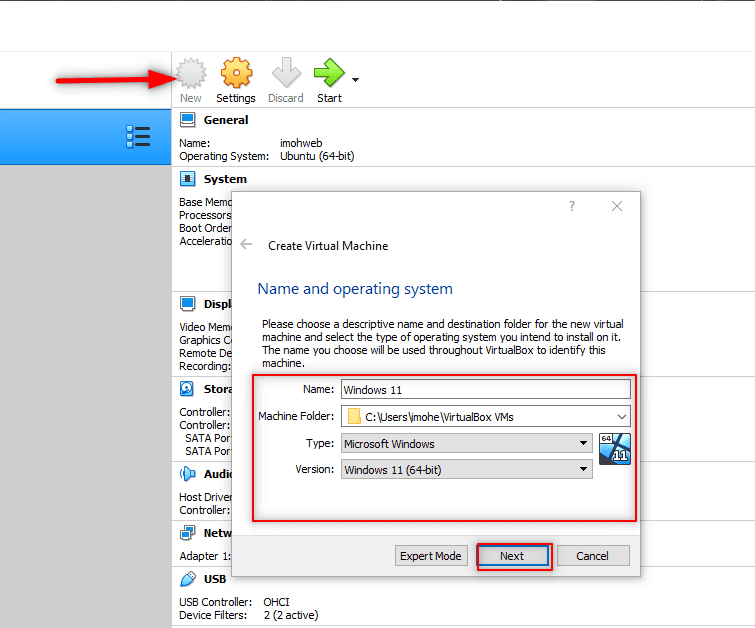
Oracle VM VirtualBox
Add Win11 ISO File

2. Click Next to set the Memory Size, bear in mind that the minimum required RAM size is 4096MB
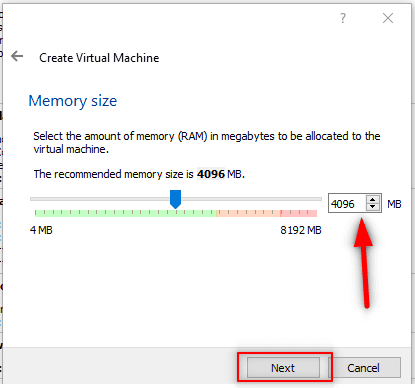
Oracle's VirtualBox
Set RAM Size

3. Click Next & Select the Create a Virtual hard disk now!

4. Click Create & Select the VDI (Virtual Disk Image) option and set it to Dynamically allocated and not Fixed size.

You can specify any size of virtual hard disk you wish but bear in mind that this will take from the size of your host PC hard disk. I will recommend 100GB. That’s what I’m using for this demonstration Oracle VirtualBox.
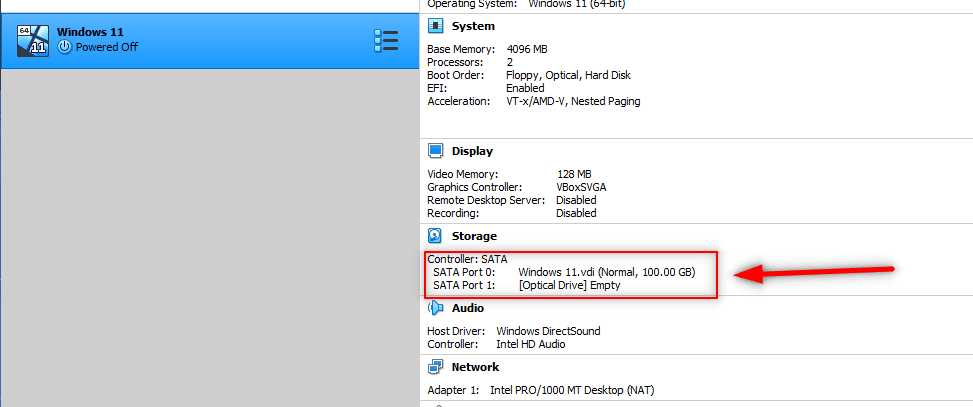
VirtualBox by Oracle
Windows 11 Virtual Machine Image Created

Mount Windows 11 ISO File Within Oracle VirtualBox

Now that we have successfully created the Windows 11 VM without starting it, let’s go over to the settings option within the Oracle VirtualBox to mount the Windows 11 ISO file we downloaded earlier. Follow the steps below to do so:

Click on Settings > Storage > Empty > Select the Live CD/DVD > Click the Disk Icon

Oracle's VM Virtualization
Mounting Win 11 ISO File

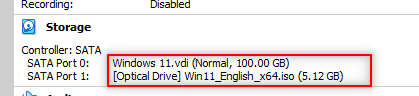
ISO-File-mounted
ISO File Mounted

As you can see the ISO file has been mounted. Next is for us to start the Virtual Machine by clicking on Start.

When you click Start to start the Virtual Machine, you will be prompted to press any KEY to boot from CD ROM just as you would while loading it on your host PC. The interface similar to the screenshot below will appear.

Oracle VM VirtualBox

Click Next

Oracle's VirtualBox
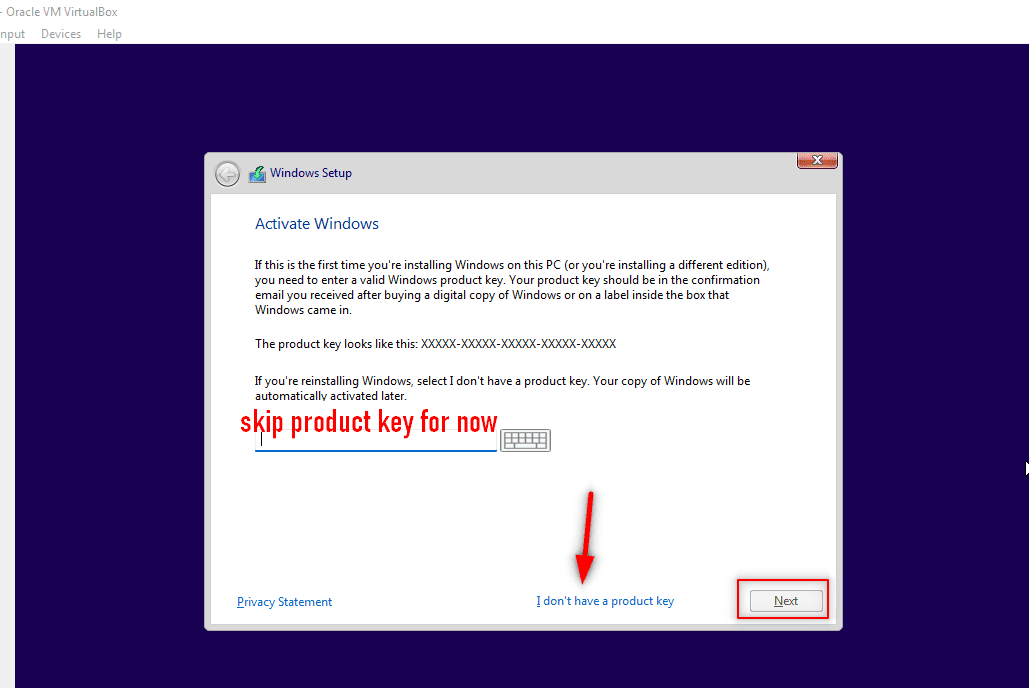
Product Key Screen

At this point, Click on I don't have a Product Key to take you to the next screen as shown below.
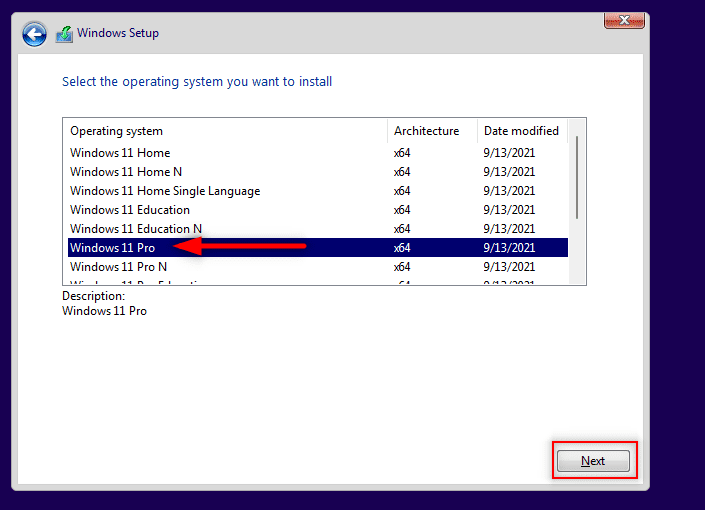
VirtualBox by Oracle
Select Windows 11 Pro

Select the version most desired for you. Here, we’re selecting Windows 11 Pro Oracle VirtualBox.

Doing so might make your excitement drop 🙄 as you will be shown the ‘This PC can’t run Windows 11’ notice on the next interface.

But you don’t have to worry that’s why this guide is here to put a smile on your face once again😂
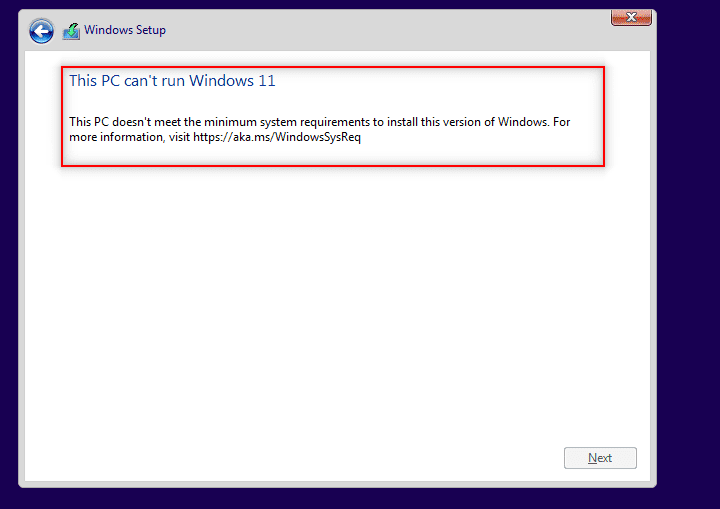
Oracle's VM Virtualization
Unsupported PC

Now what you need to do is power off the Virtual Machine.

Solve the Unsupported PC Problem by editing the Windows Registry Editor

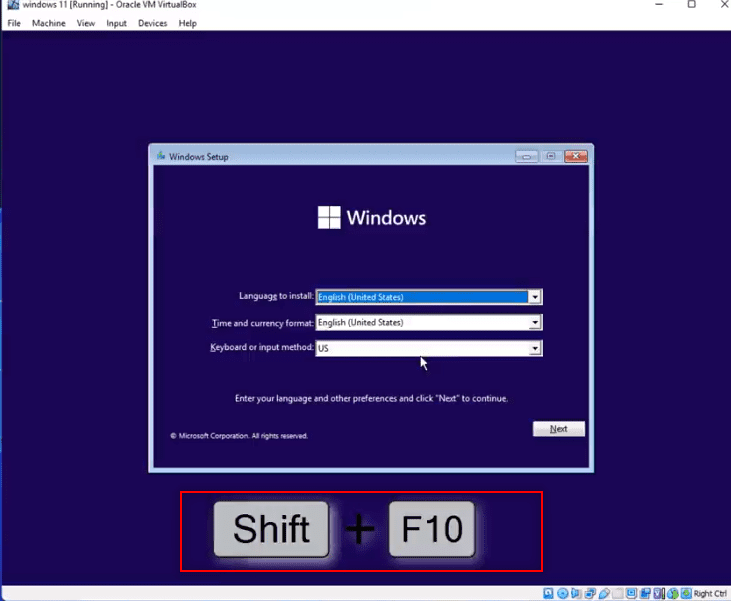
To solve this, start the Virtual Machine again. You should see a screen looking like the one we have before. But at this stage, press Shift + F10 as shown below. This will bring up the following Command Prompt (cmd) screen.
Shift-F10
Press Shift + F10

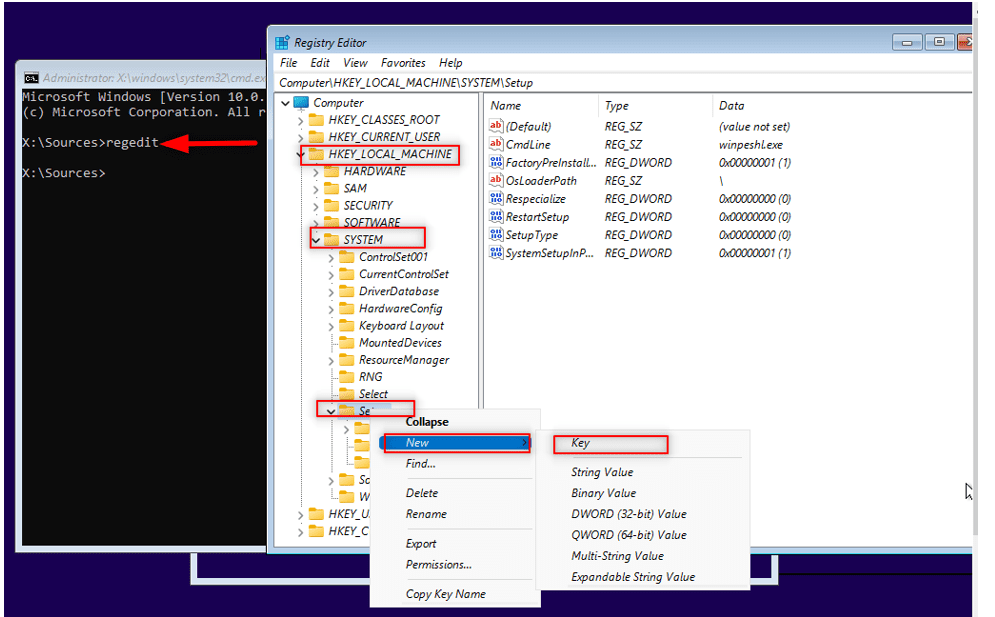
In the cmd screen, type regedit. Then, follow HKEY_LOCAL_MACHINE > System > Setup.
CMD-Regedit
Command Prompt Screen


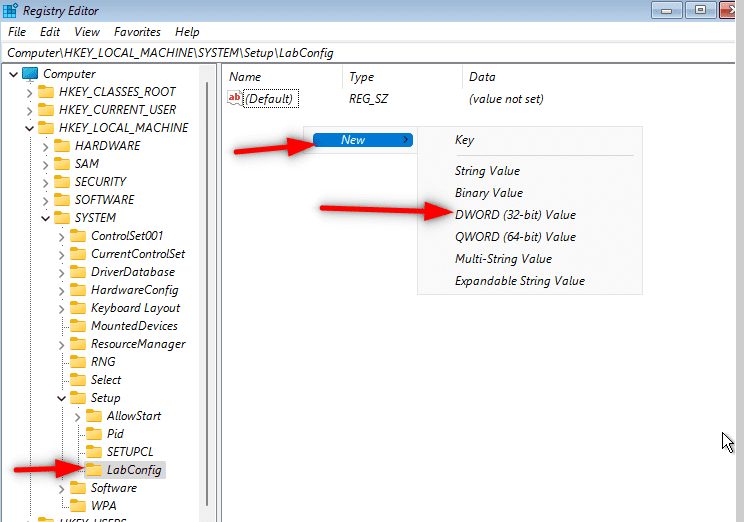
Next, Right-click on the Setup folder, and click New > Key give it a name as LabConfig. To that end, you need to type it exactly as stated here.
Labconfig
LabConfig

Next, select and double-click the LabConfig folder to open it. With the LabConfig folder open, click New > Dword (32-bit) Value.

Name it BypassSecureBootCheck. Following this, double-click the BypassSecureBootCheck and edit the value data.

Afterwards, replace the initial value which is zero (0) with 7 zeros and 1 (00000001) or just put 1 only, and click Okay Oracle VirtualBox.

Rename-Dword-Value-under-BypassSecureBootcheck
Rename

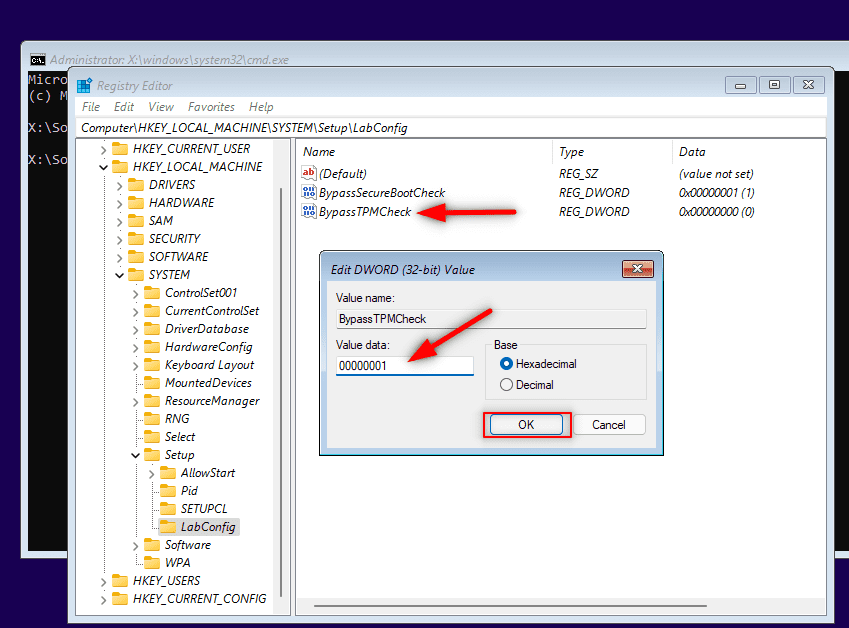
Secondly, we are going to create a new Dword (32-bit) value. Name it as BypassTPMCheck.

Furthermore, double-click it to rename the value to the same value as given in BypassSecureBootCheck i.e. 1 or 7 zeros and 1 (00000001)
BypassTPMCheck
BypassTPMCheck

We are now done with Registry Editor. Close both the Registry Editor and the Command Prompt, and continue with the installation Oracle VirtualBox.
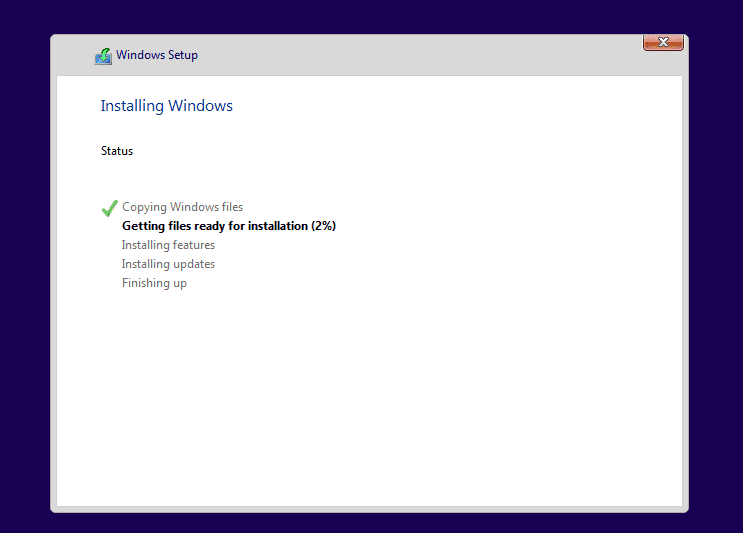
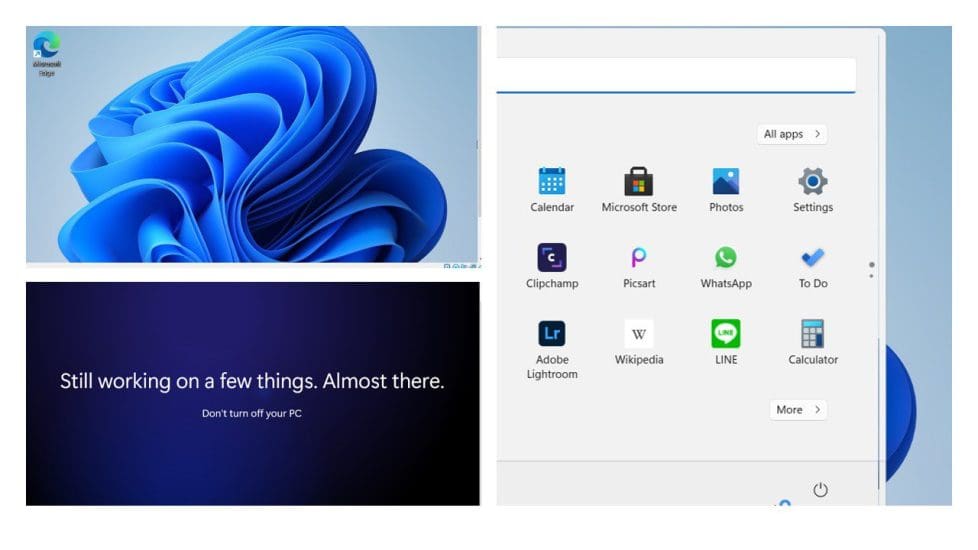
Setup-has-started
Windows 11 Setup Installation
Slide3
Final Windows 11 Screen

This time your smile 😂 is real because you have just succeeded in installing and running Windows 11 without TPM Support. Cheers and Congratulations!!👏

5/5 - (1 vote)

Thank you for reading this post. Kindly share it with others.

  • Click to share on X (Opens in new window) X
  • Click to share on Reddit (Opens in new window) Reddit
  • Click to share on LinkedIn (Opens in new window) LinkedIn
  • Click to share on Facebook (Opens in new window) Facebook
  • Click to share on Pinterest (Opens in new window) Pinterest
  • Click to share on Tumblr (Opens in new window) Tumblr
  • Click to share on Telegram (Opens in new window) Telegram
  • Click to share on WhatsApp (Opens in new window) WhatsApp
  • Click to share on Pocket (Opens in new window) Pocket
  • Click to share on Mastodon (Opens in new window) Mastodon
  • Click to share on Bluesky (Opens in new window) Bluesky
  • Click to share on Threads (Opens in new window) Threads
  • Click to share on Nextdoor (Opens in new window) Nextdoor
Virtualization, Windows Tags:Oracle VirtualBox, TPM, Windows 10, Windows 11

Post navigation

Previous Post: How to install LXC/LXD for container management
Next Post: Leave a Slack Workspace temporarily: How to deactivate a Slack workspace

Related Posts

  • kerberosdelegation
    Kerberos Delegation: A Comprehensive Guide Web Server
  • dd featured 1
    How to delete obsolete drivers from the Driver Store in Windows Windows
  • Extend C drive with additional Software
    Fix unable to Extend Volume on Windows protected by BitLocker Windows
  • Permission1
    How to create a Shortcut That enables Standard Users to run Applications as Administrator Windows
  • windows hello la gi
    All you need to know before deploying Windows Hello for Business Key and Certificate Trust Windows
  • Windows errors 1
    Check Windows Activation Status and troubleshoot activation errors Windows

More Related Articles

kerberosdelegation Kerberos Delegation: A Comprehensive Guide Web Server
dd featured 1 How to delete obsolete drivers from the Driver Store in Windows Windows
Extend C drive with additional Software Fix unable to Extend Volume on Windows protected by BitLocker Windows
Permission1 How to create a Shortcut That enables Standard Users to run Applications as Administrator Windows
windows hello la gi All you need to know before deploying Windows Hello for Business Key and Certificate Trust Windows
Windows errors 1 Check Windows Activation Status and troubleshoot activation errors Windows

Comments (6) on “Oracle VirtualBox: Installing Windows 11 without TPM Support”

  1. Avatar photo rogmen says:
    25/12/2021 at 3:16 AM

    Works fine! thx

    Log in to Reply
    1. E Imoh1 Imoh Etuk says:
      13/04/2022 at 11:52 AM

      I’m glad you found this useful!

      Log in to Reply
  2. Avatar photo Tech468 says:
    01/02/2022 at 8:18 PM

    This is a very nice description with the perfect amount of detail install Win 11 in Virtual Box without all the outrageous MS requirements for CPU & TPM. Not to mention the perfect screenshots that make it a breeze to follow you directions. Thank you!

    Log in to Reply
    1. E Imoh1 Imoh Etuk says:
      13/04/2022 at 11:53 AM

      Glad to hear this!

      Log in to Reply
  3. Avatar photo Super says:
    13/04/2022 at 1:42 AM

    Worked beautifully! Thanks!

    Log in to Reply
    1. E Imoh1 Imoh Etuk says:
      13/04/2022 at 11:53 AM

      I’m glad you found this useful!

      Log in to Reply

Leave a Reply Cancel reply

You must be logged in to post a comment.

Microsoft MVP

VEEAMLEGEND

vexpert-badge-stars-5

Virtual Background

GoogleNews

Categories

veeaam100

sysadmin top30a

  • FixThunderboltissue
    Fix the Thunderbolt application is not in use and can be safely uninstalled Windows
  • VMware
    How to install Windows Server 2022 on VMware Workstation Virtualization
  • squid proxy feature
    How to Set Up and Configure a Squid Proxy Server Linux
  • create a Mapped Drive via GPO
    How to create a Mapped Drive via GPO Preferences Windows
  • banner 6
    How to Set a Static IP Address in Windows 11 Windows
  • Feature image DEP
    Disable Data Execution Prevention and determine that hardware DEP is available and configured Security | Vulnerability Scans and Assessment
  • plain blue background
    Request a certificate signing request in Windows using Microsoft Management Console Windows Server
  • Azure Backup For AKS
    How to protect Azure Kubernetes Service (AKS) with Azure Backup AWS/Azure/OpenShift

Subscribe to Blog via Email

Enter your email address to subscribe to this blog and receive notifications of new posts by email.

Join 1,841 other subscribers
  • RSS - Posts
  • RSS - Comments
  • About
  • Authors
  • Write for us
  • Advertise with us
  • General Terms and Conditions
  • Privacy policy
  • Feedly
  • Telegram
  • Youtube
  • Facebook
  • Instagram
  • LinkedIn
  • Tumblr
  • Pinterest
  • Twitter
  • mastodon

Tags

AWS Azure Bitlocker Microsoft Windows PowerShell WDS Windows 10 Windows 11 Windows Deployment Services Windows Server 2016

Copyright © 2025 TechDirectArchive


Loading Comments...
 

You must be logged in to post a comment.