Skip to content

TechDirectArchive

Hands-on IT, Cloud, Security & DevOps Insights

  • Home
  • About
  • Advertise With US
  • Contact
  • Reviews
  • Toggle search form
Home » Windows » How to Fix “Insufficient System Resources Exist to Complete the Requested Service” error
  • image
    How to start HyperV VMs in safe mode Virtualization
  • 1 kajkbmlyehn0inifwrh 8w 1
    What to note when settings up Ansible to work with Kerberos Configuration Management Tool
  • How to install and configure a Standalone DNS Server
    How to Install and Configure a Standalone DNS Server Windows Server
  • chrome feature image light blue
    Set Chrome as default: How to set a browser as default on macOS Mac
  • erroradkupdate
    An error has occurred in the script on this page: HTA applications report a Script error after upgrading to ADK for Windows 11, version 22H2 Windows Server
  • Wingettool
    Install and Manage Applications with Winget Windows
  • WAMPServer Virtual Host
    How to create Virtual Hosts in a WAMPserver Web Server
  • Hyper V Virtual Switch
    How to Create Hyper-V Virtual Switch Network | Monitoring

How to Fix “Insufficient System Resources Exist to Complete the Requested Service” error

Posted on 14/12/202124/06/2023 Temitope Odemo By Temitope Odemo 2 Comments on How to Fix “Insufficient System Resources Exist to Complete the Requested Service” error
image-30

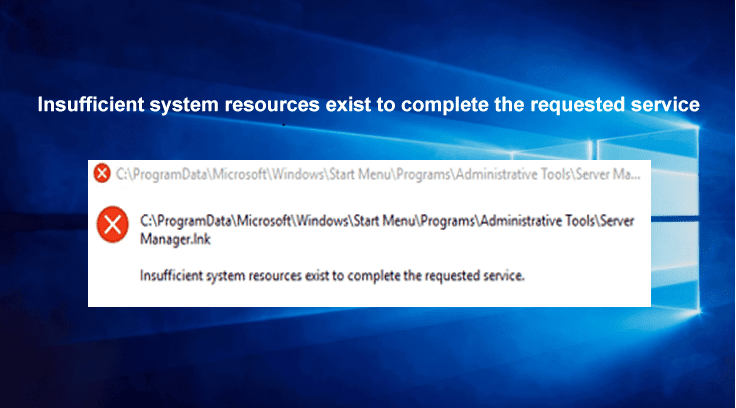
In this guide, I will show you How to Fix “Insufficient System Resources Exist to Complete the Requested Service” error message on your Windows Server or Windows 10 system. This issue is part of some usual errors that pop up on the Windows operating system. Do not be scared as there is a solution for it. Please see how similar errors were resolved: Error: Response code 50, LDAP insufficient access, and how to Backup existing and new BitLocker Recovery Keys to Active Directory. Also, see how to fix “Azure AD Connect Permission issue: Error 8344 insufficient access rights to perform the operation“.

Reason for the error “Insufficient System Resources Exist to Complete the Requested Service”

This occurs sometimes when you try to access a specific file or folder or you want to complete an installation or you try launching a program. Sometimes you can come back to your system and find the message after your system has been idle for some time.

image-23
Error Message

For more related Windows System errors you can check these How to fix the issue “The Security Database on the Server does not have a Computer Account for this Workstation Trust Relationship” on Windows Server [Part 2], How to Quickly Fix Windows Search Bar Not Working, How to fix the issue “The remote session was disconnected because there are no Remote Desktop License Servers available to provide a license”.

Fix Insufficient System Resources Exist Error

Sometimes just restarting, or closing some open programs via Task Manager to free up memory space can do the magic. But sometimes after trying all these the issue may still persist, then you will need to check the registry for possible solutions by trying the following steps.

Checking the Registry: Enter regedit in the Run and click Ok to enter the Registry editor.
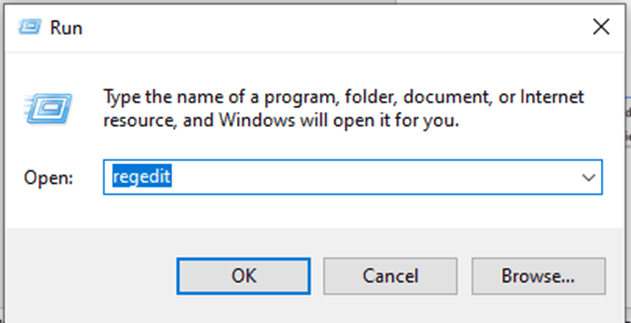
image-22
Checking the Registry

Now, navigate to the following path below. Please see Cannot find the computer: Fix the following error occurred while using Kerberos authentication.

image-24
Registry editor

Click on the Memory Management and right-click on the right-side panel and click on New > DWORD (32-bit) Value

image-25
Memory Management Registry

Set the name of the new DWORD as PoolUsageMaxmimum.
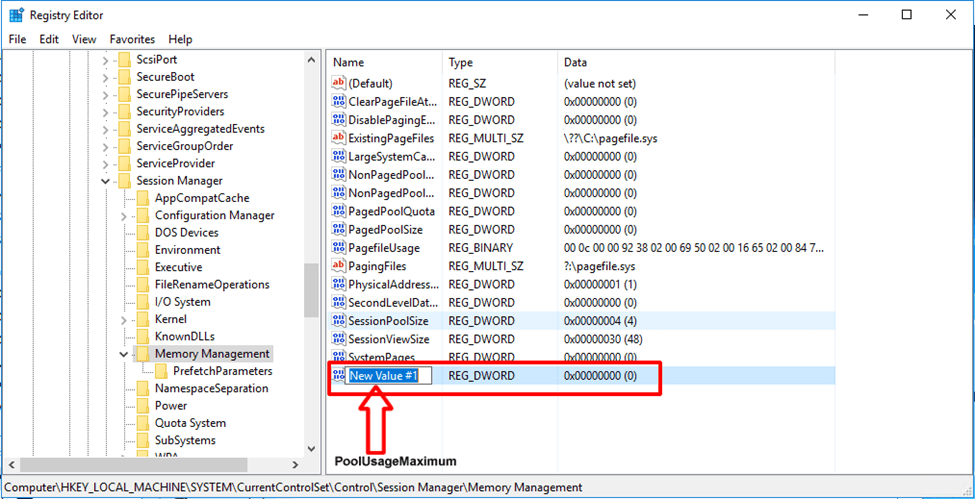
image-26
Setting New Value

Enter 60 into Value data box and select either Hexadecimal or Decimal

image-27
Setting new value for PoolUsageMaximum

In the PagedPoolSize enter ffffff into the Value data text field and click Ok
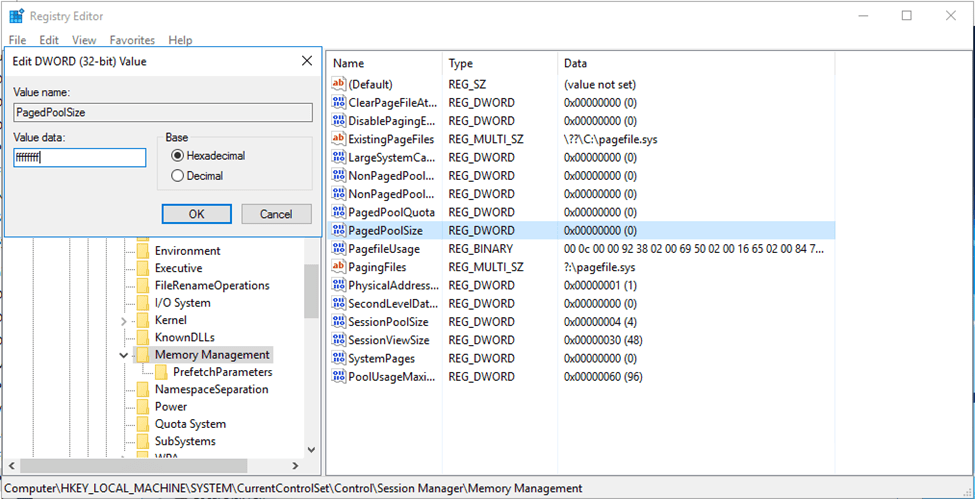
image-28
Setting new value for PagedPool Size

After following the above steps, you can now restart your system. You should be fine without the error message popping out again.

Please see how to fix This installation package could not be opened, Verify that the package exists and that you can access it. Also, see how to fix The following error occurred attempting to rename the computer Account already exists.

image-29
Restarting your Computer after new settings

I hope you found this blog post on how to Fix “Insufficient System Resources Exist to Complete the Requested Service” error very interesting and helpful. In case you have any questions do not hesitate to ask in the comment section.

Rate this post

Thank you for reading this post. Kindly share it with others.

  • Click to share on X (Opens in new window) X
  • Click to share on Reddit (Opens in new window) Reddit
  • Click to share on LinkedIn (Opens in new window) LinkedIn
  • Click to share on Facebook (Opens in new window) Facebook
  • Click to share on Pinterest (Opens in new window) Pinterest
  • Click to share on Tumblr (Opens in new window) Tumblr
  • Click to share on Telegram (Opens in new window) Telegram
  • Click to share on WhatsApp (Opens in new window) WhatsApp
  • Click to share on Pocket (Opens in new window) Pocket
  • Click to share on Mastodon (Opens in new window) Mastodon
  • Click to share on Bluesky (Opens in new window) Bluesky
  • Click to share on Threads (Opens in new window) Threads
  • Click to share on Nextdoor (Opens in new window) Nextdoor
Windows, Windows Server Tags:Windows 10

Post navigation

Previous Post: Download your MySQL database from Azure to a local PC with MySQL Workbench
Next Post: Enable or disable Secure Boot in Windows via UEFI Firmware Settings

Related Posts

  • maxresdefault
    How to stop Microsoft Edge from remembering your email ID Windows
  • screenshot 2020 03 07 at 22.25.21
    How to configure the FrontFace Lockdown Tool Windows
  • cv
    Add languages to Windows images using DISM and PowerShell Windows Server
  • screenshot 2020 02 13 at 22.47.41
    Active Directory Flexible Single-Master Operations Roles [FSMO] Windows Server
  • microsoft warns windows 10 cumulative update kb4494441 breaks down some websites 526066 2
    Launch an application automatically during startup on Windows Windows
  • Interactive logon Message for Users via Windows Registry
    Display logon banners for Windows PCs via Windows Registry Windows

More Related Articles

maxresdefault How to stop Microsoft Edge from remembering your email ID Windows
screenshot 2020 03 07 at 22.25.21 How to configure the FrontFace Lockdown Tool Windows
cv Add languages to Windows images using DISM and PowerShell Windows Server
screenshot 2020 02 13 at 22.47.41 Active Directory Flexible Single-Master Operations Roles [FSMO] Windows Server
microsoft warns windows 10 cumulative update kb4494441 breaks down some websites 526066 2 Launch an application automatically during startup on Windows Windows
Interactive logon Message for Users via Windows Registry Display logon banners for Windows PCs via Windows Registry Windows

Comments (2) on “How to Fix “Insufficient System Resources Exist to Complete the Requested Service” error”

  1. Avatar photo Roopanjali says:
    22/06/2023 at 10:04 AM

    What basically this registry is doing? And will it have any impact on the system?

    Log in to Reply
    1. chris Christian says:
      23/06/2023 at 8:56 AM

      TechDirectArchive is a reputable site providing solutions to IT issues “as is” without warranty.

      Log in to Reply

Leave a Reply Cancel reply

You must be logged in to post a comment.

Microsoft MVP

VEEAMLEGEND

vexpert-badge-stars-5

Virtual Background

GoogleNews

Categories

veeaam100

sysadmin top30a

  • image
    How to start HyperV VMs in safe mode Virtualization
  • 1 kajkbmlyehn0inifwrh 8w 1
    What to note when settings up Ansible to work with Kerberos Configuration Management Tool
  • How to install and configure a Standalone DNS Server
    How to Install and Configure a Standalone DNS Server Windows Server
  • chrome feature image light blue
    Set Chrome as default: How to set a browser as default on macOS Mac
  • erroradkupdate
    An error has occurred in the script on this page: HTA applications report a Script error after upgrading to ADK for Windows 11, version 22H2 Windows Server
  • Wingettool
    Install and Manage Applications with Winget Windows
  • WAMPServer Virtual Host
    How to create Virtual Hosts in a WAMPserver Web Server
  • Hyper V Virtual Switch
    How to Create Hyper-V Virtual Switch Network | Monitoring

Subscribe to Blog via Email

Enter your email address to subscribe to this blog and receive notifications of new posts by email.

Join 1,839 other subscribers
  • RSS - Posts
  • RSS - Comments
  • About
  • Authors
  • Write for us
  • Advertise with us
  • General Terms and Conditions
  • Privacy policy
  • Feedly
  • Telegram
  • Youtube
  • Facebook
  • Instagram
  • LinkedIn
  • Tumblr
  • Pinterest
  • Twitter
  • mastodon

Tags

AWS Azure Bitlocker Microsoft Windows PowerShell WDS Windows 10 Windows 11 Windows Deployment Services Windows Server 2016

Copyright © 2025 TechDirectArchive


Loading Comments...
 

You must be logged in to post a comment.