Skip to content

TechDirectArchive

Hands-on IT, Cloud, Security & DevOps Insights

  • Home
  • About
  • Advertise With US
  • Reviews
  • Contact
  • Toggle search form
Home » Windows » How to use Microsoft SQL Server Management Studio to Export and Import your MsSQL database from Azure to local computer
  • microsoft authenticator 1280x720 1
    How to setup Microsoft Authenticator Password Manager
  • dism failed errors windows thumbnail 1
    Error 0x800f0830: Discard the modified Image and start again, no operation was performed Windows Server
  • Featured image Two Factor Authentication
    Change Two-Factor Authentication in Microsoft 365/Office 365 Network | Monitoring
  • Featured image 3
    How to fix White Screen in Microsoft Teams Windows
  • banner 1
    How to Hide or Block Wi-Fi Networks on Windows Network | Monitoring
  • 1 WeXxkEX0JG3oB781HD8Hrg
    Error 0x204: Unable to Connect to Remote PC [Part 1] Windows Server
  • Watchguard Firewall 180504 100511 1
    WatchGuard Firebox: Restoring Backups on XTM Device Network | Monitoring
  • BitLocker 1
    Unable to install Microsoft Bitlocker Administration: Uninstall your current version of MBAM and run setup again Windows

How to use Microsoft SQL Server Management Studio to Export and Import your MsSQL database from Azure to local computer

Posted on 14/12/202125/08/2023 Temitope Odemo By Temitope Odemo No Comments on How to use Microsoft SQL Server Management Studio to Export and Import your MsSQL database from Azure to local computer
Export

Microsoft SQL Server Management Studio (SSMS) is an integrated environment where you can manage your SQL infrastructure. SSMS can be used to access, configure, manage, administer, and develop all components of SQL Server and Azure SQL Database. Microsoft SQL server management studio is a free software for public use and can be connected to any of your SQL server instances. MsSQL is a collection of tables that stores structured data in the form that contains a collection of rows that is referred to as records and columns that is referred to as attributes.

Here are some similar guides you can read: How to install Microsoft SQL Server Management Studio, How to uninstall Microsoft SQL Server Management Studio, How to download and install Microsoft SQL Server 2019 Express Edition and Microsoft Management Studio on Windows Server, How to uninstall Microsoft SQL Server on Windows 10 and Windows Server

Step-by-Step Guide: Exporting and Importing Azure Database to Local Computer

In this guide I will show you how to quickly export and import your database from Azure account to your local computer.

  • Login to your Azure Portal: https://portal.azure.com
  • Under Azure Services click SQL databases and select the Database you want to access.
Import
Open your MsSQL Database on Azure
  • Click Set server firewall and add your system IP to the firewall rule and Save.
Microsoft SQL Server Management Studio
Setting your Firewall rule on Azure
  • Download SSMS and install on your local system.
  • Copy the Server name and login name from the Azure portal and enter the valid password and connect to your Azure database.
Azure
Microsoft SQL Server Management Studio

Exporting Database

  • After you have connected right-click database. Click Tasks > Export Data-tier Application.
MsSQL database
Exporting Database
  • Select Save to local disk and browse to the location you want to export the data.
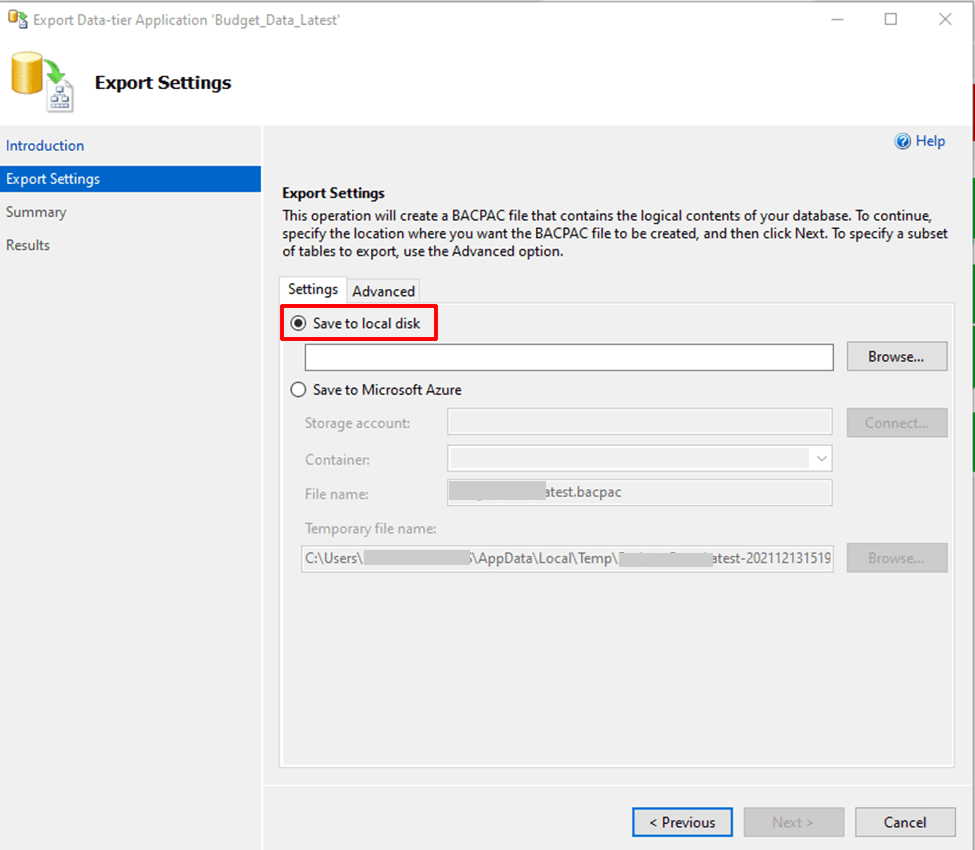
Export
Export Setting
  • Click on Next and you start exporting
image-5
Exporting Database

Importing Database

  • After you have connected right-click database and select Import Data-tier Application.
image-6
Importing Database
  • Select Import from local disk and browse to the location you have the database file you want to import.
image-7
Import Settings
  • Make sure you give the database a name, enter the edition, maximum database size and service objective.
image-8
Database settings
  • Importing of Database starts.
image-9
Importing Database

I hope you found this blog post on How to use Microsoft SQL Server Management Studio to Export and Import your MsSQL database from Azure to local computer very interesting and helpful. In case you have any questions do not hesitate to ask in the comment section.

Rate this post

Thank you for reading this post. Kindly share it with others.

  • Share on X (Opens in new window) X
  • Share on Reddit (Opens in new window) Reddit
  • Share on LinkedIn (Opens in new window) LinkedIn
  • Share on Facebook (Opens in new window) Facebook
  • Share on Pinterest (Opens in new window) Pinterest
  • Share on Tumblr (Opens in new window) Tumblr
  • Share on Telegram (Opens in new window) Telegram
  • Share on WhatsApp (Opens in new window) WhatsApp
  • Share on Pocket (Opens in new window) Pocket
  • Share on Mastodon (Opens in new window) Mastodon
  • Share on Bluesky (Opens in new window) Bluesky
  • Share on Threads (Opens in new window) Threads
  • Share on Nextdoor (Opens in new window) Nextdoor
AWS/Azure/OpenShift, Oracle/MSSQL/MySQL, Windows, Windows Server Tags:Database, Microsoft SQL, Microsoft SQL Server 2019 Express Edition, Microsoft SQL Server Management Studio, Microsoft SQL Server Studio

Post navigation

Previous Post: How to Solve “The parameter is incorrect” problem on External Hard Disk in Windows
Next Post: Download your MySQL database from Azure to a local PC with MySQL Workbench

Related Posts

  • Set a Resource Delete Lock
    How to Add a Delete Lock on Azure Resources AWS/Azure/OpenShift
  • BitLocker
    Unable to find my BitLocker Recovery Key in AD Windows
  • RDP
    The connection was denied because the user is not authorized for remote Login: Enable Remote Desktop Connection on Windows 11 for non-administrators or selected users Windows
  • VBAWS comprehensive guide
    Deep Dive into Protecting AWS EC2, RDS Instances and VPC AWS/Azure/OpenShift
  • Standby Mode
    Disable modern standby on Windows 10 and 11 Windows
  • delete5
    How to Delete Diagnostic Data in Windows 10 and Windows 11 Windows

More Related Articles

Set a Resource Delete Lock How to Add a Delete Lock on Azure Resources AWS/Azure/OpenShift
BitLocker Unable to find my BitLocker Recovery Key in AD Windows
RDP The connection was denied because the user is not authorized for remote Login: Enable Remote Desktop Connection on Windows 11 for non-administrators or selected users Windows
VBAWS comprehensive guide Deep Dive into Protecting AWS EC2, RDS Instances and VPC AWS/Azure/OpenShift
Standby Mode Disable modern standby on Windows 10 and 11 Windows
delete5 How to Delete Diagnostic Data in Windows 10 and Windows 11 Windows

Leave a Reply Cancel reply

You must be logged in to post a comment.

Microsoft MVP

VEEAMLEGEND

vexpert-badge-stars-5

Virtual Background

GoogleNews

Categories

veeaam100

sysadmin top30a

  • microsoft authenticator 1280x720 1
    How to setup Microsoft Authenticator Password Manager
  • dism failed errors windows thumbnail 1
    Error 0x800f0830: Discard the modified Image and start again, no operation was performed Windows Server
  • Featured image Two Factor Authentication
    Change Two-Factor Authentication in Microsoft 365/Office 365 Network | Monitoring
  • Featured image 3
    How to fix White Screen in Microsoft Teams Windows
  • banner 1
    How to Hide or Block Wi-Fi Networks on Windows Network | Monitoring
  • 1 WeXxkEX0JG3oB781HD8Hrg
    Error 0x204: Unable to Connect to Remote PC [Part 1] Windows Server
  • Watchguard Firewall 180504 100511 1
    WatchGuard Firebox: Restoring Backups on XTM Device Network | Monitoring
  • BitLocker 1
    Unable to install Microsoft Bitlocker Administration: Uninstall your current version of MBAM and run setup again Windows

Subscribe to Blog via Email

Enter your email address to subscribe to this blog and receive notifications of new posts by email.

Join 1,834 other subscribers
  • RSS - Posts
  • RSS - Comments
  • About
  • Authors
  • Write for us
  • Advertise with us
  • General Terms and Conditions
  • Privacy policy
  • Feedly
  • Telegram
  • Youtube
  • Facebook
  • Instagram
  • LinkedIn
  • Tumblr
  • Pinterest
  • Twitter
  • mastodon

Tags

Active Directory AWS Azure Bitlocker Microsoft Windows PowerShell WDS Windows 10 Windows 11 Windows Server 2016

Copyright © 2025 TechDirectArchive


Loading Comments...
 

You must be logged in to post a comment.