Skip to content

TechDirectArchive

Hands-on IT, Cloud, Security & DevOps Insights

  • Home
  • About
  • Advertise With US
  • Contact
  • Reviews
  • Toggle search form
Home » Windows » Download your MySQL database from Azure to a local PC with MySQL Workbench

Download your MySQL database from Azure to a local PC with MySQL Workbench

Posted on 14/12/202108/04/2023 Temitope Odemo By Temitope Odemo No Comments on Download your MySQL database from Azure to a local PC with MySQL Workbench
image-19

MySQL Database is a database service that you can run on your local server. And can also be on a cloud platform like Azure and AWS. MySQL is free to download. It can be used by both small and big corporate organizations to make use of structured query language (SQL). It has some advanced features and support is always available for any issues. The data in a MySQL database are structured and stored in tables. The table is a collection of related data, and it consists of columns and rows. MySQL Workbench is a visual database design tool that you can use to integrate SQL development, administration, database design, creation and maintenance into one integrated development environment (IDE). In this article, you will learn how to download your MySQL database from Azure to a local PC with MySQL Workbench.

Download your MySQL database from Azure to a local PC with MySQL Workbench

Firstly, you would need to download both MySQL Database and MySQL Workbench from https://dev.mysql.com/downloads and install them. Please see some exciting articles, How to delete a MySQL User Account. And how to Deploy WordPress on Azure App Service: How to install MySQL to work with Azure Database.

Launch the MySQL Workbench

After installing go ahead and launch the MySQL Workbench. For a related guide on MySQL read these articles. How to fix there is no connection to the MySQL Server, How to reset Mysql Root password. How to create and delete MySQL database, and how to access MySQL Server from command Prompt.

image-11
Workbench Connect to Database

Enter a name in the Stored Connection text box, and leave the connection method on Standard (TCP/IP).

Connect to the Azure Database for MySQL.

To get the Hostname, Username. Log in to your Azure account and click on Azure Database for MySQL. Then click on the MySQL database you want to connect to.
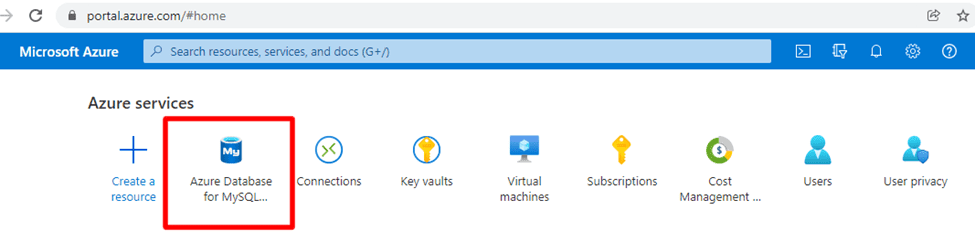
image-12
Microsoft Azure Portal

Copy the Server name and paste in the Hostname text field. Copy the Server admin login name and paste into the Username text field.

Click on the Connection security menu on the left. And add your system IP to be allowed access to Azure services.

image-13
Azure Database for MySQL server

Enter the password to access your database on Azure by clicking on the button Store in Vault

image-14
Inserting your Password

Input your valid password and click OK
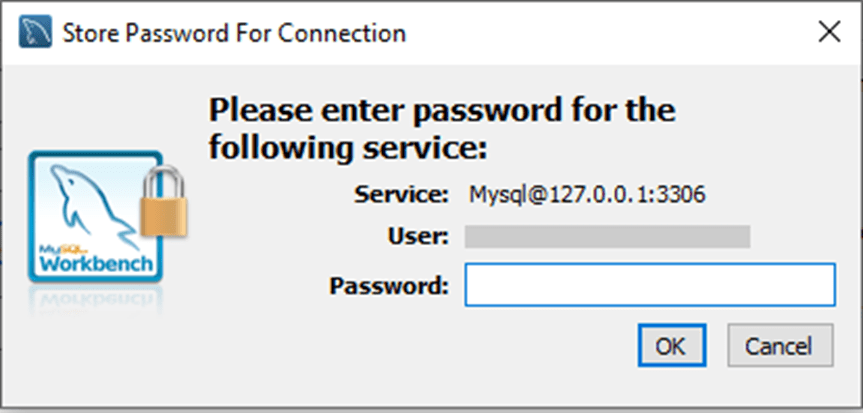
image-15
Store Password for Connection

If all goes well and you supplied valid credentials. Then you should be able to connect to your Azure MySQL Database.

Display the list of MySQL Databases

On the Query panel type show databases to display all the databases that exist.

image-16
MySQL Workbench

Export your Database

To start downloading or exporting your database. Click on Data Export. In the drop-down, you can select Dump Structure and Data. In the Objects to Export section, you can decide to check all.

Select the destination where you want your database to be located locally. And the method you want is either Export to Dump Project Folder or Export to Self-Contained File.

After all these click on Start Export.

image-17
Data Export

After all these click on Start Export and you will have your MySQL Database locally exported in no time.
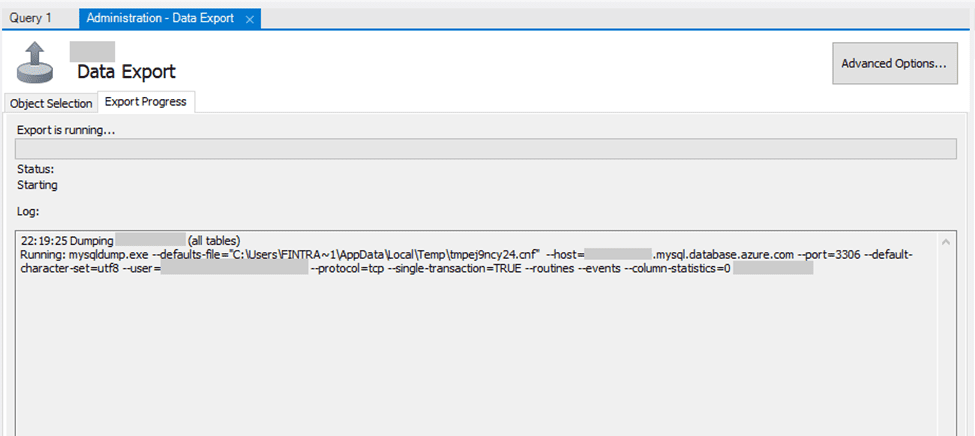
image-18
Data Export

I hope you found this blog post on how to download your MySQL database from Azure to a local PC with MySQL Workbench helpful. In case you have any questions do not hesitate to ask in the comment section.

Rate this post

Thank you for reading this post. Kindly share it with others.

  • Share on X (Opens in new window) X
  • Share on Reddit (Opens in new window) Reddit
  • Share on LinkedIn (Opens in new window) LinkedIn
  • Share on Facebook (Opens in new window) Facebook
  • Share on Pinterest (Opens in new window) Pinterest
  • Share on Tumblr (Opens in new window) Tumblr
  • Share on Telegram (Opens in new window) Telegram
  • Share on WhatsApp (Opens in new window) WhatsApp
  • Share on Mastodon (Opens in new window) Mastodon
  • Share on Bluesky (Opens in new window) Bluesky
  • Share on Threads (Opens in new window) Threads
  • Share on Nextdoor (Opens in new window) Nextdoor
AWS/Azure/OpenShift, Oracle/MSSQL/MySQL, Windows, Windows Server Tags:Azure, Database, MySQL, MySQL database, MySQL-server

Post navigation

Previous Post: How to use Microsoft SQL Server Management Studio to Export and Import your MsSQL database from Azure to local computer
Next Post: How to Fix “Insufficient System Resources Exist to Complete the Requested Service” error

Related Posts

  • hero activedirectory
    The following error occurred attempting to rename the computer Account already exists Windows Server
  • Missing ADML File
    Fix an appropriate resource file could not be found for LAPS Windows
  • screenshot 2020 04 22 at 23.28.23
    Remove saved RDP connections in Windows Windows
  • 1 kajkbmlyehn0inifwrh 8w
    How to install Kerberos packages with Cygwin on Windows Windows Server
  • How to Fix Scanning and Repairing Drive on Every Boot
    How to Fix Scanning and Repairing Drive on Every Boot Windows
  • featuredimage
    Create App Service Resource with Azure CLI AWS/Azure/OpenShift

More Related Articles

hero activedirectory The following error occurred attempting to rename the computer Account already exists Windows Server
Missing ADML File Fix an appropriate resource file could not be found for LAPS Windows
screenshot 2020 04 22 at 23.28.23 Remove saved RDP connections in Windows Windows
1 kajkbmlyehn0inifwrh 8w How to install Kerberos packages with Cygwin on Windows Windows Server
How to Fix Scanning and Repairing Drive on Every Boot How to Fix Scanning and Repairing Drive on Every Boot Windows
featuredimage Create App Service Resource with Azure CLI AWS/Azure/OpenShift

Leave a Reply Cancel reply

You must be logged in to post a comment.

Microsoft MVP

VEEAMLEGEND

vexpert-badge-stars-5

Virtual Background

GoogleNews

Categories

veeaam100

Veeam Vanguard

  • VBAWS comprehensive guide
    Deep Dive into Protecting AWS EC2, RDS Instances and VPC AWS/Azure/OpenShift
  • macOS
    How to upgrade macOS Big Sur to macOS Monterey Mac
  • banner
    How to Check and Reset Network Data Usage in Windows 11 Network | Monitoring
  • Distributed File System DFS
    All About Distributed File System Windows
  • Enale FIPS compliance mode on Windows
    How to enable FIPS mode on Windows Server Oracle/MSSQL/MySQL
  • Slide2 2
    Oracle VirtualBox: Installing Windows 11 without TPM Support Virtualization
  • powershell01
    WinRM and PSRemoting: Configure servers for remote access Scripts
  • screenshot 2020 04 22 at 23.28.23
    Remove saved RDP connections in Windows Windows

Subscribe to Blog via Email

Enter your email address to subscribe to this blog and receive notifications of new posts by email.

Join 1,811 other subscribers
  • RSS - Posts
  • RSS - Comments
  • About
  • Authors
  • Write for us
  • Advertise with us
  • General Terms and Conditions
  • Privacy policy
  • Feedly
  • Telegram
  • Youtube
  • Facebook
  • Instagram
  • LinkedIn
  • Tumblr
  • Pinterest
  • Twitter
  • mastodon

Tags

Active Directory Azure Bitlocker Microsoft Windows PowerShell WDS Windows 10 Windows 11 Windows Deployment Services Windows Server 2016

Copyright © 2025 TechDirectArchive


Loading Comments...
 

You must be logged in to post a comment.