Skip to content

TechDirectArchive

Hands-on IT, Cloud, Security & DevOps Insights

  • Home
  • About
  • Advertise With US
  • Reviews
  • Contact
  • Toggle search form
Home » AWS/Azure/OpenShift » How to enable Amazon S3 default bucket encryption using S3 Console
  • How To Upgrade Windows 11 Pro to Enterprise
    Upgrade Windows 11 Pro to Enterprise and vice Versa Windows
  • GitLab runner update and upgrade
    How to update Gitlab-runners on Windows Windows
  • Reduce VMDK dile defragment and compact
    Analyse Disks with Treesize: Defragment and Shrink VMware Workstation VM Disks Virtualization
  • sysprep
    SysPrep was unable to validate your Windows Installation Virtualization
  • Upgrade veeam Backup and replication
    How to upgrade Veeam Backup and Replication 12.3 Backup
  • cisco switches 2
    How to disable Spanning-Tree Globally Network | Monitoring
  • SQL Loves Linux 2 Twitter 002 640x358 1
    Install Microsoft SQL Server 2019 and MSSQL Command line tools on Ubuntu Linux Oracle/MSSQL/MySQL
  • BitLocker Protection off Update UEFI BIOS to fix issues
    BitLocker Protection off: Update UEFI/BIOS to fix issues Windows

How to enable Amazon S3 default bucket encryption using S3 Console

Posted on 20/12/202126/08/2023 Temitope Odemo By Temitope Odemo No Comments on How to enable Amazon S3 default bucket encryption using S3 Console
Amazon S3

In this guide, I will be showing you how to enable default encryption on an Amazon S3 bucket so that all the objects are encrypted when they are stored in the bucket. The objects are encrypted using server-side encryption with either Amazon S3-managed keys (SSE-S3) or AWS Key Management Service (AWS KMS) keys. But our focus in this guide will be on AWS KMS. For other related AWS topics you can read: How to manage cost with AWS Budgets, Creating IAM Users, Adding MFA and Policies on AWS, Hosting Static Website and Versioning on AWS S3, How to Deploy Dynamic Website to AWS EC2, How to Deploy MVC Application to AWS EC2 Using RDP Connection and Web Deploy.

A step-by-step process on how to create an S3 bucket is covered in this guide: How to deploy an Angular App to AWS S3

Furthermore, Log in to the AWS Management Console and open the Amazon S3 console:  https://console.aws.amazon.com/s3/

default bucket encryption
Login Page
  • However, from the Buckets list select the name of the bucket that you want to encrypt.
enable
Bucket List
  • Choose Properties
S3 Console
Bucket Overview
  • Scroll down to Default encryption, click on Edit
Amazon S3
Default Encryption
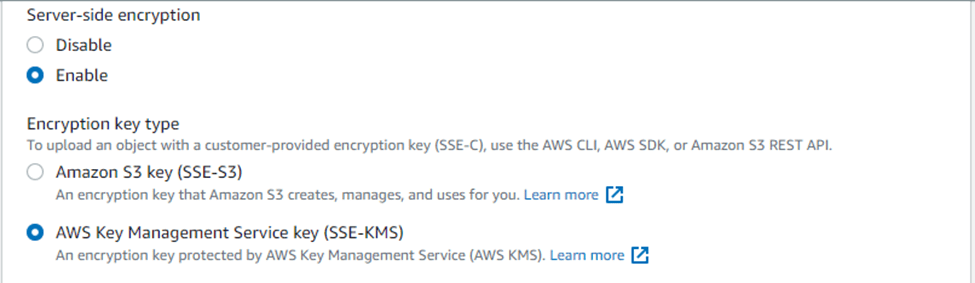
  • Moreover, In order to enable server-side encryption, select Enable
  • In addition, To enable server-side encryption, you can either choose the Amazon S3 key (SSE-S3) or the AWS Key Management Service key (SSE-KMS) under the Encryption key type. But in this guide, we will use the SSE-KMS Encryption key type.
S3 Console
AWS Key Management Service Key

Nonetheless, Under the AWS KMS key section, you can select any of the following:

  • AWS managed key (aws/s3)
  • Choose from your KMS root keys.
  • Enter KMS root key ARN.

Consequently, In this guide, we will select Choose from your AWS KMS Keys, and we will Create Key
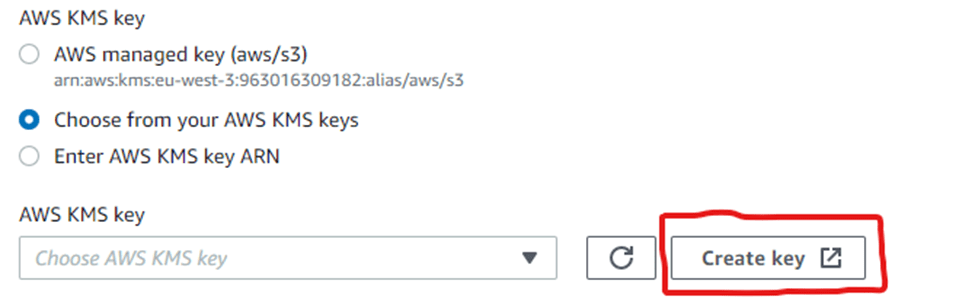
image-44
AWS KMS Key

Similarly, Click on the Create key button and select Symmetric, you can leave the Advanced options as it is.

image-45
Configuring the Key

Nevertheless, Enter the Alias and other sections are optional.
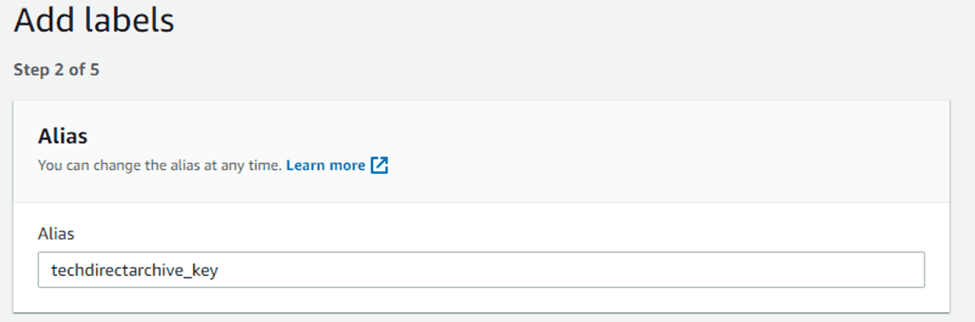
image-46
Adding Alias

Therefore, In the next section, you will need to define key administrative permissions like key administrators, and also you will need to define the critical usage permissions.

image-47
Key Configuration

Additionally, The key policy will be created by the time you click on the Finish button.

image-48
Key Policy

Key created below

image-49
Customer Managed Keys

Furthermore, Now select the key you created and under Bucket Key, choose Enable.

image-50
AWS KMS Key

Click Save Changes to Encrypt your S3 Bucket.

image-51
Bucket Overview

I hope you found this blog post on How to enable Amazon S3 default bucket encryption using S3 Console very interesting and helpful. In case you have any questions do not hesitate to ask in the comment section.

Rate this post

Thank you for reading this post. Kindly share it with others.

  • Click to share on X (Opens in new window) X
  • Click to share on Reddit (Opens in new window) Reddit
  • Click to share on LinkedIn (Opens in new window) LinkedIn
  • Click to share on Facebook (Opens in new window) Facebook
  • Click to share on Pinterest (Opens in new window) Pinterest
  • Click to share on Tumblr (Opens in new window) Tumblr
  • Click to share on Telegram (Opens in new window) Telegram
  • Click to share on WhatsApp (Opens in new window) WhatsApp
  • Click to share on Pocket (Opens in new window) Pocket
  • Click to share on Mastodon (Opens in new window) Mastodon
  • Click to share on Bluesky (Opens in new window) Bluesky
  • Click to share on Threads (Opens in new window) Threads
  • Click to share on Nextdoor (Opens in new window) Nextdoor
AWS/Azure/OpenShift Tags:AWS, AWS CLI, AWS s3, Encryption, s3

Post navigation

Previous Post: How to Fix “Unknown hard error” on Windows Server and Windows 10
Next Post: How to Configure Network Load Balancing on Windows Server

Related Posts

  • Deploy to ACI
    Create Azure Container instance to deploy your image to Azure using Azure CLI AWS/Azure/OpenShift
  • HYBRID BENEFITS FEATURE
    Azure Hybrid Use Cases and Benefits AWS/Azure/OpenShift
  • powershell01 3
    How to install and Update Azure PowerShell on your Windows PC AWS/Azure/OpenShift
  • azure logo
    Azure CLI commands: How to use Azure Command-line Interface AWS/Azure/OpenShift
  • image 11
    Setting Up your Amazon S3 Glacier and FastGlacier for Your Online Vault AWS/Azure/OpenShift
  • Screenshot 2024 02 09 at 1.06.54 PM
    Programmatically Deploying App Service Resources in Azure AWS/Azure/OpenShift

More Related Articles

Deploy to ACI Create Azure Container instance to deploy your image to Azure using Azure CLI AWS/Azure/OpenShift
HYBRID BENEFITS FEATURE Azure Hybrid Use Cases and Benefits AWS/Azure/OpenShift
powershell01 3 How to install and Update Azure PowerShell on your Windows PC AWS/Azure/OpenShift
azure logo Azure CLI commands: How to use Azure Command-line Interface AWS/Azure/OpenShift
image 11 Setting Up your Amazon S3 Glacier and FastGlacier for Your Online Vault AWS/Azure/OpenShift
Screenshot 2024 02 09 at 1.06.54 PM Programmatically Deploying App Service Resources in Azure AWS/Azure/OpenShift

Leave a Reply Cancel reply

You must be logged in to post a comment.

Microsoft MVP

VEEAMLEGEND

vexpert-badge-stars-5

Virtual Background

GoogleNews

Categories

veeaam100

sysadmin top30a
 
  • How To Upgrade Windows 11 Pro to Enterprise
    Upgrade Windows 11 Pro to Enterprise and vice Versa Windows
  • GitLab runner update and upgrade
    How to update Gitlab-runners on Windows Windows
  • Reduce VMDK dile defragment and compact
    Analyse Disks with Treesize: Defragment and Shrink VMware Workstation VM Disks Virtualization
  • sysprep
    SysPrep was unable to validate your Windows Installation Virtualization
  • Upgrade veeam Backup and replication
    How to upgrade Veeam Backup and Replication 12.3 Backup
  • cisco switches 2
    How to disable Spanning-Tree Globally Network | Monitoring
  • SQL Loves Linux 2 Twitter 002 640x358 1
    Install Microsoft SQL Server 2019 and MSSQL Command line tools on Ubuntu Linux Oracle/MSSQL/MySQL
  • BitLocker Protection off Update UEFI BIOS to fix issues
    BitLocker Protection off: Update UEFI/BIOS to fix issues Windows

Subscribe to Blog via Email

Enter your email address to subscribe to this blog and receive notifications of new posts by email.

Join 1,841 other subscribers
  • RSS - Posts
  • RSS - Comments
  • About
  • Authors
  • Write for us
  • Advertise with us
  • General Terms and Conditions
  • Privacy policy
  • Feedly
  • Telegram
  • Youtube
  • Facebook
  • Instagram
  • LinkedIn
  • Tumblr
  • Pinterest
  • Twitter
  • mastodon

Tags

AWS Azure Bitlocker Microsoft Windows PowerShell WDS Windows 10 Windows 11 Windows Deployment Services Windows Server 2016

Copyright © 2025 TechDirectArchive


Loading Comments...
 

You must be logged in to post a comment.