Skip to content

TechDirectArchive

Hands-on IT, Cloud, Security & DevOps Insights

  • Home
  • About
  • Advertise With US
  • Reviews
  • Contact
  • Toggle search form
Home » Mac » Bang and Olufsen Bluetooth connection: How to connect and remove Beoplay E8 3rd Generation to Mac
  • image
    How to find Computer Serial Number stated change to be filled by OEM Windows Server
  • Wingettool
    Install and Manage Applications with Winget Windows
  • PUA copy
    Enable or disable Reputation-Based Protection on Windows 10 and 11 Network | Monitoring
  • Screenshot 1
    Fix SMB Freezes That Break Backups on Critical Linux Servers Network | Monitoring
  • screensaver1
    Prevent Windows Users from Changing the Screen Saver via the Registry Settings Windows
  • Protect OOTBI
    Best Storage for Veeam: Comparing OOTBI by ObjectFirst to VHR Backup
  • MachineAccountQuota
    Change the number of MachineAccountQuota a user can add to AD Windows Server
  • Azure AD Logo
    Integrating on-premise AD with Azure Active Directory and MFA AWS/Azure/OpenShift

Bang and Olufsen Bluetooth connection: How to connect and remove Beoplay E8 3rd Generation to Mac

Posted on 01/01/202226/08/2023 Christian By Christian No Comments on Bang and Olufsen Bluetooth connection: How to connect and remove Beoplay E8 3rd Generation to Mac
Bang and Olufsen Bluetooth

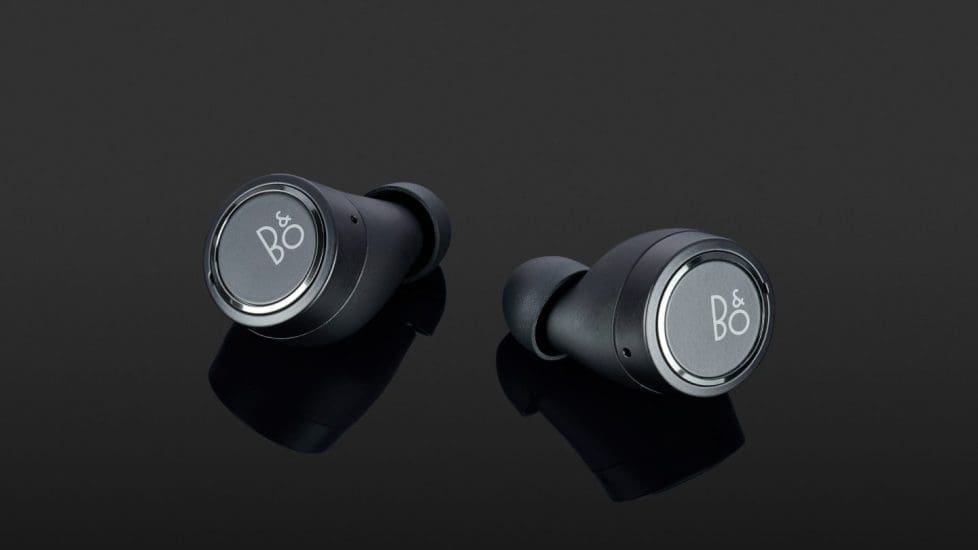
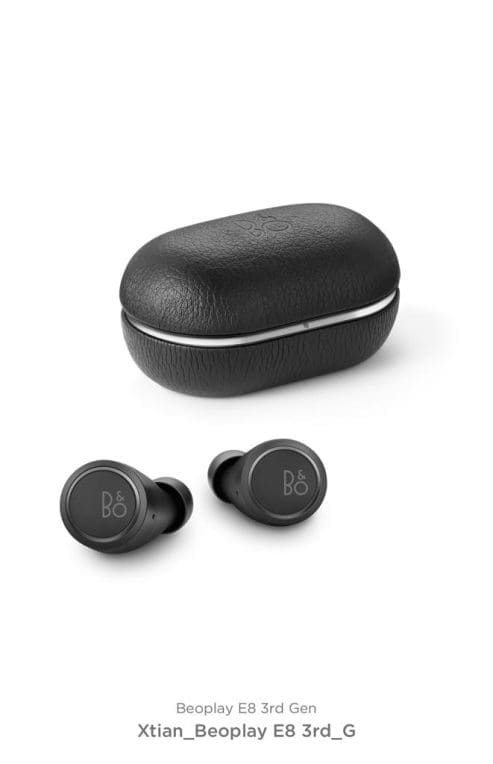
Bang & Olufsen is a Danish high-end consumer electronics company that designs and manufactures audio products, television sets, and telephones. Here is a brief comparison with their predecessors “The two in-ears have become a bit slimmer, and the charging case has also received a facelift because it looks a bit more elegant due to the rounder sides. Bang & Olufsen has also tweaked the battery life: the new E8 has around seven hours, the charging case (via USB-C or Qi charging mat) can charge the plug four more times. For comparison: the E8 2 Generation ran for about four hours, while the case only allowed three charges. The quick-charge function also deserves praise: While the manufacturer specifies 1.5 hours of playback time with a 20-minute charge, our test model only gave up after almost two hours and fifteen minutes at full volume”. Kindly refer to these related guides: How to remove a Bluetooth device and connect a new Bluetooth device to Macbook, How to fix Bluetooth not available on MacBook, and how to fix “you cannot open the Bluetooth preference pane because it is not available to you at this time“.

What remains of the predecessors, however, is the quality of the materials and their mix: the leather and aluminum are cleanly processed and look high-quality. You quickly notice that B&O wants to plug a well-designed piece of premium technology into our ears here.

Steps to connect your Beoplay E8 3rd Edition to MAC

Launch your Mac LaunchPad and access the System Preferences on your Mac
– Click on Bluetooth as shown below

Beoplay E8 3rd Generation

In the list of connected devices, please verify if Beoplay E8 3rd Gen is listed as an already paired device. If yes, just connect to it.
– As you can see, the device hasn’t been paired.

Connect

Beoplay E8 3rd Generation is powered on. To initiate pairing, touch and hold both earbuds simultaneously for 3-5 seconds, utilizing the seamless Bang and Olufsen Bluetooth connection. Let go once the right earbud is flashing blue (pairing mode).
– Shortly, the Beoplay E8 3rd Generation will appear as shown below.
– Click on Connect.

Screenshot-2022-01-02-at-19.47.23

As you can see below, I have successfully connected the Beoplay E8 3rd Generation to my Mac device.

Bang and Olufsen Bluetooth

App connection

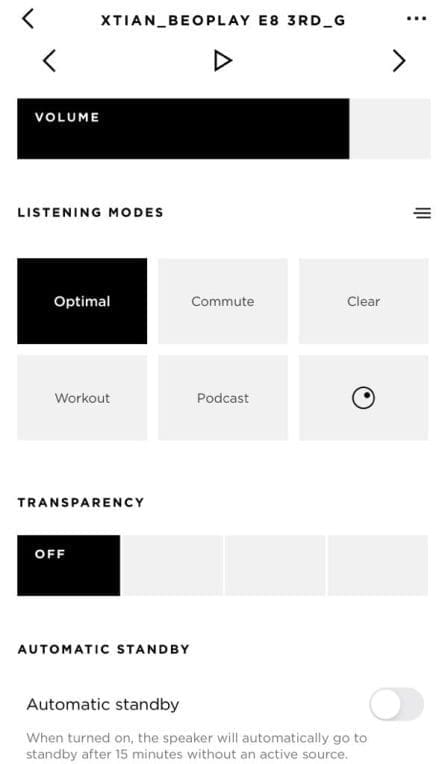
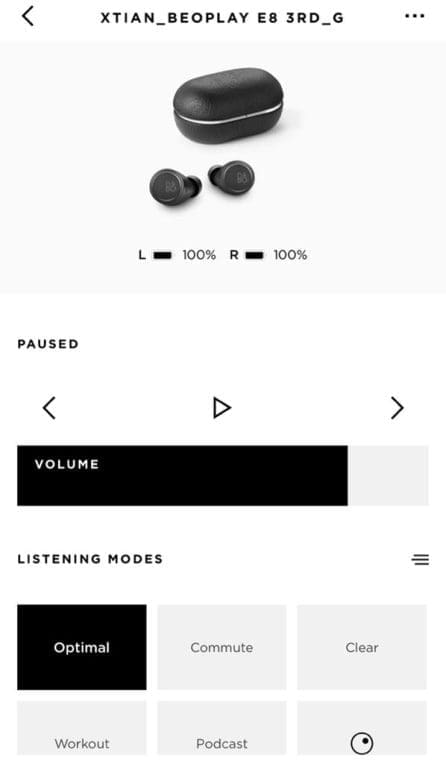
The free Bang & Olufsen app for iOS and Android has further configuration options. Below are the screenshots from my Bang&Olufsen iOS app. You can control playback here. The equalizer provides five presets from “Work-out” (less highs) to “Podcast” (less bass), which you can tweak and save on a matrix. You can also control the transparency mode, and this works with different intensities, with the music automatically pausing at the highest level. 
Bang-Olufsen_2
Bang-Olufsen
Beoplay E8 3rd Generation

It is pleasing here that the settings are transferred to the handset; when you change the playback device, your desired EQ curve and transparency level are retained. The app also offers the “automatic standby” function, which switches off the headphones after 15 minutes without a signal.

Remove Beoplay E8 3rd Gen

Select the device and click the “X” button on your Macbook to delete Beoplay E8 3rd Generation connection. Kindly refer to this related guide: How to remove a Bluetooth device and connect a new Bluetooth device to Macbook.

Remove

When you decide to remove the device, a confirmation prompt will appear. Just click “Remove” to eliminate it from your device. This process is seamlessly managed through the Bang and Olufsen Bluetooth connection.- And that is all needed to remove your old Bluetooth device from your MacBook.

Screenshot-2022-01-02-at-19.58.03

I trust you discovered value in this blog post. Feel free to inquire within the comments if you possess any queries regarding the Bang and Olufsen Bluetooth connection.

Rate this post

Thank you for reading this post. Kindly share it with others.

  • Share on X (Opens in new window) X
  • Share on Reddit (Opens in new window) Reddit
  • Share on LinkedIn (Opens in new window) LinkedIn
  • Share on Facebook (Opens in new window) Facebook
  • Share on Pinterest (Opens in new window) Pinterest
  • Share on Tumblr (Opens in new window) Tumblr
  • Share on Telegram (Opens in new window) Telegram
  • Share on WhatsApp (Opens in new window) WhatsApp
  • Share on Pocket (Opens in new window) Pocket
  • Share on Mastodon (Opens in new window) Mastodon
  • Share on Bluesky (Opens in new window) Bluesky
  • Share on Threads (Opens in new window) Threads
  • Share on Nextdoor (Opens in new window) Nextdoor
Mac Tags:macOS Monterey

Post navigation

Previous Post: How to Install a Windows Server Container Host
Next Post: How to Use Postman with the Amazon Pinpoint API

Related Posts

  • Ping 4
    Perform continuous ping on OSes and network Appliances Mac
  • Norton360
    Download and install Norton 360 Anti-Virus on your Mac device Mac
  • How To Remove Takeprize50.life Redirect From Mac unboxhow
    Remove unwanted site redirects or pop-ups from Google Chrome Mac
  • Prevent the downloads of apps without password on App store
    Download Apps without passwords on App Store Mac
  • Mendeley Cite with MSWord Issue resolved
    Mendeley Cite ECITE40001 Error: Fix issue using Microsoft Word Desktop application Mac
  • dropbox
    Couldn’t start Dropbox: How to fix and reinstall Dropbox Mac

More Related Articles

Ping 4 Perform continuous ping on OSes and network Appliances Mac
Norton360 Download and install Norton 360 Anti-Virus on your Mac device Mac
How To Remove Takeprize50.life Redirect From Mac unboxhow Remove unwanted site redirects or pop-ups from Google Chrome Mac
Prevent the downloads of apps without password on App store Download Apps without passwords on App Store Mac
Mendeley Cite with MSWord Issue resolved Mendeley Cite ECITE40001 Error: Fix issue using Microsoft Word Desktop application Mac
dropbox Couldn’t start Dropbox: How to fix and reinstall Dropbox Mac

Leave a Reply Cancel reply

You must be logged in to post a comment.

Microsoft MVP

VEEAMLEGEND

vexpert-badge-stars-5

Virtual Background

GoogleNews

Categories

veeaam100

sysadmin top30a

  • image
    How to find Computer Serial Number stated change to be filled by OEM Windows Server
  • Wingettool
    Install and Manage Applications with Winget Windows
  • PUA copy
    Enable or disable Reputation-Based Protection on Windows 10 and 11 Network | Monitoring
  • Screenshot 1
    Fix SMB Freezes That Break Backups on Critical Linux Servers Network | Monitoring
  • screensaver1
    Prevent Windows Users from Changing the Screen Saver via the Registry Settings Windows
  • Protect OOTBI
    Best Storage for Veeam: Comparing OOTBI by ObjectFirst to VHR Backup
  • MachineAccountQuota
    Change the number of MachineAccountQuota a user can add to AD Windows Server
  • Azure AD Logo
    Integrating on-premise AD with Azure Active Directory and MFA AWS/Azure/OpenShift

Subscribe to Blog via Email

Enter your email address to subscribe to this blog and receive notifications of new posts by email.

Join 1,834 other subscribers
  • RSS - Posts
  • RSS - Comments
  • About
  • Authors
  • Write for us
  • Advertise with us
  • General Terms and Conditions
  • Privacy policy
  • Feedly
  • Telegram
  • Youtube
  • Facebook
  • Instagram
  • LinkedIn
  • Tumblr
  • Pinterest
  • Twitter
  • mastodon

Tags

Active Directory AWS Azure Bitlocker Microsoft Windows PowerShell WDS Windows 10 Windows 11 Windows Server 2016

Copyright © 2025 TechDirectArchive


Loading Comments...
 

You must be logged in to post a comment.