How to Activate and Press Ctrl+Alt+Del in Anydesk for Remote Access Connection to Windows system


In this article, you shall learn how to activate and Press Ctrl+Alt+Del in Anydesk for Remote Access Connection. Every support engineer knows the benefit of Anydesk application which is used for remote support connection. But it can really be difficult if you cannot connect to a remote system when the user of the system is not available to assist you with anything like bringing up the login screen to enter the username and password. Please see How to install AnyDesk on a Linux Machine, and how to Install AnyDesk on Windows for remote Connections.
One of the issues that could occur is if you are trying to Ctrl + Alt + Del in on the system and you are finding it really hard for the system to respond simply because you have not activated that function on the Anydesk application. So make sure you follow the below steps to activate these key functions on Anydesk for Remote Access Connection for both your system and the client.
If you need more guides on issues surrounding Windows system and remote control you can read these: How to Fix “Insufficient System Resources Exist to Complete the Requested Service” error, and How to fix the issue “The Security Database on the Server does not have a Computer Account for this Workstation Trust Relationship” on Windows Server [Part 2].
Activating Ctrl + Alt + Del for Anydesk
The image below shows Ctrl + Alt + Del not activated and making it really hard to do anything on the system.

Launch Anydesk click on the four short lines at the right top corner and select Settings.

Also see how to Quickly Fix Windows Search Bar Not Working, Windows Out Of Box Experience: OOBESETTINGSMULTIPLEPAGE error on Windows 10. Here is how to fix Windows cannot connect to the printer: Operation Failed with error 0x000004f8.
Click on Security and under Permission Profile > Control my device’s keyboard and mouse. Check the option Ctrl + Alt + Del.

Now confirm if the Ctrl + Alt + Del is now active on the remote desktop control screen and click on it.

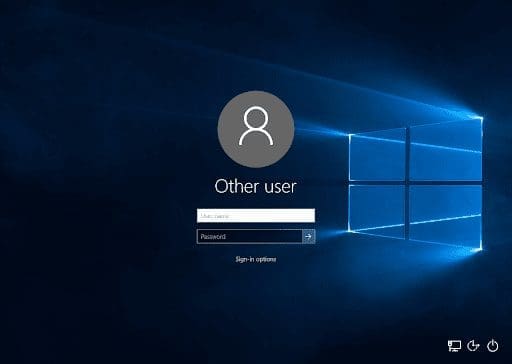
After clicking the Ctrl + Alt + Del the login screen pops up. Then you can log in to the system and you can continue to remote to the system.

You may want to see How to Fix “Unknown hard error” on Windows Server and Windows 10. How to Resolve Microsoft RDP Connection Black Screen, and Error 0x204: How to fix Remote Desktop Connection issues.
I hope you found this blog post on how to activate and Press Ctrl+Alt+Del in Anydesk for Remote Access Connection very helpful. In case you have any questions do not hesitate to ask in the comment section.


There is no Permission Profile in my version 6.1.1 on Linux Mint so unable to enable ctrl+al+del.
It Worked Man Thanks Alot Bro.
You are welcome. Thanks for the feedback